> ## Documentation Index
> Fetch the complete documentation index at: https://docs.envzero.com/llms.txt
> Use this file to discover all available pages before exploring further.
# Bulk Operations
> Deploy, destroy, lock, or run tasks on multiple env zero environments at once, selecting environments within a project or across projects from the dashboard.
env zero's bulk operations feature is designed to simplify your workflow as your organization grows and your projects expand to multiple environments. With bulk operations, you can perform actions simultaneously on numerous environments, saving time and effort.
## Running a Bulk Operation
### Running a bulk operation in a specific project:
1. Go to your `Project Environments` page.
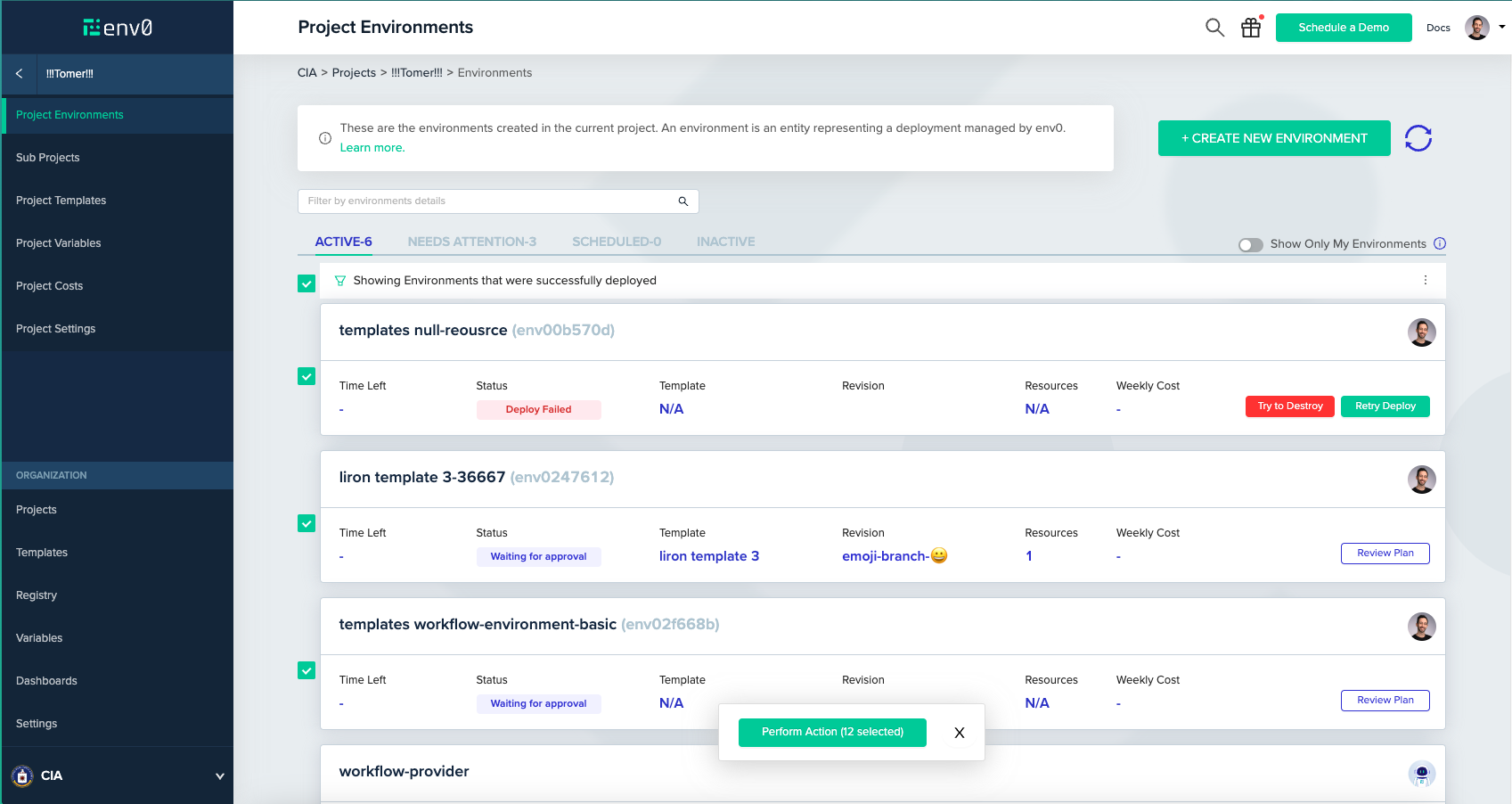
2. Click the kebab menu button at the top right of the list and select `Toggle selection mode`.
3. Choose the environments you want to include in the operation and click `Perform Action`.
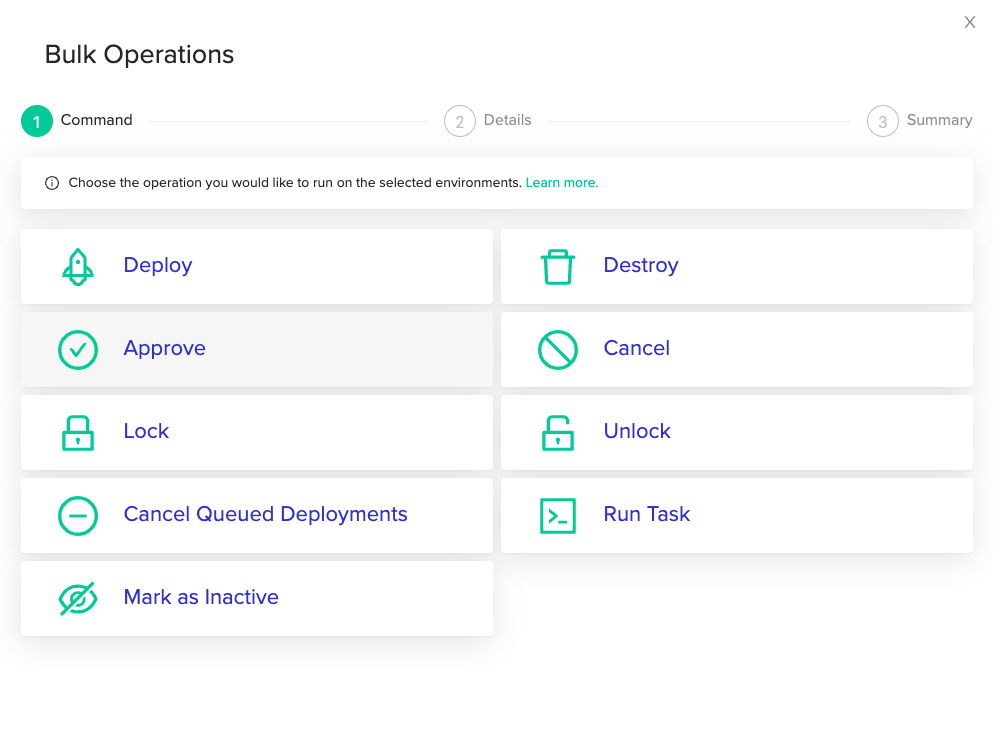
 4. The bulk operations wizard will appear, allowing you to select the operation you wish to execute. Supported operations include deploy and destroy, approval flow management, environment locking and unlocking, canceling queued deployments, running ad-hoc tasks, and marking as inactive.
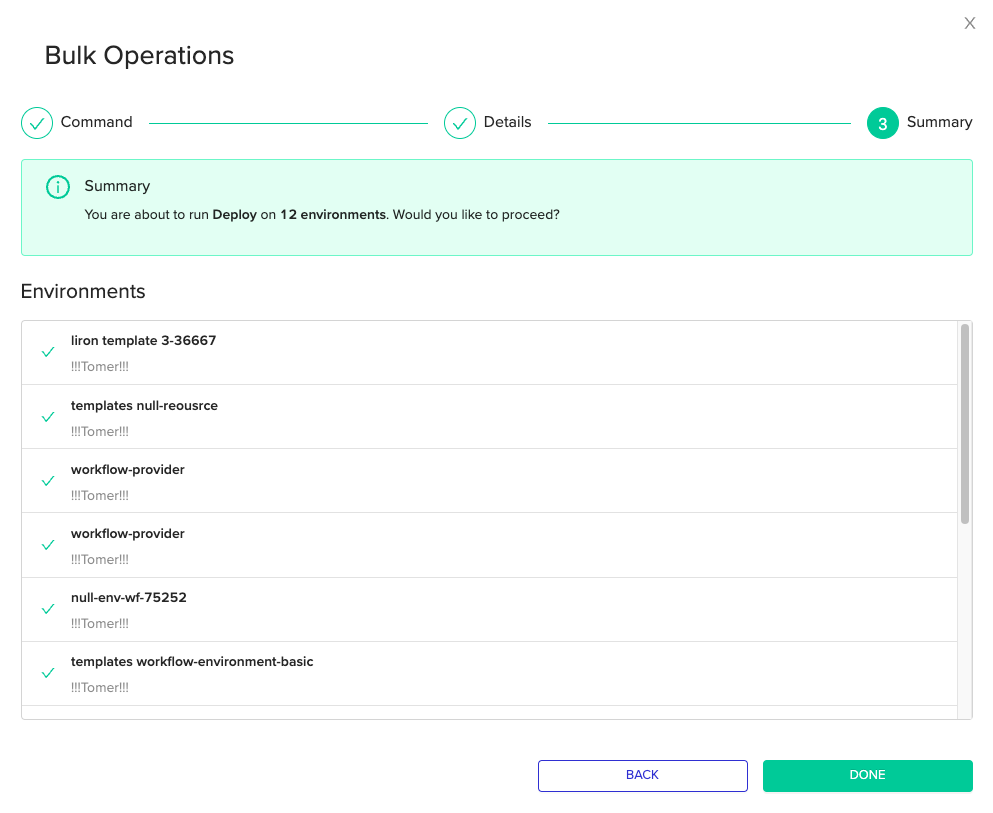
 5. For certain operations like `Deploy`, you can customize request settings on the `Details` step. If there's nothing to edit, you'll proceed directly to the `Summary` step.
6. In the `Summary` step, review, and approve your operation. Click `Done` to initiate the bulk operation.
5. For certain operations like `Deploy`, you can customize request settings on the `Details` step. If there's nothing to edit, you'll proceed directly to the `Summary` step.
6. In the `Summary` step, review, and approve your operation. Click `Done` to initiate the bulk operation.
 Your first bulk operation is in progress.
### Cross-Project Bulk Operations:
To run a cross-project bulk operation:
1. Go to your `Dashboards` page
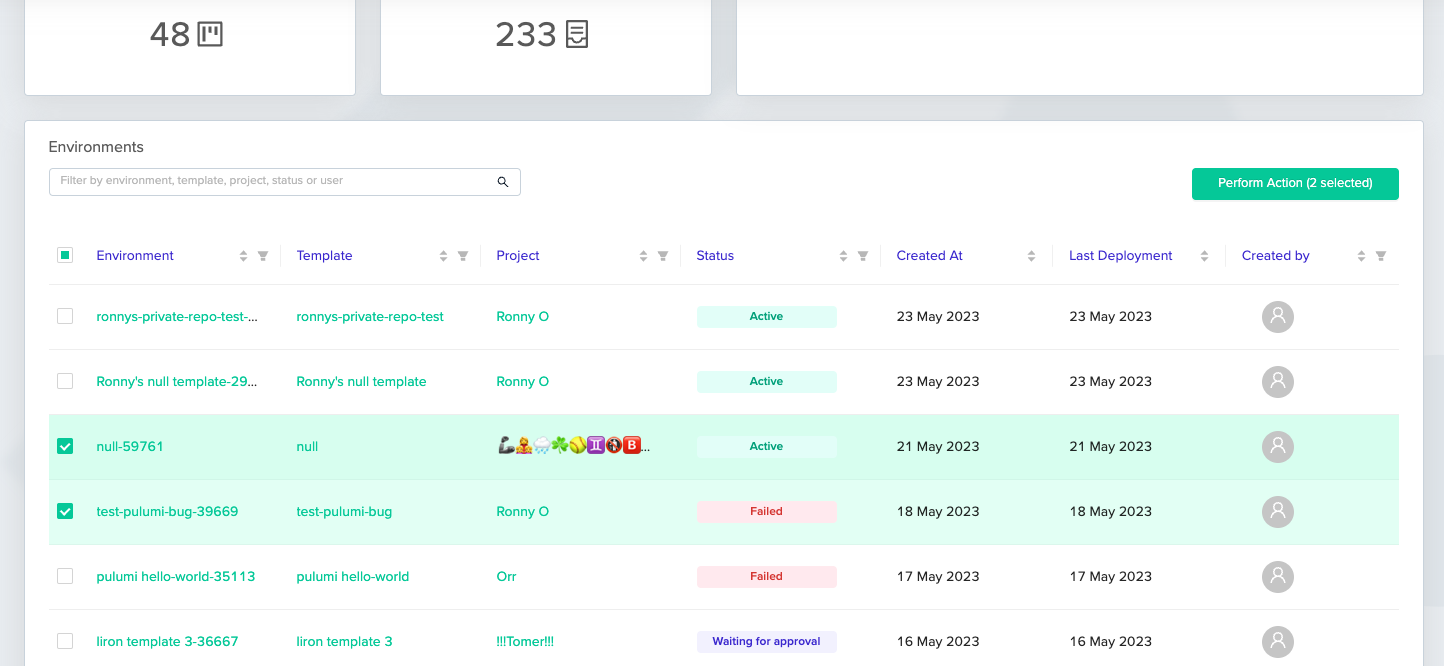
2. Choose the environments you want to include in the operation in the `Environments` widget, and click `Perform Action` in the top right corner:
Your first bulk operation is in progress.
### Cross-Project Bulk Operations:
To run a cross-project bulk operation:
1. Go to your `Dashboards` page
2. Choose the environments you want to include in the operation in the `Environments` widget, and click `Perform Action` in the top right corner:
 3. Follow instructions 4-6 at "To run a bulk operation in a specific project".
Want to learn more? Check [our docs](/guides/admin-guide/environments/bulk-operations).
3. Follow instructions 4-6 at "To run a bulk operation in a specific project".
Want to learn more? Check [our docs](/guides/admin-guide/environments/bulk-operations).