> ## Documentation Index
> Fetch the complete documentation index at: https://docs.envzero.com/llms.txt
> Use this file to discover all available pages before exploring further.
# Native Kubernetes Authentication
> Set up Kubernetes authentication natively in env zero using kubeconfig, AWS EKS, Azure AKS, or GCP GKE credentials with per-project cluster access control.
As env0 supports various Infrastructures as code frameworks, each one has its own way of handling authentication in different ways. For Kubernetes, the authentication requires specific configuration. env zero adds native support to set up Kubernetes configuration via `kubeconfig`, `AWS EKS`, `Azure AKS` and `GCP GKE` credentials!
This also means that you can control the authentication to a specific cluster based on the project settings.
## Set Up Kubernetes Credentials
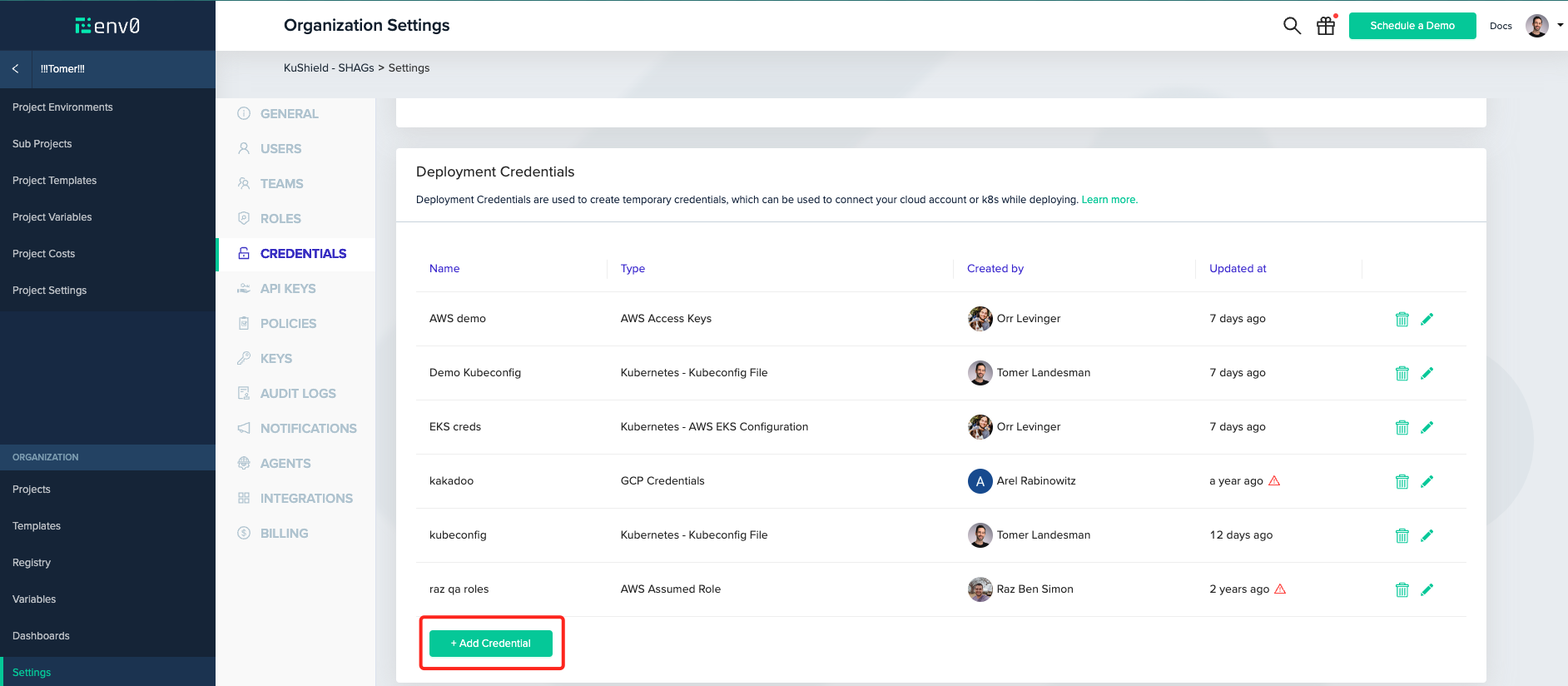
Navigate into `Organization Settings > Credentials`.
Under `Deployment Credentials`, click the `+ Add Credential` button.
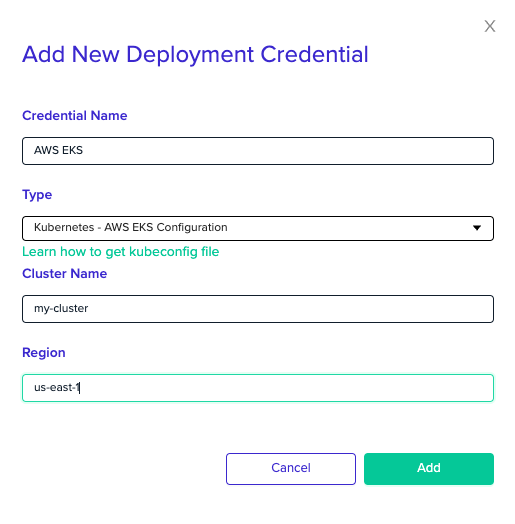
 Inside the opened modal, select the desired Kubernetes Cluster authentication method you like.
Select the `Kubernetes - ` credential from the `Type` dropdown:
Inside the opened modal, select the desired Kubernetes Cluster authentication method you like.
Select the `Kubernetes - ` credential from the `Type` dropdown:
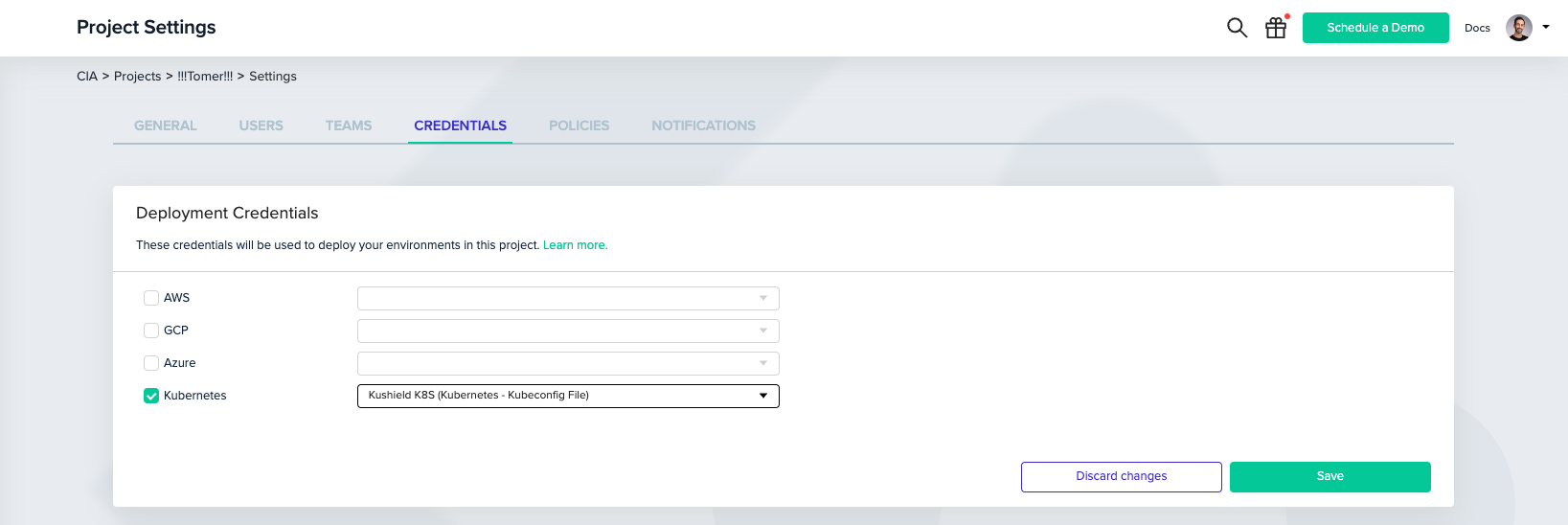
 Next, You'll need to associate the created credential with your project.
In your `Project Settings`, click `Credentials`. Then, check the `Kubernetes` checkbox and select your created credential from the dropdown.
Next, You'll need to associate the created credential with your project.
In your `Project Settings`, click `Credentials`. Then, check the `Kubernetes` checkbox and select your created credential from the dropdown.
 Lean more by reading our [docs](/guides/getting-started/connect-your-cloud-account#kubernetes)