> ## Documentation Index
> Fetch the complete documentation index at: https://docs.envzero.com/llms.txt
> Use this file to discover all available pages before exploring further.
# Using Continuous Deployment
> Configure env zero environments to automatically redeploy on every push to a git branch, with options for any change or file filter pattern triggers.
**Currently, we support Continuous Deployment only for GitHub, GitLab, Bitbucket and Azure DevOps repositories.**
## Continuous Deployment in env zero
env zero allows you to configure an environment to automatically re-deploy your environment with your updated terraform code on every push to a git branch. If a deployment is already in progress when a git push occurs, a deployment will be queued, and the environment will deploy again when the current deployment is finished.
**Connect Your Template To Your VCS**
Before creating or configuring an environment to continuously deploy, make sure that you have a template integrated with [GitHub](/guides/admin-guide/templates/github-templates), [GitLab](/guides/admin-guide/templates/gitlab-integration), [Bitbucket](/guides/admin-guide/templates/bitbucket-integration) or [Azure DevOps](/guides/admin-guide/templates/azure-devops-integration).
## New Environment
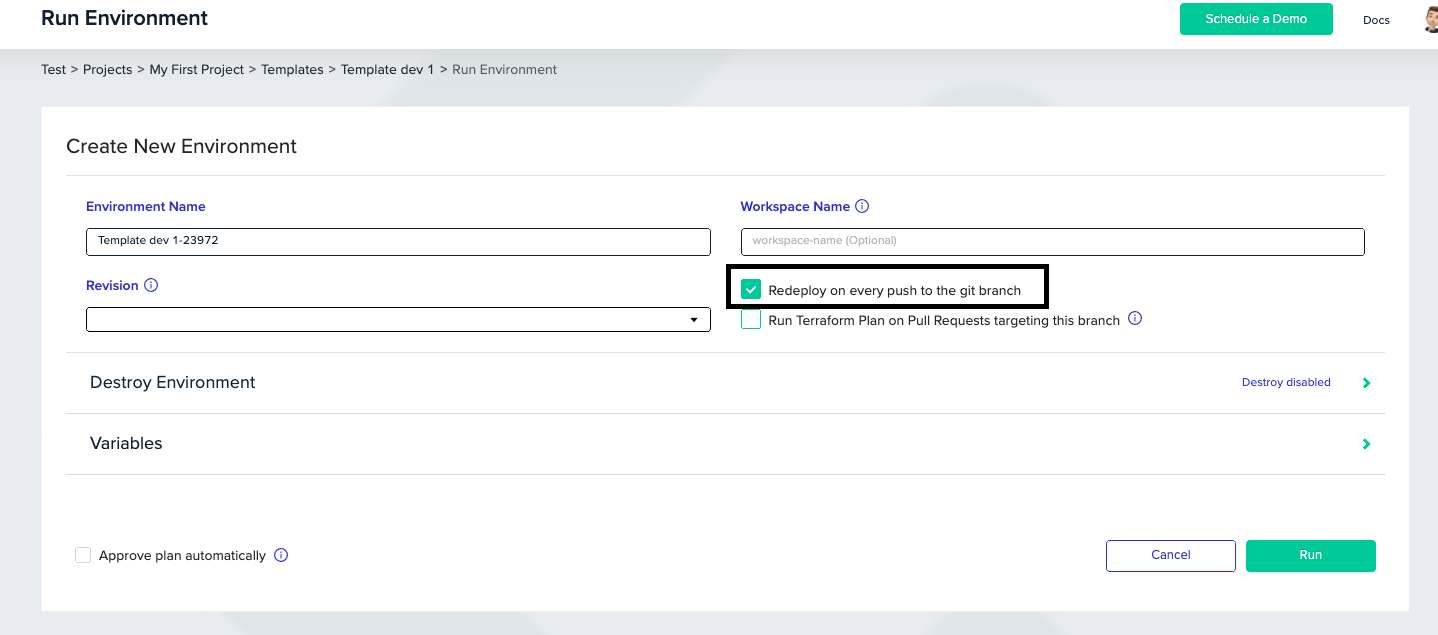
To create an environment, choose a specific **Project**, select the **Project Templates** tab, and then click *Run Now* on the template you want to use. On the **Run Environment** screen, pick the branch you would like to continuously deploy, and tick the `Redeploy on every push to the git branch` checkbox. Then, fill out the rest of the configuration for the deployment. When you're done, click **Run**.The environment will now deploy and will redeploy again on every push to the git branch
 ## Existing Environment
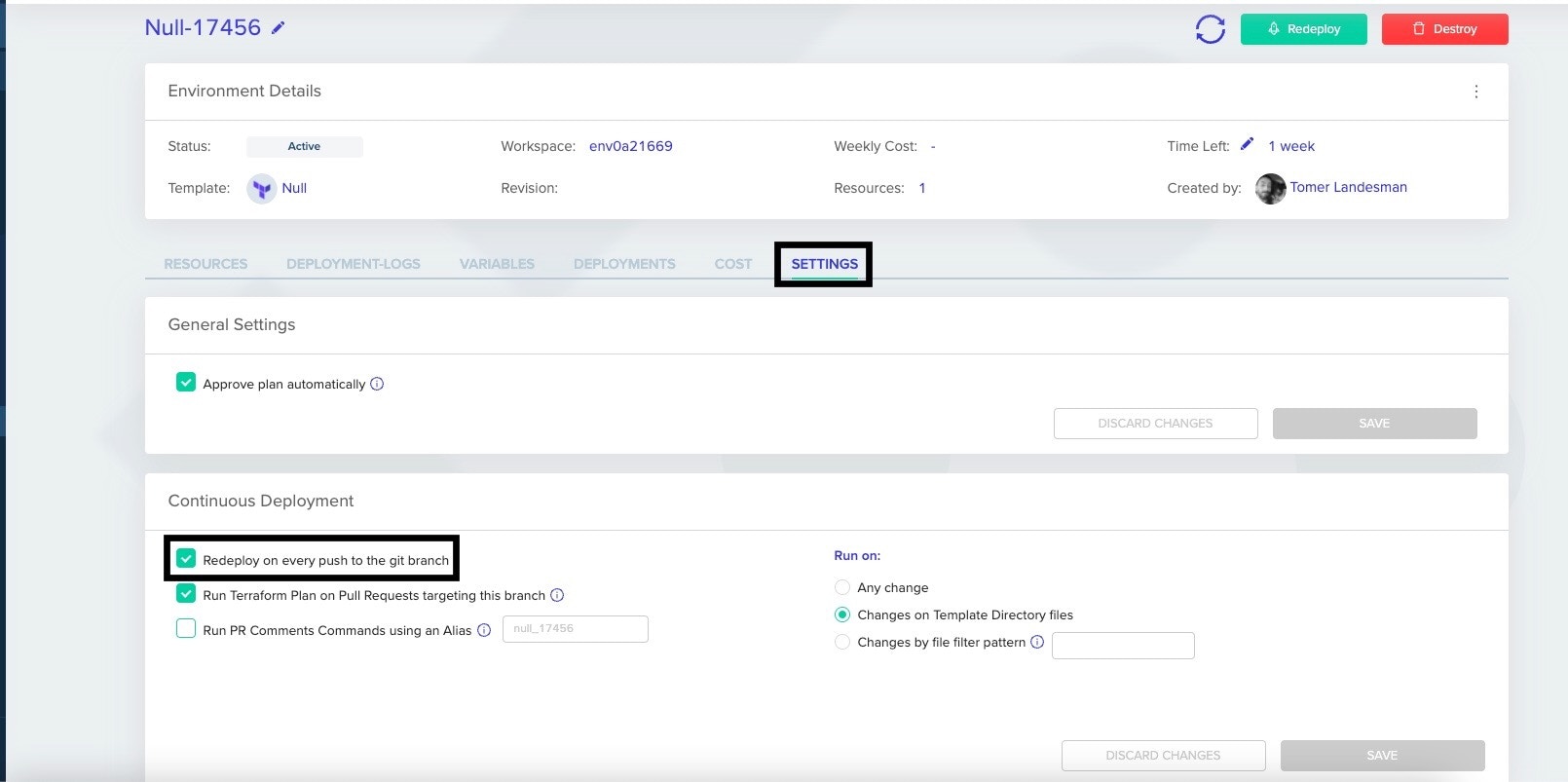
Choose your **Project**, select the **Project Environments** tab, and then click on the environment you would like to configure for continuous deployment. Go to the **Settings** tab, tick the `Redeploy on every push to the git branch` checkbox.
**You can choose to run by the following options:**
* **Any change** - your environment will redeploy on every push
* **Changes on Template Directory files** - your environment will redeploy on every push which contains file changes in the Terraform folder used by the environment's template.
* **Changes by file filter pattern** - your environment will redeploy on every push which contains changes in files matching the given pattern. See below how to configure glob pattern.
## Existing Environment
Choose your **Project**, select the **Project Environments** tab, and then click on the environment you would like to configure for continuous deployment. Go to the **Settings** tab, tick the `Redeploy on every push to the git branch` checkbox.
**You can choose to run by the following options:**
* **Any change** - your environment will redeploy on every push
* **Changes on Template Directory files** - your environment will redeploy on every push which contains file changes in the Terraform folder used by the environment's template.
* **Changes by file filter pattern** - your environment will redeploy on every push which contains changes in files matching the given pattern. See below how to configure glob pattern.
 **[Glob pattern](https://en.wikipedia.org/wiki/Glob_\(programming\))**
Glob patterns specify sets of filenames with wildcard characters. For example, *.txt or my\_folder/*\*
It means you can configure pattern by git repository which re-deploy environment only if the push contains files that change by free pattern.
For example, you can configure pattern like src/project\_1/\*\*
In this case, we will re-deploy only if the push contains file which starts with src/project\_1/...
We also support [extglob patterns](https://github.com/micromatch/extglob#extglob-cheatsheet) with that you can write pattern which ignores files or use a list of folders.
For extglob, when using OR/AND statements, make sure to wrap each option with parentheses, for example: +((/first/path/**)|(/second/path/**))
The path should be defined from the **root of the repository.**
### Deployment Comment
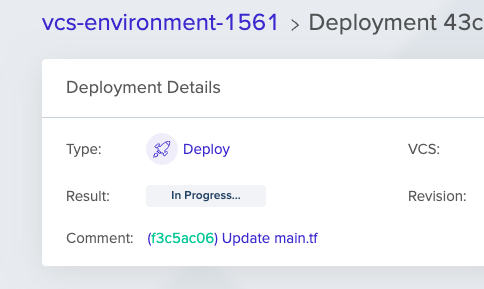
When an environment is triggered due to CD - a comment would be automatically added, with a link to the head commit upon the time of trigger.
**[Glob pattern](https://en.wikipedia.org/wiki/Glob_\(programming\))**
Glob patterns specify sets of filenames with wildcard characters. For example, *.txt or my\_folder/*\*
It means you can configure pattern by git repository which re-deploy environment only if the push contains files that change by free pattern.
For example, you can configure pattern like src/project\_1/\*\*
In this case, we will re-deploy only if the push contains file which starts with src/project\_1/...
We also support [extglob patterns](https://github.com/micromatch/extglob#extglob-cheatsheet) with that you can write pattern which ignores files or use a list of folders.
For extglob, when using OR/AND statements, make sure to wrap each option with parentheses, for example: +((/first/path/**)|(/second/path/**))
The path should be defined from the **root of the repository.**
### Deployment Comment
When an environment is triggered due to CD - a comment would be automatically added, with a link to the head commit upon the time of trigger.
 ### Skipping deployments
You can skip CD triggered by the push events by including a command in your commit message.
CDs that would otherwise be triggered using on: push won't be triggered if you add any of the following strings to the commit message in a push
```text theme={null}
[skip env zero]
[env zero skip]
```
## Next steps
* [Running Plan on Pull Requests](/guides/admin-guide/environments/plan-on-pull-request) - Preview infrastructure changes on every pull request.
* [Avoiding Redundant Deployments](/guides/policies-governance/skip-redundant-deployments) - Skip queued deployments when only the latest matters.
* [Configure Workflow Triggers](/guides/admin-guide/environments/workflow-triggers) - Chain environments to deploy sequentially after a successful deploy.
### Skipping deployments
You can skip CD triggered by the push events by including a command in your commit message.
CDs that would otherwise be triggered using on: push won't be triggered if you add any of the following strings to the commit message in a push
```text theme={null}
[skip env zero]
[env zero skip]
```
## Next steps
* [Running Plan on Pull Requests](/guides/admin-guide/environments/plan-on-pull-request) - Preview infrastructure changes on every pull request.
* [Avoiding Redundant Deployments](/guides/policies-governance/skip-redundant-deployments) - Skip queued deployments when only the latest matters.
* [Configure Workflow Triggers](/guides/admin-guide/environments/workflow-triggers) - Chain environments to deploy sequentially after a successful deploy.