> ## Documentation Index
> Fetch the complete documentation index at: https://docs.envzero.com/llms.txt
> Use this file to discover all available pages before exploring further.
# Locking Environments
> Lock env zero environments to prevent deploy, destroy, plan, and drift detection from running, with an optional lock reason visible to project members.
Environment locking prevents any change to the environment. While the environment is locked no deploy, destroy, plan or drift detection actions will be run.
# Who can lock and release environments
To lock or release an environment, a user needs the `Lock/Unlock Environment` permission (part of [the default "Project Admin" role](/guides/admin-guide/user-role-and-team-management/default-roles/#project-admin).
Any user with this permission can release the lock, regardless of who locked it.
# How to use
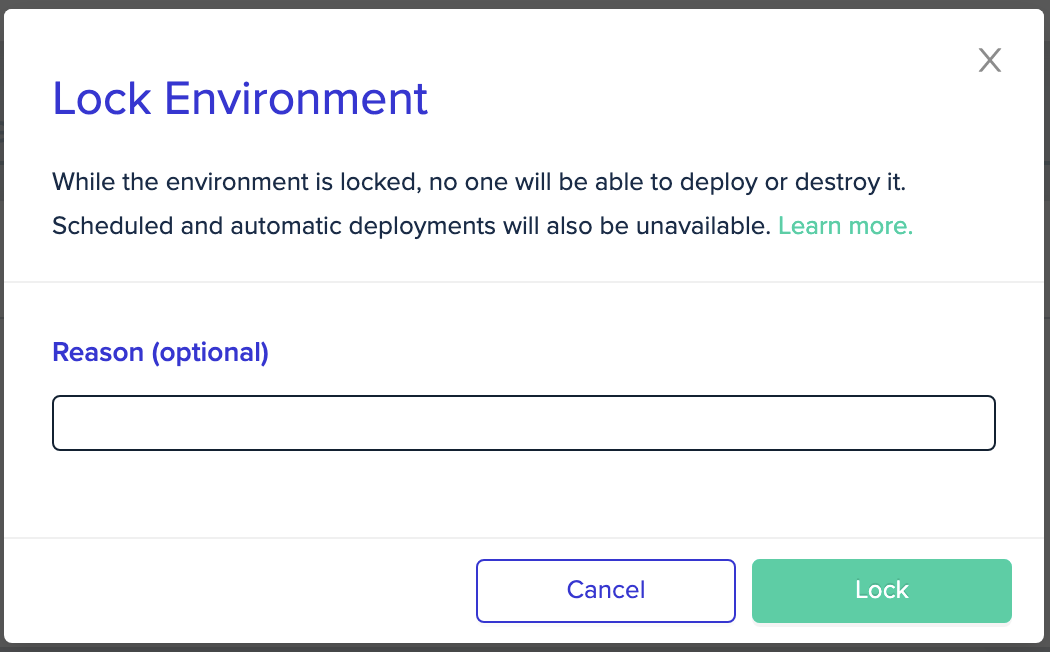
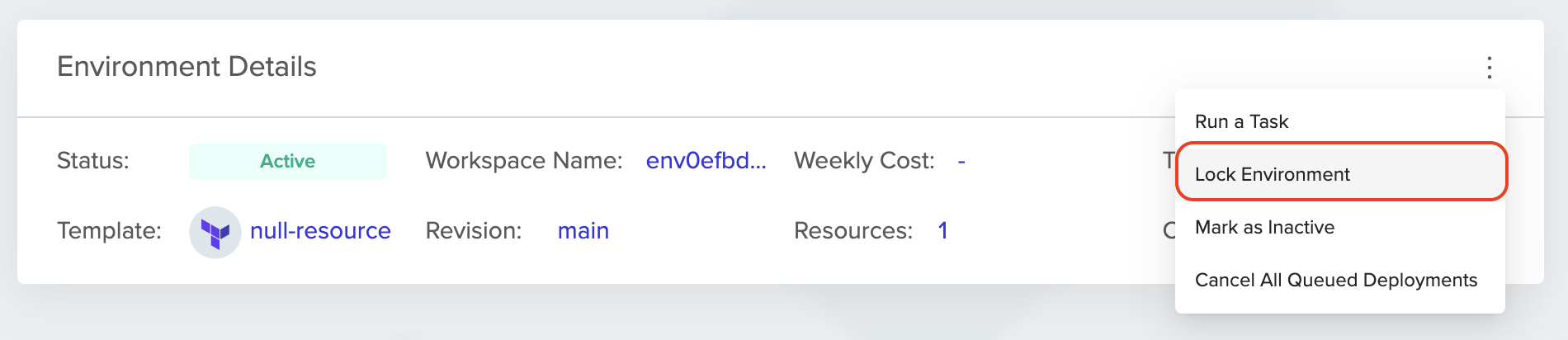 From the environment's advanced context menu, click on "Lock Environment". It will ask for confirmation. You can provide an optional reason, so other users will know why the environment is locked.
 Locked environments will have a banner explaining who, when and why the environment is locked, and a button to release the lock.
 # What happens when the environment is locked
* User cannot run Deploy, Destroy or [Ad hoc Task](/guides/admin-guide/environments/ad-hoc-tasks)
* [Scheduled Deploy, Destroy](/guides/admin-guide/environments/scheduling), and [Drift Detection](/guides/admin-guide/environments/drift-detection) will not run. They will resume after unlocking.
* [Continuous Deployment](/guides/admin-guide/environments/continuous-deployment), [Plan on Pull Request](/guides/admin-guide/environments/plan-on-pull-request), and [Plan and Apply from PR Comments](/guides/admin-guide/environments/plan-and-apply-from-pr-comments) will not work.
* Environment will not be destroyed due to [TTL](/guides/policies-governance/policy-ttl). After unlocking, a notification will be sent as usual, before the environment is destroyed.
## Next steps
* [Managing Bulk Operations](/guides/admin-guide/environments/bulk-operations) - Lock or unlock multiple environments at once.
* [Deployment Scheduling](/guides/admin-guide/environments/scheduling) - Schedule deploys and destroys that resume after unlocking.
* [Environment Overview](/guides/admin-guide/environments) - Review all available environment actions and states.
# What happens when the environment is locked
* User cannot run Deploy, Destroy or [Ad hoc Task](/guides/admin-guide/environments/ad-hoc-tasks)
* [Scheduled Deploy, Destroy](/guides/admin-guide/environments/scheduling), and [Drift Detection](/guides/admin-guide/environments/drift-detection) will not run. They will resume after unlocking.
* [Continuous Deployment](/guides/admin-guide/environments/continuous-deployment), [Plan on Pull Request](/guides/admin-guide/environments/plan-on-pull-request), and [Plan and Apply from PR Comments](/guides/admin-guide/environments/plan-and-apply-from-pr-comments) will not work.
* Environment will not be destroyed due to [TTL](/guides/policies-governance/policy-ttl). After unlocking, a notification will be sent as usual, before the environment is destroyed.
## Next steps
* [Managing Bulk Operations](/guides/admin-guide/environments/bulk-operations) - Lock or unlock multiple environments at once.
* [Deployment Scheduling](/guides/admin-guide/environments/scheduling) - Schedule deploys and destroys that resume after unlocking.
* [Environment Overview](/guides/admin-guide/environments) - Review all available environment actions and states.