> ## Documentation Index
> Fetch the complete documentation index at: https://docs.envzero.com/llms.txt
> Use this file to discover all available pages before exploring further.
# Deployment Scheduling
> Schedule automatic deploys and destroys for env zero environments using UNIX cron expressions, with options for recurring actions and TTL interaction.
## What is Scheduling?
Scheduling allows you to automatically trigger destroys and deploys of your environments on a scheduled basis.
Scheduling is configured based on cron expressions, and can be attached to an already deployed environment only.
**Scheduling vs TTL**
Scheduling is an advanced feature that can't coexist with the simpler TTL policy of your environment. Enabling scheduling for your environment will disable any existing TTL setting of your environment.
It's also important to notice that TTL policies don't apply on any scheduled recurrences.
## Who Can Configure Scheduling
The minimum role for setting a scheduled action for an environment is [Project Deployer](/guides/admin-guide/user-role-and-team-management/user-management/#project-roles).
## How To Configure Scheduling
After deploying your environment, click on **Settings** tab, on \*\*Environment Details \*\*page and scroll down to the **Scheduling** card.
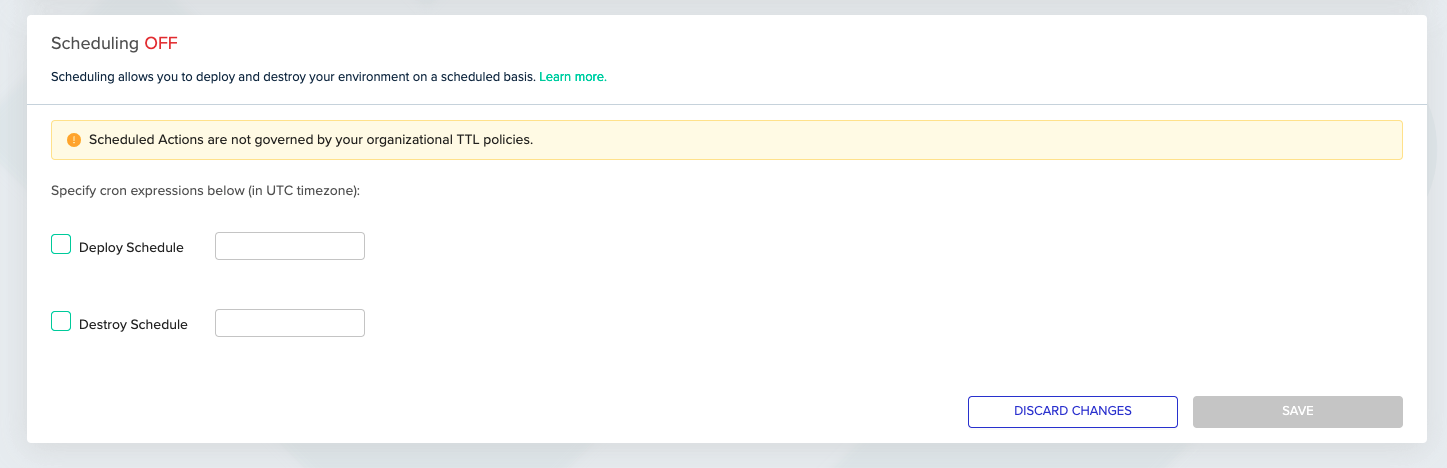 To configure scheduling for your environment:
1. Check the box for the required action (either *Deploy* or *Destroy*)
2. Input a valid [UNIX cron expression](http://www.nncron.ru/help/EN/working/cron-format.htm) (Optional Year suffix isn't supported).\
For example: `0 23 * * MON-FRI` (UTC timezone)
3. Press **Save**.
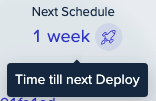
The environment is now scheduled! You may notice that the environment's countdown indication has changed per your next schedule:
To configure scheduling for your environment:
1. Check the box for the required action (either *Deploy* or *Destroy*)
2. Input a valid [UNIX cron expression](http://www.nncron.ru/help/EN/working/cron-format.htm) (Optional Year suffix isn't supported).\
For example: `0 23 * * MON-FRI` (UTC timezone)
3. Press **Save**.
The environment is now scheduled! You may notice that the environment's countdown indication has changed per your next schedule:
 ## Next steps
* [Configure Policy TTL](/guides/policies-governance/policy-ttl) - Set time-to-live policies as a simpler alternative to cron scheduling.
* [Locking Environments](/guides/admin-guide/environments/environment-locking) - Temporarily pause scheduled actions by locking an environment.
* [Managing Bulk Operations](/guides/admin-guide/environments/bulk-operations) - Schedule deploys or destroys across multiple environments at once.
## Next steps
* [Configure Policy TTL](/guides/policies-governance/policy-ttl) - Set time-to-live policies as a simpler alternative to cron scheduling.
* [Locking Environments](/guides/admin-guide/environments/environment-locking) - Temporarily pause scheduled actions by locking an environment.
* [Managing Bulk Operations](/guides/admin-guide/environments/bulk-operations) - Schedule deploys or destroys across multiple environments at once.