> ## Documentation Index
> Fetch the complete documentation index at: https://docs.envzero.com/llms.txt
> Use this file to discover all available pages before exploring further.
# Creating a New Environment
> Create a new env zero environment from a template with RBAC controls or direct VCS integration for Terraform, OpenTofu, Helm, and other IaC frameworks.
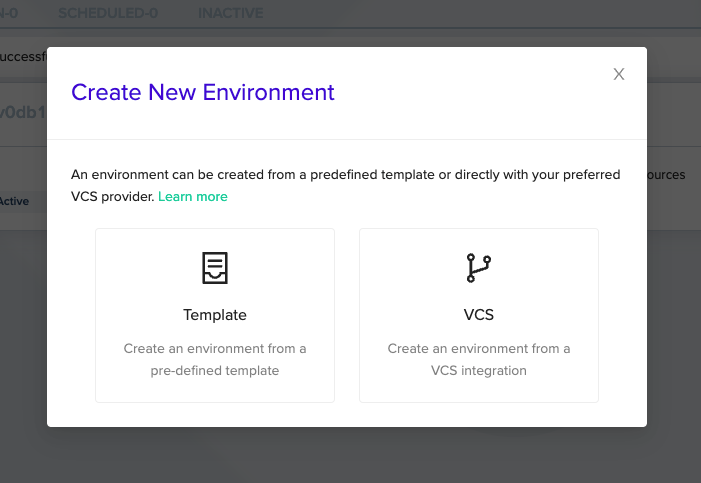
env zero provides two approaches for creating a new environment:
1. Based on a pre-defined [Template](/guides/admin-guide/templates)
2. Based on a direct VCS integration
env zero Templates allow reusability and RBAC, however in some cases you may want to connect to your VCS directly without using Templates to avoid unnecessary complexity.
Both approaches will result in a complete env zero environment with all of the available features so you can choose the approach that most fits your style and use case.
**Permissions**
If you are a *project planner* - you must select a template for the new environment.
If you are an *organization admin* - you will be prompted to select between **Template** / **VCS**.
To enable Environment creation based on VCS integration for non organization admins, create an Organization Role with the **Create & Edit Templates** permission. Users may have to log out and log back in to deploy see the modal to deploy an Environment without a Template.
Organization -> Settings -> Roles -> (Create or update an existing role with the permission)
To create a new environment, all you have to do is choose a specific *Project* and click on the **CREATE NEW ENVIRONMENT** button (located in the top right corner).
 ## Based On a Pre-defined Template
This choice is great for you if you want to use env zero templates with all of their benefits.
To run an environment based on a pre-defined template, follow these short instructions:
1. Select your desired [Template](/guides/admin-guide/templates).
2. Set environment details: environment name, workspace name (optional - only for Terraform), [Time To Live (TTL)](/guides/policies-governance/policy-ttl) , [Variables](/guides/admin-guide/variables) and [Terragrunt Working Directory](/guides/admin-guide/environments/#terragrunt-working-directory) (only refers to Terragrunt Templates, optional).
## Based On a Direct VCS Integration
This choice is great for you if you don't want to overwhelm yourself with env zero templates - connect to your VCS and deploy.
To run an environment based on a direct VCS integration, follow these short instructions:
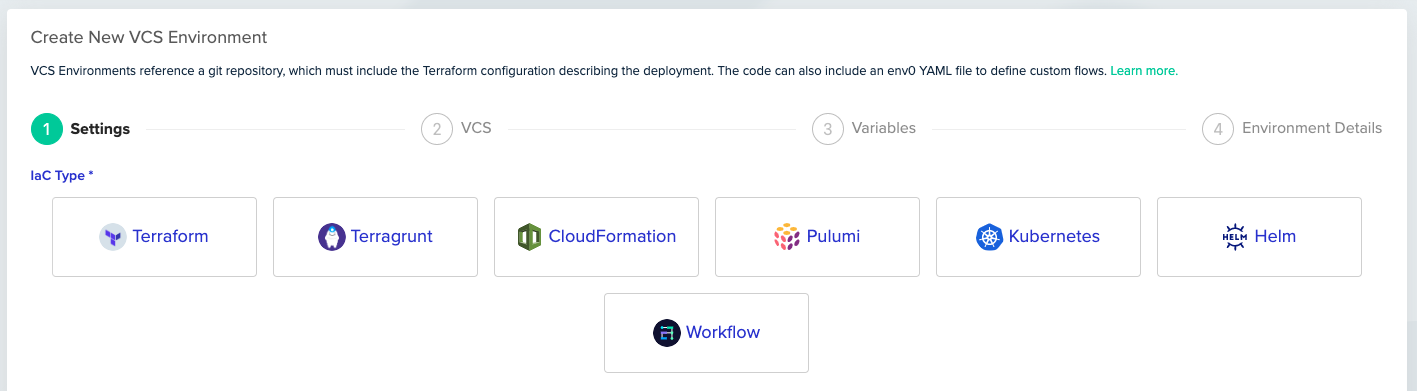
Select one of the many supported IaC types.
## Based On a Pre-defined Template
This choice is great for you if you want to use env zero templates with all of their benefits.
To run an environment based on a pre-defined template, follow these short instructions:
1. Select your desired [Template](/guides/admin-guide/templates).
2. Set environment details: environment name, workspace name (optional - only for Terraform), [Time To Live (TTL)](/guides/policies-governance/policy-ttl) , [Variables](/guides/admin-guide/variables) and [Terragrunt Working Directory](/guides/admin-guide/environments/#terragrunt-working-directory) (only refers to Terragrunt Templates, optional).
## Based On a Direct VCS Integration
This choice is great for you if you don't want to overwhelm yourself with env zero templates - connect to your VCS and deploy.
To run an environment based on a direct VCS integration, follow these short instructions:
Select one of the many supported IaC types.
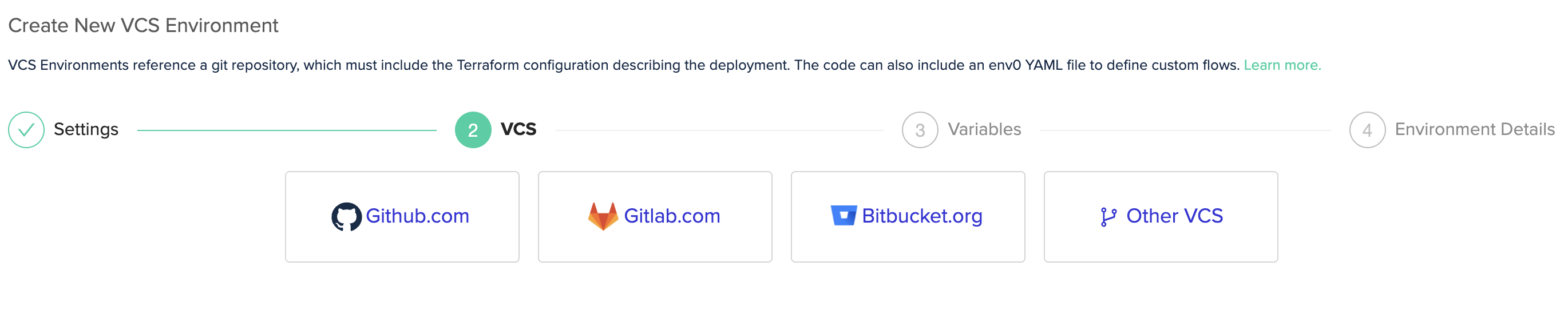
 Select one of the many supported Git repositories.
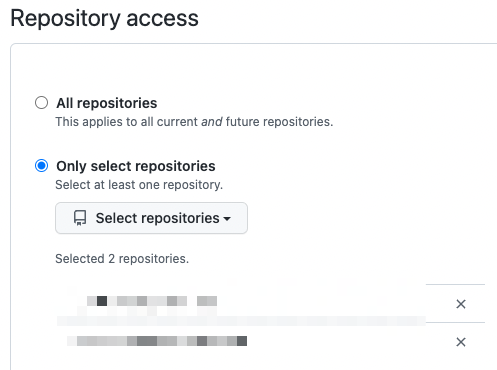
 Once a Git repository has been selected a new window will load, asking you to authenticate to that git account. This will install the env zero application as a trusted source to read/write to your chosen repositories.
 Add any Terraform or environmental variables you may want on the next screen.
Set the environment details and options.
Add any Terraform or environmental variables you may want on the next screen.
Set the environment details and options.
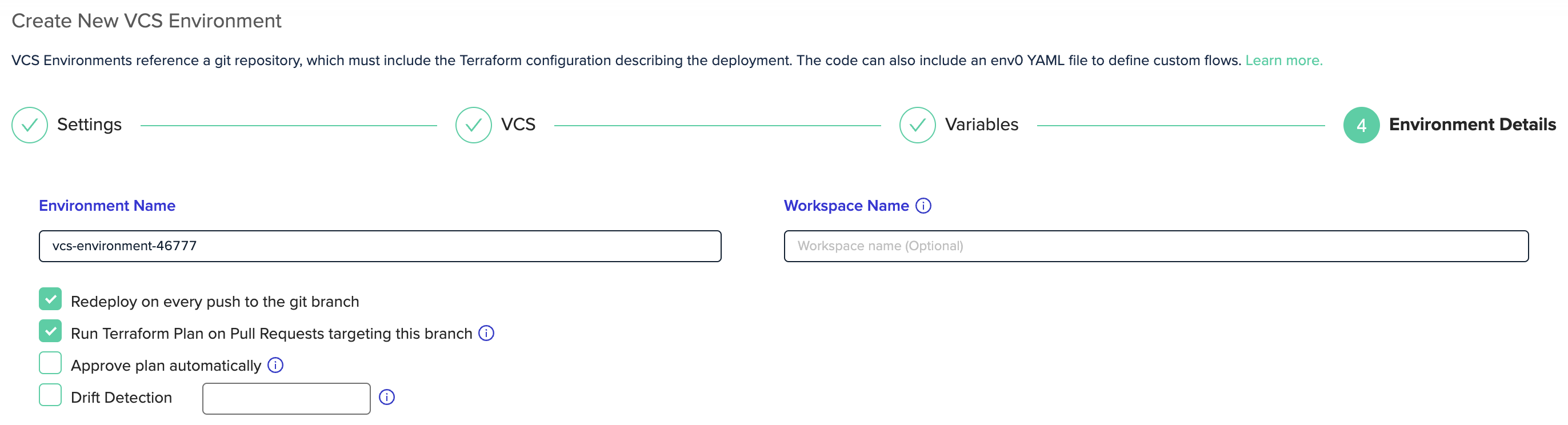 Click done to complete the environment creation and run your first deployment.
**Import existing environment (for Terraform only)**
You may import an existing Terraform environment by specifying the *Workspace Name*
**Auto deploying created Environment**
The default behavior in env zero is to automatically deploy a created environment.
In case you would like to create the environment without deploying, you can use the [create environment API](/api-reference/environments/create-environment) and set the `preventAutoDeploy` param to `true`.
This is also supported in our [Terraform Provider](https://registry.terraform.io/providers/env0/env0/latest/docs/resources/environment)
## Next steps
* [Using Continuous Deployment](/guides/admin-guide/environments/continuous-deployment) - Automatically redeploy the environment on every git push.
* [Managing Variables](/guides/admin-guide/variables) - Configure variables and secrets for the environment.
* [Locking Environments](/guides/admin-guide/environments/environment-locking) - Prevent changes to an environment temporarily.
Click done to complete the environment creation and run your first deployment.
**Import existing environment (for Terraform only)**
You may import an existing Terraform environment by specifying the *Workspace Name*
**Auto deploying created Environment**
The default behavior in env zero is to automatically deploy a created environment.
In case you would like to create the environment without deploying, you can use the [create environment API](/api-reference/environments/create-environment) and set the `preventAutoDeploy` param to `true`.
This is also supported in our [Terraform Provider](https://registry.terraform.io/providers/env0/env0/latest/docs/resources/environment)
## Next steps
* [Using Continuous Deployment](/guides/admin-guide/environments/continuous-deployment) - Automatically redeploy the environment on every git push.
* [Managing Variables](/guides/admin-guide/variables) - Configure variables and secrets for the environment.
* [Locking Environments](/guides/admin-guide/environments/environment-locking) - Prevent changes to an environment temporarily.