> ## Documentation Index
> Fetch the complete documentation index at: https://docs.envzero.com/llms.txt
> Use this file to discover all available pages before exploring further.
# Product Homepage
> Navigate the env zero homepage to review failed, drifted, or approval-pending environments and view Cloud Compass infrastructure coverage insights.
env zero's Homepage is designed to provide a high-level overview of your organization, making it easier to find what matters most.
 ## Needs Review section
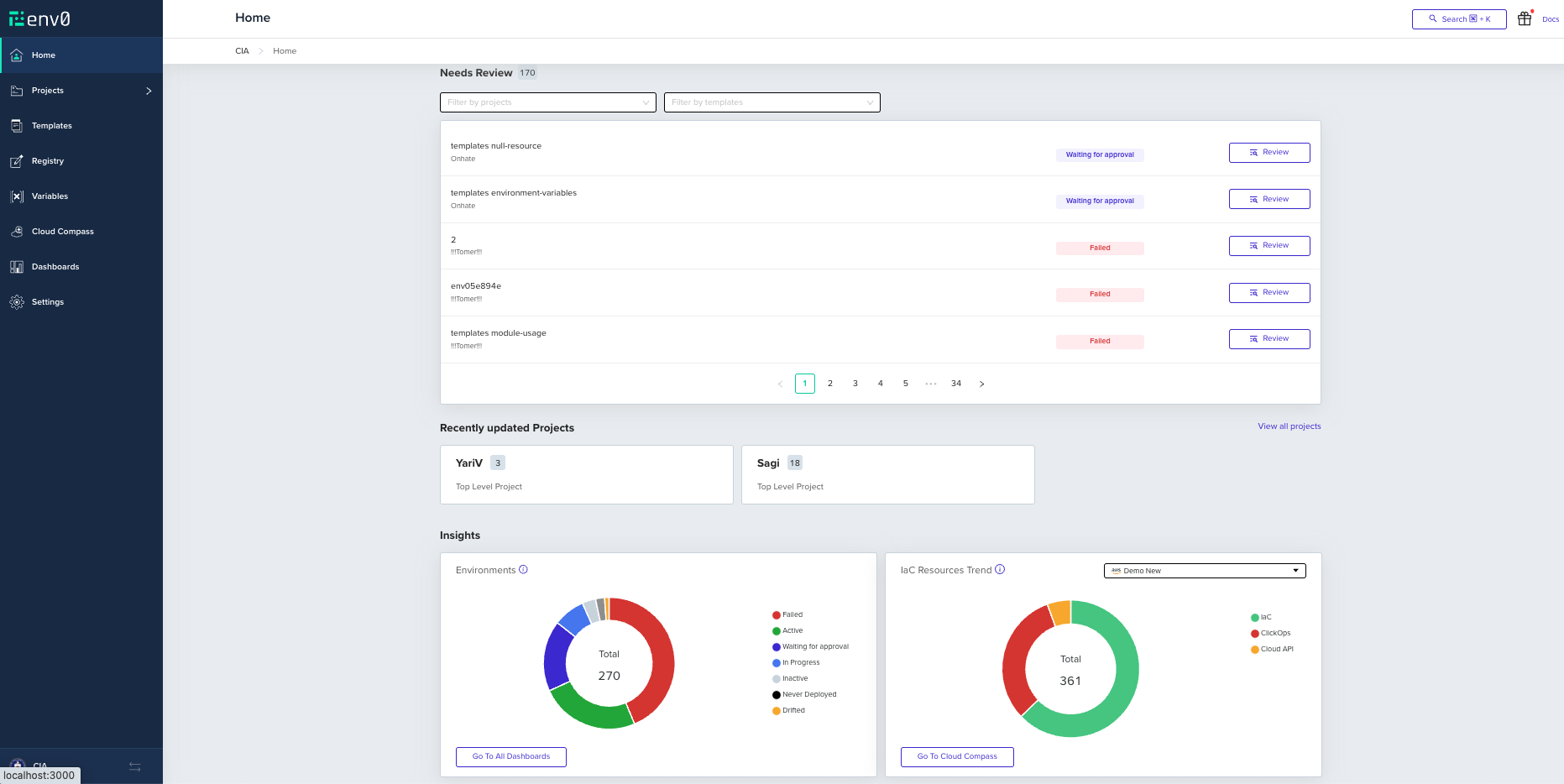
This section helps you find Environments that require your attention. The list features Environments whose status is either Failed, Waiting for Approval, or Drifted. You may filter the list by projects or templates of interest, and navigate to the relevant environment page by clicking its name. `Review` will take you to the latest deployment log page, or to the list of deployments in case of drifts, so you can take relevant action such as approving a plan, investigating a failure reason, or checking what caused a drift.
## Needs Review section
This section helps you find Environments that require your attention. The list features Environments whose status is either Failed, Waiting for Approval, or Drifted. You may filter the list by projects or templates of interest, and navigate to the relevant environment page by clicking its name. `Review` will take you to the latest deployment log page, or to the list of deployments in case of drifts, so you can take relevant action such as approving a plan, investigating a failure reason, or checking what caused a drift.
 ## Recently updated Project section
To quickly pick up from where you left off in env zero, in this section you'll see the last three projects you've updated within the app. Updates refer to anything from deploying an environment, and changing a setting, to editing variables and more.
Each project card shows the project’s name, hierarchy, and how many active environments are part of it.
## Recently updated Project section
To quickly pick up from where you left off in env zero, in this section you'll see the last three projects you've updated within the app. Updates refer to anything from deploying an environment, and changing a setting, to editing variables and more.
Each project card shows the project’s name, hierarchy, and how many active environments are part of it.
 ## Insights section
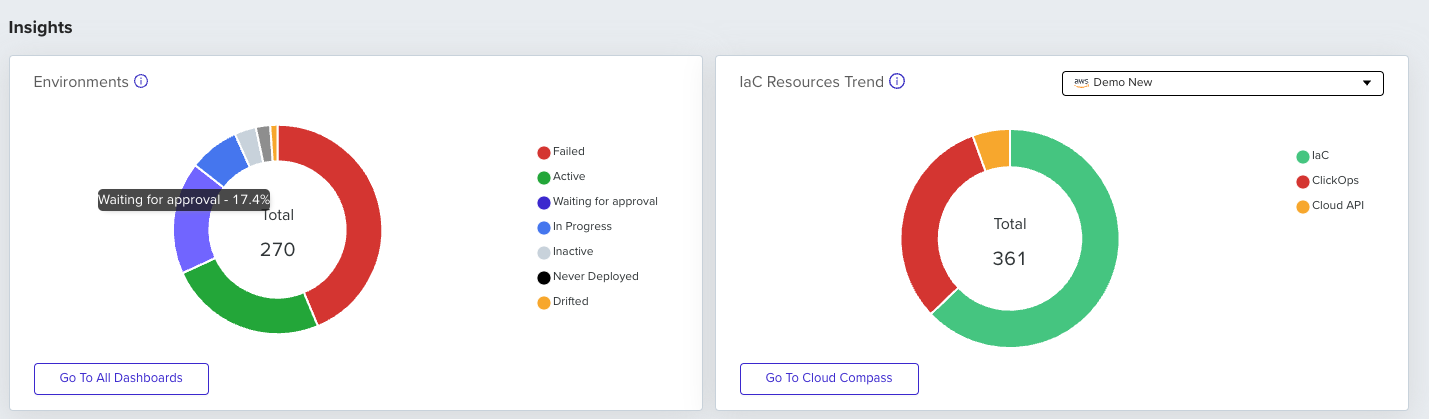
The two dashboards in this section give you a better understanding of your organization's infrastructure state:
* The environments chart shows the amount of managed environments, and the percentage of each status (active, failed, waiting for approval, etc.)
* The IaC Resources Trend chart provides IaC Coverage insights from Cloud Compass\
You can navigate to more detailed dashboards of your organization and Cloud Compass by clicking the button under each chart.
## Insights section
The two dashboards in this section give you a better understanding of your organization's infrastructure state:
* The environments chart shows the amount of managed environments, and the percentage of each status (active, failed, waiting for approval, etc.)
* The IaC Resources Trend chart provides IaC Coverage insights from Cloud Compass\
You can navigate to more detailed dashboards of your organization and Cloud Compass by clicking the button under each chart.
 **Permissions**
This section is available only to users with `View Dashboard` permissions.
## Feedback
We’d love your feedback about our Homepage and any ideas to improve it – you can find the feedback button at the top of the page.
**Permissions**
This section is available only to users with `View Dashboard` permissions.
## Feedback
We’d love your feedback about our Homepage and any ideas to improve it – you can find the feedback button at the top of the page.
 ## Persistent state
Your latest filters, selected cloud account, and recently updated projects are saved locally for easier and personalized usage.
## Next steps
* [Managing Environments](/guides/admin-guide/env-zero-environments) - Learn how environments are organized and managed.
* [Creating & Managing Projects](/guides/admin-guide/env-zero-projects) - Organize environments into projects with access controls.
* [Monitoring Dashboards](/guides/admin-guide/dashboards) - View deeper infrastructure usage and cost dashboards.
## Persistent state
Your latest filters, selected cloud account, and recently updated projects are saved locally for easier and personalized usage.
## Next steps
* [Managing Environments](/guides/admin-guide/env-zero-environments) - Learn how environments are organized and managed.
* [Creating & Managing Projects](/guides/admin-guide/env-zero-projects) - Organize environments into projects with access controls.
* [Monitoring Dashboards](/guides/admin-guide/dashboards) - View deeper infrastructure usage and cost dashboards.