> ## Documentation Index
> Fetch the complete documentation index at: https://docs.envzero.com/llms.txt
> Use this file to discover all available pages before exploring further.
# Manage Projects
> Organize environments with projects in env zero for access control, multi-cloud account management, and separation of dev, staging, and production.
Projects are used in env zero to provide granular access control to *Environments*. Every environment in env zero exists under a project, and users are given access on a per-project basis.
Projects are also useful for managing multiple cloud accounts within a single *Organization*.
Projects are created in an [Organization](/guides/admin-guide/organizations). To start, every new *Organization* has a *Default Organization Project*, which is created with the *Organization*. Additional projects can be added as needed.
We recommend using projects to separate dev environments from production environments, each with its own access rights and policies.
## Active Projects
Users usually work in the context of an *Active Project*, but they can also work in the context of an *Organization*.
The current *Active Project* is shown in the upper left corner of the page, in the *organization/project* select box. If only an *Organization* name appears, no project is currently selected.
In a *Project* context, the *Templates* tab shows only templates associated with this project, and the *Settings* tab (available only to project admins) shows the users associated with this project.\
Environments are only accessible in a *Project* context.
If no project is selected, a *Projects* tab will appear, instead of the *Environments* tab. This tab shows a list of all projects associated with the current user. Select a project to set it as the *Active* project.
To switch to the *Organization* view, select the organization in the *organization/project* select box.
## Create a New Project
To create a new project, you must to be in an *Organization* context, with no *Active Project* selected.\
Select the *Projects* tab, and then click *Create New Project*. Enter a project name and description.
A new project will be created and set as the *Active Project*.
You can then associate users with the project, in the settings.
## Associate Templates with a Project
Only templates that are associated with the current project can be used to create environments.
A newly created project has no templates associated with it, to manage the project templates, select an *Active Project*, then:
* Select the *Templates* tab, and then click *Manage Templates*
* This shows a list of all available templates in the current *Organization*, from which you can select one to associate with the current project.
* Click *Save* to save the new associations.
## Manage User Access Control to a Project
For details on how to manage user access control in a specific project, see [Users & Roles](/guides/admin-guide/user-role-and-team-management/user-management/#project-users).
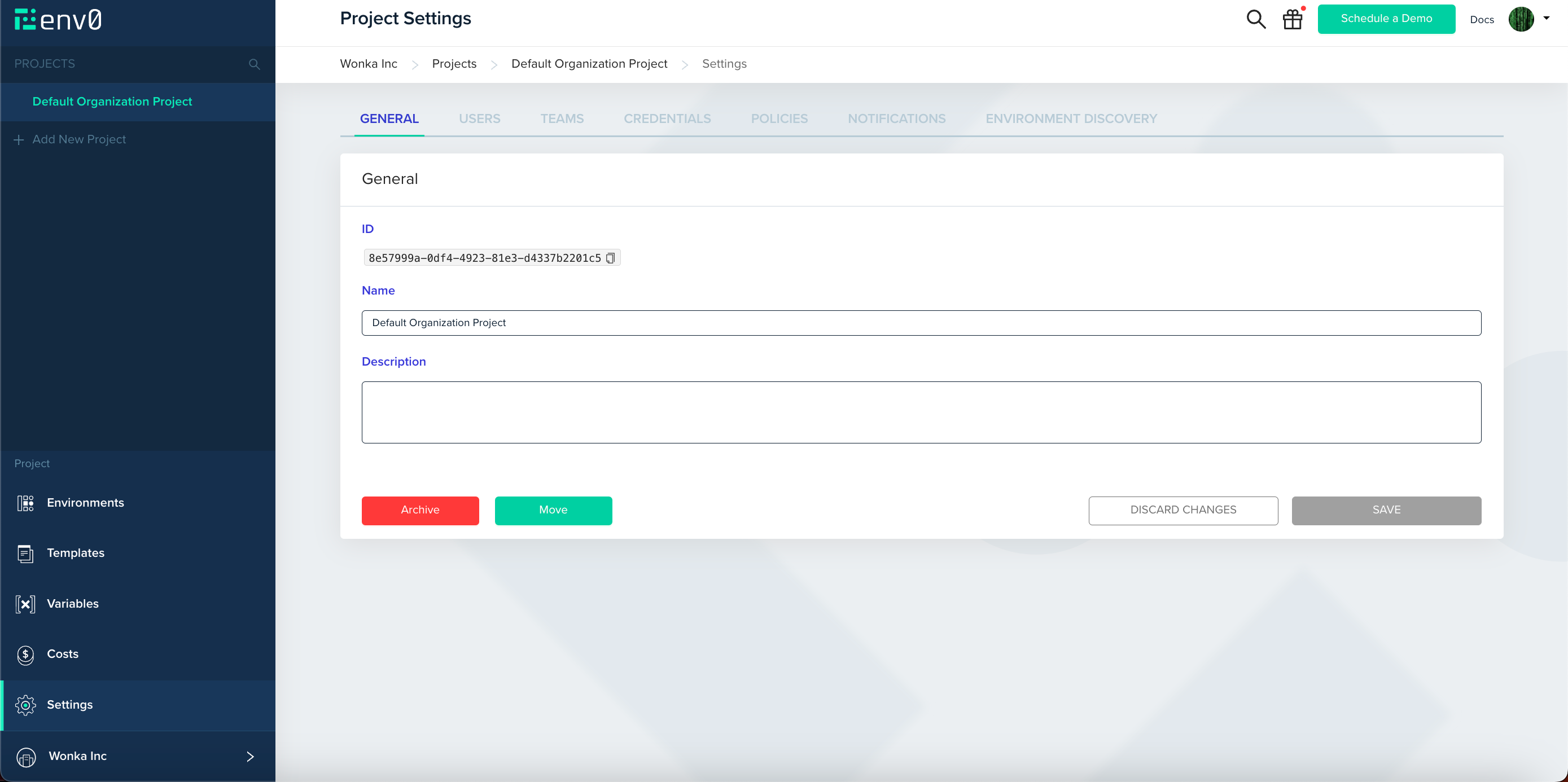
## Finding The Project ID
Sometimes you may need your project id for using it in our [terraform provider](https://registry.terraform.io/providers/env0/env0/latest) or for some [API calls](/api-reference/credentials/create-api-key).
You can find it under the `General` tab in `Project Settings`
 ## Archive Project
Archiving a project is a way to make it inactive without permanently deleting it. This can be useful for projects that are no longer in active development but may need to be referenced or reactivated later.
When you archive a project, the following changes will take effect:
* **Running Environments:** Any active environments within the project will not be destroyed. However, they will be marked as inactive and will not be accessible for deployment or management.
* **Deployments:** Continuous and scheduled deployments will no longer run for the archived project.
* **Project Visibility:** The project will be hidden from the main list of projects in your organization's dashboard.
* **Budget Notifications:** You will no longer receive notifications for any configured budget thresholds, even if they are exceeded.
This allows you to keep your project list clean and focused on active work, while still preserving the configuration and history of older projects.
## Next steps
* [Manage Sub-Projects](/guides/admin-guide/projects/sub-projects) - Organize resources with nested project hierarchies.
* [Manage Teams](/guides/admin-guide/user-role-and-team-management/teams) - Assign teams to projects for access control.
* [Role-Based Access Control (RBAC)](/guides/admin-guide/user-role-and-team-management/rbac) - Set granular permissions at the project level.
## Archive Project
Archiving a project is a way to make it inactive without permanently deleting it. This can be useful for projects that are no longer in active development but may need to be referenced or reactivated later.
When you archive a project, the following changes will take effect:
* **Running Environments:** Any active environments within the project will not be destroyed. However, they will be marked as inactive and will not be accessible for deployment or management.
* **Deployments:** Continuous and scheduled deployments will no longer run for the archived project.
* **Project Visibility:** The project will be hidden from the main list of projects in your organization's dashboard.
* **Budget Notifications:** You will no longer receive notifications for any configured budget thresholds, even if they are exceeded.
This allows you to keep your project list clean and focused on active work, while still preserving the configuration and history of older projects.
## Next steps
* [Manage Sub-Projects](/guides/admin-guide/projects/sub-projects) - Organize resources with nested project hierarchies.
* [Manage Teams](/guides/admin-guide/user-role-and-team-management/teams) - Assign teams to projects for access control.
* [Role-Based Access Control (RBAC)](/guides/admin-guide/user-role-and-team-management/rbac) - Set granular permissions at the project level.