> ## Documentation Index
> Fetch the complete documentation index at: https://docs.envzero.com/llms.txt
> Use this file to discover all available pages before exploring further.
# Assigning Roles
> Assign roles to users and teams at organization, project, and environment levels in env zero, with cascading permissions and sub-project inheritance rules.
Roles can be assigned at three levels: organization, project, and environment.
## Assigning Organization Roles
Organization roles can be assigned to both individual users and teams, and apply across the entire organization (including all projects and environments).
### Assigning Organization Roles to Users
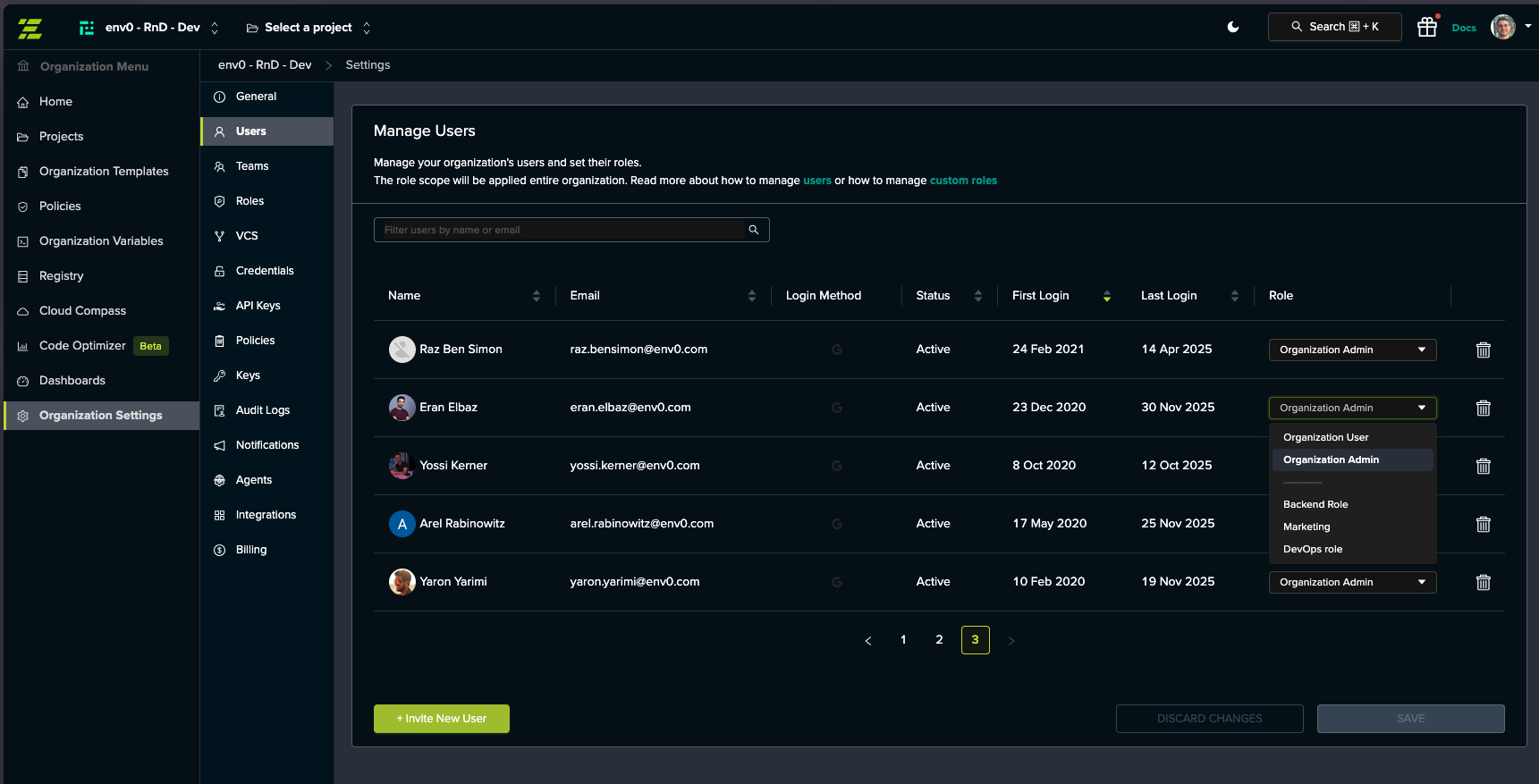
Go to **Organization Settings** > **Users** tab.
Locate the user in the table and click the **Role** dropdown for that user.
Select from the available roles in the dropdown:
* Default roles: [Organization User](/guides/admin-guide/user-role-and-team-management/default-roles#organization-user), [Organization Admin](/guides/admin-guide/user-role-and-team-management/default-roles#organization-admin)
* Custom roles: Any custom roles created for your organization
**Role Dropdown Organization**: Default roles are listed first, followed by a separator, then custom roles in alphabetical order.
Click **SAVE** to apply the changes.
 ### Assigning Organization Roles to Teams
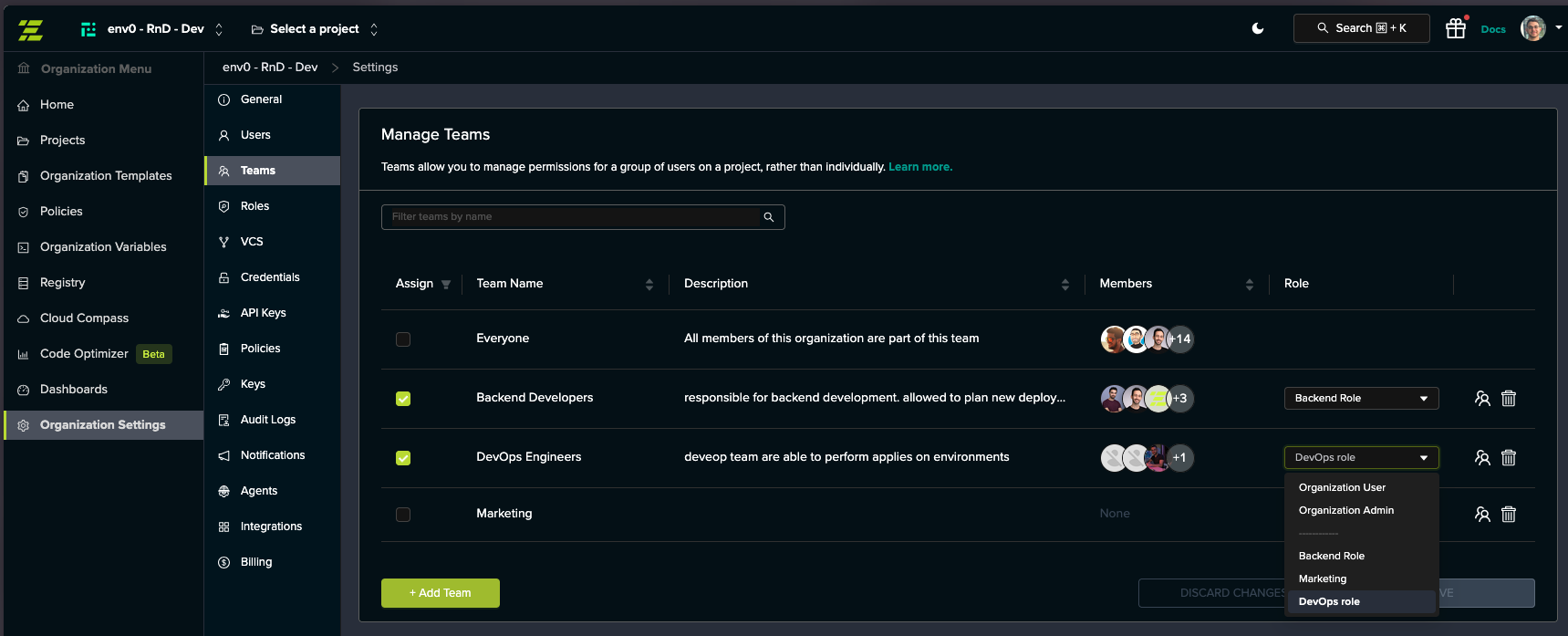
Go to **Organization Settings** > **Teams** tab.
Locate the team in the table and click the **Role** dropdown for that team.
Select from the available roles:
* Default roles: [Organization User](/guides/admin-guide/user-role-and-team-management/default-roles#organization-user), [Organization Admin](/guides/admin-guide/user-role-and-team-management/default-roles#organization-admin)
* Custom roles: Any custom roles created for your organization
Click **SAVE** to apply the changes.
### Assigning Organization Roles to Teams
Go to **Organization Settings** > **Teams** tab.
Locate the team in the table and click the **Role** dropdown for that team.
Select from the available roles:
* Default roles: [Organization User](/guides/admin-guide/user-role-and-team-management/default-roles#organization-user), [Organization Admin](/guides/admin-guide/user-role-and-team-management/default-roles#organization-admin)
* Custom roles: Any custom roles created for your organization
Click **SAVE** to apply the changes.
 ## Assigning Project Roles
Project roles can be assigned to both users and teams and apply to a specific project, all its sub-projects, and all environments within them.
### Assigning Project Roles to Users
Go to **Project Settings** > **Users** tab.
Locate the user in the table and check the checkbox in the **Assign** column.
Click the **Role** dropdown that appears and select from the available roles:
* Default roles: [Project Viewer](/guides/admin-guide/user-role-and-team-management/default-roles#project-viewer), [Project Planner](/guides/admin-guide/user-role-and-team-management/default-roles#project-planner), [Project Deployer](/guides/admin-guide/user-role-and-team-management/default-roles#project-deployer), [Project Admin](/guides/admin-guide/user-role-and-team-management/default-roles#project-admin)
* Custom roles: Any custom roles created for your organization
Click **SAVE** to apply the changes.
## Assigning Project Roles
Project roles can be assigned to both users and teams and apply to a specific project, all its sub-projects, and all environments within them.
### Assigning Project Roles to Users
Go to **Project Settings** > **Users** tab.
Locate the user in the table and check the checkbox in the **Assign** column.
Click the **Role** dropdown that appears and select from the available roles:
* Default roles: [Project Viewer](/guides/admin-guide/user-role-and-team-management/default-roles#project-viewer), [Project Planner](/guides/admin-guide/user-role-and-team-management/default-roles#project-planner), [Project Deployer](/guides/admin-guide/user-role-and-team-management/default-roles#project-deployer), [Project Admin](/guides/admin-guide/user-role-and-team-management/default-roles#project-admin)
* Custom roles: Any custom roles created for your organization
Click **SAVE** to apply the changes.
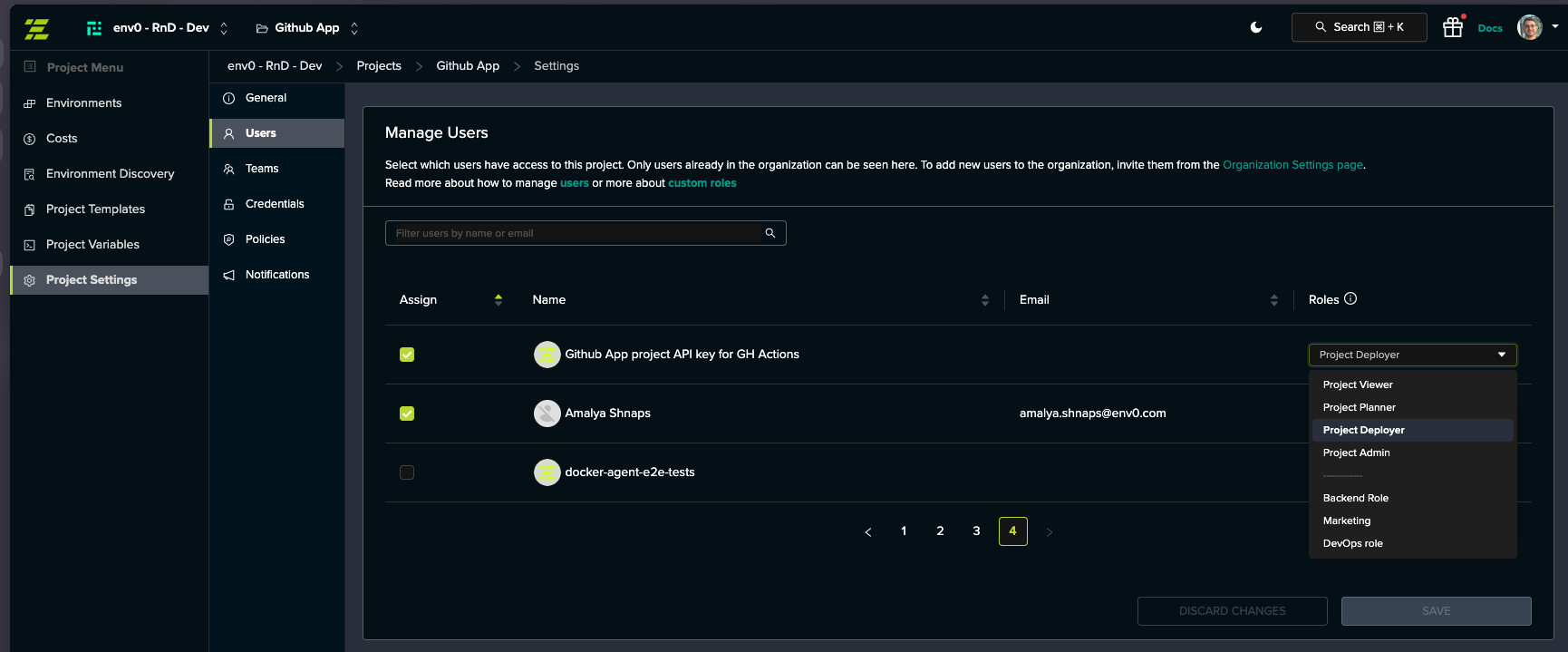 **Important:** You must first select the user using the checkbox in the **Assign** column before you can choose their role.
### Assigning Project Roles to Teams
Go to **Project Settings** > **Teams** tab.
Locate the team in the table and check the checkbox in the **Assign** column.
Click the **Role** dropdown that appears and select from the available roles:
* Default roles: [Project Viewer](/guides/admin-guide/user-role-and-team-management/default-roles#project-viewer), [Project Planner](/guides/admin-guide/user-role-and-team-management/default-roles#project-planner), [Project Deployer](/guides/admin-guide/user-role-and-team-management/default-roles#project-deployer), [Project Admin](/guides/admin-guide/user-role-and-team-management/default-roles#project-admin)
* Custom roles: Any custom roles created for your organization
Click **SAVE** to apply the changes.
**Important:** You must first select the user using the checkbox in the **Assign** column before you can choose their role.
### Assigning Project Roles to Teams
Go to **Project Settings** > **Teams** tab.
Locate the team in the table and check the checkbox in the **Assign** column.
Click the **Role** dropdown that appears and select from the available roles:
* Default roles: [Project Viewer](/guides/admin-guide/user-role-and-team-management/default-roles#project-viewer), [Project Planner](/guides/admin-guide/user-role-and-team-management/default-roles#project-planner), [Project Deployer](/guides/admin-guide/user-role-and-team-management/default-roles#project-deployer), [Project Admin](/guides/admin-guide/user-role-and-team-management/default-roles#project-admin)
* Custom roles: Any custom roles created for your organization
Click **SAVE** to apply the changes.
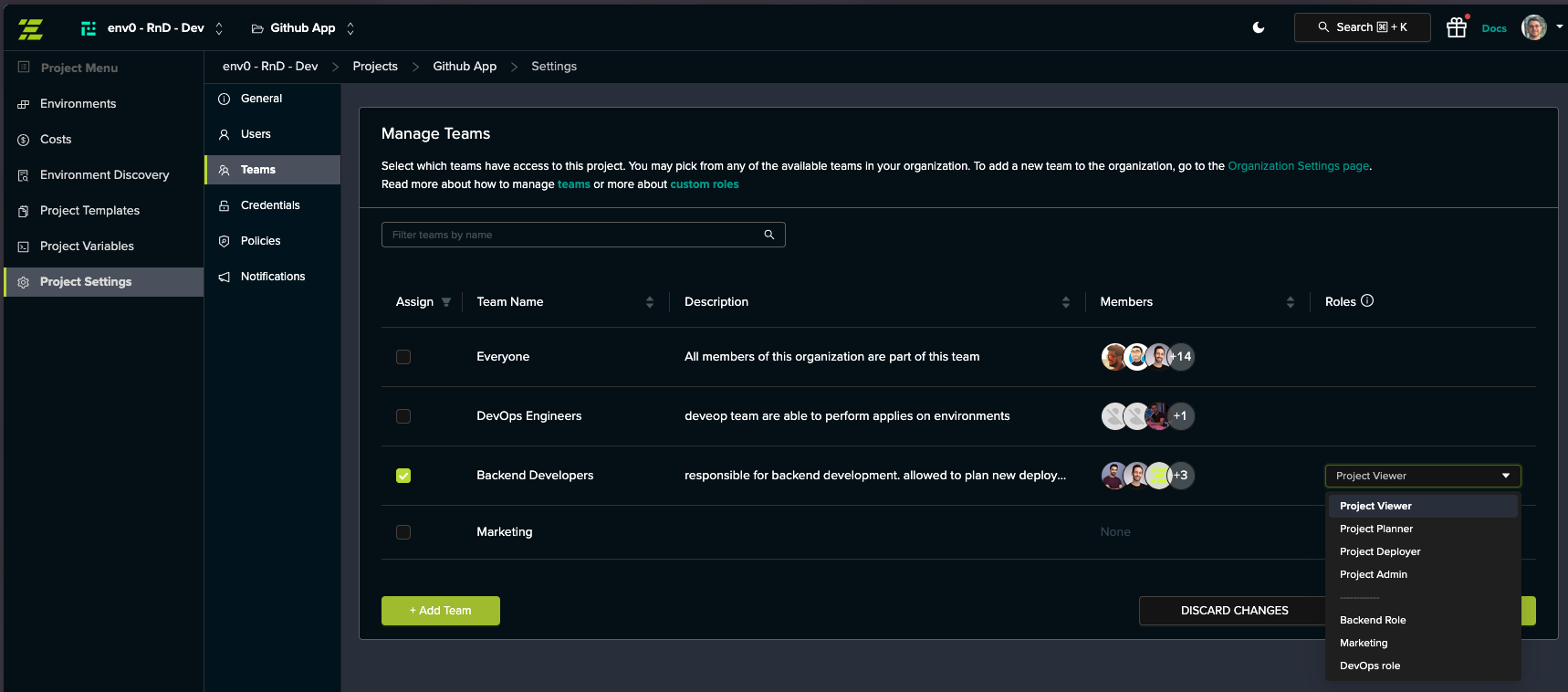 **Important:** You must first select the team using the checkbox in the **Assign** column before you can choose their role.
## Assigning Environment Roles
Environment roles can be assigned to both users and teams and apply only to a specific environment.
**Team Role Assignment Limitation**
Default roles cannot be assigned to teams at the environment level. Teams can only be assigned custom roles at the environment level.
### Assigning Environment Roles to Users
Go to the **Environment** page and click the **ACCESS** tab.
In the **Manage Users** card, locate the user in the table and check the checkbox in the **Assign** column.
Click the **Role** dropdown that appears and select from the available roles:
* Default roles: [Environment Viewer](/guides/admin-guide/user-role-and-team-management/default-roles#environment-viewer), [Environment Planner](/guides/admin-guide/user-role-and-team-management/default-roles#environment-planner), [Environment Deployer](/guides/admin-guide/user-role-and-team-management/default-roles#environment-deployer), [Environment Admin](/guides/admin-guide/user-role-and-team-management/default-roles#environment-admin)
* Custom roles: Any custom roles created for your organization
Click **SAVE** to apply the changes.
**Important:** You must first select the team using the checkbox in the **Assign** column before you can choose their role.
## Assigning Environment Roles
Environment roles can be assigned to both users and teams and apply only to a specific environment.
**Team Role Assignment Limitation**
Default roles cannot be assigned to teams at the environment level. Teams can only be assigned custom roles at the environment level.
### Assigning Environment Roles to Users
Go to the **Environment** page and click the **ACCESS** tab.
In the **Manage Users** card, locate the user in the table and check the checkbox in the **Assign** column.
Click the **Role** dropdown that appears and select from the available roles:
* Default roles: [Environment Viewer](/guides/admin-guide/user-role-and-team-management/default-roles#environment-viewer), [Environment Planner](/guides/admin-guide/user-role-and-team-management/default-roles#environment-planner), [Environment Deployer](/guides/admin-guide/user-role-and-team-management/default-roles#environment-deployer), [Environment Admin](/guides/admin-guide/user-role-and-team-management/default-roles#environment-admin)
* Custom roles: Any custom roles created for your organization
Click **SAVE** to apply the changes.
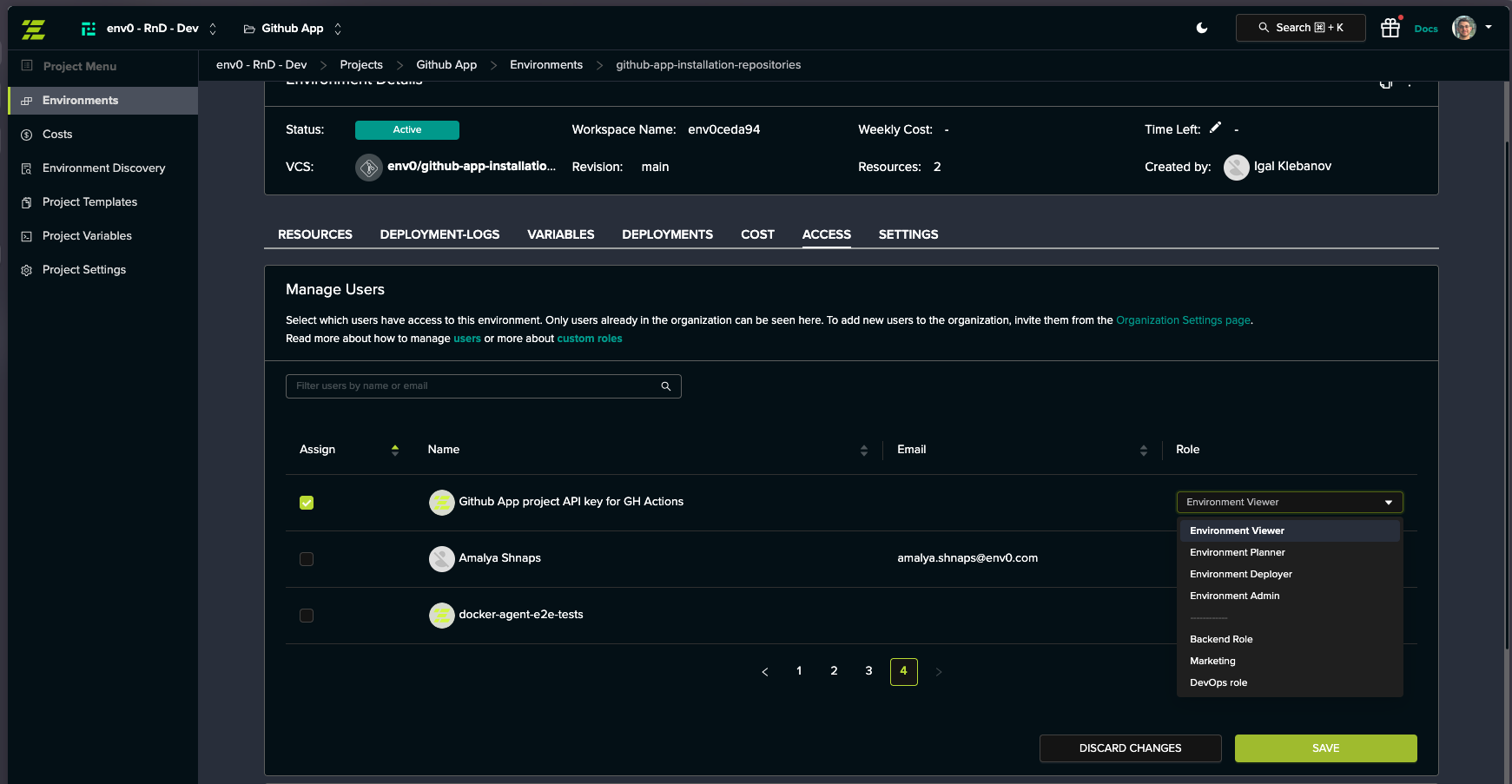 **Important:** You must first select the user using the checkbox in the **Assign** column before you can choose their role.
### Assigning Environment Roles to Teams
Go to the **Environment** page and click the **ACCESS** tab.
In the **Manage Teams** card, locate the team in the table and check the checkbox in the **Assign** column.
Click the **Role** dropdown that appears and select a custom role.
Click **SAVE** to apply the changes.
**Important:** You must first select the user using the checkbox in the **Assign** column before you can choose their role.
### Assigning Environment Roles to Teams
Go to the **Environment** page and click the **ACCESS** tab.
In the **Manage Teams** card, locate the team in the table and check the checkbox in the **Assign** column.
Click the **Role** dropdown that appears and select a custom role.
Click **SAVE** to apply the changes.
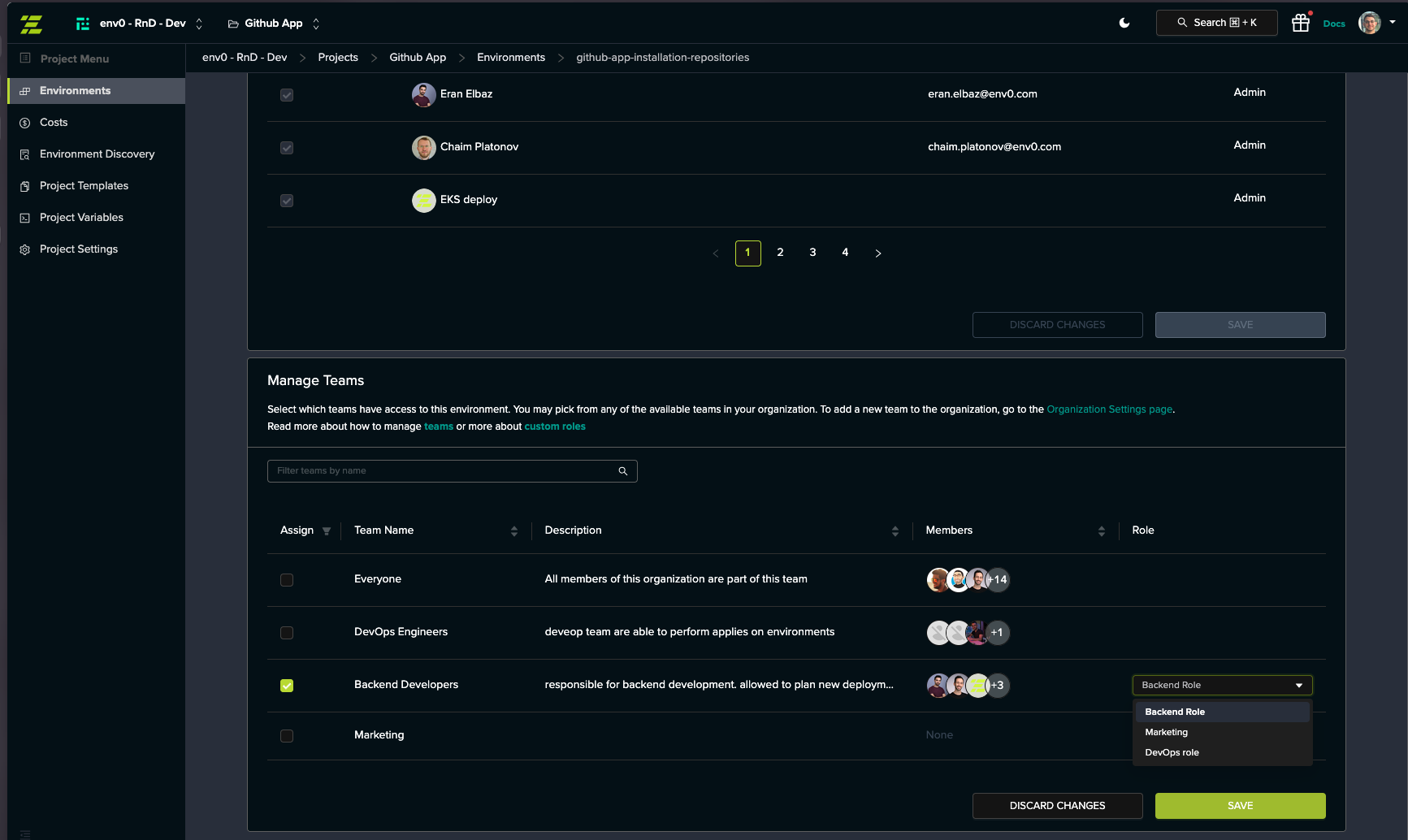 **Default Role Limitation**
Default roles ([Environment Viewer](/guides/admin-guide/user-role-and-team-management/default-roles#environment-viewer), [Environment Planner](/guides/admin-guide/user-role-and-team-management/default-roles#environment-planner), [Environment Deployer](/guides/admin-guide/user-role-and-team-management/default-roles#environment-deployer), [Environment Admin](/guides/admin-guide/user-role-and-team-management/default-roles#environment-admin)) cannot be assigned to teams at the environment level. Only custom roles are available for team assignments.
**Important:** You must first select the team using the checkbox in the **Assign** column before you can choose their role.
## Next steps
Learn how to invite and manage users in your organization
Learn how to create and manage teams to simplify permission management
Review the built-in default roles and their permissions
Create custom roles before assigning them
**Default Role Limitation**
Default roles ([Environment Viewer](/guides/admin-guide/user-role-and-team-management/default-roles#environment-viewer), [Environment Planner](/guides/admin-guide/user-role-and-team-management/default-roles#environment-planner), [Environment Deployer](/guides/admin-guide/user-role-and-team-management/default-roles#environment-deployer), [Environment Admin](/guides/admin-guide/user-role-and-team-management/default-roles#environment-admin)) cannot be assigned to teams at the environment level. Only custom roles are available for team assignments.
**Important:** You must first select the team using the checkbox in the **Assign** column before you can choose their role.
## Next steps
Learn how to invite and manage users in your organization
Learn how to create and manage teams to simplify permission management
Review the built-in default roles and their permissions
Create custom roles before assigning them