> ## Documentation Index
> Fetch the complete documentation index at: https://docs.envzero.com/llms.txt
> Use this file to discover all available pages before exploring further.
# Manage Teams
> Create and manage teams in env zero to group users and assign permissions at organization, project, and environment levels, with SCIM provisioning support.
Teams allow you to manage permissions across your env zero organization by setting a role for an entire group of users as a single entity. Assigning a team's role is available across all scopes, including organization, project, and environment levels.
A team belongs to a single [Organization](/guides/admin-guide/organizations). Teams are managed at the Organization Settings level, and are not shared between multiple organizations.
Teams can be synced from your identity provider's groups. With SSO, groups sync at login time. For continuous sync that doesn't depend on login events, see [SCIM Provisioning](/guides/sso-integrations/scim-provisioning).
## Creating a Team
To create a team, you must be an Organization Admin.
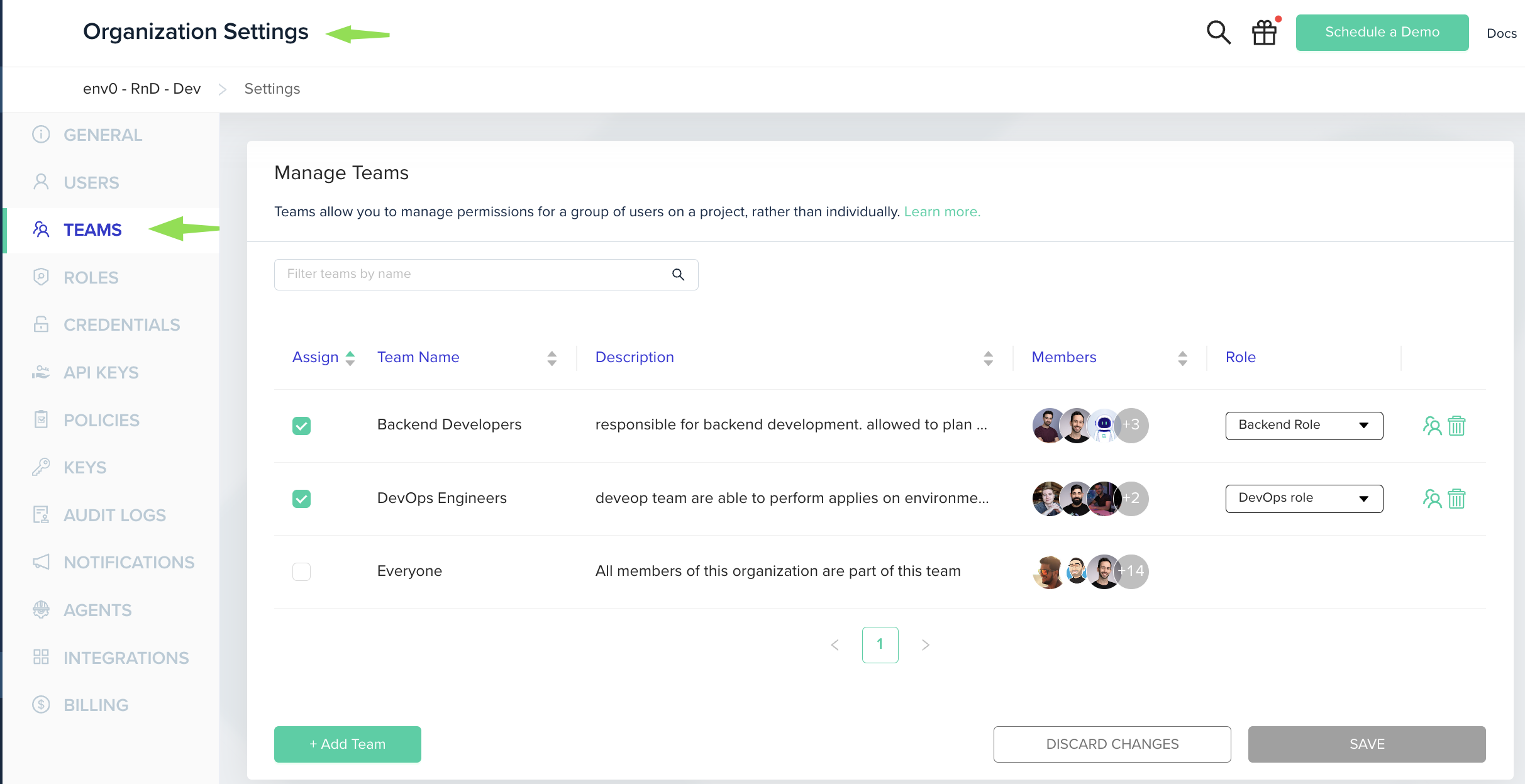
1. Go to **Organization Settings**
2. Click on the **Teams** tab.
3. Click the **Add Team** button
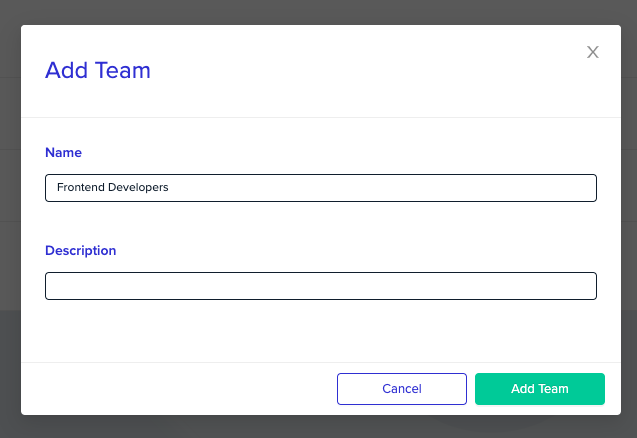
4. Fill in the team's `name` and `description`
5. Click **Confirm** to create the team.
 ## Managing Members
To manage team's members, go to **Organization Settings**, and then to **Teams** tab.
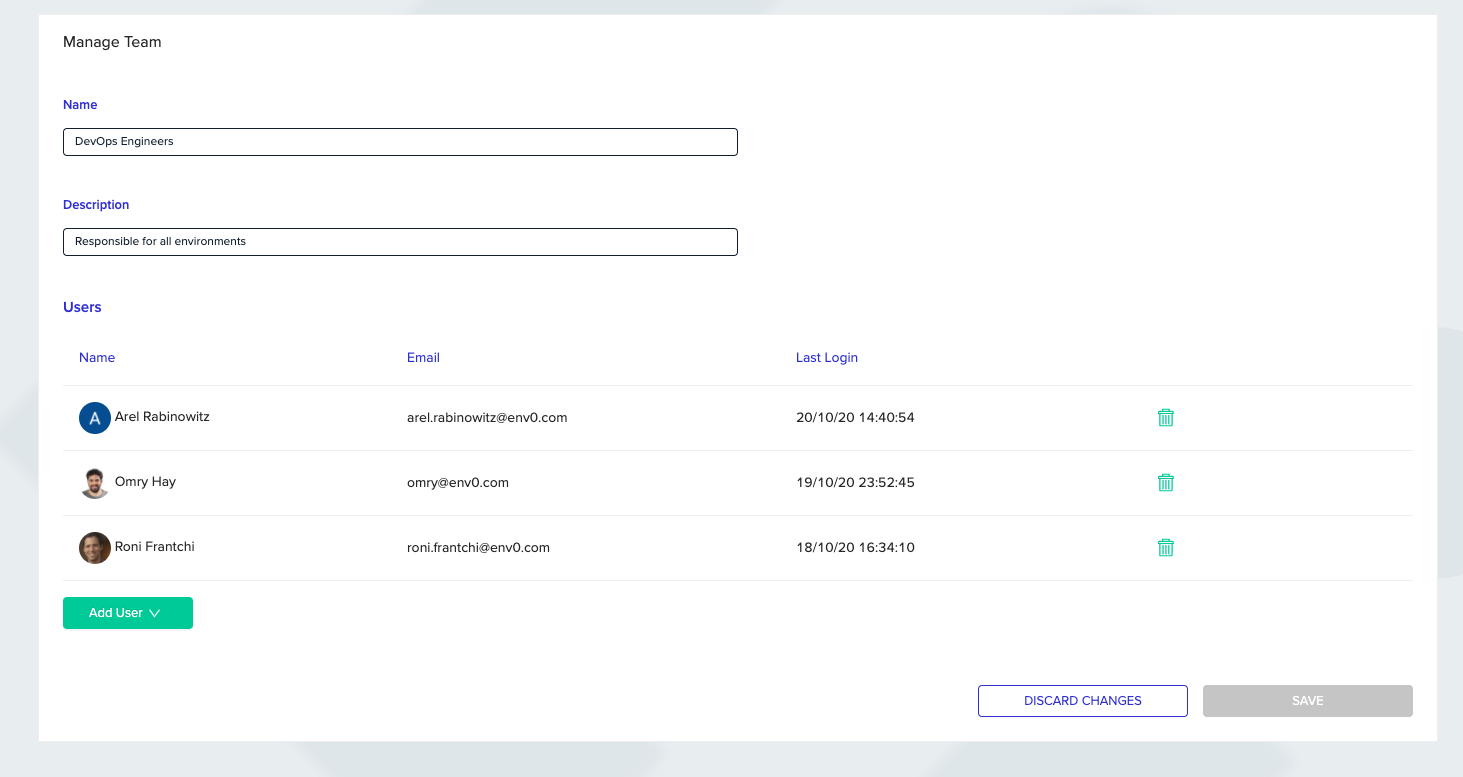
1. Click on the "Users" icon next to the team you would like to change.
2. You will now be redirected to the "Manage Team" page, which lets you edit the team's information, and manage the members of the team.
**Adding Users to a Team**
Only existing users in the Organization may be added as team members - to add new users to your organization follow the [Users Management guide](/guides/admin-guide/user-role-and-team-management/user-management)
## Managing Members
To manage team's members, go to **Organization Settings**, and then to **Teams** tab.
1. Click on the "Users" icon next to the team you would like to change.
2. You will now be redirected to the "Manage Team" page, which lets you edit the team's information, and manage the members of the team.
**Adding Users to a Team**
Only existing users in the Organization may be added as team members - to add new users to your organization follow the [Users Management guide](/guides/admin-guide/user-role-and-team-management/user-management)
 ## Managing Team Access to a Project
Either an Organization Admin or a Project Admin can manage the access of members, or teams, of your organization to a project.
This role will cascade into every member of the team. See [Users & Roles](/guides/admin-guide/user-role-and-team-management/user-management/#project-users) for more information on roles.
Users With Multiple Roles
In the case a user is assigned to a project with multiple roles (such as being the member of two different teams who each have a different role), then the highest permission role for that project will take precedence.
To modify permissions on a project
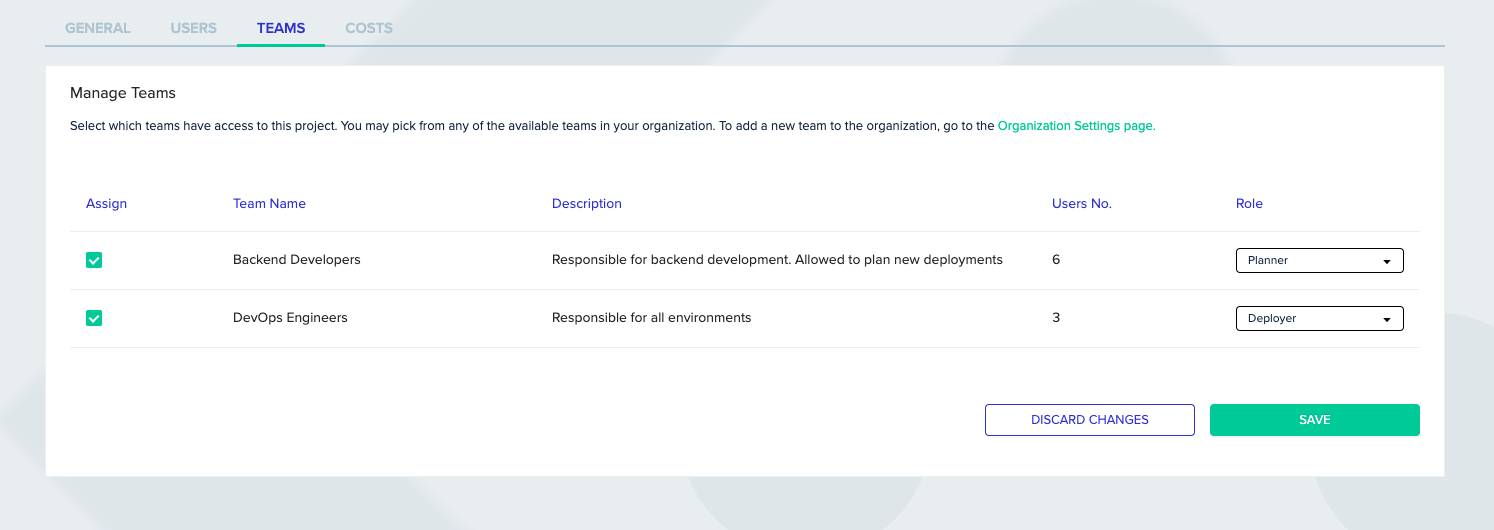
1. Go to **Project Settings**, and then to the **Teams** tab.
2. You will see all teams for the organization, assign your desired Teams to the project by clicking the check mark and picking a role for that team from the dropdown.
3. Click on Save when you are done
## Managing Team Access to a Project
Either an Organization Admin or a Project Admin can manage the access of members, or teams, of your organization to a project.
This role will cascade into every member of the team. See [Users & Roles](/guides/admin-guide/user-role-and-team-management/user-management/#project-users) for more information on roles.
Users With Multiple Roles
In the case a user is assigned to a project with multiple roles (such as being the member of two different teams who each have a different role), then the highest permission role for that project will take precedence.
To modify permissions on a project
1. Go to **Project Settings**, and then to the **Teams** tab.
2. You will see all teams for the organization, assign your desired Teams to the project by clicking the check mark and picking a role for that team from the dropdown.
3. Click on Save when you are done
 ## Next steps
Now that you understand team management, learn how to control access with Role-Based Access Control (RBAC):
Learn about built-in roles and their permissions at organization, project, and environment levels
Create and manage custom roles with tailored permissions
Step-by-step guides for assigning roles to users and teams
## Next steps
Now that you understand team management, learn how to control access with Role-Based Access Control (RBAC):
Learn about built-in roles and their permissions at organization, project, and environment levels
Create and manage custom roles with tailored permissions
Step-by-step guides for assigning roles to users and teams