> ## Documentation Index
> Fetch the complete documentation index at: https://docs.envzero.com/llms.txt
> Use this file to discover all available pages before exploring further.
# Working with Environment Outputs
> Export and share environment outputs like VPC IDs and endpoints across env zero environments as input variables for Terraform, Pulumi, and CloudFormation.
Environment Outputs let you export data generated by **OpenTofu/Terraform/Terragrunt/Pulumi/CloudFormation** environments and use it as input variables in other environments. This is useful for sharing configuration values like VPC IDs, database endpoints, or security group IDs across your infrastructure.
**Environment Outputs Consumers**
Any environment - no matter the IaC type - can consume environment outputs.
The list above names which IaC framework environment outputs can be exported.
Self-Hosted Agent Support
* Environment Outputs are ***not*** supported for self hosted agents prior to version `3.0.724`
* Re-installation of the agent necessitates using the **same** encryption key: `environmentOutputEncryptionKey`(see below for details)
* **Outputs between different agents** can be supported by using the **same** `environmentOutputEncryptionKey`
* Outputs between Self-hosted agents and SaaS agent are not supported.
## Environment Outputs Activation
To activate exporting Environment Outputs, a Project Admin must enable this feature within the project settings. This action necessitates opting in, signifying acknowledgment that env zero will store encrypted sensitive outputs on its platform. To opt in, navigate to the **Policies** tab within the project settings and locate the **Environment Outputs** checkbox.
Note
Environment Outputs are not consumable right after enabling the **Environment Outputs** policy.
For an Environment's Outputs to be consumable, it needs to be deployed at least once after the policy is enabled.
### Self-Hosted Agents Activation
When employing a self-hosted agent, sensitive outputs undergo encryption using a key independent of env zero ownership. This approach ensures end-to-end encryption of sensitive values, thereby bolstering security measures to their fullest extent.
The encryption key should be provided by the `environmentOutputEncryptionKey` helm value. See our [Self-Hosted Agent - optional configuration](/guides/admin-guide/self-hosted-kubernetes-agent/custom-optional-configuration) for how to configure your agent.
## Access Restriction
env zero supports restricting access to Environment Outputs, each Environment can configure which Projects can access its outputs inside the "Settings" Tab.
If you don't want any access restrictions - select the "All environments in the organization" option.
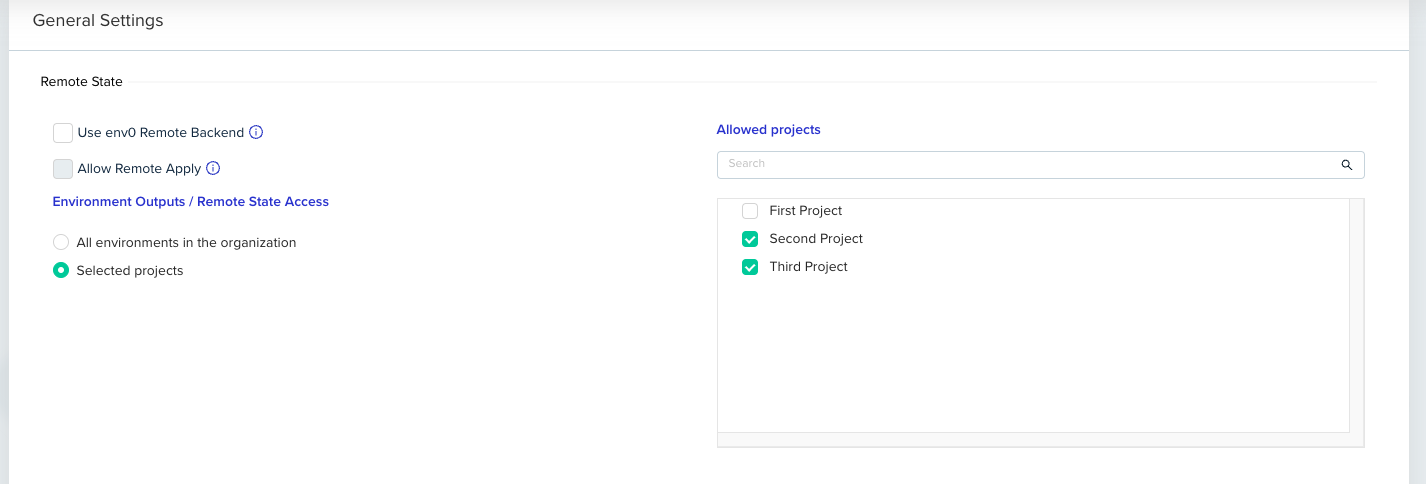 By default, the outputs of every Environment are accessible to all Environments inside your organization until configured otherwise.
## Using Environment Outputs
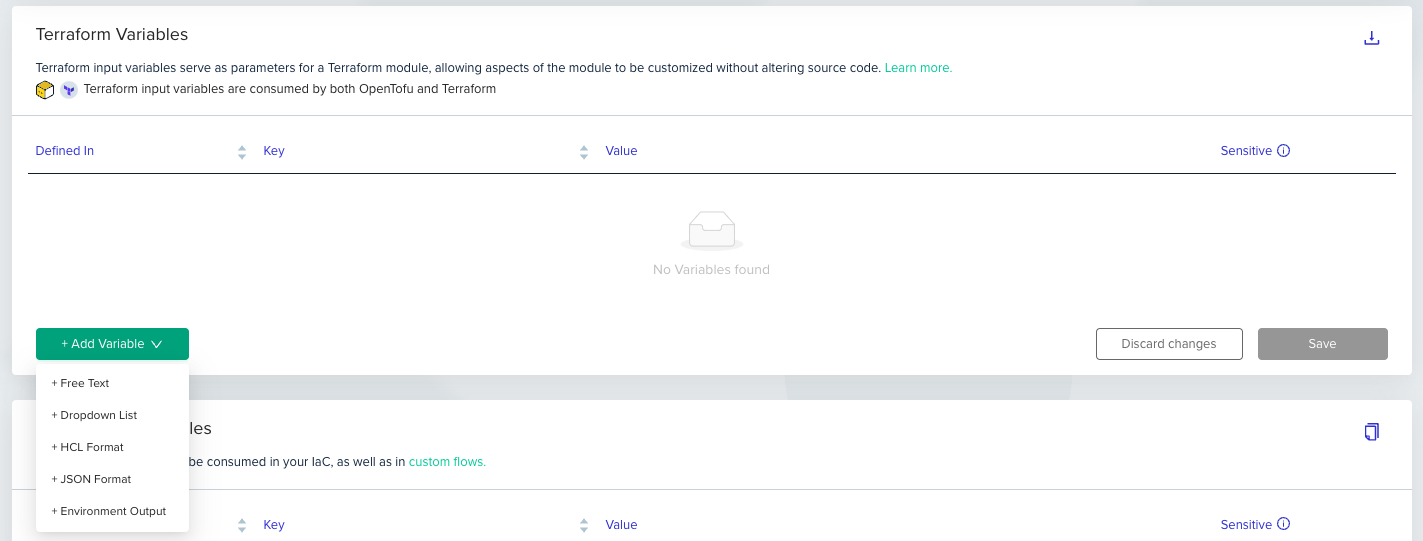
Environment Outputs are accessible as inputs for other environments. To use this functionality, add a variable of type "Environment Output," following the example below:
By default, the outputs of every Environment are accessible to all Environments inside your organization until configured otherwise.
## Using Environment Outputs
Environment Outputs are accessible as inputs for other environments. To use this functionality, add a variable of type "Environment Output," following the example below:
 **Good to Know**
* To utilize an output of an environment, the environment must be deployed initially for env zero to capture and store the output. In workflows, you can use the free-type option to specify output names for sub-environments that haven't been deployed yet. See [Using in Workflows](#using-in-workflows) below.
* Environment Output variables are exclusively accessible within Environment and Project scopes.
* Only **strings** are supported at this time. See the example below for working with maps and lists.
After adding the new variable to the list, you can select the relevant Environment Output by clicking the edit (pencil) button and selecting the relevant Environment/Sub-Environment Alias and Output Name:
**Good to Know**
* To utilize an output of an environment, the environment must be deployed initially for env zero to capture and store the output. In workflows, you can use the free-type option to specify output names for sub-environments that haven't been deployed yet. See [Using in Workflows](#using-in-workflows) below.
* Environment Output variables are exclusively accessible within Environment and Project scopes.
* Only **strings** are supported at this time. See the example below for working with maps and lists.
After adding the new variable to the list, you can select the relevant Environment Output by clicking the edit (pencil) button and selecting the relevant Environment/Sub-Environment Alias and Output Name:
 ### Outputting Complex Types in Terraform
Currently, **only string variable types are supported by Environment Outputs**. This is partially to ensure interoperability between other frameworks (such as passing a TF variable to an Helm chart). So if your terraform code is outputting a map or a list, use `jsonencode()`to first convert the value to a string format. See example:
```hcl theme={null}
locals {
tags = {"foo": "bar"}
}
# instead of this
# output "tags" {
# value = local.tags
# }
# do this
output "tags" {
value = jsonencode(local.tags)
}
```
**No changes needed on the input variable`type=list() or map()`**
Since Terraform allows input variables to be defined as strings with the proper JSON format, you don't need to make any additional changes to your input definition.
### Using in Workflows
Environment Outputs are especially useful in [Workflows](/guides/admin-guide/workflows) for passing data between sub-environments. For example, a networking stack can output a VPC ID that a compute stack consumes as an input variable.
There are two ways to configure output-to-variable mappings in workflows:
#### Configuring at the Template Level (Recommended)
For reusable workflows and self-service scenarios, configure Environment Output variables directly on the workflow template. This pre-configures the mappings so end-users deploying the workflow do not need to set anything up.
For step-by-step instructions, see [Passing Outputs Between Sub-Environments](/guides/admin-guide/variables/workflow-variables#passing-outputs-between-sub-environments).
#### Configuring at Deploy Time
You can also configure output-to-variable mappings on the workflow deploy page:
On the workflow deploy page, select the sub-environment that needs to **receive** the output.
### Outputting Complex Types in Terraform
Currently, **only string variable types are supported by Environment Outputs**. This is partially to ensure interoperability between other frameworks (such as passing a TF variable to an Helm chart). So if your terraform code is outputting a map or a list, use `jsonencode()`to first convert the value to a string format. See example:
```hcl theme={null}
locals {
tags = {"foo": "bar"}
}
# instead of this
# output "tags" {
# value = local.tags
# }
# do this
output "tags" {
value = jsonencode(local.tags)
}
```
**No changes needed on the input variable`type=list() or map()`**
Since Terraform allows input variables to be defined as strings with the proper JSON format, you don't need to make any additional changes to your input definition.
### Using in Workflows
Environment Outputs are especially useful in [Workflows](/guides/admin-guide/workflows) for passing data between sub-environments. For example, a networking stack can output a VPC ID that a compute stack consumes as an input variable.
There are two ways to configure output-to-variable mappings in workflows:
#### Configuring at the Template Level (Recommended)
For reusable workflows and self-service scenarios, configure Environment Output variables directly on the workflow template. This pre-configures the mappings so end-users deploying the workflow do not need to set anything up.
For step-by-step instructions, see [Passing Outputs Between Sub-Environments](/guides/admin-guide/variables/workflow-variables#passing-outputs-between-sub-environments).
#### Configuring at Deploy Time
You can also configure output-to-variable mappings on the workflow deploy page:
On the workflow deploy page, select the sub-environment that needs to **receive** the output.
 In the **Variables** section, add a new variable of type **Environment Output** (same as described above).
Click the edit button. In the modal, you will see a **Sub-Environment Aliases** section listing the aliases from your workflow file. Select the source sub-environment.
In the **Variables** section, add a new variable of type **Environment Output** (same as described above).
Click the edit button. In the modal, you will see a **Sub-Environment Aliases** section listing the aliases from your workflow file. Select the source sub-environment.
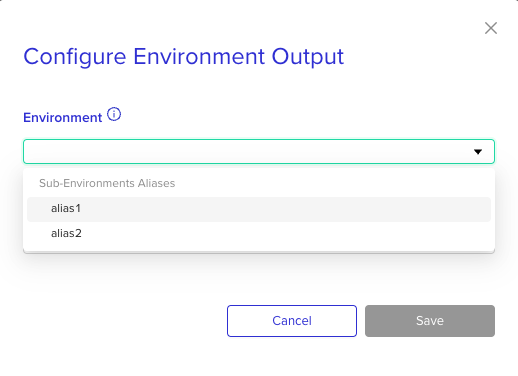 Select an output from the dropdown. If the source sub-environment has never been deployed, you can free-type the expected output name.
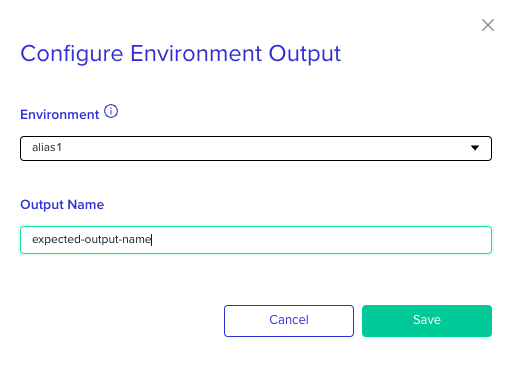 Click **Save** and continue with the deployment.
On the first deployment of a workflow, outputs from sub-environments that haven't been deployed yet won't appear in the dropdown. Use the free-type option to enter the expected output name. env zero resolves outputs in dependency order based on the `needs` configuration in your workflow file.
## Next steps
* [Managing Workflow Variables](/guides/admin-guide/variables/workflow-variables) - Configure output-to-variable mappings at the workflow template level.
* [Configuring State Access Control](/guides/admin-guide/remote-backend/state-access-control) - Control which projects can access an environment's remote state.
* [Workflow Overview](/guides/admin-guide/workflows) - Learn how workflows pass data between dependent sub-environments.
Click **Save** and continue with the deployment.
On the first deployment of a workflow, outputs from sub-environments that haven't been deployed yet won't appear in the dropdown. Use the free-type option to enter the expected output name. env zero resolves outputs in dependency order based on the `needs` configuration in your workflow file.
## Next steps
* [Managing Workflow Variables](/guides/admin-guide/variables/workflow-variables) - Configure output-to-variable mappings at the workflow template level.
* [Configuring State Access Control](/guides/admin-guide/remote-backend/state-access-control) - Control which projects can access an environment's remote state.
* [Workflow Overview](/guides/admin-guide/workflows) - Learn how workflows pass data between dependent sub-environments.