> ## Documentation Index
> Fetch the complete documentation index at: https://docs.envzero.com/llms.txt
> Use this file to discover all available pages before exploring further.
# Managing Workflow Variables
> Configure variables for workflow sub-environments at the template level in env zero, including output passing between stacks and self-service defaults.
You can configure variables for your workflow by setting them on the workflow template. This includes configuring variables for each sub-environment's template, so default values are applied automatically every time the workflow is deployed. This is useful for self-service scenarios where end-users should not need to configure variables manually.
## Setting Variables on Sub-Environment Templates
In the workflow template wizard, under the Variables step, env zero loads the workflow file and displays the sub-environment templates. Select the sub-environment you want to configure.
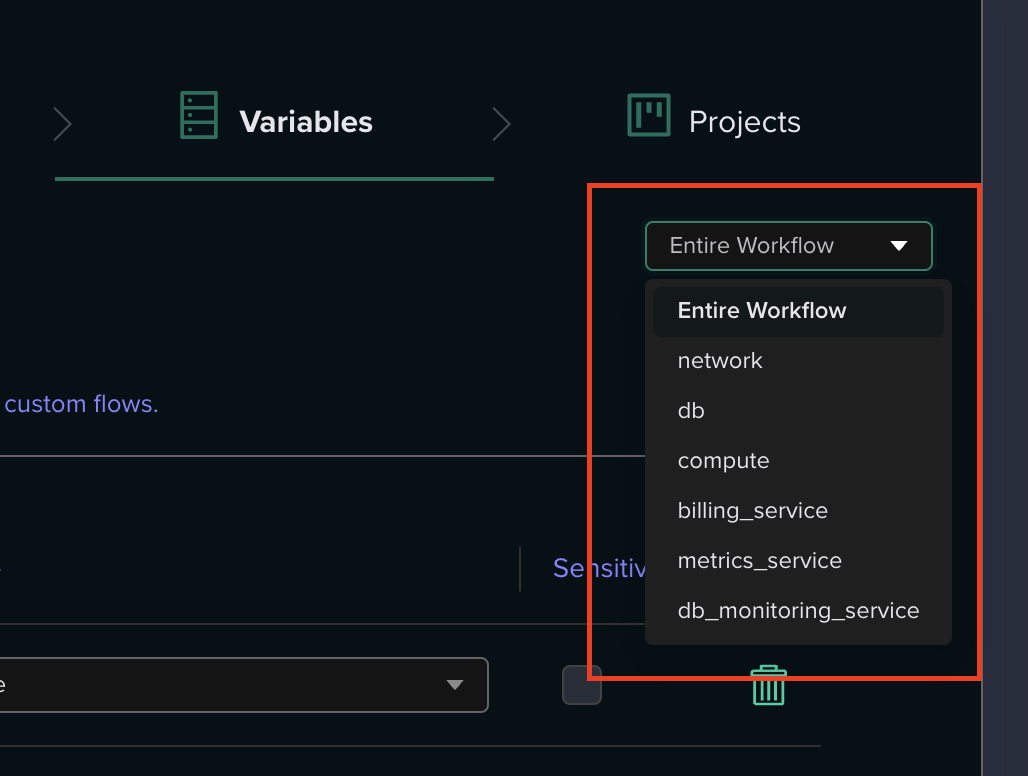 Once you add a variable to a sub-environment template, it appears with a **Workflow Template** scope badge, indicating it was configured at the template level.
 ## Passing Outputs Between Sub-Environments
A common pattern in workflows is passing data from one sub-environment to another. For example, a networking stack might output a VPC ID that a compute stack needs as an input variable.
You can configure this at the template level using **Environment Output** variables, so the output-to-variable mapping is pre-configured and applied automatically on every deployment.
**Prerequisites**
* [Environment Outputs](/guides/admin-guide/variables/environment-outputs) must be enabled in the project's Policies settings.
* The source sub-environment must list the consuming sub-environment's dependency using the `needs` field in the workflow file, ensuring correct deployment order.
Navigate to the workflow template and open the settings wizard. Go to the **Variables** step.
From the sub-environment list, select the sub-environment that needs to **receive** the output (the one that depends on another sub-environment).
Click **Add Variable**, set the type to **Environment Output**, and enter the variable key (the Terraform/environment variable name you want to populate).
Click the edit (pencil) button on the variable value. In the modal, you will see a **Sub-Environment Aliases** section listing the aliases from your workflow file. Select the alias of the sub-environment whose output you want to consume.
## Passing Outputs Between Sub-Environments
A common pattern in workflows is passing data from one sub-environment to another. For example, a networking stack might output a VPC ID that a compute stack needs as an input variable.
You can configure this at the template level using **Environment Output** variables, so the output-to-variable mapping is pre-configured and applied automatically on every deployment.
**Prerequisites**
* [Environment Outputs](/guides/admin-guide/variables/environment-outputs) must be enabled in the project's Policies settings.
* The source sub-environment must list the consuming sub-environment's dependency using the `needs` field in the workflow file, ensuring correct deployment order.
Navigate to the workflow template and open the settings wizard. Go to the **Variables** step.
From the sub-environment list, select the sub-environment that needs to **receive** the output (the one that depends on another sub-environment).
Click **Add Variable**, set the type to **Environment Output**, and enter the variable key (the Terraform/environment variable name you want to populate).
Click the edit (pencil) button on the variable value. In the modal, you will see a **Sub-Environment Aliases** section listing the aliases from your workflow file. Select the alias of the sub-environment whose output you want to consume.
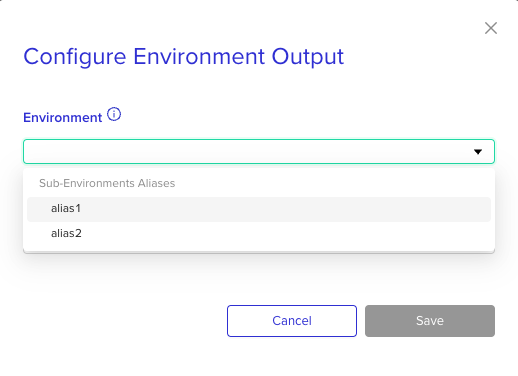 If the source sub-environment has been deployed before, select from the dropdown of available outputs. If it has not been deployed yet, you can free-type the expected output name.
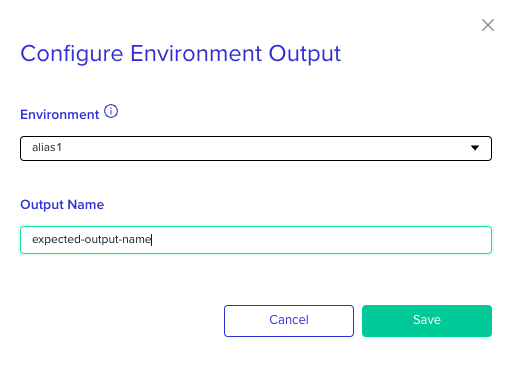 Click **Save**. The variable is now configured at the template level and will be resolved automatically on each deployment.
### First Deployment Considerations
Environment Outputs from a sub-environment are only available after that sub-environment has been deployed at least once. On the first deployment of a workflow, outputs won't appear in the dropdown.
Use the **free-type** option to enter the expected output name manually. Because the `needs` field in your workflow file controls deployment order, the source sub-environment will deploy before the consuming one, and the output will be available by the time it is needed.
### Configuring at Deploy Time
You can also configure output-to-variable mappings at deploy time on the workflow deploy page. For step-by-step instructions, see [Using Environment Outputs in Workflows](/guides/admin-guide/variables/environment-outputs/#using-in-workflows).
## Cross-Environment Outputs
In addition to referencing outputs from sub-environments within the same workflow, you can reference outputs from any deployed environment in your organization. When configuring the output source, select the environment by its ID instead of a sub-environment alias.
Learn more: [Environment Outputs](/guides/admin-guide/variables/environment-outputs)
## Code-Based Configuration (Import Variable Plugin)
The steps above configure output mappings through the env zero UI. For teams that prefer a **code-driven / GitOps approach** where variable configurations are version-controlled, the [Import Variable Plugin](/guides/integrations/plugins/import-variable-plugin) allows you to define output-to-variable mappings in `env0.yaml` custom flows using the `${env0-workflow::}` syntax.
The `${env0-workflow:...}` syntax is specific to the Import Variable Plugin and requires API key configuration. It is not part of the native Environment Outputs feature. For most users, the UI-based approach described above is recommended.
You can also define Environment Output variables programmatically using the [env0 Terraform Provider](https://registry.terraform.io/providers/env0/env0/latest).
## Next steps
* [Working with Environment Outputs](/guides/admin-guide/variables/environment-outputs) - Enable and configure environment output sharing across stacks.
* [Creating A New Workflow](/guides/admin-guide/workflows/create-a-new-workflow) - Set up a workflow and configure sub-environment dependencies.
* [Using Variable Sets](/guides/admin-guide/variables/variable-sets) - Group shared variables for reuse across workflow environments.
Click **Save**. The variable is now configured at the template level and will be resolved automatically on each deployment.
### First Deployment Considerations
Environment Outputs from a sub-environment are only available after that sub-environment has been deployed at least once. On the first deployment of a workflow, outputs won't appear in the dropdown.
Use the **free-type** option to enter the expected output name manually. Because the `needs` field in your workflow file controls deployment order, the source sub-environment will deploy before the consuming one, and the output will be available by the time it is needed.
### Configuring at Deploy Time
You can also configure output-to-variable mappings at deploy time on the workflow deploy page. For step-by-step instructions, see [Using Environment Outputs in Workflows](/guides/admin-guide/variables/environment-outputs/#using-in-workflows).
## Cross-Environment Outputs
In addition to referencing outputs from sub-environments within the same workflow, you can reference outputs from any deployed environment in your organization. When configuring the output source, select the environment by its ID instead of a sub-environment alias.
Learn more: [Environment Outputs](/guides/admin-guide/variables/environment-outputs)
## Code-Based Configuration (Import Variable Plugin)
The steps above configure output mappings through the env zero UI. For teams that prefer a **code-driven / GitOps approach** where variable configurations are version-controlled, the [Import Variable Plugin](/guides/integrations/plugins/import-variable-plugin) allows you to define output-to-variable mappings in `env0.yaml` custom flows using the `${env0-workflow::}` syntax.
The `${env0-workflow:...}` syntax is specific to the Import Variable Plugin and requires API key configuration. It is not part of the native Environment Outputs feature. For most users, the UI-based approach described above is recommended.
You can also define Environment Output variables programmatically using the [env0 Terraform Provider](https://registry.terraform.io/providers/env0/env0/latest).
## Next steps
* [Working with Environment Outputs](/guides/admin-guide/variables/environment-outputs) - Enable and configure environment output sharing across stacks.
* [Creating A New Workflow](/guides/admin-guide/workflows/create-a-new-workflow) - Set up a workflow and configure sub-environment dependencies.
* [Using Variable Sets](/guides/admin-guide/variables/variable-sets) - Group shared variables for reuse across workflow environments.