> ## Documentation Index
> Fetch the complete documentation index at: https://docs.envzero.com/llms.txt
> Use this file to discover all available pages before exploring further.
# Creating A New Workflow
> Create an env zero workflow using env0.workflow.yaml, covering dependency definitions, approval priority order, and multi-environment workflow setup.
To set up a Workflow, follow these steps:
env zero relies on a file named **env0.workflow\.yaml** (or **env0.workflow\.yml**) to describe the dependencies and configuration of the sub-environments in your workflow.
For the complete schema reference, see [Workflow File Reference](/guides/admin-guide/workflows/workflow-file-reference).
## Approval Priority Order
When multiple approval settings exist, approvals are evaluated in the following priority:
1. [ENV0\_REQUIRES\_APPROVAL](/guides/admin-guide/custom-flows/#forcing-manual-approvals) environment variable
2. Approval policy (always evaluated if defined)
3. Value from the UI or API request
4. Value from the workflow `requiresApproval` field
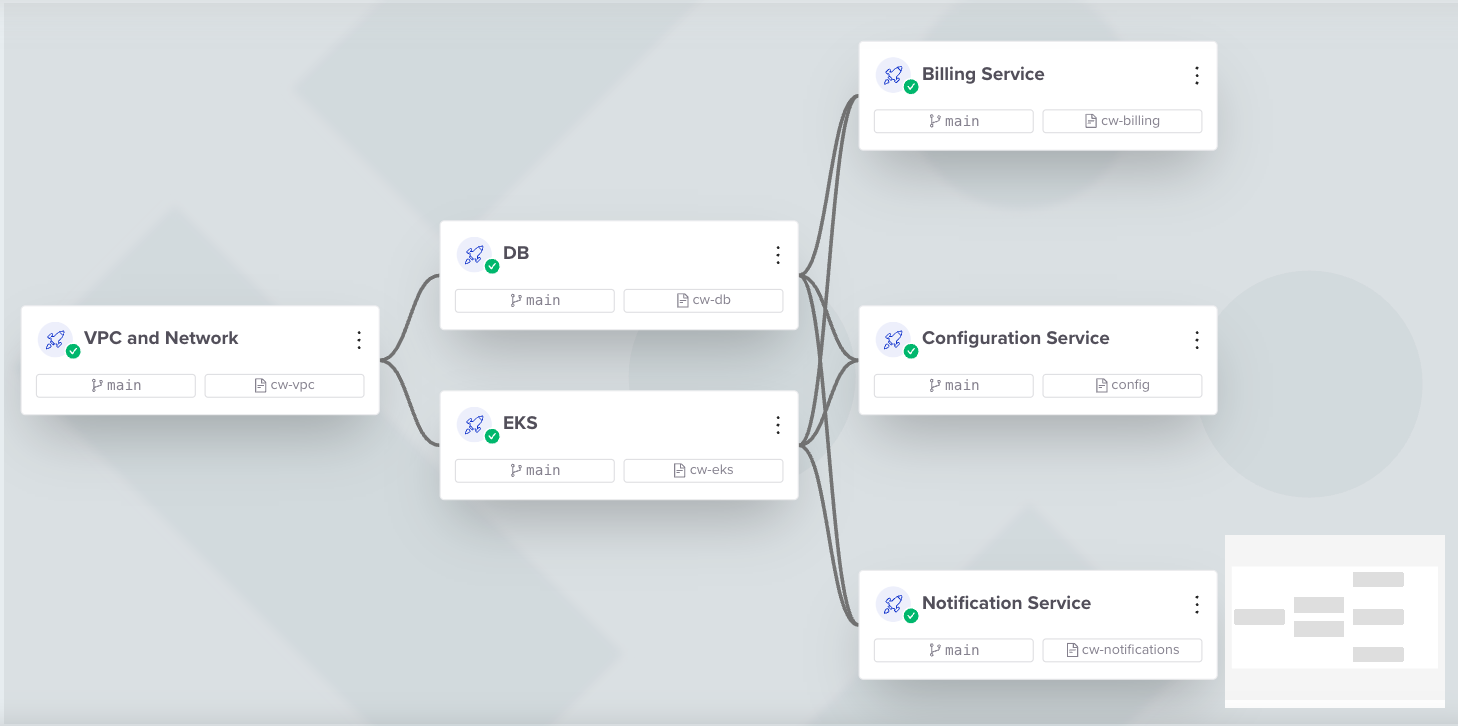
## Example Configuration
```yaml env0.workflow.yaml theme={null}
environments:
vpc:
name: "VPC and Network"
templateName: "VPC"
db:
name: "Database"
templateName: "DB"
requiresApproval: true
needs:
- vpc
eks:
name: "EKS Cluster"
templateName: "EKS"
needs:
- vpc
billing-service:
name: "Billing Service"
vcs:
type: terraform
terraformVersion: "1.5.7"
repository: "https://github.com/env0/templates"
path: "aws/hello-world"
githubInstallationId: 123456789
disabled: ${DISABLE_BILLING_SERVICE}
needs:
- db
- eks
config-service:
name: "Configuration Service"
templateName: "Configuration Service"
revision: feature-branch
disabled: ${DISABLE_CONFIG_SERVICE}
needs:
- db
- eks
```
### Using Environment Variables in Workflow Fields
You can use `${...}` syntax to interpolate environment variables into workflow fields.
In the example above:
* `DISABLE_BILLING_SERVICE` controls whether the `billing-service` environment is disabled.
* `DISABLE_CONFIG_SERVICE` controls whether the `config-service` environment is disabled.
When these variables are set to `true` (for example, in your environment or via env zero variables), the corresponding sub-environment is skipped during deployment.
## Environment Removal Strategy
By default, removing an environment from the workflow file leaves it detached but not destroyed.
To automatically run a "destroy" process on environments that were removed from the workflow file, add `environmentRemovalStrategy: destroy` to your `settings` section. For example:
```yaml env0.workflow.yaml theme={null}
settings:
environmentRemovalStrategy: destroy
environments:
vpc:
name: "VPC and Network"
templateName: "VPC"
```
| Value | Behavior |
| --------- | --------------------------------------------------------------------------- |
| `destroy` | Automatically destroy removed environments after deploying all environments |
| `detach` | Detach removed environments without destroying them (default) |
**Template Naming**
While not enforced, use unique template names. Otherwise, the Workflow will randomly choose one of the templates without considering permission restrictions.
## Creating a Workflow in the UI
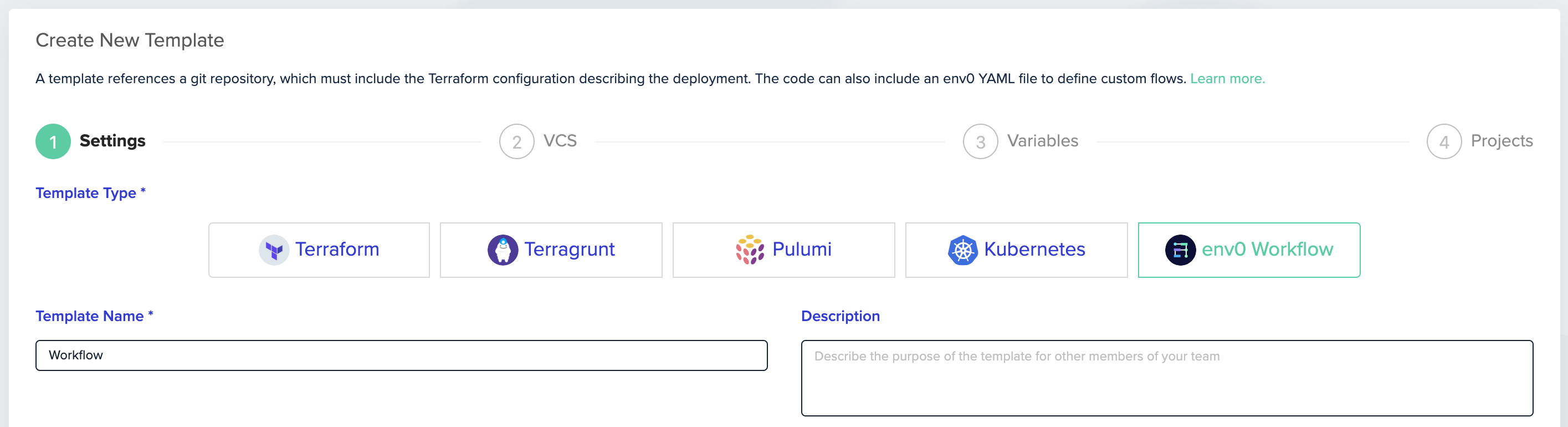
1. Create a [new template](/guides/admin-guide/templates) and select **env zero Workflow** as the Template Type:
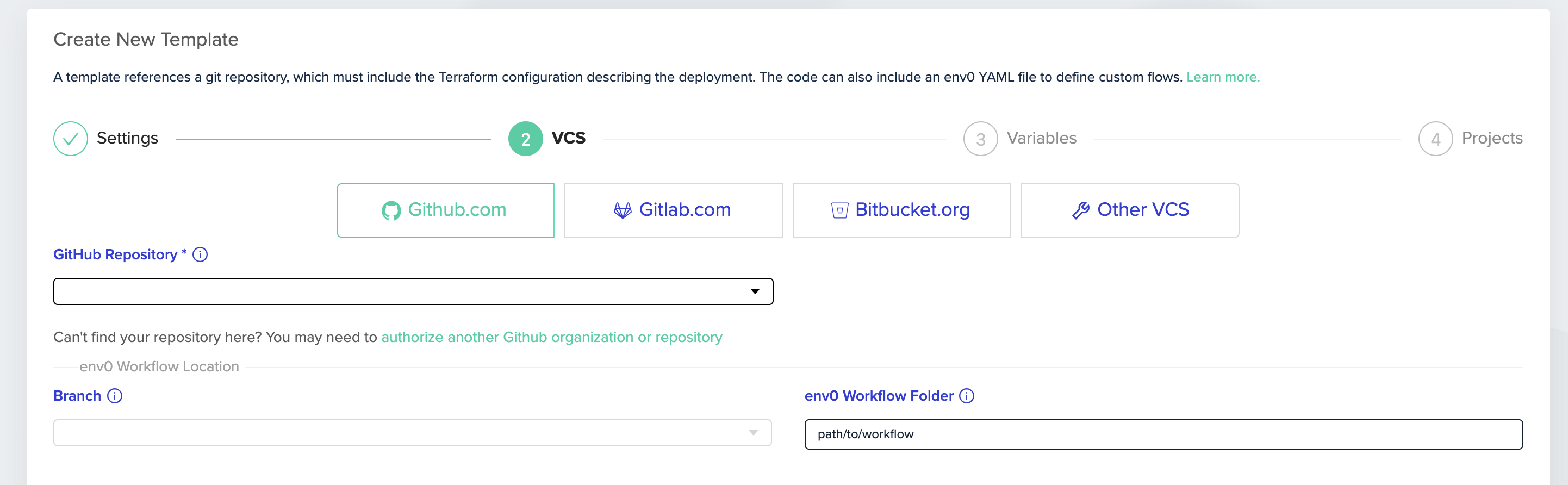
 In the VCS step, fill in your VCS details and the directory that contains your **env0.workflow\.yaml** (or **env0.workflow\.yml**) file:
 2. Create an [Environment](/guides/admin-guide/environments/setting-up-a-new-environment) based on the Workflow template.
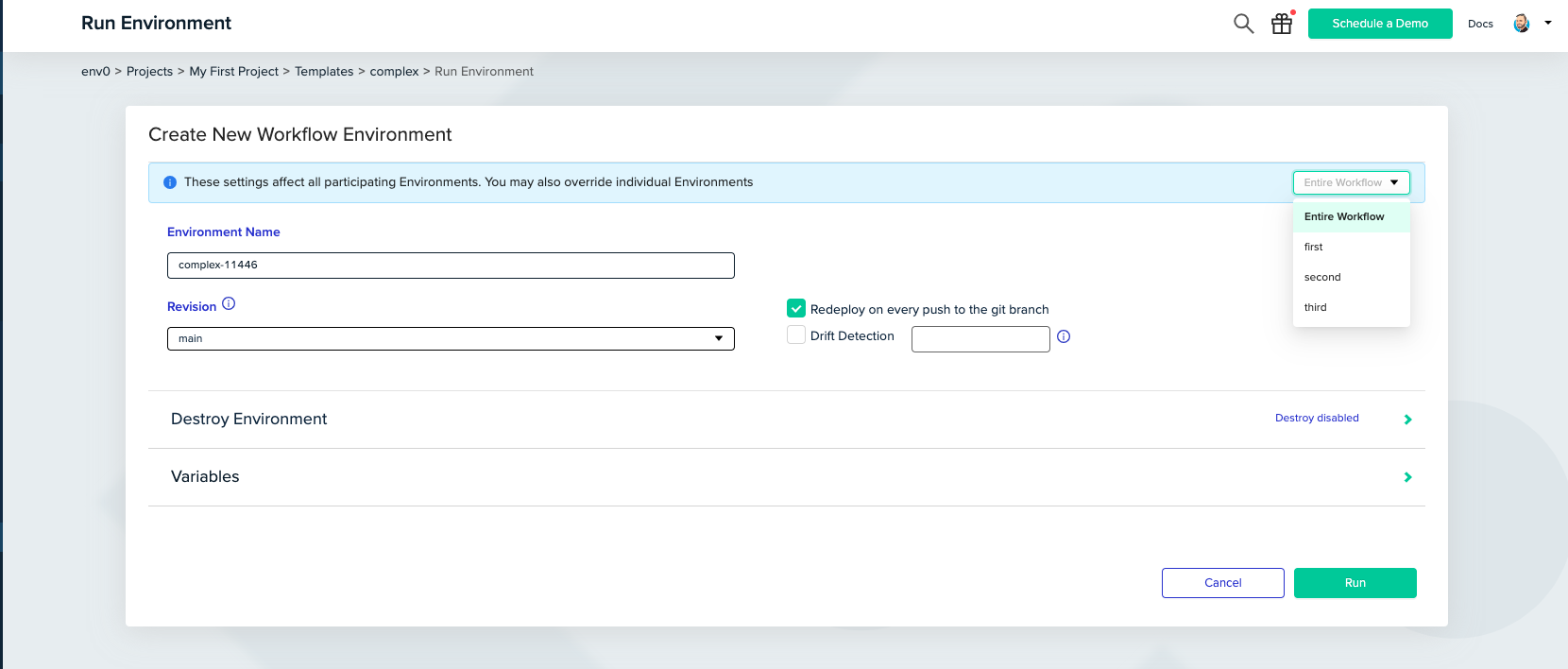
You can choose any of the workflow environments from the dropdown menu in the top right corner.
2. Create an [Environment](/guides/admin-guide/environments/setting-up-a-new-environment) based on the Workflow template.
You can choose any of the workflow environments from the dropdown menu in the top right corner.
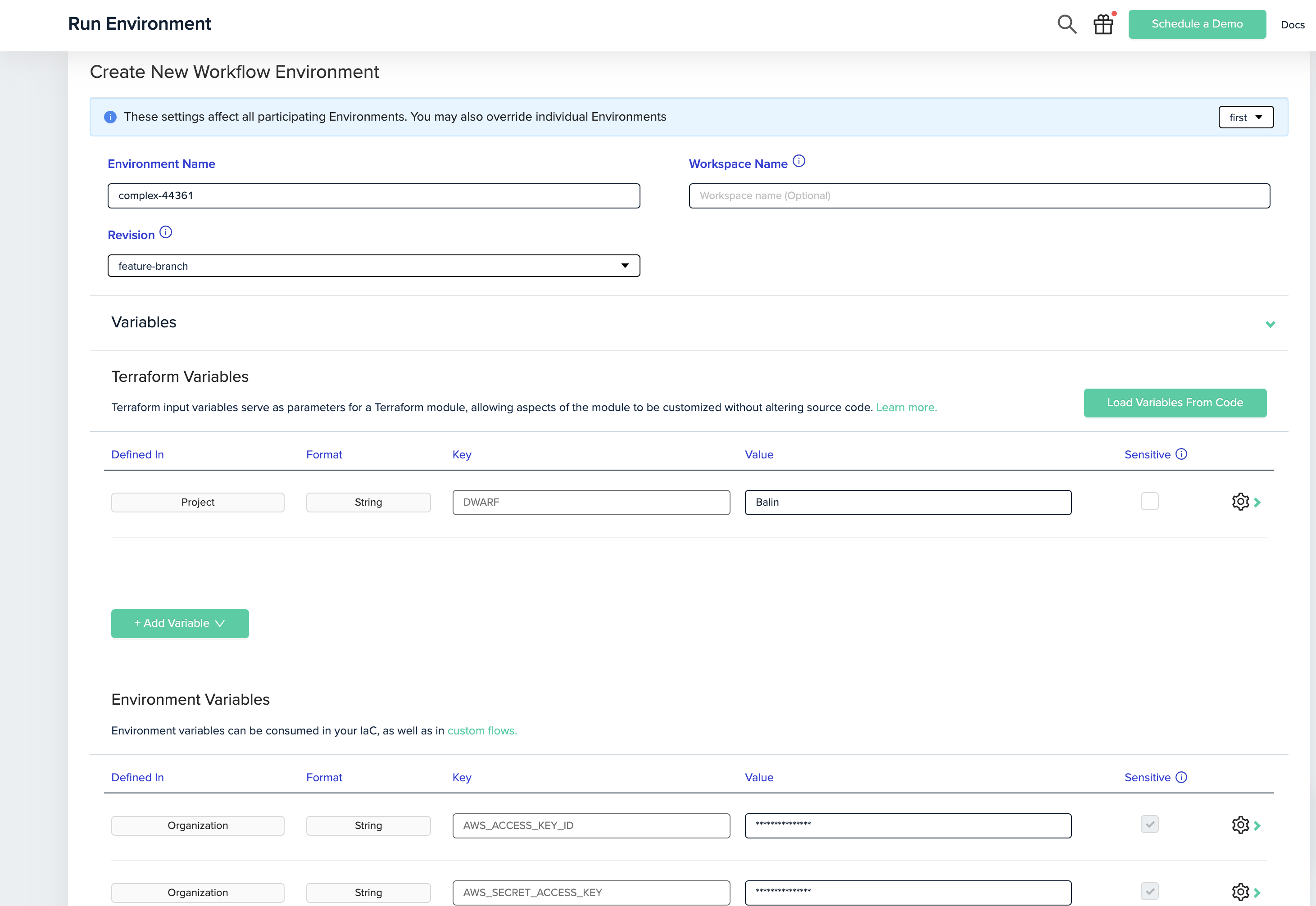
 After choosing one of the workflow sub-environments, you can modify its variables, workspace, revision and auto-approval settings.
Remote Backend
The Remote Backend option will be applied to Terraform templates only. For further documentation about remote backend, [follow this guide](/guides/admin-guide/remote-backend).
Overrides Note
The values you set here for workspace and revision will override the ones you've defined in the workflow file for the corresponding environment.
If you would like to set the whole workflow to the same workspace name value, you can do so by setting the workflow workspace name, and leaving the sub environments blank.
Note that since Terragrunt uses a working directory instead of workspace name, the workspace name override won't apply to Terragrunt template type.
When marking the workflow as remote backend, you must provide unique names for each of the sub environments workspaces.
After choosing one of the workflow sub-environments, you can modify its variables, workspace, revision and auto-approval settings.
Remote Backend
The Remote Backend option will be applied to Terraform templates only. For further documentation about remote backend, [follow this guide](/guides/admin-guide/remote-backend).
Overrides Note
The values you set here for workspace and revision will override the ones you've defined in the workflow file for the corresponding environment.
If you would like to set the whole workflow to the same workspace name value, you can do so by setting the workflow workspace name, and leaving the sub environments blank.
Note that since Terragrunt uses a working directory instead of workspace name, the workspace name override won't apply to Terragrunt template type.
When marking the workflow as remote backend, you must provide unique names for each of the sub environments workspaces.
 3. Deploy
 ## Next steps
* [Workflow File Reference](/guides/admin-guide/workflows/workflow-file-reference) - Full schema for all sub-environment properties and settings.
* [Partial Workflow Deployment](/guides/admin-guide/workflows/workflow-partial-deployment) - Deploy or destroy individual sub-environments without a full run.
* [Managing Workflow Variables](/guides/admin-guide/variables/workflow-variables) - Configure variables and output passing at the template level.
## Next steps
* [Workflow File Reference](/guides/admin-guide/workflows/workflow-file-reference) - Full schema for all sub-environment properties and settings.
* [Partial Workflow Deployment](/guides/admin-guide/workflows/workflow-partial-deployment) - Deploy or destroy individual sub-environments without a full run.
* [Managing Workflow Variables](/guides/admin-guide/variables/workflow-variables) - Configure variables and output passing at the template level.