> ## Documentation Index
> Fetch the complete documentation index at: https://docs.envzero.com/llms.txt
> Use this file to discover all available pages before exploring further.
# Partial Workflow Deployment
> Deploy or destroy subsets of an env zero workflow graph using Run From Here, single sub-environment redeploy, or single sub-environment destroy.
## What is Partial Workflow Deployment?
After the first workflow deployment, a workflow is represented as a graph, generated from the [input env0.workflow.yml](/guides/admin-guide/workflows/create-a-new-workflow) file. Partial Workflow Deployment lets you redeploy or destroy a subset of your workflow's graph as needed, rather than running a full top-to-bottom deployment each time. It provides more targeted, incremental deployment capabilities. Partial Workflow Deployment may be used in various cases, for example:
* Fixing failed deployment without having to re-run the entire workflow
* Applying changes on a single sub-environment
* Generating quicker development cycles for a part of the workflow
* Destroying a single sub-environment to test a deployment's resource creation
After every partial deployment, workflow status & resources will be reevaluated.
There are three options for Partial Workflow Deployment:
1. [Run From Here](/guides/admin-guide/workflows/workflow-partial-deployment/#deploying-a-subset-of-the-workflow)
2. [Single Sub-Environment Redeploy](/guides/admin-guide/workflows/workflow-partial-deployment/#deploying-a-single-sub-environment)
3. [Single Sub-Environment Destroy ](/guides/admin-guide/workflows/workflow-partial-deployment/#destroying-a-single-environment)
***
## Deploying a subset of the workflow
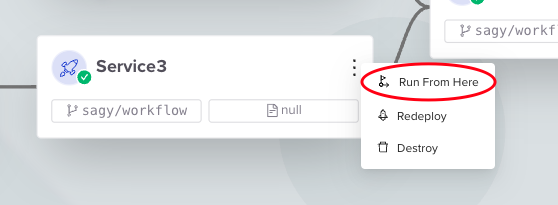
This is achieved using the ***Run From Here*** button. This will run the workflow according to the latest workflow file used, starting from the selected sub-environment and continuing to its entire sub-tree.
**Updating the *env0.workflow\.yml* file**
Updates made to the *env0.workflow\.yml* file will not be applied when performing Run From Here partial deployment, because Partial Workflow Deployment utilizes the most recently cached workflow configuration.
The Run From Here button can be found either on the workflow's graph in each sub-environment's three-dot (︙) menu:
 Or on the sub-environment's page:
 Run From Here
 will continue the workflow run as described in the graph. That means environments may be deployed or destroyed, as indicated by the latest deployment graph.
## Deploying a single sub-environment
Like with Run From Here, you can deploy a single sub-environment from the three-dot menu on the graph's node or directly from the sub-environment's page.
The graph will indicate a single deployment by marking all other environments as skipped.
**Deploying a single sub-environment**
Deploying a single environment will necessarily perform a **Deploy** operation, regardless of the workflow file.
## Destroying a single environment
Similarly to the Run From Here above, destroying a single sub-environment which is a part of a workflow can be done from the three-dot menu on the graph's node or from the environment's page directly.
The destroy operation will be indicated in the graph by marking all environments except the destroyed one as skipped.
**Destroying a single sub-environment**
Destroying a single sub-environment will perform a **Destroy** operation, regardless of the workflow file.
## Status and Resources reevaluation
The workflow's [status](/guides/admin-guide/workflows/#workflow-environment-status) is reevaluated after every sub-graph deployment, and as described in the [status](/guides/admin-guide/workflows/#workflow-environment-status) docs, the status will be Active/Inactive only if *all* sub-environments are successfully deployed/destroyed. A workflow sub-graph might have been successfully deployed, but its status may not be `Active` if there is still a sub-environment with a Failed status.
Similarly, the resources' count will update after every partial deployment according to all the workflow's sub-environments.
## Next steps
* [Workflow Overview](/guides/admin-guide/workflows) - Understand workflow status, dependencies, and environment variables.
* [Creating A New Workflow](/guides/admin-guide/workflows/create-a-new-workflow) - Build and deploy your first workflow from a YAML file.
* [Workflow File Reference](/guides/admin-guide/workflows/workflow-file-reference) - Reference for all sub-environment and settings properties.
Run From Here
Run From Here will continue the workflow run as described in the graph. That means environments may be deployed or destroyed, as indicated by the latest deployment graph.
## Deploying a single sub-environment
Like with Run From Here, you can deploy a single sub-environment from the three-dot menu on the graph's node or directly from the sub-environment's page.
The graph will indicate a single deployment by marking all other environments as skipped.
**Deploying a single sub-environment**
Deploying a single environment will necessarily perform a **Deploy** operation, regardless of the workflow file.
## Destroying a single environment
Similarly to the Run From Here above, destroying a single sub-environment which is a part of a workflow can be done from the three-dot menu on the graph's node or from the environment's page directly.
The destroy operation will be indicated in the graph by marking all environments except the destroyed one as skipped.
**Destroying a single sub-environment**
Destroying a single sub-environment will perform a **Destroy** operation, regardless of the workflow file.
## Status and Resources reevaluation
The workflow's [status](/guides/admin-guide/workflows/#workflow-environment-status) is reevaluated after every sub-graph deployment, and as described in the [status](/guides/admin-guide/workflows/#workflow-environment-status) docs, the status will be Active/Inactive only if *all* sub-environments are successfully deployed/destroyed. A workflow sub-graph might have been successfully deployed, but its status may not be `Active` if there is still a sub-environment with a Failed status.
Similarly, the resources' count will update after every partial deployment according to all the workflow's sub-environments.
## Next steps
* [Workflow Overview](/guides/admin-guide/workflows) - Understand workflow status, dependencies, and environment variables.
* [Creating A New Workflow](/guides/admin-guide/workflows/create-a-new-workflow) - Build and deploy your first workflow from a YAML file.
* [Workflow File Reference](/guides/admin-guide/workflows/workflow-file-reference) - Reference for all sub-environment and settings properties.