> ## Documentation Index
> Fetch the complete documentation index at: https://docs.envzero.com/llms.txt
> Use this file to discover all available pages before exploring further.
# Configure a GCP cloud account
> Connect a GCP project to env zero Cloud Compass by enabling the Cloud Logging API, creating a logging.viewer service account, and configuring Workload Identity.
## Configure a Cloud Account
 ### Requirements
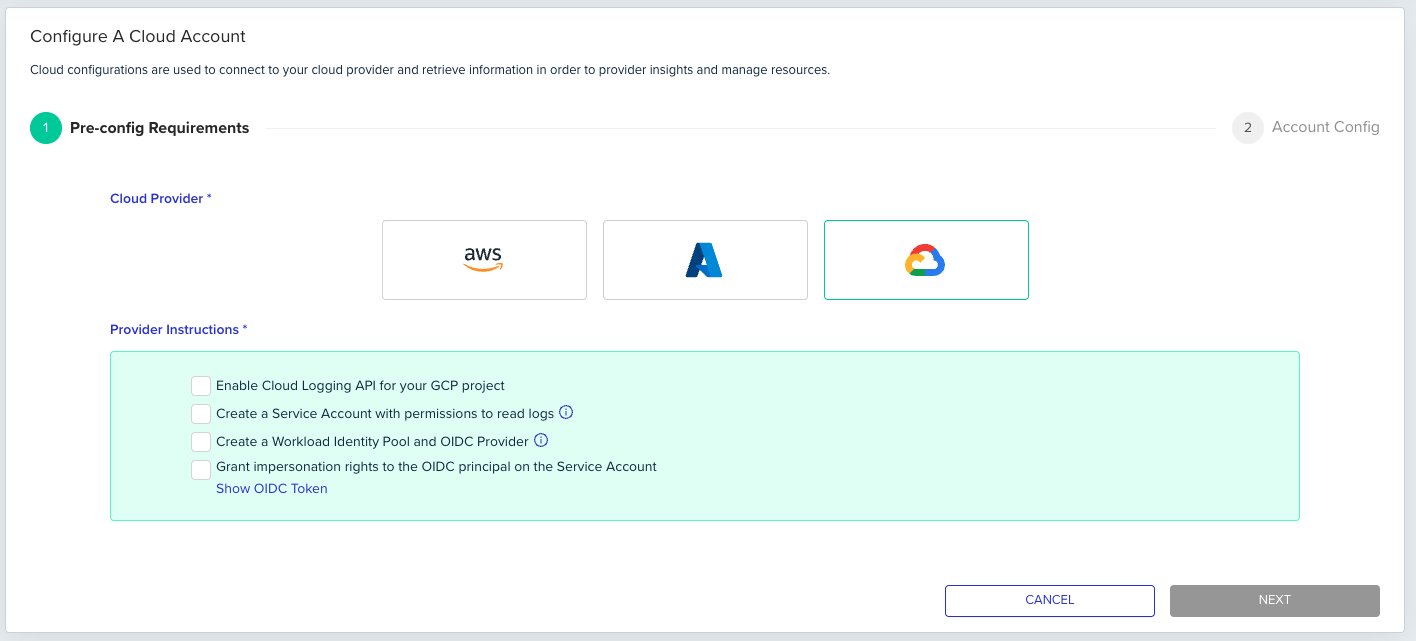
To successfully integrate your GCP account with env zero, ensure the following prerequisites are met in your GCP project:
#### Enable Cloud Logging API for your GCP project
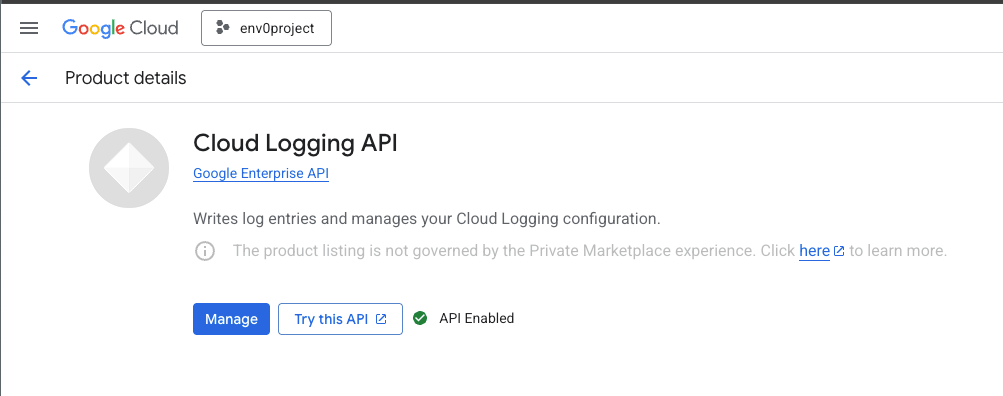
The Cloud Logging API must be enabled for your GCP project to allow env zero to read log data.
* Verify the Cloud Logging API status
* If not enabled, proceed to enable it.
### Requirements
To successfully integrate your GCP account with env zero, ensure the following prerequisites are met in your GCP project:
#### Enable Cloud Logging API for your GCP project
The Cloud Logging API must be enabled for your GCP project to allow env zero to read log data.
* Verify the Cloud Logging API status
* If not enabled, proceed to enable it.
 #### Create a Service Account with permissions to read logs
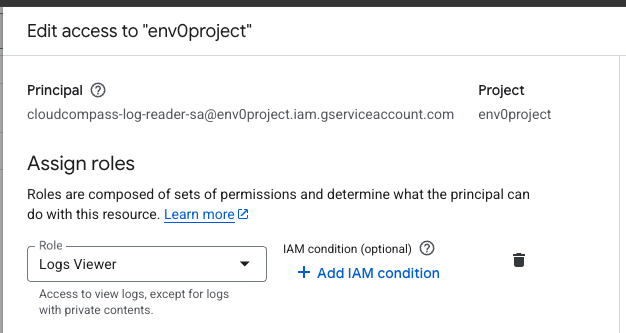
You need a dedicated Service Account that env zero will use to read logs from your GCP project.
* Navigate to IAM & Admin > Service Accounts in the GCP Console
* Create a new `Service Account`
* Ensure this Service Account is granted permissions to read logs. The [predefined roles/logging.viewer role](https://cloud.google.com/logging/docs/access-control#logging.viewer) is recommended for this purpose as it provides necessary read access to logs
#### Create a Service Account with permissions to read logs
You need a dedicated Service Account that env zero will use to read logs from your GCP project.
* Navigate to IAM & Admin > Service Accounts in the GCP Console
* Create a new `Service Account`
* Ensure this Service Account is granted permissions to read logs. The [predefined roles/logging.viewer role](https://cloud.google.com/logging/docs/access-control#logging.viewer) is recommended for this purpose as it provides necessary read access to logs
 #### Create a Workload Identity Pool and OIDC Provider
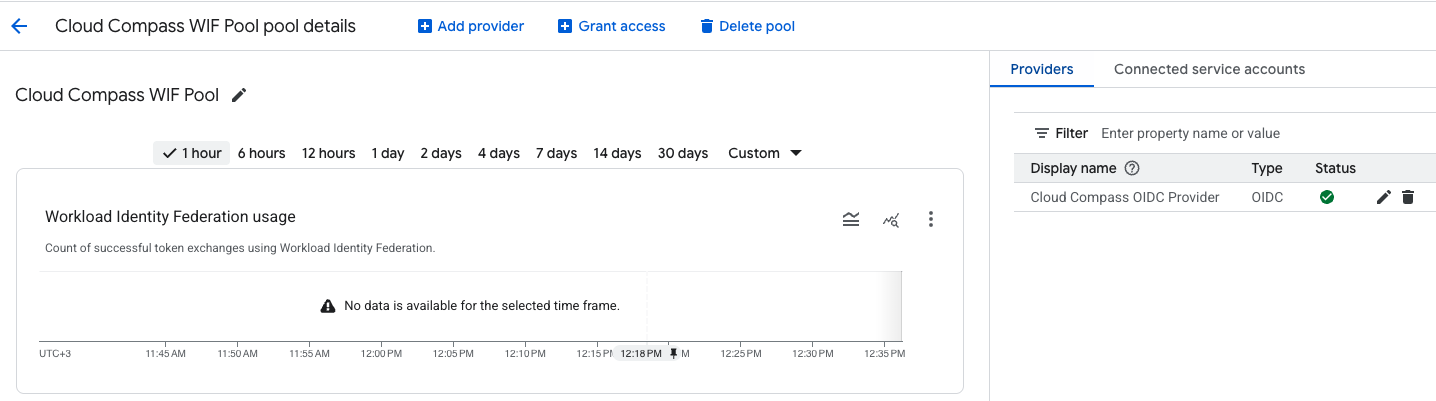
Workload Identity Federation enables secure, keyless authentication for external identities like env zero.
* Navigate to IAM & Admin > Workload Identity Federation
* Create a new `Workload Identity Pool`
* Within this pool, create a new `Workload Identity OIDC Provider`
* For detailed instructions on this process, refer to the [env zero guide on OIDC with Google Cloud Platform](/guides/integrations/oidc-integrations/oidc-with-google-cloud-platform/#workload-identity-federation-pool-and-provider).
#### Create a Workload Identity Pool and OIDC Provider
Workload Identity Federation enables secure, keyless authentication for external identities like env zero.
* Navigate to IAM & Admin > Workload Identity Federation
* Create a new `Workload Identity Pool`
* Within this pool, create a new `Workload Identity OIDC Provider`
* For detailed instructions on this process, refer to the [env zero guide on OIDC with Google Cloud Platform](/guides/integrations/oidc-integrations/oidc-with-google-cloud-platform/#workload-identity-federation-pool-and-provider).
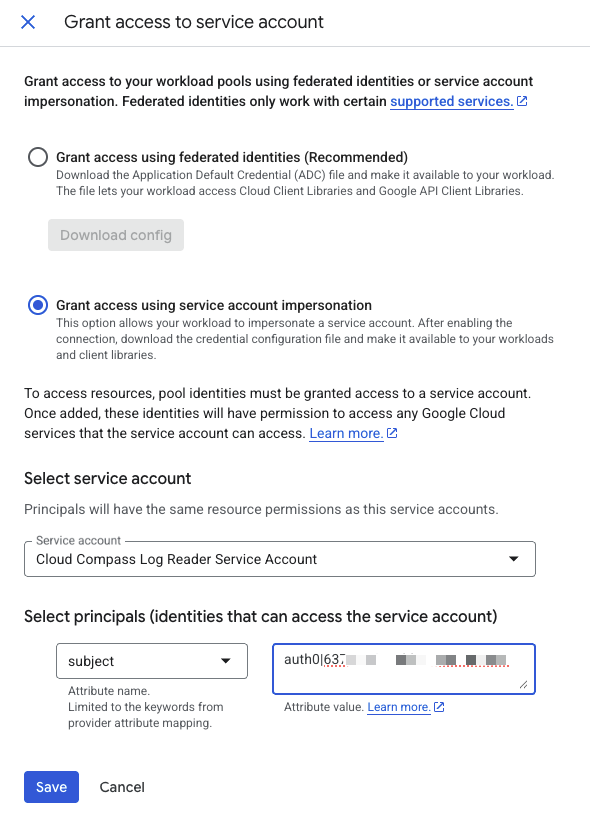
 #### Grant impersonation rights to the OIDC principal on the Service Account
This step connects your newly created Service Account with the Workload Identity Pool, allowing env zero (via the OIDC provider) to impersonate the Service Account and assume its permissions.
* From within your `Workload Identity Pool`, click on `Grant Access`
* Select the `Grant access using service account impersonation` radio button
* Choose the `Service Account` you created
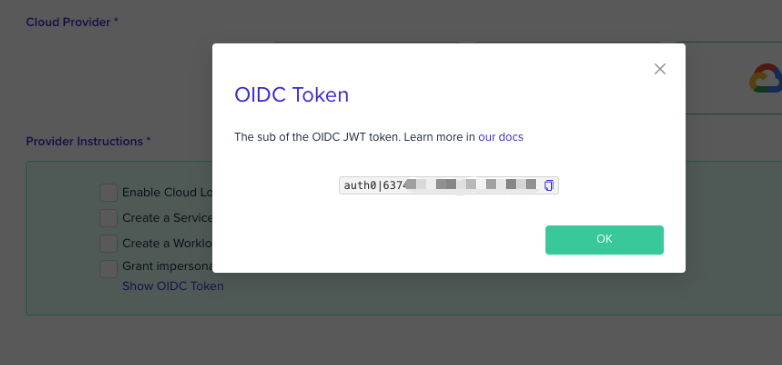
* For the `Subject` value, copy it directly from the env zero application by clicking on `Show OIDC` Token in the Cloud Account Wizard. This value uniquely identifies the env zero organization within your OIDC setup
#### Grant impersonation rights to the OIDC principal on the Service Account
This step connects your newly created Service Account with the Workload Identity Pool, allowing env zero (via the OIDC provider) to impersonate the Service Account and assume its permissions.
* From within your `Workload Identity Pool`, click on `Grant Access`
* Select the `Grant access using service account impersonation` radio button
* Choose the `Service Account` you created
* For the `Subject` value, copy it directly from the env zero application by clicking on `Show OIDC` Token in the Cloud Account Wizard. This value uniquely identifies the env zero organization within your OIDC setup
 #### Setting Up Access Configuration
Once the GCP prerequisites are satisfied, you will configure the Cloud Account in env zero.
##### Fill the Account Config form
#### Setting Up Access Configuration
Once the GCP prerequisites are satisfied, you will configure the Cloud Account in env zero.
##### Fill the Account Config form
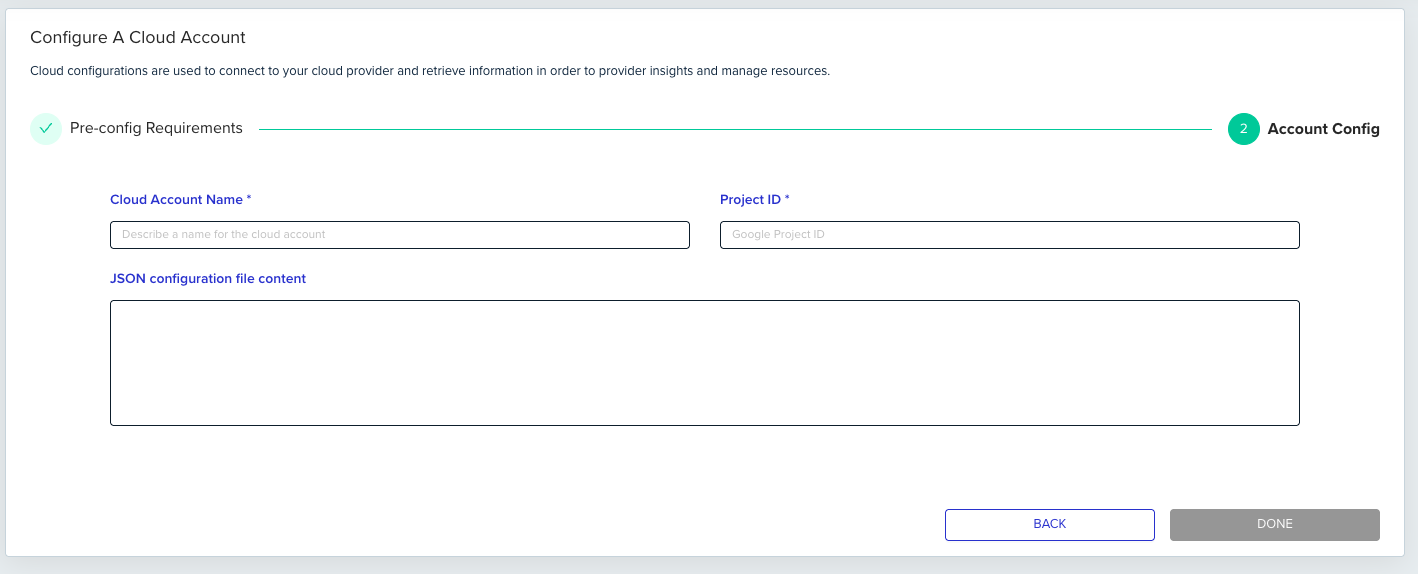 In the env zero Cloud Account configuration form, you'll need to specify the following details:
`Account name`: A descriptive name for your account in env zero (for identification purposes only)
`Project ID`: Your Google Cloud Project ID (the alphanumeric string identifier)
`JSON configuration file content`: The content of the credential configuration file, explained in the next step.
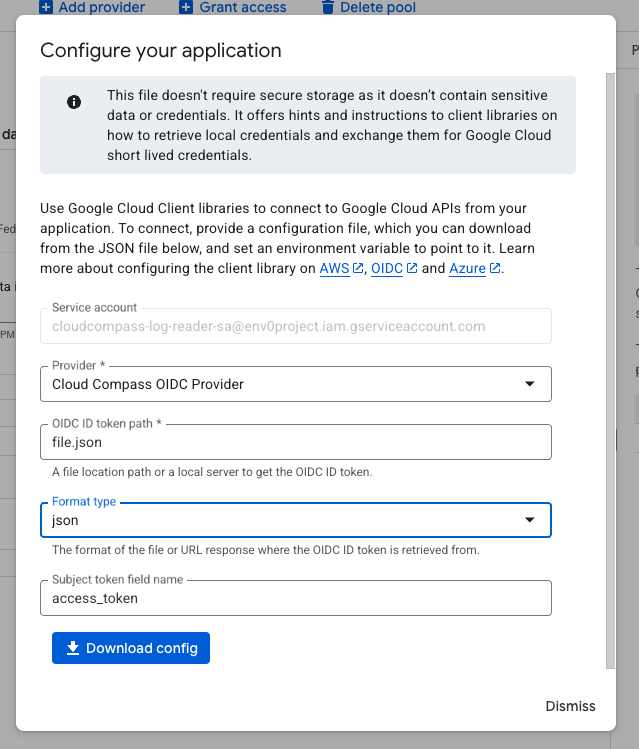
##### Download the JSON configuration file content
This JSON file contains the necessary credentials for env zero to authenticate with your GCP Workload Identity Pool Provider.
* In your `Workload Identity Pool`, navigate to the `Connected Service Accounts` tab
* Locate the `Service Account` you connected to the pool and click the `Download` button next to it
* In the download dialog:
* Select the `OIDC provider` you previously created
* Enter "file.json" in the `OIDC ID token path` field
* Select "json" in the `Format type` dropdown
* Keep "access\_token" as the value in the `Subject` token field name
* Click `Download config`
In the env zero Cloud Account configuration form, you'll need to specify the following details:
`Account name`: A descriptive name for your account in env zero (for identification purposes only)
`Project ID`: Your Google Cloud Project ID (the alphanumeric string identifier)
`JSON configuration file content`: The content of the credential configuration file, explained in the next step.
##### Download the JSON configuration file content
This JSON file contains the necessary credentials for env zero to authenticate with your GCP Workload Identity Pool Provider.
* In your `Workload Identity Pool`, navigate to the `Connected Service Accounts` tab
* Locate the `Service Account` you connected to the pool and click the `Download` button next to it
* In the download dialog:
* Select the `OIDC provider` you previously created
* Enter "file.json" in the `OIDC ID token path` field
* Select "json" in the `Format type` dropdown
* Keep "access\_token" as the value in the `Subject` token field name
* Click `Download config`
 ## Next steps
* [Configure an AWS cloud account](/guides/cloud-compass/cloud-compass/configure-cloud-accounts) - Connect your AWS account to Cloud Compass.
* [Configure an Azure cloud account](/guides/cloud-compass/cloud-compass/configure-an-azure-cloud-account) - Connect an Azure subscription to Cloud Compass.
* [Link environments to Cloud Compass](/guides/cloud-compass/cloud-compass/linking-environments-to-cloud-compass-resources) - Map environments to discovered cloud resources.
## Next steps
* [Configure an AWS cloud account](/guides/cloud-compass/cloud-compass/configure-cloud-accounts) - Connect your AWS account to Cloud Compass.
* [Configure an Azure cloud account](/guides/cloud-compass/cloud-compass/configure-an-azure-cloud-account) - Connect an Azure subscription to Cloud Compass.
* [Link environments to Cloud Compass](/guides/cloud-compass/cloud-compass/linking-environments-to-cloud-compass-resources) - Map environments to discovered cloud resources.