> ## Documentation Index
> Fetch the complete documentation index at: https://docs.envzero.com/llms.txt
> Use this file to discover all available pages before exploring further.
# Create Your First Template
> Create your first env zero template by linking a VCS from GitHub, GitLab, Bitbucket, or Azure DevOps, specifying an IaC folder, and assigning it to a project.
This step assumes you have already [connected your cloud account](/guides/getting-started/connect-your-cloud-account).
[Templates](/guides/getting-started/glossary#template) are how you add your infrastructure code to env zero. You need to tell env zero how to connect to your VCS and where to find your IaC code.
If you don't have a repository yet, fork [env0/templates](https://github.com/env0/templates). For a simple starting point, try the `aws/simple-ec2` example (AWS) or another example that matches your cloud provider. Each folder has a README that lists what it deploys and which variables it requires.
## Create your template
1. Open the **Organization Templates** page.
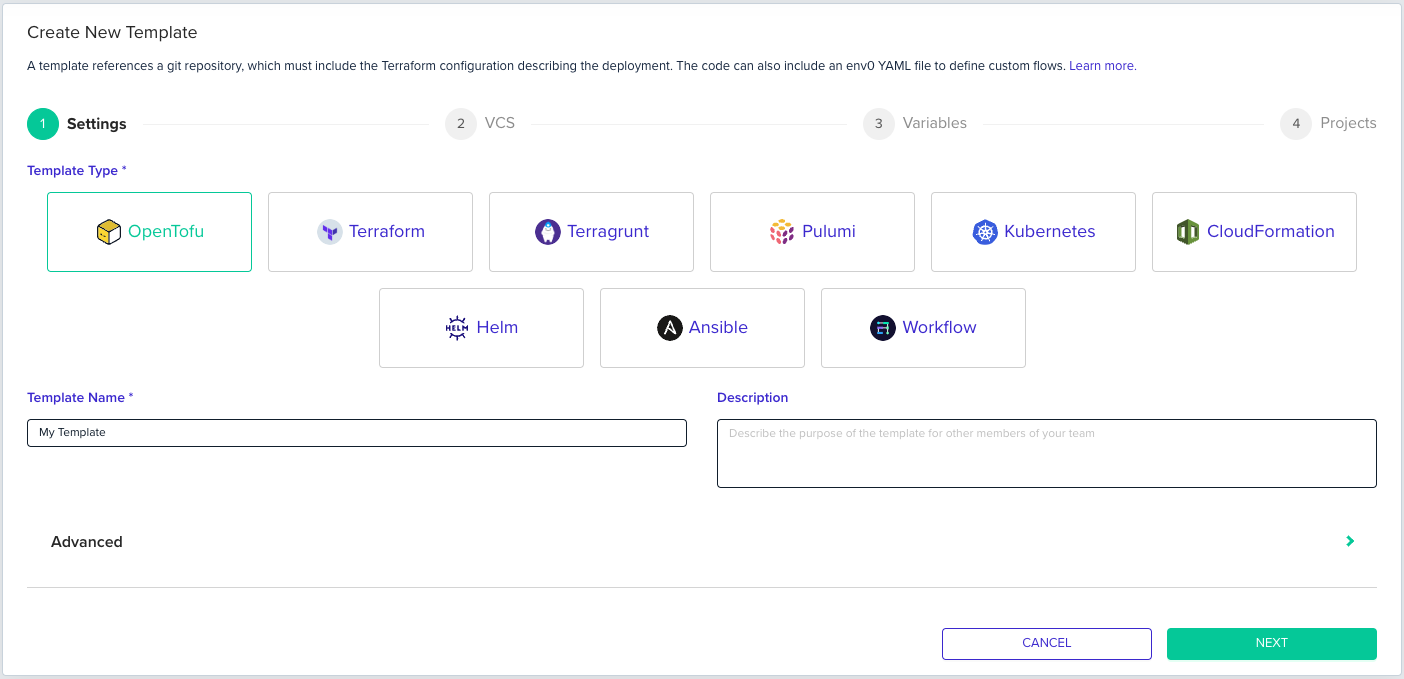
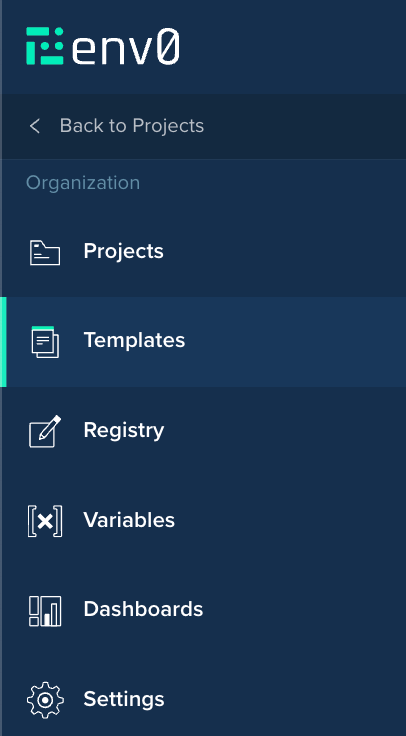 2. Click **Create New Template**.
 3. Choose your desired template type. Select **Terraform** for Terraform code or **OpenTofu** for OpenTofu code. For other frameworks, select the matching tile.
4. Enter a name for your template in `Template Name`. If the form shows a version selector, choose the IaC version your code requires. If you're unsure, select the latest stable version. Click **Next**.
3. Choose your desired template type. Select **Terraform** for Terraform code or **OpenTofu** for OpenTofu code. For other frameworks, select the matching tile.
4. Enter a name for your template in `Template Name`. If the form shows a version selector, choose the IaC version your code requires. If you're unsure, select the latest stable version. Click **Next**.
 5. Select your VCS provider. Follow the section below for your provider.
**IaC folder path:** Each VCS section below asks for a folder (`Terraform Folder`, `Pulumi Root`, etc.). This must be the exact path to your IaC files relative to the repository root, such as `terraform/` or `infra/prod`. Leave it empty only if your IaC files are at the repository root. An incorrect path causes a "no configuration files" error during the first deployment.
5. Select your VCS provider. Follow the section below for your provider.
**IaC folder path:** Each VCS section below asks for a folder (`Terraform Folder`, `Pulumi Root`, etc.). This must be the exact path to your IaC files relative to the repository root, such as `terraform/` or `infra/prod`. Leave it empty only if your IaC files are at the repository root. An incorrect path causes a "no configuration files" error during the first deployment.
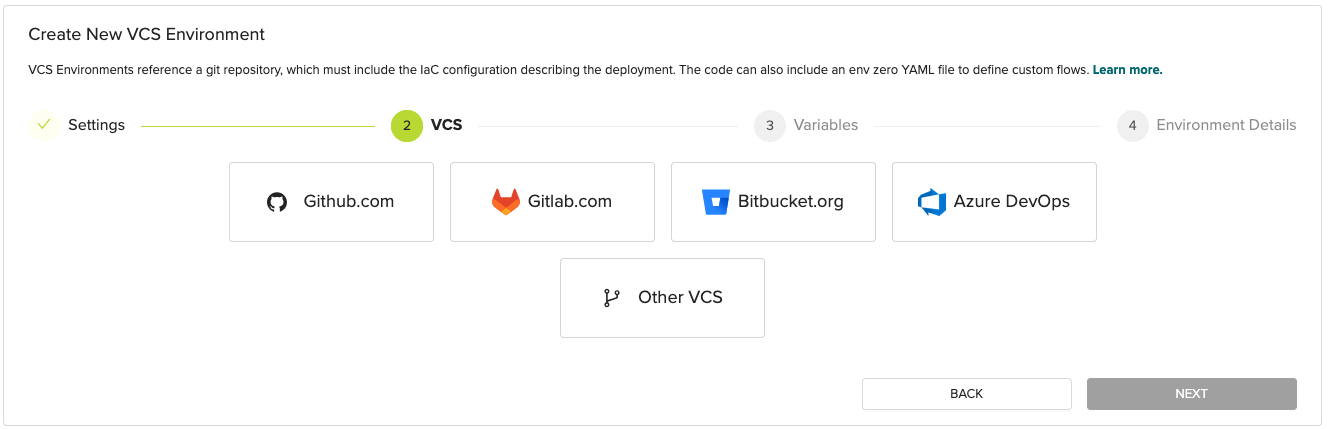 * [GitHub](/guides/getting-started/create-your-first-template/#github)
* [GitLab](/guides/getting-started/create-your-first-template/#gitlab)
* [Bitbucket](/guides/getting-started/create-your-first-template/#bitbucket)
* [Azure DevOps](/guides/getting-started/create-your-first-template/#azure-devops)
* [Other VCS](/guides/getting-started/create-your-first-template/#other-vcs)
## GitHub
Installing the env zero GitHub App requires **admin access** to your GitHub organization. If you don't have admin rights, ask your GitHub org admin to install it before continuing.
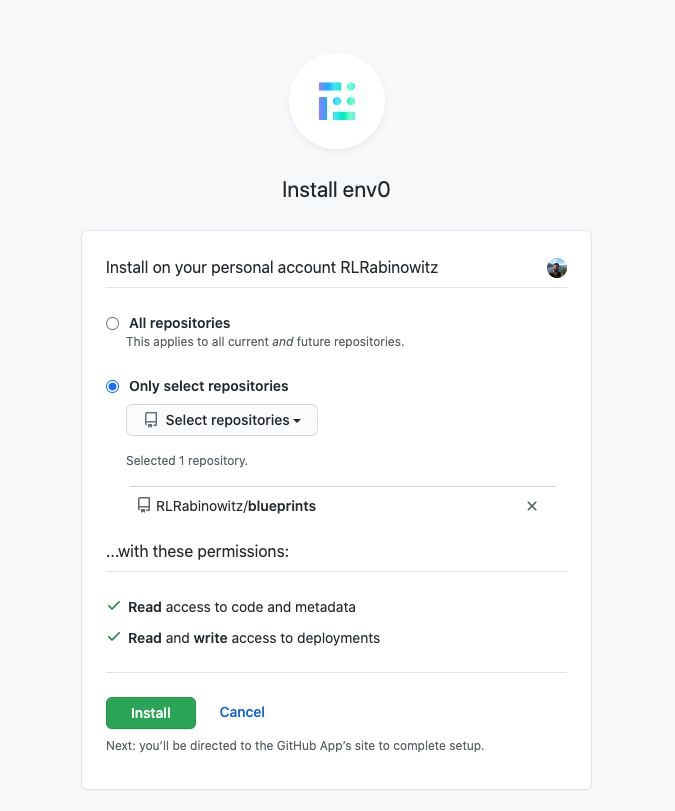
1. After clicking the **GitHub.com** button for the first time, a GitHub popup asks you to install the `env zero` GitHub App on a GitHub organization. Pick the GitHub organization containing your repository.
* [GitHub](/guides/getting-started/create-your-first-template/#github)
* [GitLab](/guides/getting-started/create-your-first-template/#gitlab)
* [Bitbucket](/guides/getting-started/create-your-first-template/#bitbucket)
* [Azure DevOps](/guides/getting-started/create-your-first-template/#azure-devops)
* [Other VCS](/guides/getting-started/create-your-first-template/#other-vcs)
## GitHub
Installing the env zero GitHub App requires **admin access** to your GitHub organization. If you don't have admin rights, ask your GitHub org admin to install it before continuing.
1. After clicking the **GitHub.com** button for the first time, a GitHub popup asks you to install the `env zero` GitHub App on a GitHub organization. Pick the GitHub organization containing your repository.
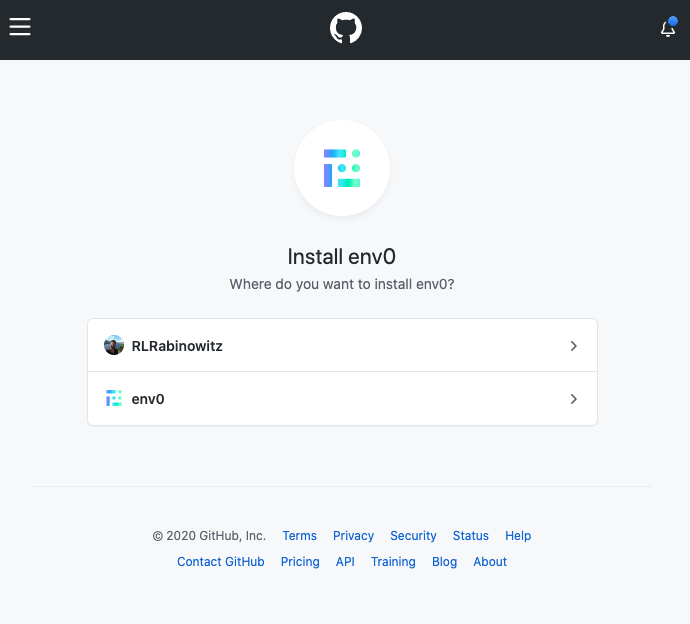 2. Pick the repositories you want env zero to have access to and install the GitHub App.
 3. The GitHub popup closes.
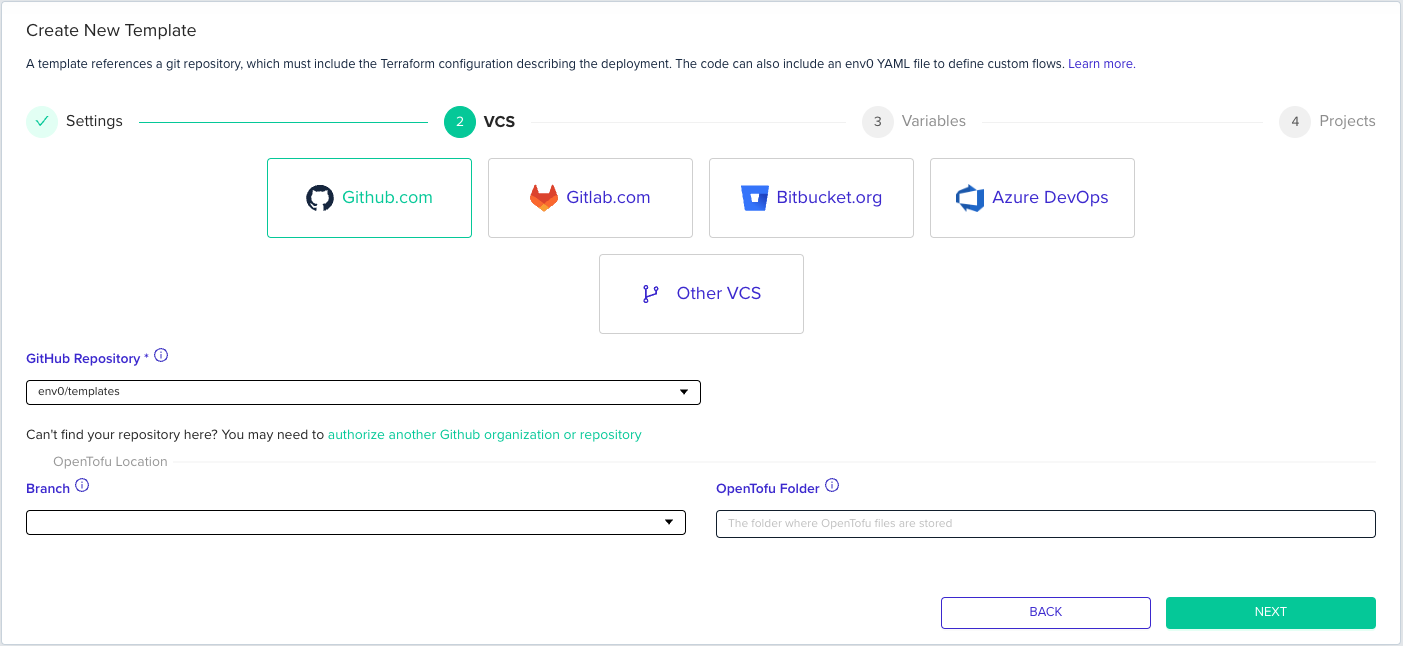
4. Pick the GitHub repository that contains the code for this template.
If your repository doesn't appear in the picker, it wasn't included when you installed the GitHub App. Go to your GitHub organization settings, find the env zero App, and click **Configure** to add the repository.
5. Enter a branch or tag in the `Branch` field. Leaving this empty uses your default branch (usually `main` or `master`).
6. Enter the folder your IaC files are in. The field name varies by template type (`Terraform Folder`, `Pulumi Root`, etc.) but works the same way. Leave empty if the files are at the repository root.
7. Click **Next** to continue to [Variables](/guides/getting-started/create-your-first-template/#variables).
3. The GitHub popup closes.
4. Pick the GitHub repository that contains the code for this template.
If your repository doesn't appear in the picker, it wasn't included when you installed the GitHub App. Go to your GitHub organization settings, find the env zero App, and click **Configure** to add the repository.
5. Enter a branch or tag in the `Branch` field. Leaving this empty uses your default branch (usually `main` or `master`).
6. Enter the folder your IaC files are in. The field name varies by template type (`Terraform Folder`, `Pulumi Root`, etc.) but works the same way. Leave empty if the files are at the repository root.
7. Click **Next** to continue to [Variables](/guides/getting-started/create-your-first-template/#variables).
 ## GitLab
### OAuth
1. After clicking the **GitLab.com** button for the first time, a GitLab popup asks you to authorize the `env zero` application to access your repositories.
## GitLab
### OAuth
1. After clicking the **GitLab.com** button for the first time, a GitLab popup asks you to authorize the `env zero` application to access your repositories.
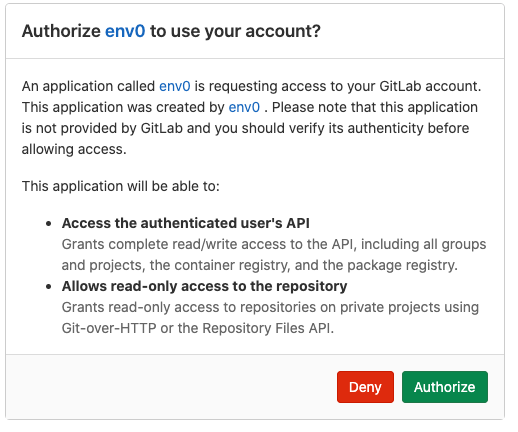 2. The GitLab popup closes.
3. Pick the GitLab repository that contains the code for this template.
4. Enter a branch or tag in the `Branch` field. Leaving this empty uses your default branch (usually `main` or `master`).
5. Enter the folder your IaC files are in. The field name varies by template type (`Terraform Folder`, `Pulumi Root`, etc.) but works the same way. Leave empty if the files are at the repository root.
6. Click **Next** to continue to [Variables](/guides/getting-started/create-your-first-template/#variables).
### GitLab Access Token
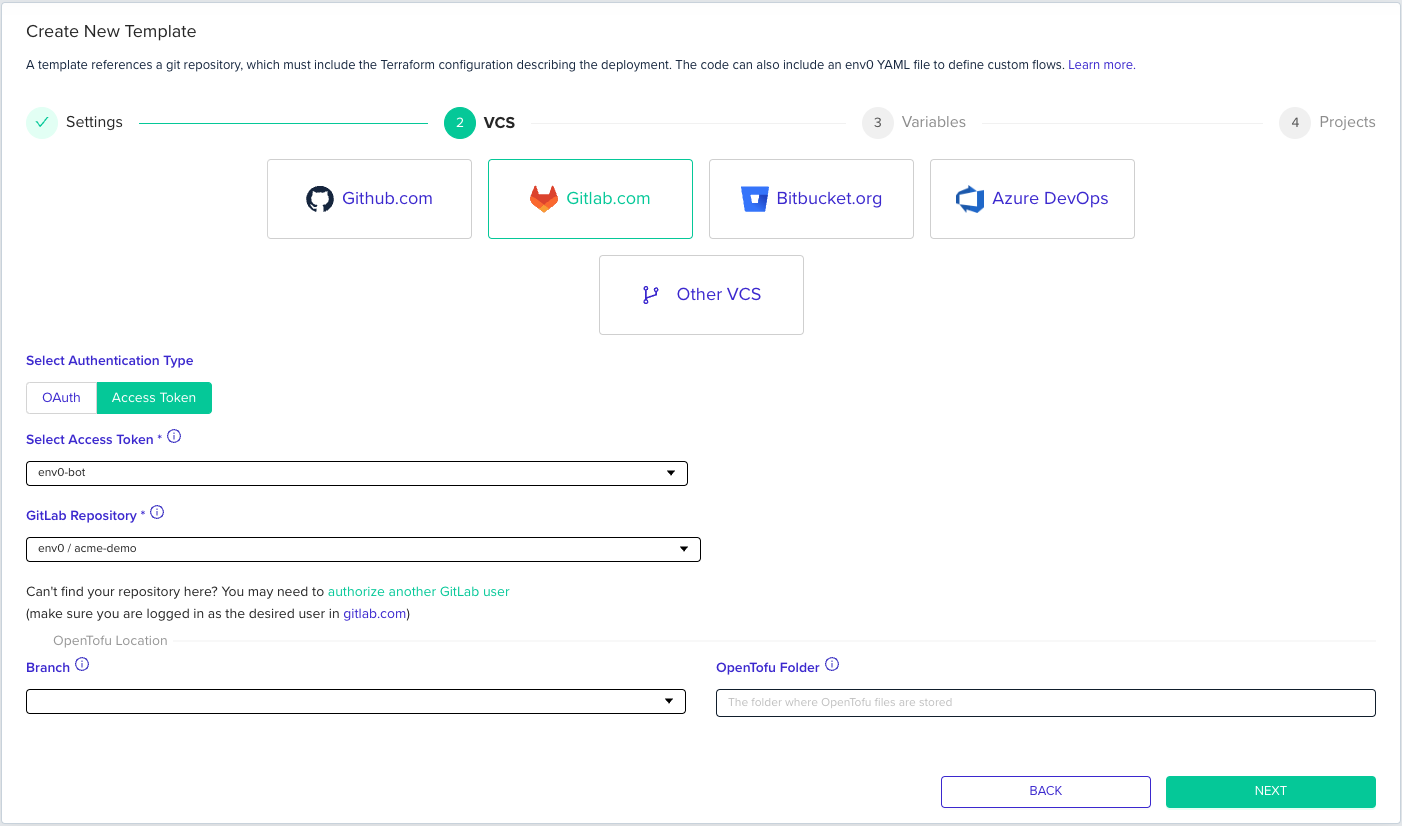
1. After selecting **GitLab.com**, a radio button appears with two options.
2. Click `Access Token` and either select an existing token or create a new one.
1. Creating a token:
1. The token can be either a [Personal Access Token](https://docs.gitlab.com/ee/user/profile/personal_access_tokens.html) or a [Group Access Token](https://docs.gitlab.com/ee/user/group/settings/group_access_tokens.html).
2. The token must have access to each repository you want to use with env zero. Each project's user must have at least Maintainer or Owner permissions.
3. The token must have the `read_repository` and `api` scopes.
3. Follow the same steps from step 3 in the OAuth section above.
2. The GitLab popup closes.
3. Pick the GitLab repository that contains the code for this template.
4. Enter a branch or tag in the `Branch` field. Leaving this empty uses your default branch (usually `main` or `master`).
5. Enter the folder your IaC files are in. The field name varies by template type (`Terraform Folder`, `Pulumi Root`, etc.) but works the same way. Leave empty if the files are at the repository root.
6. Click **Next** to continue to [Variables](/guides/getting-started/create-your-first-template/#variables).
### GitLab Access Token
1. After selecting **GitLab.com**, a radio button appears with two options.
2. Click `Access Token` and either select an existing token or create a new one.
1. Creating a token:
1. The token can be either a [Personal Access Token](https://docs.gitlab.com/ee/user/profile/personal_access_tokens.html) or a [Group Access Token](https://docs.gitlab.com/ee/user/group/settings/group_access_tokens.html).
2. The token must have access to each repository you want to use with env zero. Each project's user must have at least Maintainer or Owner permissions.
3. The token must have the `read_repository` and `api` scopes.
3. Follow the same steps from step 3 in the OAuth section above.
 ## Bitbucket
1. After clicking the **Bitbucket.org** button for the first time, a Bitbucket popup asks you to authorize the `env zero` application to access your workspace.
## Bitbucket
1. After clicking the **Bitbucket.org** button for the first time, a Bitbucket popup asks you to authorize the `env zero` application to access your workspace.
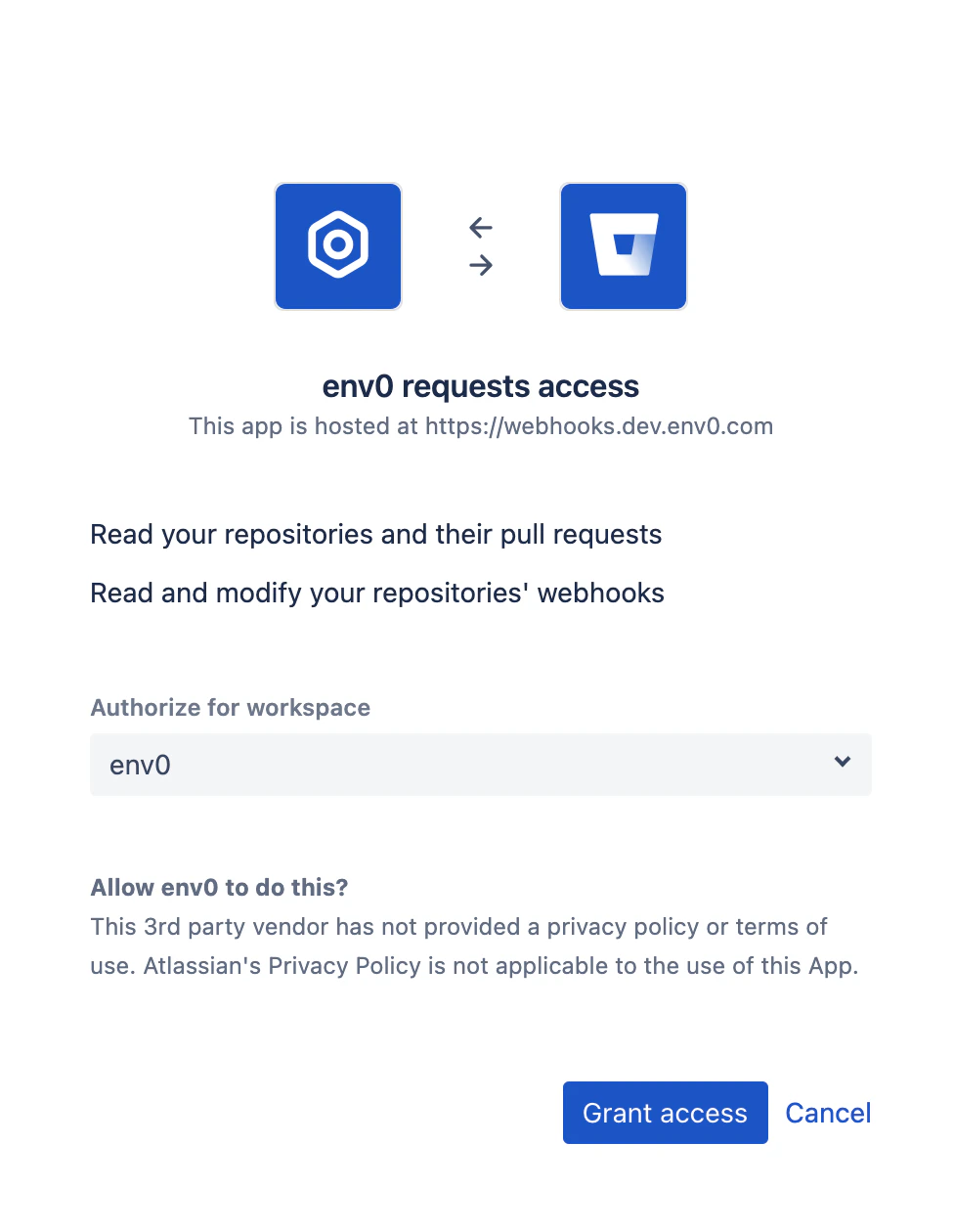 2. The Bitbucket popup closes.
3. Pick the Bitbucket repository that contains the code for this template.
4. Enter a branch or tag in the `Branch` field. Leaving this empty uses your default branch (usually `main` or `master`).
5. Enter the folder your IaC files are in. The field name varies by template type (`Terraform Folder`, `Pulumi Root`, etc.) but works the same way. Leave empty if the files are at the repository root.
6. Click **Next** to continue to [Variables](/guides/getting-started/create-your-first-template/#variables).
## Azure DevOps
1. After clicking the **Azure DevOps** button for the first time, an Azure DevOps popup asks you to authorize the `env zero` application to access your repositories. Grant access for the app.
2. The Bitbucket popup closes.
3. Pick the Bitbucket repository that contains the code for this template.
4. Enter a branch or tag in the `Branch` field. Leaving this empty uses your default branch (usually `main` or `master`).
5. Enter the folder your IaC files are in. The field name varies by template type (`Terraform Folder`, `Pulumi Root`, etc.) but works the same way. Leave empty if the files are at the repository root.
6. Click **Next** to continue to [Variables](/guides/getting-started/create-your-first-template/#variables).
## Azure DevOps
1. After clicking the **Azure DevOps** button for the first time, an Azure DevOps popup asks you to authorize the `env zero` application to access your repositories. Grant access for the app.
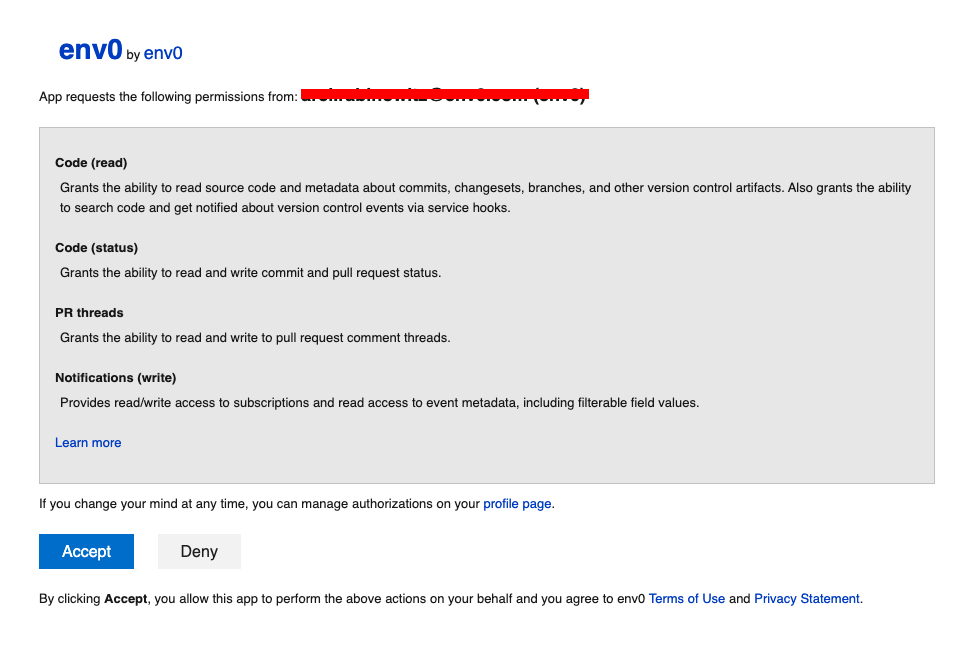 2. The Azure DevOps popup closes.
3. Pick the Azure DevOps repository that contains the code for this template.
4. Enter a branch in the `Branch` field. Leaving this empty uses your default branch (usually `main` or `master`).
5. Enter the folder your IaC files are in under ` Folder` (where IaC is the template type you selected). Leave empty if the files are at the repository root.
6. Click **Next** to continue to [Variables](/guides/getting-started/create-your-first-template/#variables).
**Enable third-party app access in Azure DevOps**
You must enable `Third-party application access via OAuth` under `Organization Settings > Security > Policies` for any organization you want to manage repositories for.
## Other VCS
1. Enter the URL to your IaC repository under **Repository URL**. The URL can be HTTP/S or SSH.
2. Enter a branch or tag in the `Branch` field. Leaving this empty uses your default branch.
3. Enter the folder your IaC files are in under `Terraform Folder`. Leave empty if the files are at the repository root.
4. If your repository is private, use the `SSH Keys` or `Git Token` dropdown to select the credentials you created in the [Connect Your Git Repository](/guides/getting-started/connect-your-vcs) step.
5. Click **Next** to continue to [Variables](/guides/getting-started/create-your-first-template/#variables).
2. The Azure DevOps popup closes.
3. Pick the Azure DevOps repository that contains the code for this template.
4. Enter a branch in the `Branch` field. Leaving this empty uses your default branch (usually `main` or `master`).
5. Enter the folder your IaC files are in under ` Folder` (where IaC is the template type you selected). Leave empty if the files are at the repository root.
6. Click **Next** to continue to [Variables](/guides/getting-started/create-your-first-template/#variables).
**Enable third-party app access in Azure DevOps**
You must enable `Third-party application access via OAuth` under `Organization Settings > Security > Policies` for any organization you want to manage repositories for.
## Other VCS
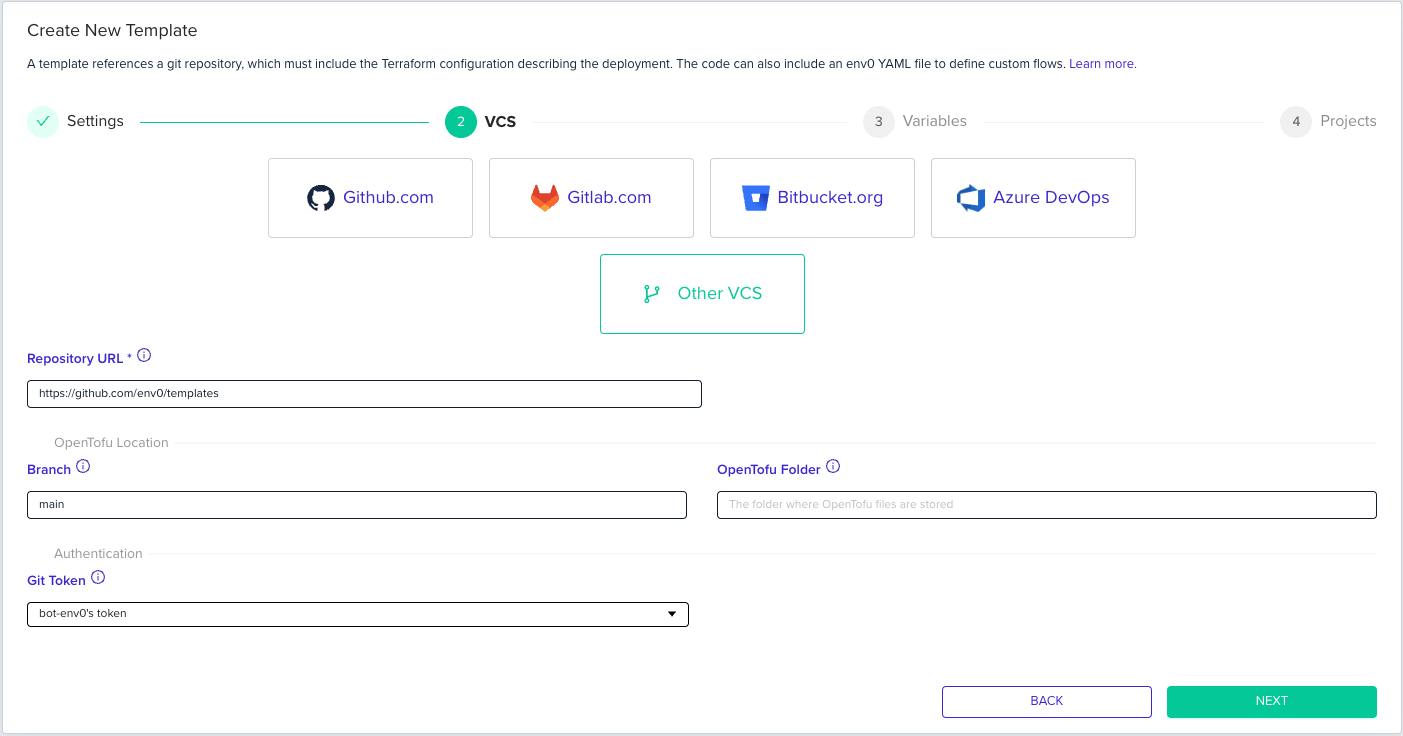
1. Enter the URL to your IaC repository under **Repository URL**. The URL can be HTTP/S or SSH.
2. Enter a branch or tag in the `Branch` field. Leaving this empty uses your default branch.
3. Enter the folder your IaC files are in under `Terraform Folder`. Leave empty if the files are at the repository root.
4. If your repository is private, use the `SSH Keys` or `Git Token` dropdown to select the credentials you created in the [Connect Your Git Repository](/guides/getting-started/connect-your-vcs) step.
5. Click **Next** to continue to [Variables](/guides/getting-started/create-your-first-template/#variables).
 ## Variables
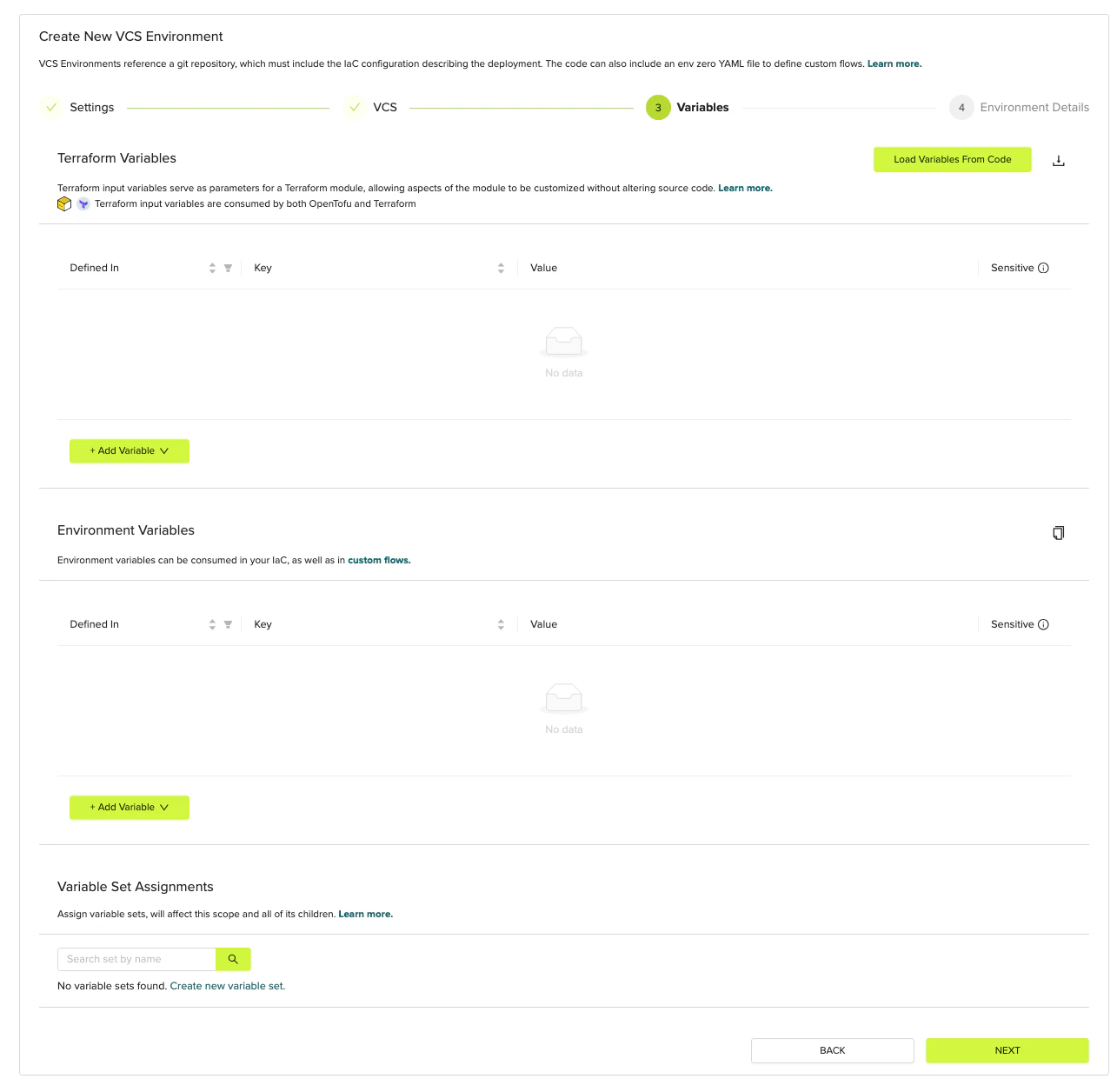 1. Add the [variables](/guides/getting-started/glossary#variable) your template needs at deploy time.
* **Terraform Variables** are passed to the IaC tool as `-var` flags. Use these for values your code declares as `variable` blocks, such as `region`, `instance_type`, or `environment_name`.
* **Environment Variables** are set in the shell before the IaC tool runs. Use these for provider authentication, such as `AWS_ACCESS_KEY_ID`, `GOOGLE_CREDENTIALS`, or tool configuration flags.
See [Variables](/guides/admin-guide/variables) for full scoping rules and inheritance. If your template doesn't require any variables yet, skip this step.
Mark any variable containing a secret (passwords, API keys, tokens) as **Sensitive** using the lock icon. Sensitive variables are encrypted at rest and redacted from deployment logs. Non-sensitive values appear in plain text in logs and are visible to anyone with access to the environment.
2. Click **Next** to continue to [Projects](/guides/getting-started/create-your-first-template/#projects).
## Projects
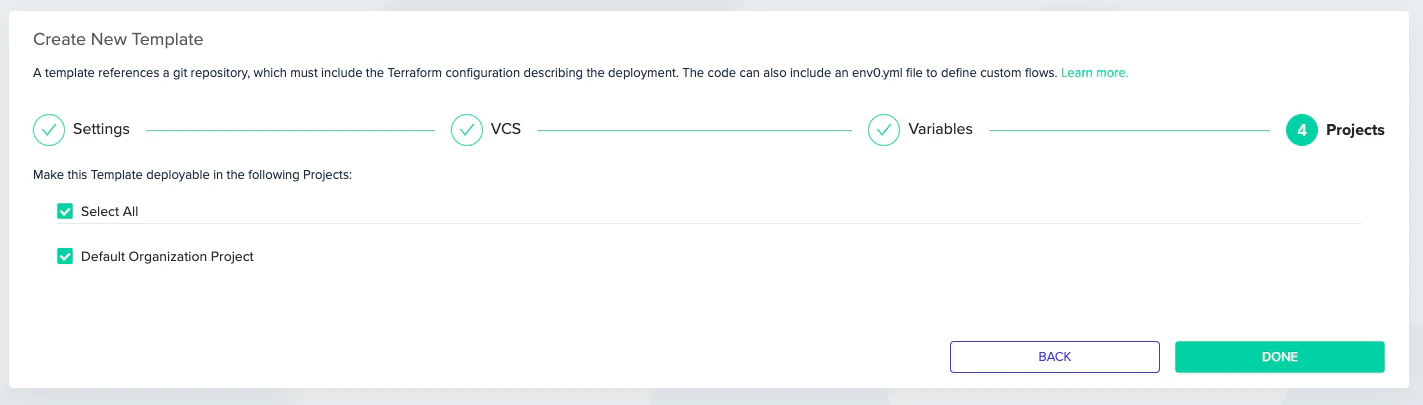
1. Pick the projects that you'd like to allow to deploy this template.
2. Click **Done** to create the template.
1. Add the [variables](/guides/getting-started/glossary#variable) your template needs at deploy time.
* **Terraform Variables** are passed to the IaC tool as `-var` flags. Use these for values your code declares as `variable` blocks, such as `region`, `instance_type`, or `environment_name`.
* **Environment Variables** are set in the shell before the IaC tool runs. Use these for provider authentication, such as `AWS_ACCESS_KEY_ID`, `GOOGLE_CREDENTIALS`, or tool configuration flags.
See [Variables](/guides/admin-guide/variables) for full scoping rules and inheritance. If your template doesn't require any variables yet, skip this step.
Mark any variable containing a secret (passwords, API keys, tokens) as **Sensitive** using the lock icon. Sensitive variables are encrypted at rest and redacted from deployment logs. Non-sensitive values appear in plain text in logs and are visible to anyone with access to the environment.
2. Click **Next** to continue to [Projects](/guides/getting-started/create-your-first-template/#projects).
## Projects
1. Pick the projects that you'd like to allow to deploy this template.
2. Click **Done** to create the template.
 ## Add your template to a project
To run the template, add it to one of the organization's projects. Your new organization already has a Default Project.
1. Go to the **Default Organization Project**.
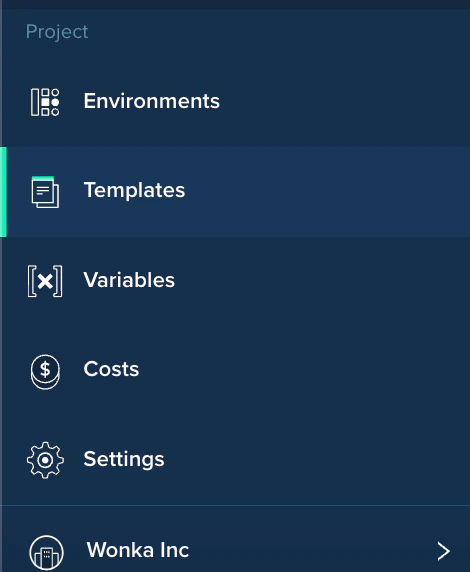
2. Click **Project Templates** in the left menu.
## Add your template to a project
To run the template, add it to one of the organization's projects. Your new organization already has a Default Project.
1. Go to the **Default Organization Project**.
2. Click **Project Templates** in the left menu.
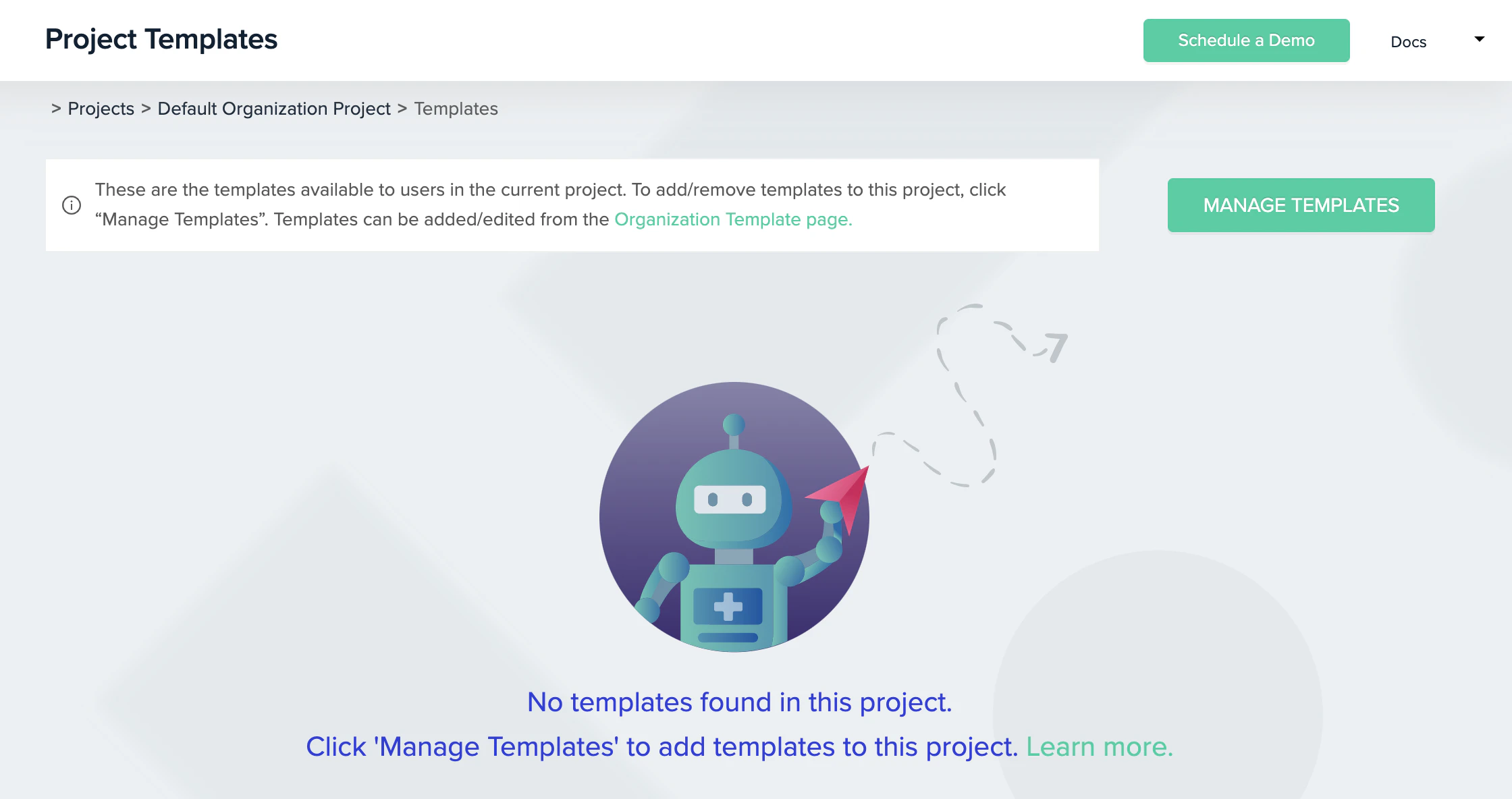 3. Click **Manage Templates** and check the checkbox next to the template you created.
 4. Click **Save**.
## Next steps
* [Deploy Your First Environment](/guides/getting-started/running-your-first-environment) - Deploy your first environment from the template you created.
* [Using env zero Templates](/guides/admin-guide/env-zero-templates) - Learn advanced template settings, versioning, and variable control.
* [Approval Policies](/guides/policies-governance/approval-policies) - Require a plan review before any apply runs on this template.
* [Custom Flows](/guides/admin-guide/custom-flows) - Add pre- and post-deploy scripts to your template.
4. Click **Save**.
## Next steps
* [Deploy Your First Environment](/guides/getting-started/running-your-first-environment) - Deploy your first environment from the template you created.
* [Using env zero Templates](/guides/admin-guide/env-zero-templates) - Learn advanced template settings, versioning, and variable control.
* [Approval Policies](/guides/policies-governance/approval-policies) - Require a plan review before any apply runs on this template.
* [Custom Flows](/guides/admin-guide/custom-flows) - Add pre- and post-deploy scripts to your template.