> ## Documentation Index
> Fetch the complete documentation index at: https://docs.envzero.com/llms.txt
> Use this file to discover all available pages before exploring further.
# Create Your Organization
> Create your env zero organization during initial onboarding, set a unique org name, and gain administrator access to manage projects, templates, and users.
Sign up at [app.env0.com](https://app.env0.com) before starting this tutorial.
Everything in env zero happens under the scope of an [Organization](/guides/admin-guide/organizations). When you first log in, you must create an env zero organization. This happens as part of the initial onboarding process.
## Create your organization
When you first log in, env zero shows the **Create Organization** dialog automatically.
1. Enter the `Organization Name` for your organization. Organization names are unique across the system, so you may have to modify it if it's already in use.
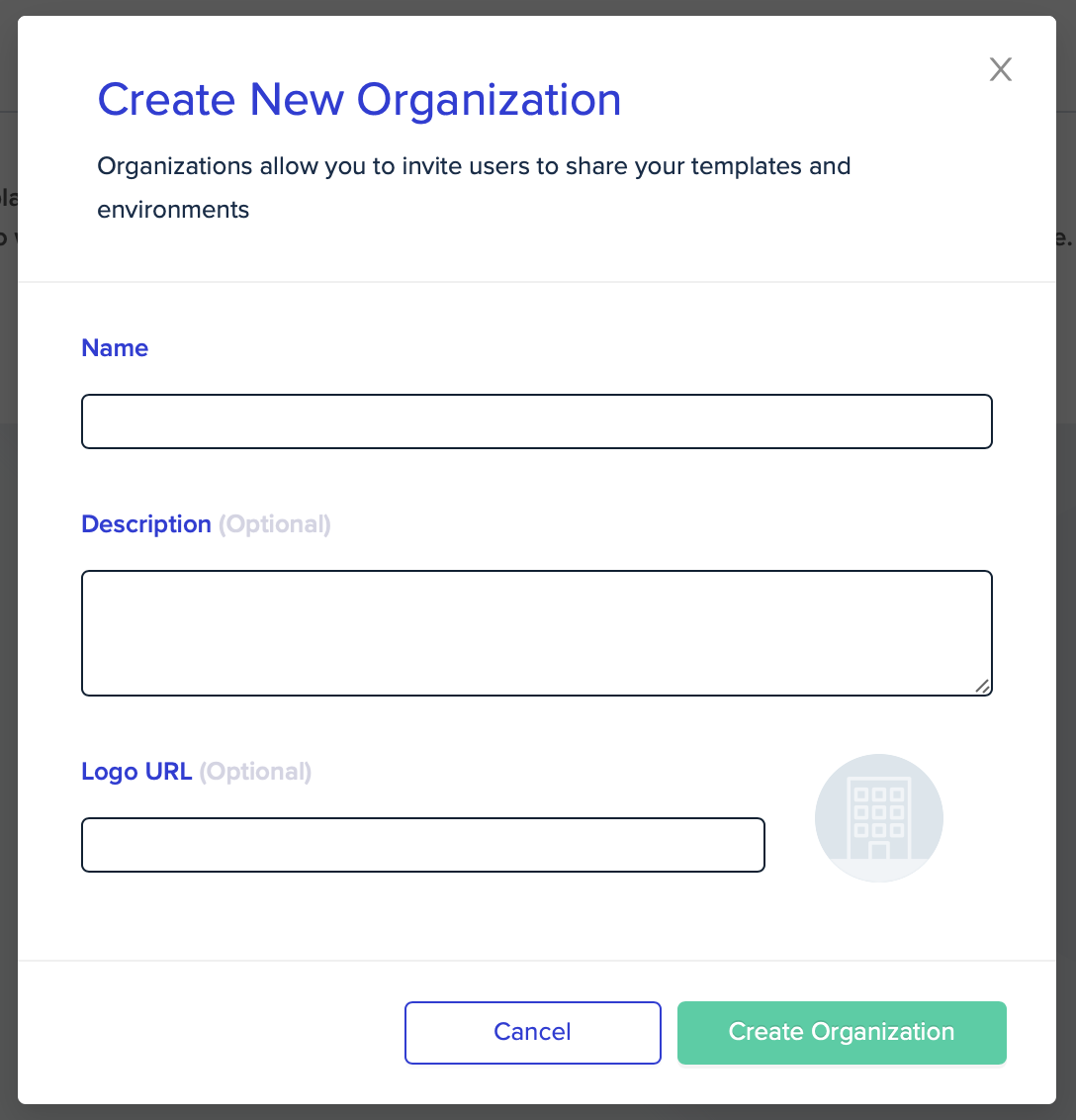 2. Optionally, enter a `Description` and `Logo URL`. These can be added later.
3. Click **Create Organization**.
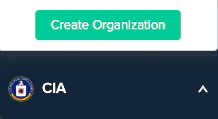
To create an additional organization later, click the organization drawer in the bottom left corner, then click **Create Organization**.
2. Optionally, enter a `Description` and `Logo URL`. These can be added later.
3. Click **Create Organization**.
To create an additional organization later, click the organization drawer in the bottom left corner, then click **Create Organization**.
 You are now logged in to env zero as the organization administrator, with full access to everything in it. env zero automatically creates a **Default Organization [Project](/guides/getting-started/glossary#project)**, where you will deploy your first [environment](/guides/getting-started/glossary#environment) in the next steps.
**Invite your team**
You can invite team members at any point under **Organization Settings > Users**. Adding them now lets them follow along with the rest of the setup and be assigned to projects as you create them.
## Next steps
* [Connect Your Git Repository](/guides/getting-started/connect-your-vcs) - Give env zero access to your private Git repositories.
* [Connect Your Cloud Account](/guides/getting-started/connect-your-cloud-account) - Grant env zero permissions to deploy cloud resources.
* [Manage Users](/guides/admin-guide/user-role-and-team-management/user-management) - Invite teammates and assign organization roles.
* [Creating & Managing Projects](/guides/admin-guide/env-zero-projects) - Organize your environments with projects and access controls.
You are now logged in to env zero as the organization administrator, with full access to everything in it. env zero automatically creates a **Default Organization [Project](/guides/getting-started/glossary#project)**, where you will deploy your first [environment](/guides/getting-started/glossary#environment) in the next steps.
**Invite your team**
You can invite team members at any point under **Organization Settings > Users**. Adding them now lets them follow along with the rest of the setup and be assigned to projects as you create them.
## Next steps
* [Connect Your Git Repository](/guides/getting-started/connect-your-vcs) - Give env zero access to your private Git repositories.
* [Connect Your Cloud Account](/guides/getting-started/connect-your-cloud-account) - Grant env zero permissions to deploy cloud resources.
* [Manage Users](/guides/admin-guide/user-role-and-team-management/user-management) - Invite teammates and assign organization roles.
* [Creating & Managing Projects](/guides/admin-guide/env-zero-projects) - Organize your environments with projects and access controls.