> ## Documentation Index
> Fetch the complete documentation index at: https://docs.envzero.com/llms.txt
> Use this file to discover all available pages before exploring further.
# Retrieve OIDC Subject Identifier
> Retrieve your env zero OIDC subject identifier using the credential form, organization settings UI, a Run Task script, or a decode template.
env zero OIDC token contains a unique Subject Identifier per env zero Organization.
There are three methods for retrieving your subject identifier.
A. From the Credential Form\
B. From the App\
C. Use Run Task\
D. Use env zero OIDC script template\
E. Manually from env zero deployment
## A. From the Credential Form
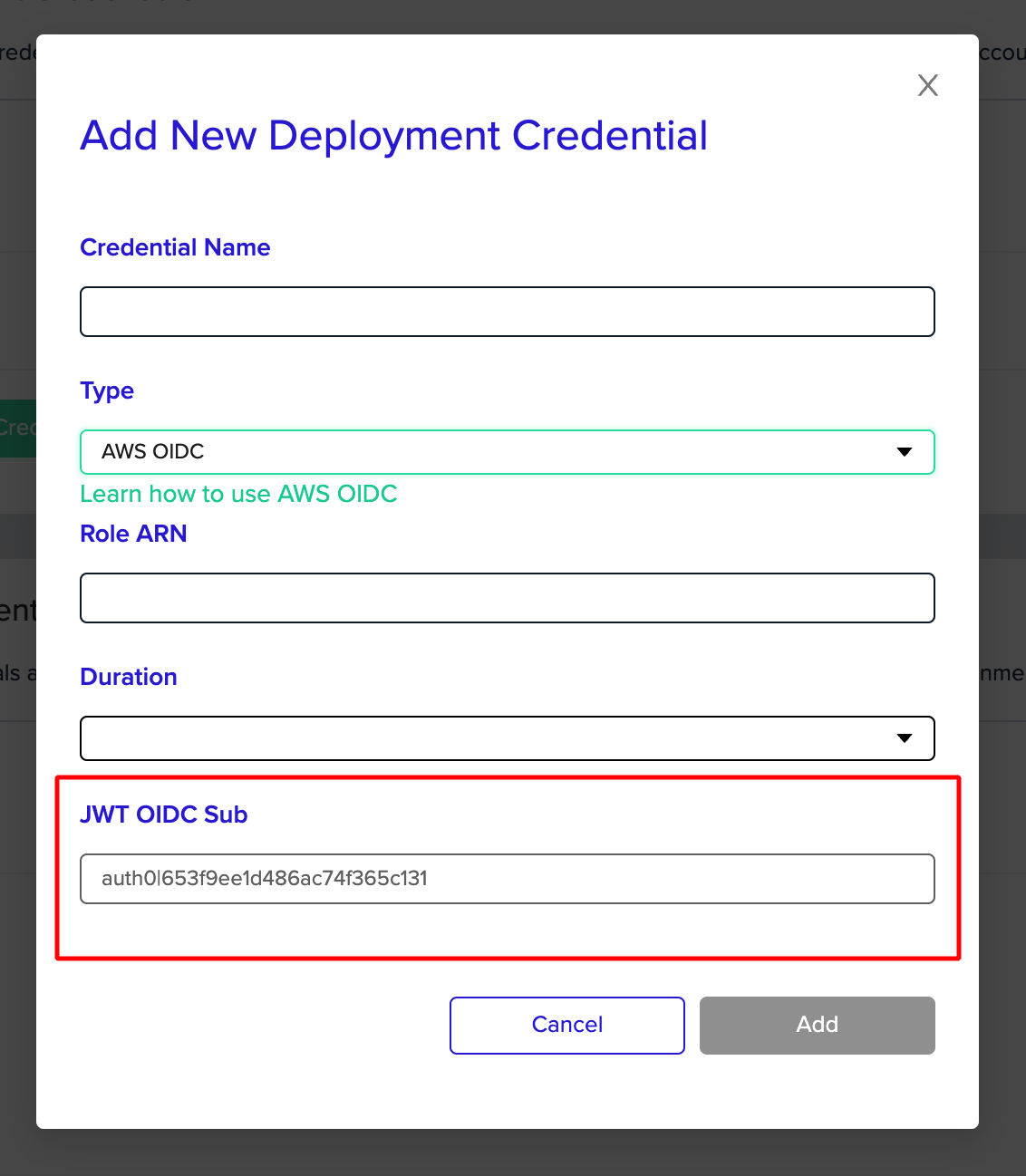
When creating an OIDC credential in the organization credentials page you can see the sub value in the last disabled form input:
 ## B. From the App
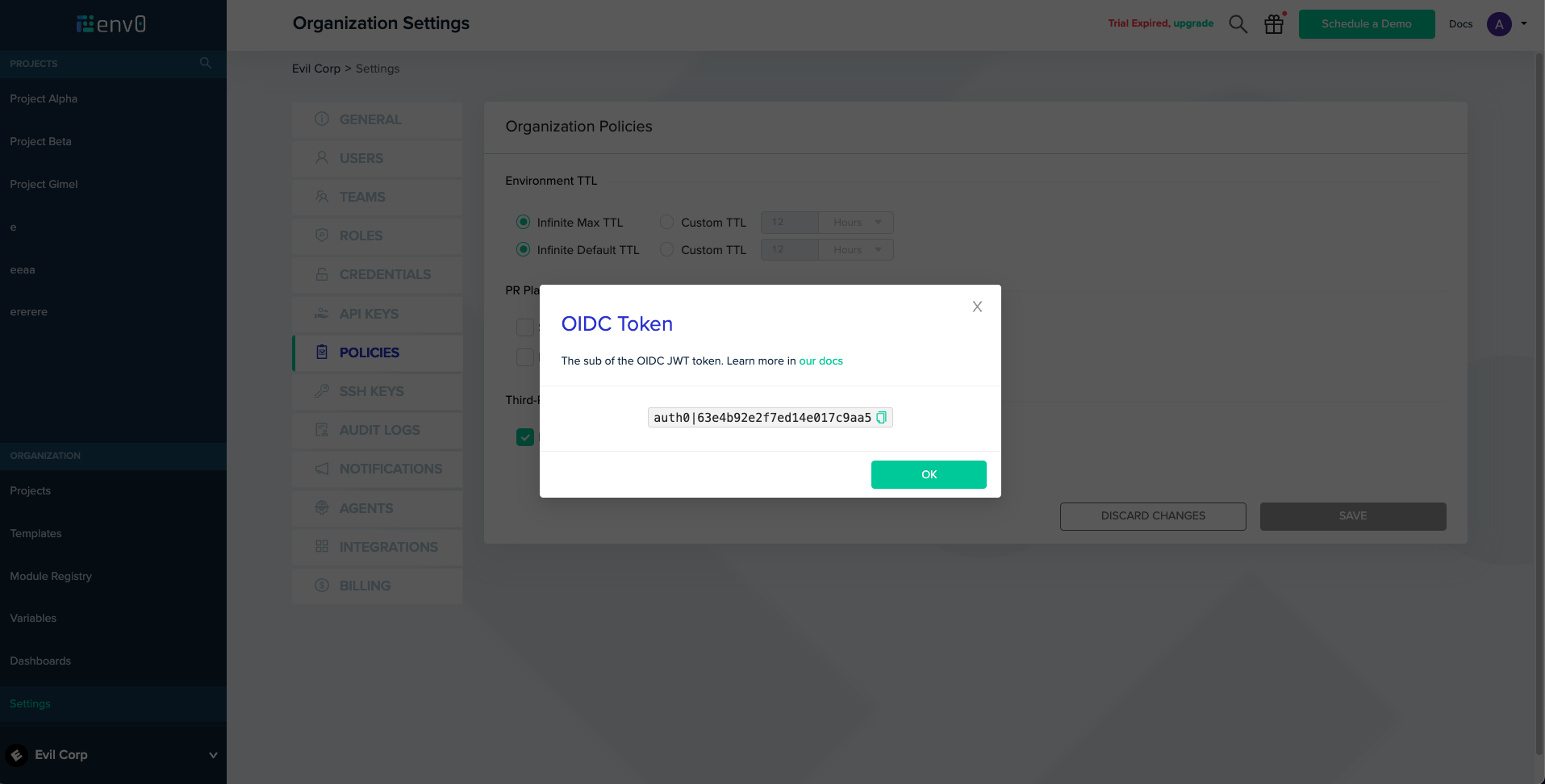
Go to Organization Settings -> Policies\
Next to the "Enable OIDC" checkbox, click "show" ( the "show" button will only appear if OIDC is enabled )
## B. From the App
Go to Organization Settings -> Policies\
Next to the "Enable OIDC" checkbox, click "show" ( the "show" button will only appear if OIDC is enabled )
 ## C. Use Run Task
This simple node script will help decode the OIDC Token.
1. “Enable OIDC”
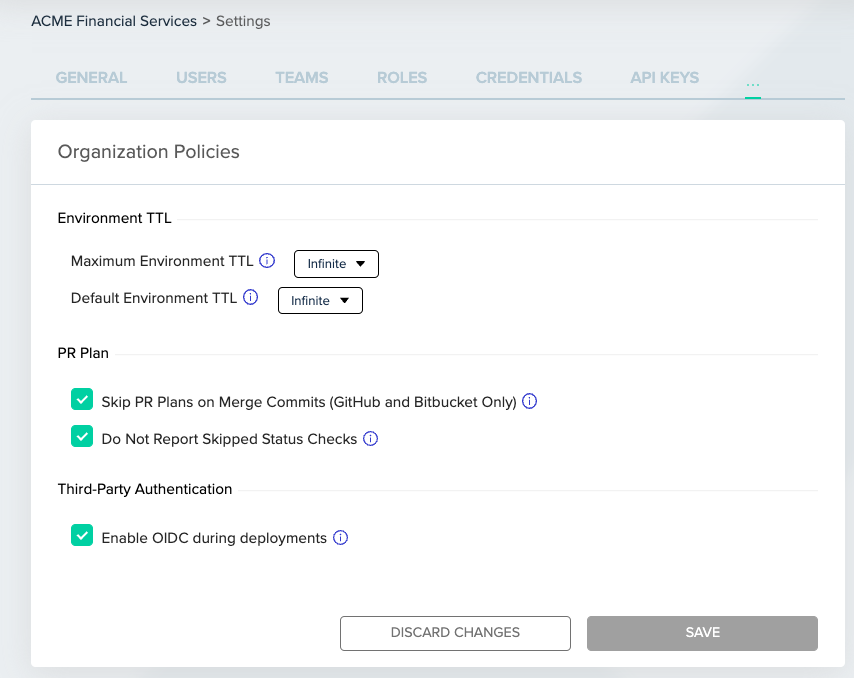
1. Under Organization > Settings > Policy - Check “Enable OIDC during deployments”\\
## C. Use Run Task
This simple node script will help decode the OIDC Token.
1. “Enable OIDC”
1. Under Organization > Settings > Policy - Check “Enable OIDC during deployments”\\
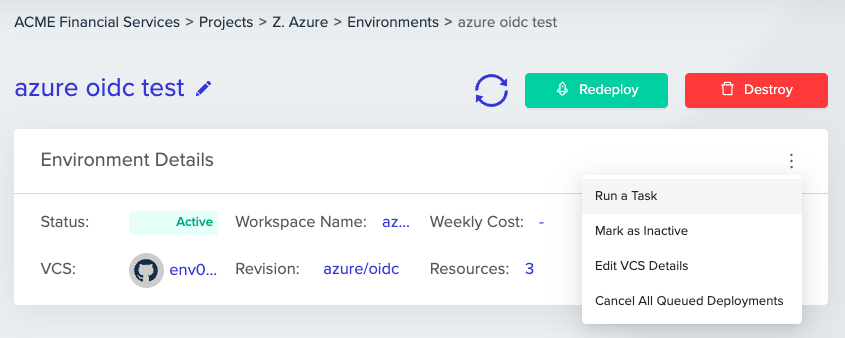
 2. Run a Task - under any existing env zero environment, select "Run a Task" from the env zero environment menu. Note: You will need administrative access to see this option.
3. Copy and Paste this script:
```shell theme={null}
node -e "console.log(JSON.parse(Buffer.from(process.env.ENV0_OIDC_TOKEN.split('.')[1], 'base64')));"
```
4. Hit Run a Task and open the console outputs under "Task Commands" step.
## D. Using env zero OIDC Script Template
This [env zero template](https://github.com/env0/customer-tools/tree/main/iam/oidc/decode-oidc), will run a decode script to help you view the contents of the OIDC token.
1. “Enable OIDC”
1. Under Organization > Settings > Policy - Check “Enable OIDC during deployments”\\
2. Clone or Fork the Repo: [https://github.com/env0/customer-tools](https://github.com/env0/customer-tools)
3. Run an Environment - from VCS, and configure it with the repo you've cloned/forked to, and the folder path: `iam/oidc/decode-oidc`
4. This will generate a step in the deployment that outputs the OIDC contents similar to this screenshot:
## E. Manually from env zero deployment
To retrieve your organization’s unique Subject Identifier:
1. “Enable OIDC”
1. Under Organization > Settings > Policy - Check “Enable OIDC during deployments”\\
2. Go to an existing environment and “Run a Task”\\
2. Run a Task - under any existing env zero environment, select "Run a Task" from the env zero environment menu. Note: You will need administrative access to see this option.
3. Copy and Paste this script:
```shell theme={null}
node -e "console.log(JSON.parse(Buffer.from(process.env.ENV0_OIDC_TOKEN.split('.')[1], 'base64')));"
```
4. Hit Run a Task and open the console outputs under "Task Commands" step.
## D. Using env zero OIDC Script Template
This [env zero template](https://github.com/env0/customer-tools/tree/main/iam/oidc/decode-oidc), will run a decode script to help you view the contents of the OIDC token.
1. “Enable OIDC”
1. Under Organization > Settings > Policy - Check “Enable OIDC during deployments”\\
2. Clone or Fork the Repo: [https://github.com/env0/customer-tools](https://github.com/env0/customer-tools)
3. Run an Environment - from VCS, and configure it with the repo you've cloned/forked to, and the folder path: `iam/oidc/decode-oidc`
4. This will generate a step in the deployment that outputs the OIDC contents similar to this screenshot:
## E. Manually from env zero deployment
To retrieve your organization’s unique Subject Identifier:
1. “Enable OIDC”
1. Under Organization > Settings > Policy - Check “Enable OIDC during deployments”\\
2. Go to an existing environment and “Run a Task”\\
 3. Run the following command: `echo $ENV0_OIDC_TOKEN | base64`\\

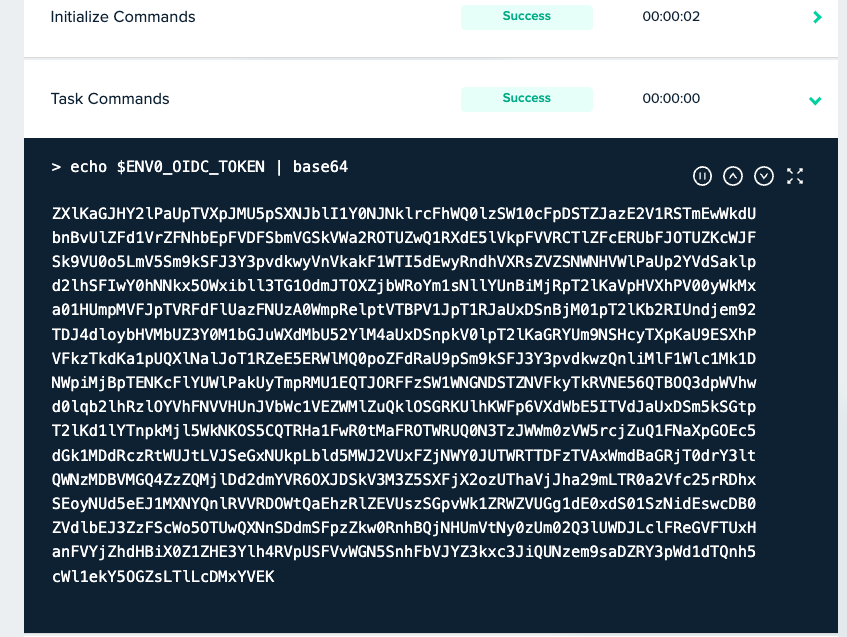 4. Copy and Base64 Decode the Token: `echo “ZVXMU5pSXNJblI1Y0NJNklrcFhWQ0lzSW10cFpDSTZJazETmEwWkdU…” | base64 -d`
 5. Copy the Token and Inspect the decoded token using [jwt.io](https://jwt.io/)\\
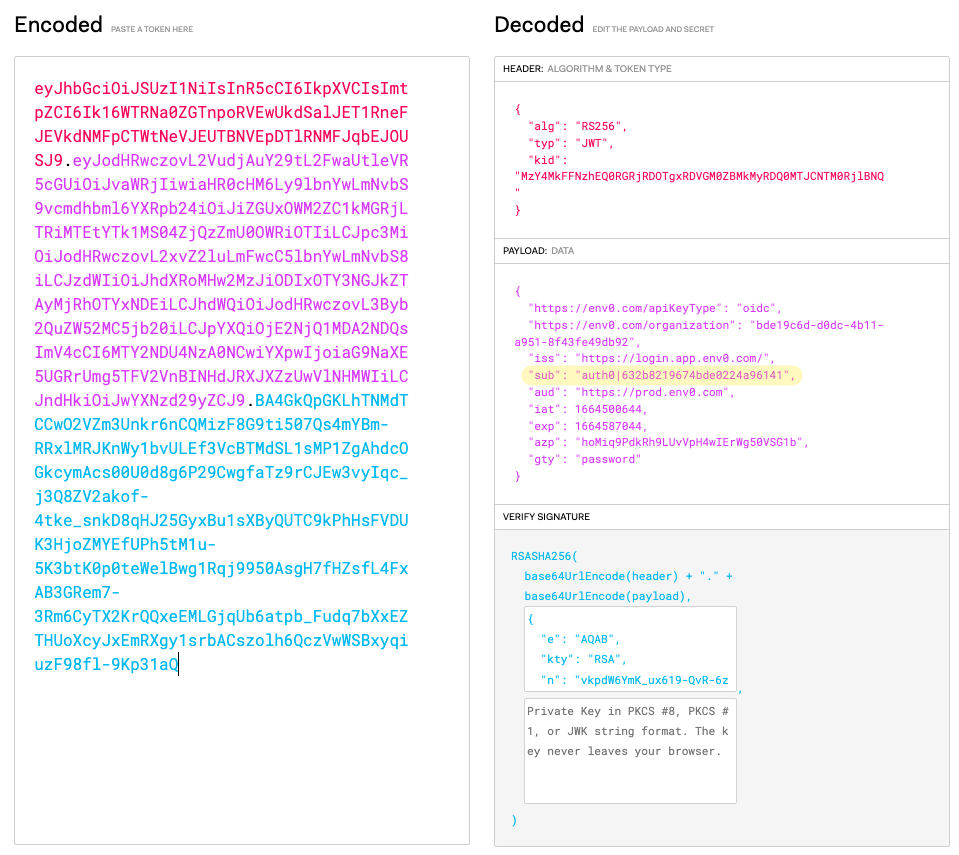 6. Copy the Subject Identifier ”sub” (In this example: `auth0|632b8219674bde0224a96141`)
## Next steps
* [OIDC for AWS](/guides/integrations/oidc-integrations/oidc-with-aws) - Use your subject identifier to configure AWS OIDC.
* [OIDC for Azure](/guides/integrations/oidc-integrations/oidc-with-azure) - Use your subject identifier to configure Azure OIDC.
* [General OIDC Integrations](/guides/integrations/oidc-integrations) - Return to the OIDC overview and provider list.
6. Copy the Subject Identifier ”sub” (In this example: `auth0|632b8219674bde0224a96141`)
## Next steps
* [OIDC for AWS](/guides/integrations/oidc-integrations/oidc-with-aws) - Use your subject identifier to configure AWS OIDC.
* [OIDC for Azure](/guides/integrations/oidc-integrations/oidc-with-azure) - Use your subject identifier to configure Azure OIDC.
* [General OIDC Integrations](/guides/integrations/oidc-integrations) - Return to the OIDC overview and provider list.