> ## Documentation Index
> Fetch the complete documentation index at: https://docs.envzero.com/llms.txt
> Use this file to discover all available pages before exploring further.
# OIDC for Azure
> Connect env zero to Azure using OIDC by registering an Azure AD App, configuring a Federated Credential, and assigning the app a Contributor role.
This guide is to help you connect to Azure with OIDC, instead of using a Service Principal.
## Overview
This guide will show you how to create an Azure AD App, configure a Federated Credential, and configure env zero to utilize OIDC. The federated credential within the Azure AD app will be configured to accept env zero's OIDC token. Refer to [OIDC Integrations for more background on env zero's OIDC configuration](/guides/integrations/oidc-integrations).
This guide configures a **v2** OIDC credential (the recommended format), where the federated credential audience is `api://AzureADTokenExchange`. See [Token versions](/guides/integrations/oidc-integrations#token-versions-v2-per-provider-audience-and-v1-legacy) for background. If you already authenticate to Azure with a v1 credential (audience set to `https://prod.env0.com`), see [Migrating an existing v1 credential](#migrating-an-existing-v1-credential) below.
## Azure AD App + Federated Credential
The Azure AD App will be configured with a Federated Credential to accept the env zero OIDC token. Using the Azure Portal:
1. Microsoft Entra ID > App registrations > "+ New Registration"
1. Enter **Name**: e.g., "env zero OIDC app"
2. Select **Supported account types** if you're unsure, choose “Single tenant”
3. Skip **Redirect URI**
4. **Register** the app.
2. Under the "env zero OIDC app" > "Certificates and Secrets" > "Federated credentials"
1. “+ Add credential”
2. Federated Credential Scenario - **Other issuer**
3. Issuer - `https://login.app.env0.com/`
4. Subject Identifier - `auth0|xxxxxx` (see the section below on ["Retrieving your Subject Identifier"](/guides/integrations/oidc-integrations/oidc-retrieving-your-subject-identifier))
5. Name - enter a name (e.g., "env0 OIDC")
6. Audience - `api://AzureADTokenExchange`
3. For using the Azure Provider in Terraform, we need to specify the following variables:
1. `ARM_TENANT_ID` - you can find the value in your app registration summary ("env zero OIDC app") under "Directory (tenant) ID"
2. `ARM_CLIENT_ID` - you can find the value in your app registration summary ("env zero OIDC app") under "Application (client) ID"
3. `ARM_SUBSCRIPTION_ID` - You can retrieve the Subscription ID from the Azure Subscription, or in a Resource Group that you want to use.
`api://AzureADTokenExchange` is Microsoft's recommended audience for the public Azure cloud. Sovereign and government clouds (for example, Azure Government or Azure China) may require a different value. Consult Microsoft's [workload identity federation documentation](https://learn.microsoft.com/en-us/entra/workload-id/workload-identity-federation) for the value that applies to your cloud.
## Azure AD App Permissions
In order for Terraform to be able to deploy and manage the resources, we need to associate your Azure AD App with your Subscription or Resource Group
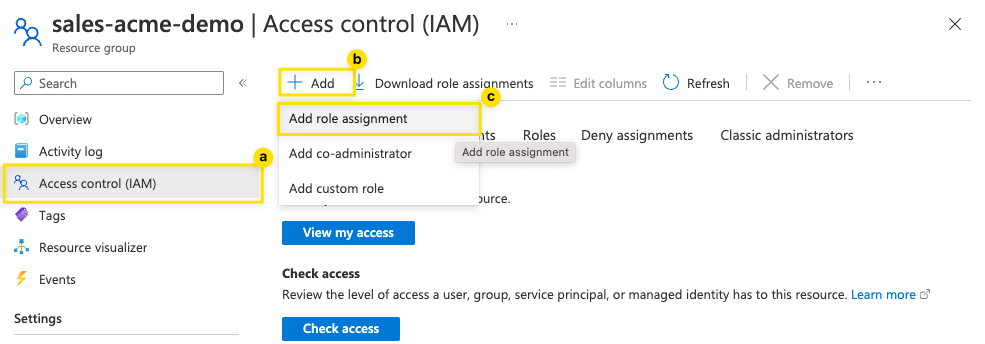
1. In this example, I will give the "env zero OIDC app" the "Contributor" role in my "sales-acme-demo" resource group. This means that env zero will only be able to create and manage resources within this resource group.
2. Go to the Resource Group (”sales-acme-demo”) > Access Control (IAM)
3. Click on “+ Add” > “Add role assignment”\\
 4. Select a role (the level of privilege to give to Terraform) - in this case, we choose “Contributor” and hit “Next”
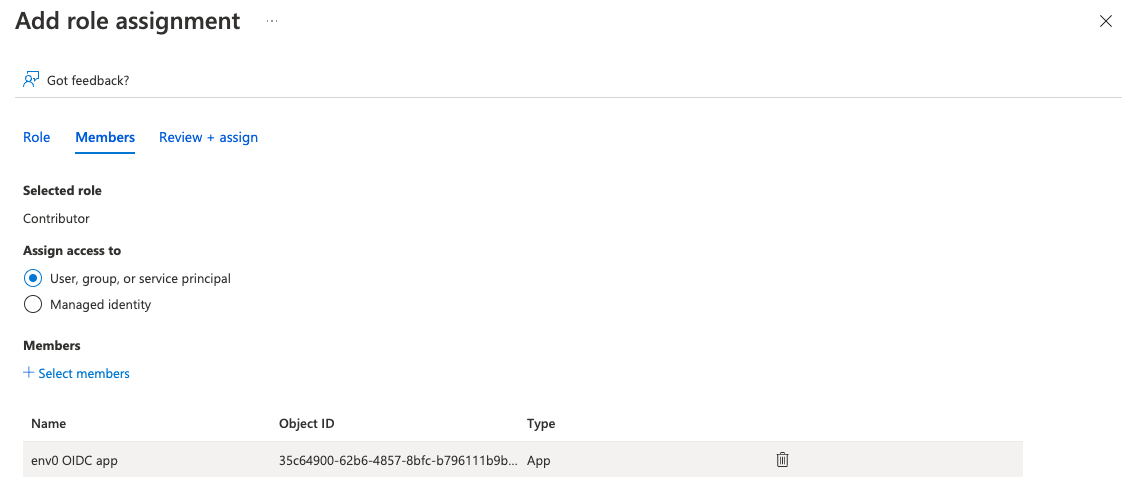
5. Assign access to “User, group, or service principal”
6. Select a member by “+ Select Members”
7. Search for "env zero OIDC app" and hit "Select"
8. Hit "Review + assign"\\
4. Select a role (the level of privilege to give to Terraform) - in this case, we choose “Contributor” and hit “Next”
5. Assign access to “User, group, or service principal”
6. Select a member by “+ Select Members”
7. Search for "env zero OIDC app" and hit "Select"
8. Hit "Review + assign"\\
 ## Configure env0 OIDC Credential
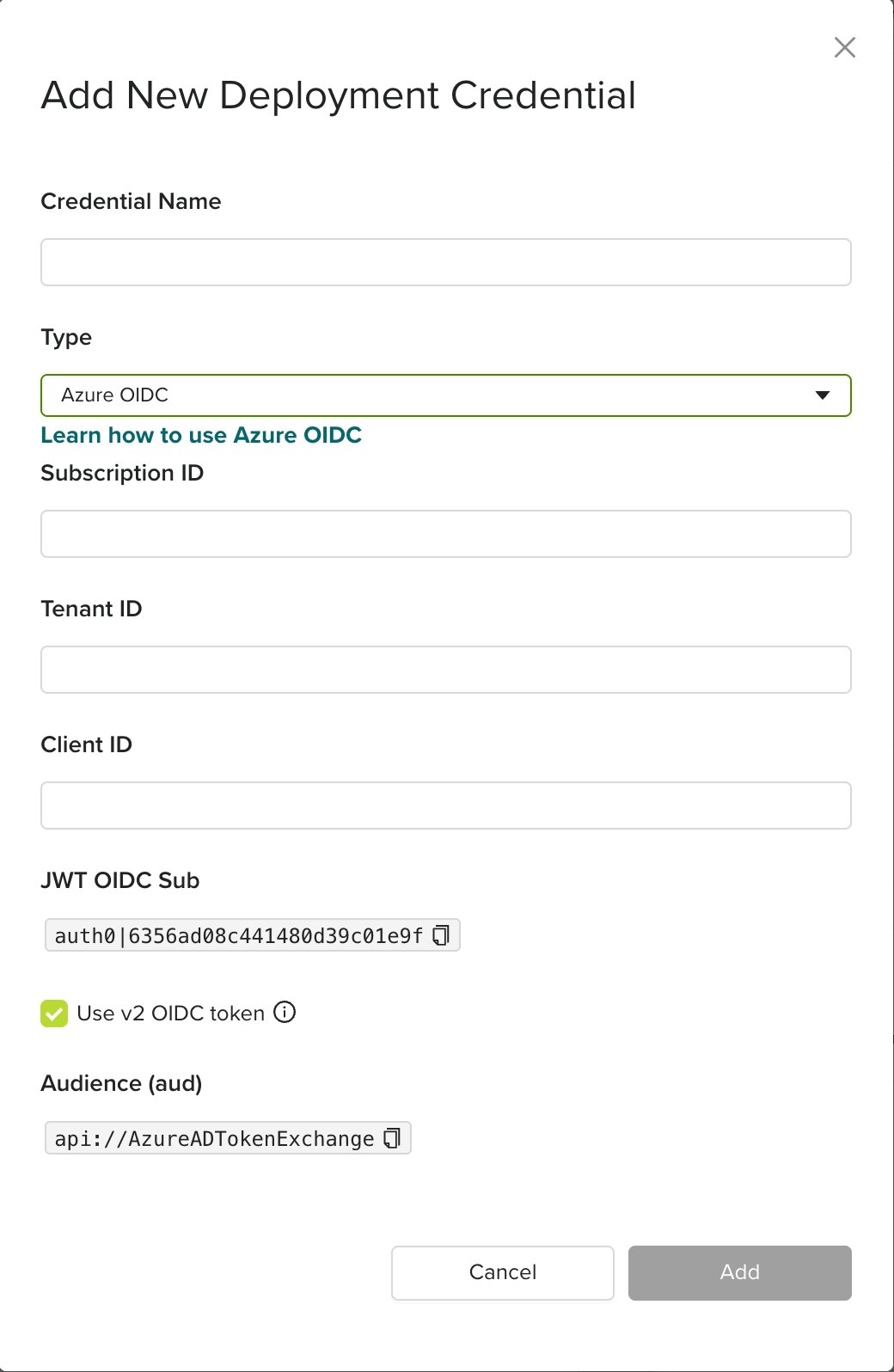
Go to the organization's credentials page and create a new deployment credential. Select `Azure OIDC` type and enter the following fields:
* `Subscription ID` - Azure subscription id
* `Tenant ID` - Azure tenant id
* `Client ID` - Azure client id
* **Use v2 OIDC token** - check this box so env zero mints a token with the `api://AzureADTokenExchange` audience configured on the federated credential above. The form shows the resulting `Audience (aud)` value. Leaving it unchecked produces a v1 token (`aud: https://prod.env0.com`), which the federated credential will reject.
## Configure env0 OIDC Credential
Go to the organization's credentials page and create a new deployment credential. Select `Azure OIDC` type and enter the following fields:
* `Subscription ID` - Azure subscription id
* `Tenant ID` - Azure tenant id
* `Client ID` - Azure client id
* **Use v2 OIDC token** - check this box so env zero mints a token with the `api://AzureADTokenExchange` audience configured on the federated credential above. The form shows the resulting `Audience (aud)` value. Leaving it unchecked produces a v1 token (`aud: https://prod.env0.com`), which the federated credential will reject.
 Azure Provider Version
Make sure you use a version of the Azure provider greater than 3.7.0.\
OIDC did not work for "=3.7.0"
### Assign your Credential in your Project
After creating your Organization Credential - don't forget to go into your Project Settings to use the OIDC credential you just created.
## Deploying to multiple Azure Subscriptions
Sometimes you want to deploy to multiple Azure Subscriptions in one Terraform workspace. In Terraform / OpenTofu, you can specify multiple azure provider blocks to target multiple subscriptions, see example below:
```go Terraform / OpenTofu (hcl) theme={null}
provider "azurerm" {
features {}
use_oidc = true
//subscription_id = "b48787a1-7145-425f-99af-62cde6c50e31" (optional)
//env zero will use the subscription ID in defined in the Azure OIDC project credential configuration
}
provider "azurerm" {
alias = "test"
features {}
use_oidc = true
subscription_id = var.second_subscription
}
variable "second_subscription" {
type = string
default = "3ef32f99-33d5-4a4f-bf9c-8a3ebb2b0144"
}
resource "azurerm_resource_group" "example" {
name = "env0-example-rg"
location = "eastus2"
}
resource "azurerm_resource_group" "second" {
provider = azurerm.test
name = "env0-example-second-rg"
location = "eastus2"
}
```
Ensure that the same App Registration created earlier ("env zero OIDC App") has permissions in both subscriptions, and you can use one set of credentials to target multiple subscriptions.
## Migrating an existing v1 credential
If you already authenticate to Azure with a v1 env zero OIDC credential, your federated credential audience is `https://prod.env0.com`. Moving to v2 means changing that audience to `api://AzureADTokenExchange`.
Unlike AWS, Azure does **not** allow two federated credentials with the same issuer and subject but different audiences, so you cannot run v1 and v2 in parallel on one app. This migration is a cutover: there is a brief window between updating the federated credential and enabling v2 on the env zero credential during which deployments using this credential will fail to authenticate. Plan the change for a maintenance window, and perform the two steps below back to back.
1. **Update the federated credential audience.** In Microsoft Entra ID > your app > "Certificates and Secrets" > "Federated credentials", edit the env zero federated credential and change the Audience from `https://prod.env0.com` to `api://AzureADTokenExchange`. If the portal does not let you edit the audience, delete the credential and recreate it with the new audience (keep the same Issuer and Subject Identifier).
2. **Enable v2 on the credential.** Immediately after, edit the Azure OIDC credential in env zero and check **Use v2 OIDC token**. The next deployment mints a token with `aud: api://AzureADTokenExchange`.
## Next steps
* [Retrieve OIDC Subject Identifier](/guides/integrations/oidc-integrations/oidc-retrieving-your-subject-identifier) - Find the subject identifier for your OIDC token.
* [OIDC for AWS](/guides/integrations/oidc-integrations/oidc-with-aws) - Set up OIDC for AWS as an alternative cloud provider.
* [OIDC for GCP](/guides/integrations/oidc-integrations/oidc-with-google-cloud-platform) - Set up OIDC for Google Cloud Platform.
Azure Provider Version
Make sure you use a version of the Azure provider greater than 3.7.0.\
OIDC did not work for "=3.7.0"
### Assign your Credential in your Project
After creating your Organization Credential - don't forget to go into your Project Settings to use the OIDC credential you just created.
## Deploying to multiple Azure Subscriptions
Sometimes you want to deploy to multiple Azure Subscriptions in one Terraform workspace. In Terraform / OpenTofu, you can specify multiple azure provider blocks to target multiple subscriptions, see example below:
```go Terraform / OpenTofu (hcl) theme={null}
provider "azurerm" {
features {}
use_oidc = true
//subscription_id = "b48787a1-7145-425f-99af-62cde6c50e31" (optional)
//env zero will use the subscription ID in defined in the Azure OIDC project credential configuration
}
provider "azurerm" {
alias = "test"
features {}
use_oidc = true
subscription_id = var.second_subscription
}
variable "second_subscription" {
type = string
default = "3ef32f99-33d5-4a4f-bf9c-8a3ebb2b0144"
}
resource "azurerm_resource_group" "example" {
name = "env0-example-rg"
location = "eastus2"
}
resource "azurerm_resource_group" "second" {
provider = azurerm.test
name = "env0-example-second-rg"
location = "eastus2"
}
```
Ensure that the same App Registration created earlier ("env zero OIDC App") has permissions in both subscriptions, and you can use one set of credentials to target multiple subscriptions.
## Migrating an existing v1 credential
If you already authenticate to Azure with a v1 env zero OIDC credential, your federated credential audience is `https://prod.env0.com`. Moving to v2 means changing that audience to `api://AzureADTokenExchange`.
Unlike AWS, Azure does **not** allow two federated credentials with the same issuer and subject but different audiences, so you cannot run v1 and v2 in parallel on one app. This migration is a cutover: there is a brief window between updating the federated credential and enabling v2 on the env zero credential during which deployments using this credential will fail to authenticate. Plan the change for a maintenance window, and perform the two steps below back to back.
1. **Update the federated credential audience.** In Microsoft Entra ID > your app > "Certificates and Secrets" > "Federated credentials", edit the env zero federated credential and change the Audience from `https://prod.env0.com` to `api://AzureADTokenExchange`. If the portal does not let you edit the audience, delete the credential and recreate it with the new audience (keep the same Issuer and Subject Identifier).
2. **Enable v2 on the credential.** Immediately after, edit the Azure OIDC credential in env zero and check **Use v2 OIDC token**. The next deployment mints a token with `aud: api://AzureADTokenExchange`.
## Next steps
* [Retrieve OIDC Subject Identifier](/guides/integrations/oidc-integrations/oidc-retrieving-your-subject-identifier) - Find the subject identifier for your OIDC token.
* [OIDC for AWS](/guides/integrations/oidc-integrations/oidc-with-aws) - Set up OIDC for AWS as an alternative cloud provider.
* [OIDC for GCP](/guides/integrations/oidc-integrations/oidc-with-google-cloud-platform) - Set up OIDC for Google Cloud Platform.