> ## Documentation Index
> Fetch the complete documentation index at: https://docs.envzero.com/llms.txt
> Use this file to discover all available pages before exploring further.
# Ready-To-Use Policies
> Pre-configured guardrails that you can integrate into your Infrastructure as Code workflows to enforce governance, security, and compliance standards
env zero's ready-to-use policies provide pre-configured guardrails that you can integrate into your Infrastructure as Code (IaC) workflows. These policies help enforce governance, security, and compliance standards without requiring you to write custom policy code from scratch.
All policy code is open source, allowing you to review exactly what each policy does and how it works.
## Policy categories
Policies are organized into seven categories that cover key areas of infrastructure governance:
* **Security**: Protect your infrastructure from vulnerabilities and ensure secure configurations
* **Networking**: Control network access, configuration, and connectivity rules
* **IAM**: Manage identity and access permissions across your cloud resources
* **Compliance**: Meet regulatory requirements and industry standards
* **Cost**: Monitor and control infrastructure spending and resource usage
* **Performance**: Optimize resource allocation and system performance
* **Governance**: Enforce organizational policies and operational standards
## Viewing your policies
To see all policies currently configured in your organisation:
Click on **Policies** in the organisation menu to access your policy dashboard.
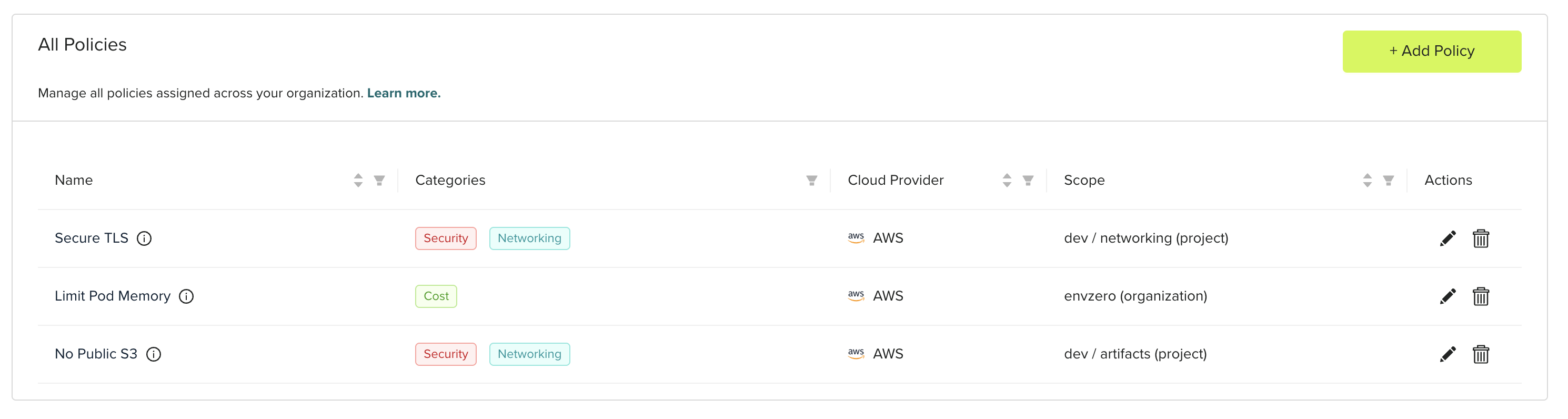
The policy table displays:
* All configured policies in your organisation
* Policy categories and names
* Assignment scope (organisation, specific projects, or environments)
The table gives you a clear view of where each policy is applied, helping you understand current governance coverage across projects and environments.
 ## Adding policies
To add a new policy to your workflow:
Click **Add Policy** in the policies section to open the policy selection screen.
Browse the available policies and select the one that matches your requirements. You can filter by category or search by name.
## Adding policies
To add a new policy to your workflow:
Click **Add Policy** in the policies section to open the policy selection screen.
Browse the available policies and select the one that matches your requirements. You can filter by category or search by name.
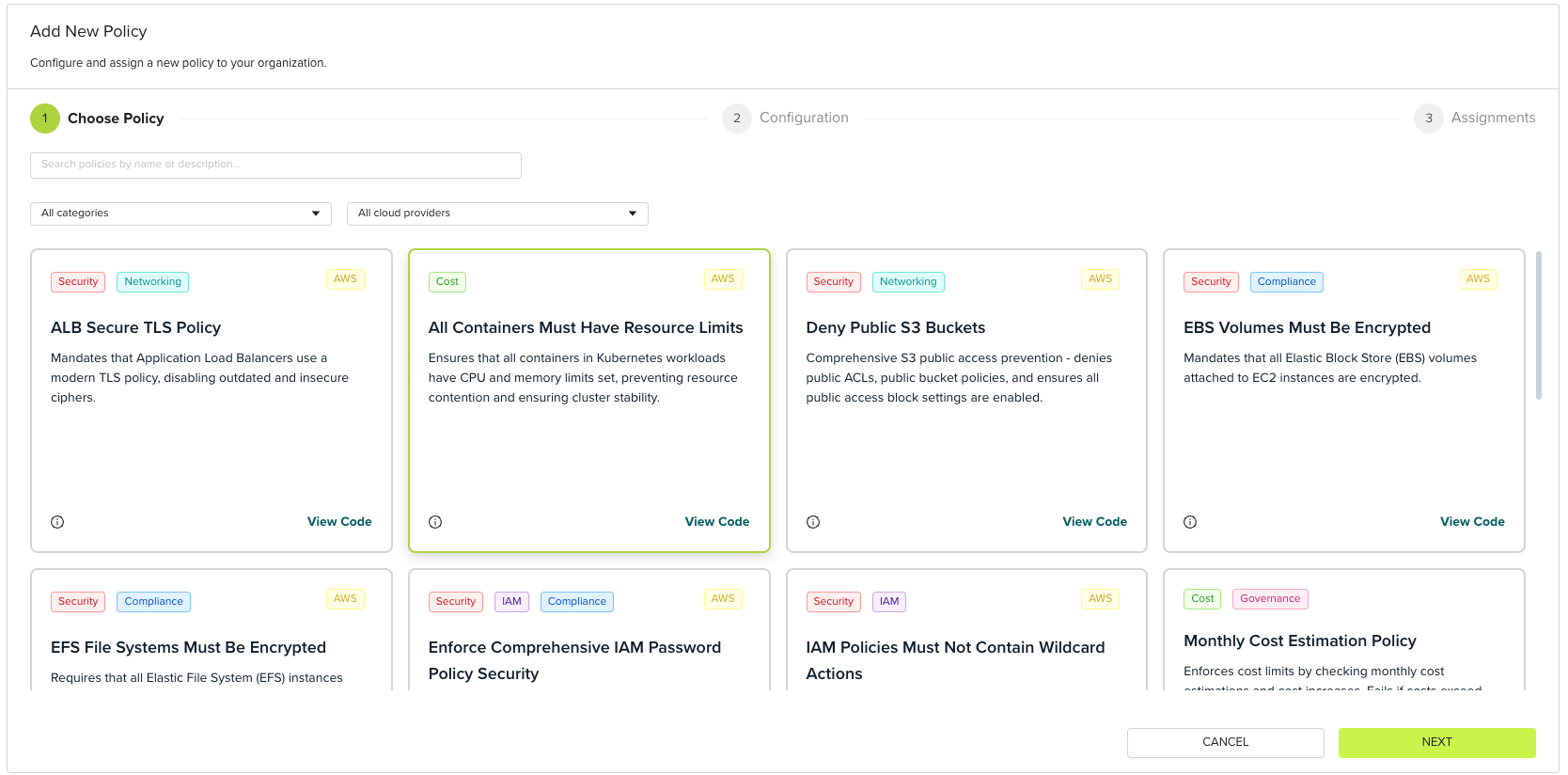 Review the policy details and open source code to understand exactly what the policy enforces before selection.
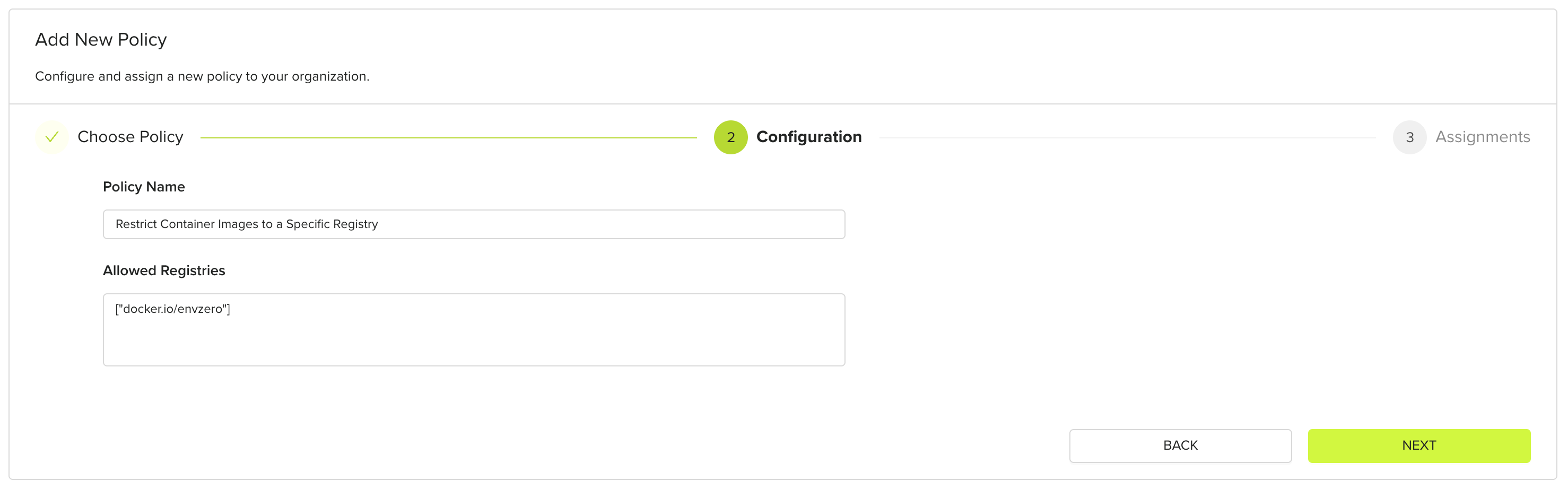
Fill in the required parameters for the selected policy. Each policy includes specific settings relevant to its function.
Review the policy details and open source code to understand exactly what the policy enforces before selection.
Fill in the required parameters for the selected policy. Each policy includes specific settings relevant to its function.
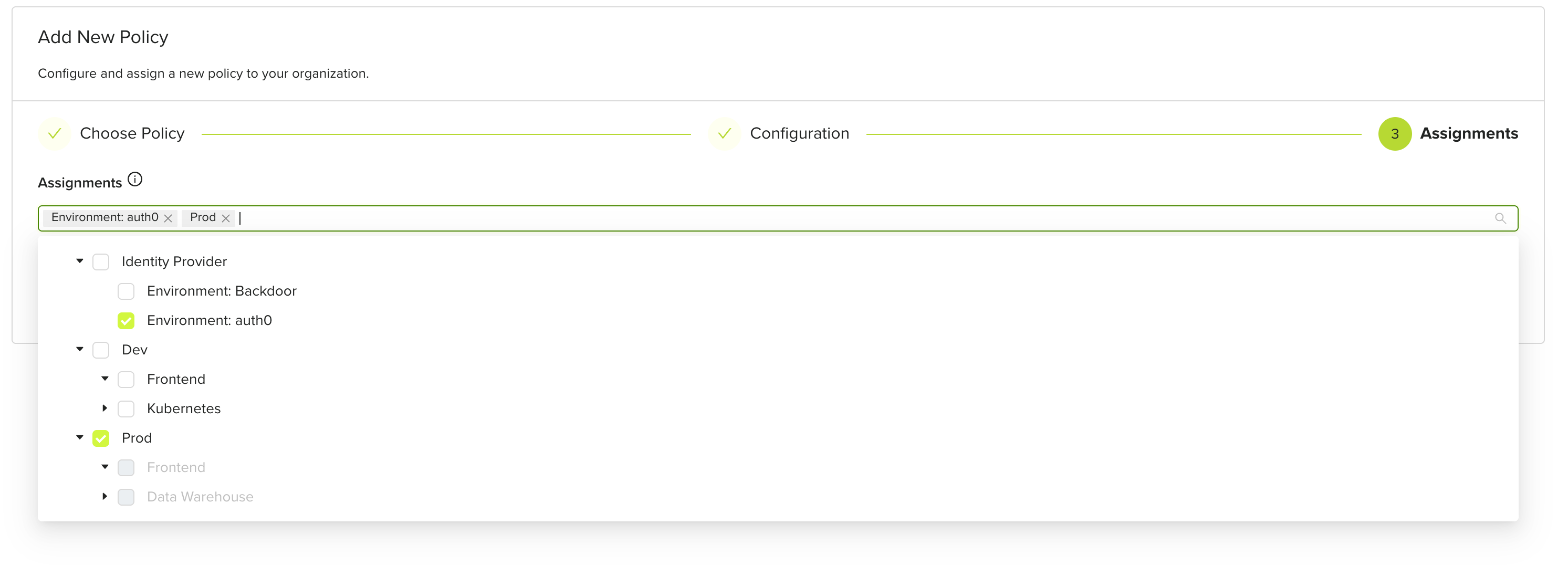
 Choose where the policy should apply:
* **Organisation-wide**: Applies to all projects and environments
* **Specific projects**: Applies only to selected projects
* **Specific environments**: Applies only to selected environments
Choose where the policy should apply:
* **Organisation-wide**: Applies to all projects and environments
* **Specific projects**: Applies only to selected projects
* **Specific environments**: Applies only to selected environments
 Organisation-wide policies affect all deployments. Consider scope carefully.
Save the configuration to activate the policy. It will now be enforced according to the chosen scope.
## Policy enforcement during deployment
Once configured, policies are enforced as part of the deployment workflow and appear during the approval process.
### Approval policies step
During deployment runtime, you can view active policies in the **Approval policies** step of the deployment process. This step shows:
* Which policies are being evaluated
* Policy evaluation results
* Any policy violations that need attention
* Approval requirements based on policy outcomes
Organisation-wide policies affect all deployments. Consider scope carefully.
Save the configuration to activate the policy. It will now be enforced according to the chosen scope.
## Policy enforcement during deployment
Once configured, policies are enforced as part of the deployment workflow and appear during the approval process.
### Approval policies step
During deployment runtime, you can view active policies in the **Approval policies** step of the deployment process. This step shows:
* Which policies are being evaluated
* Policy evaluation results
* Any policy violations that need attention
* Approval requirements based on policy outcomes
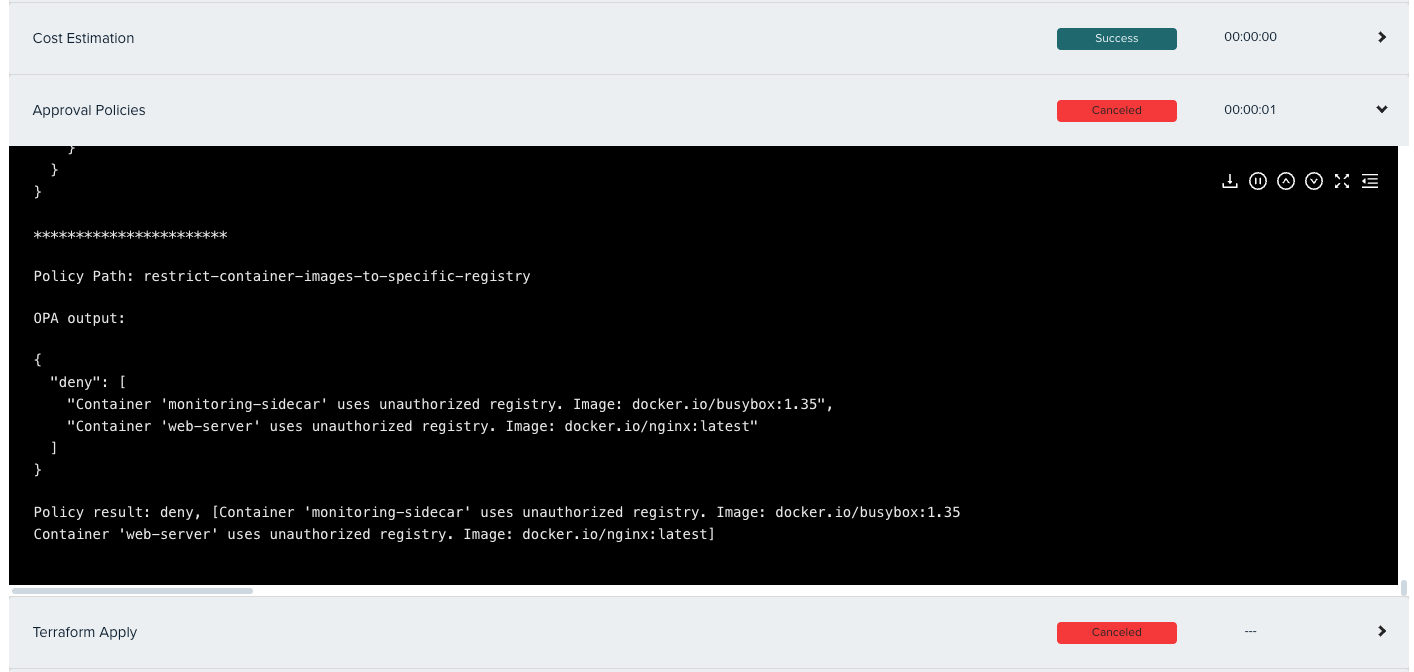 The Approval policies step ensures that all governance requirements are validated before infrastructure changes are applied.
Ready-to-use policies streamline governance by providing battle-tested rules you can deploy immediately, reducing the time and effort needed to establish comprehensive infrastructure oversight.
## Next steps
* [Manage Policies](/guides/policies-governance/policies) - Understand runtime and deployment policy types.
* [Manage Approval Policies](/guides/policies-governance/approval-policies) - Set up OPA-based approval workflows.
* [Using the OPA Plugin](/guides/integrations/plugins/opa-plugin) - Extend policies with custom OPA rules.
The Approval policies step ensures that all governance requirements are validated before infrastructure changes are applied.
Ready-to-use policies streamline governance by providing battle-tested rules you can deploy immediately, reducing the time and effort needed to establish comprehensive infrastructure oversight.
## Next steps
* [Manage Policies](/guides/policies-governance/policies) - Understand runtime and deployment policy types.
* [Manage Approval Policies](/guides/policies-governance/approval-policies) - Set up OPA-based approval workflows.
* [Using the OPA Plugin](/guides/integrations/plugins/opa-plugin) - Extend policies with custom OPA rules.