> ## Documentation Index
> Fetch the complete documentation index at: https://docs.envzero.com/llms.txt
> Use this file to discover all available pages before exploring further.
# Google Workspace Integration
> Set up Google Workspace as a SAML provider for env zero SSO by creating a custom SAML app, mapping user attributes and groups, and configuring the ACS URL.
## Introduction
This guide will detail the various steps required to integrate Google Workspace as a SAML provider for your env zero organization. The current implementation is used for authentication only, where you define your users in your Google Workspace account to enable them access to your env zero organization. You can also add env zero as an application in your user application dashboard.
**Self-Service Configuration Available**: You can configure SAML SSO directly from your organization settings. See [Self-Service SSO Integration](/guides/sso-integrations/self-service-sso) for an overview, or [Self-Service SAML Setup](/guides/sso-integrations/self-service-saml) for step-by-step instructions.
## Steps
1. Login to your Google Workspace admin dashboard - [https://admin.google.com](https://admin.google.com)
2. Go to `Apps` > `Web and mobile apps`
3. Under the `Add app` button dropdown select `Add custom SAML app`
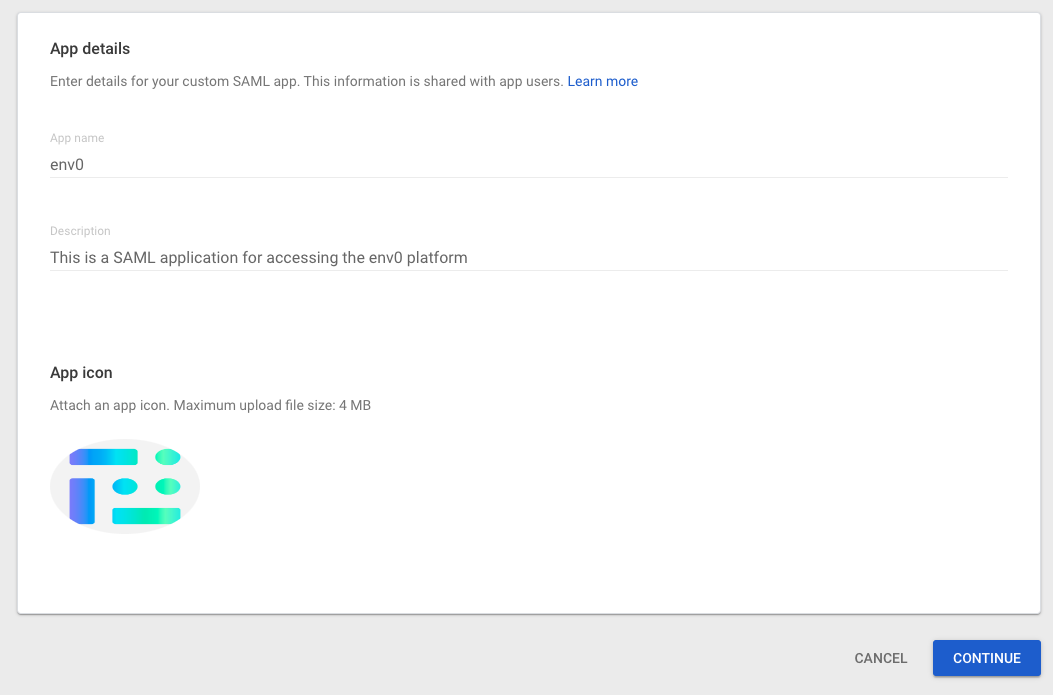
4. Give the app a name and set the app icon and click on the `Continue` button
 5. Copy the SSO URL, Entity ID and download the certificate. You will need to send those over to env zero so we can set up the SAML on our side. Then click on the `Continue` button
6. In the `ACS URL` enter the following: `https://login.app.env0.com/login/callback?connection=YOUR_ENV0_ORG_ID`
7. In the `Entity ID` enter `urn:auth0:env0:{YOUR_ENV0_ORG_ID}`
8. Check the `Signed Response` checkbox
9. In the `Name ID format` choose `Unspecified`
10. In the `Name ID`, choose `Basic Information` and `Primary Email`
11. Click on the `Continue` button
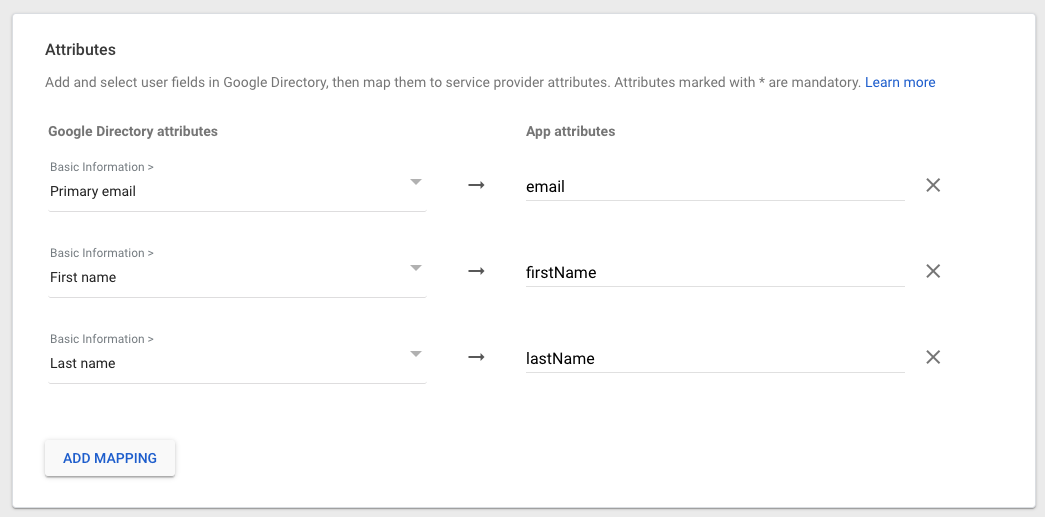
12. In the `Attributes` add the following:
| Google Directory attributes | App attributes |
| :-------------------------- | :--------------------- |
| Primary email | email |
| First Name | firstName |
| Last Name | lastName |
| Name | {firstName} {lastName} |
5. Copy the SSO URL, Entity ID and download the certificate. You will need to send those over to env zero so we can set up the SAML on our side. Then click on the `Continue` button
6. In the `ACS URL` enter the following: `https://login.app.env0.com/login/callback?connection=YOUR_ENV0_ORG_ID`
7. In the `Entity ID` enter `urn:auth0:env0:{YOUR_ENV0_ORG_ID}`
8. Check the `Signed Response` checkbox
9. In the `Name ID format` choose `Unspecified`
10. In the `Name ID`, choose `Basic Information` and `Primary Email`
11. Click on the `Continue` button
12. In the `Attributes` add the following:
| Google Directory attributes | App attributes |
| :-------------------------- | :--------------------- |
| Primary email | email |
| First Name | firstName |
| Last Name | lastName |
| Name | {firstName} {lastName} |
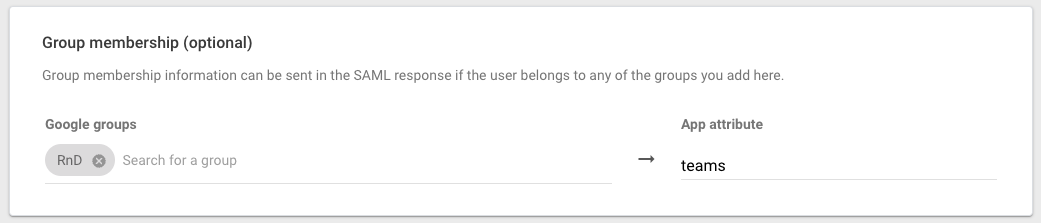
 13. In the `Group membership` add any Groups you would like to sync with env zero, and in the `App attribute` enter `teams`
 **Groups Syncing**
Groups will be synced each time a user logins with the following logic:
1. env zero will create a new team if one doesn't exist based on the group name it received from the Google Workspace.
2. If the team exists in env zero, env zero will not create a new team.\
env zero will assign the user to all the teams in env zero based on the group **names** they are part of in the Google Workspace.
3. If the user was removed from a group in the Google Workspace, env zero will remove them from the team in env zero.
4. The names of the teams in env zero will be the same as the Group Name (including whitespaces) and not the Group Email.
14. Click on the `Finish`
15. In the `User Access` set the user you would like to have access to env zero
**Groups Syncing**
Groups will be synced each time a user logins with the following logic:
1. env zero will create a new team if one doesn't exist based on the group name it received from the Google Workspace.
2. If the team exists in env zero, env zero will not create a new team.\
env zero will assign the user to all the teams in env zero based on the group **names** they are part of in the Google Workspace.
3. If the user was removed from a group in the Google Workspace, env zero will remove them from the team in env zero.
4. The names of the teams in env zero will be the same as the Group Name (including whitespaces) and not the Group Email.
14. Click on the `Finish`
15. In the `User Access` set the user you would like to have access to env zero
 16. Navigate to your env zero organization settings and go to the **SSO** tab.
17. Click on **SAML** and complete the self-service form with:
* Identity Provider Single Sign-on URL (SSO URL)
* Entity ID
* X.509 Certificate
## Next steps
* [Self-Service SAML Setup](/guides/sso-integrations/self-service-saml) - Review the general SAML configuration process.
* [Sync Roles & Groups From Your IdP](/guides/sso-integrations/importing-roles-or-groups-from-your-identity-provider) - Import Google Workspace groups into env zero.
* [Azure Active Directory Integration](/guides/sso-integrations/self-service-azure-ad) - Compare with the Microsoft Entra ID setup guide.
16. Navigate to your env zero organization settings and go to the **SSO** tab.
17. Click on **SAML** and complete the self-service form with:
* Identity Provider Single Sign-on URL (SSO URL)
* Entity ID
* X.509 Certificate
## Next steps
* [Self-Service SAML Setup](/guides/sso-integrations/self-service-saml) - Review the general SAML configuration process.
* [Sync Roles & Groups From Your IdP](/guides/sso-integrations/importing-roles-or-groups-from-your-identity-provider) - Import Google Workspace groups into env zero.
* [Azure Active Directory Integration](/guides/sso-integrations/self-service-azure-ad) - Compare with the Microsoft Entra ID setup guide.