> ## Documentation Index
> Fetch the complete documentation index at: https://docs.envzero.com/llms.txt
> Use this file to discover all available pages before exploring further.
# Keycloak Integration
> Configure Keycloak as a SAML identity provider for env zero by creating a SAML client with the correct entity ID, ACS URL, attribute mappers, and group mapper.
## Introduction
This guide will detail the various steps required to integrate Keycloak as a SAML provider for your env zero organization. The current implementation is used for authentication only, where you define your users in your Keycloak to enable them access to your env zero organization.
**Self-Service Configuration Available**: You can configure SAML SSO directly from your organization settings. See [Self-Service SSO Integration](/guides/sso-integrations/self-service-sso) for an overview, or [Self-Service SAML Setup](/guides/sso-integrations/self-service-saml) for step-by-step instructions.
## Steps
1. Login to your Keycloak account as an Administrator
2. In the left-side menu click on the `Clients` tab
3. Click on the `Create` button
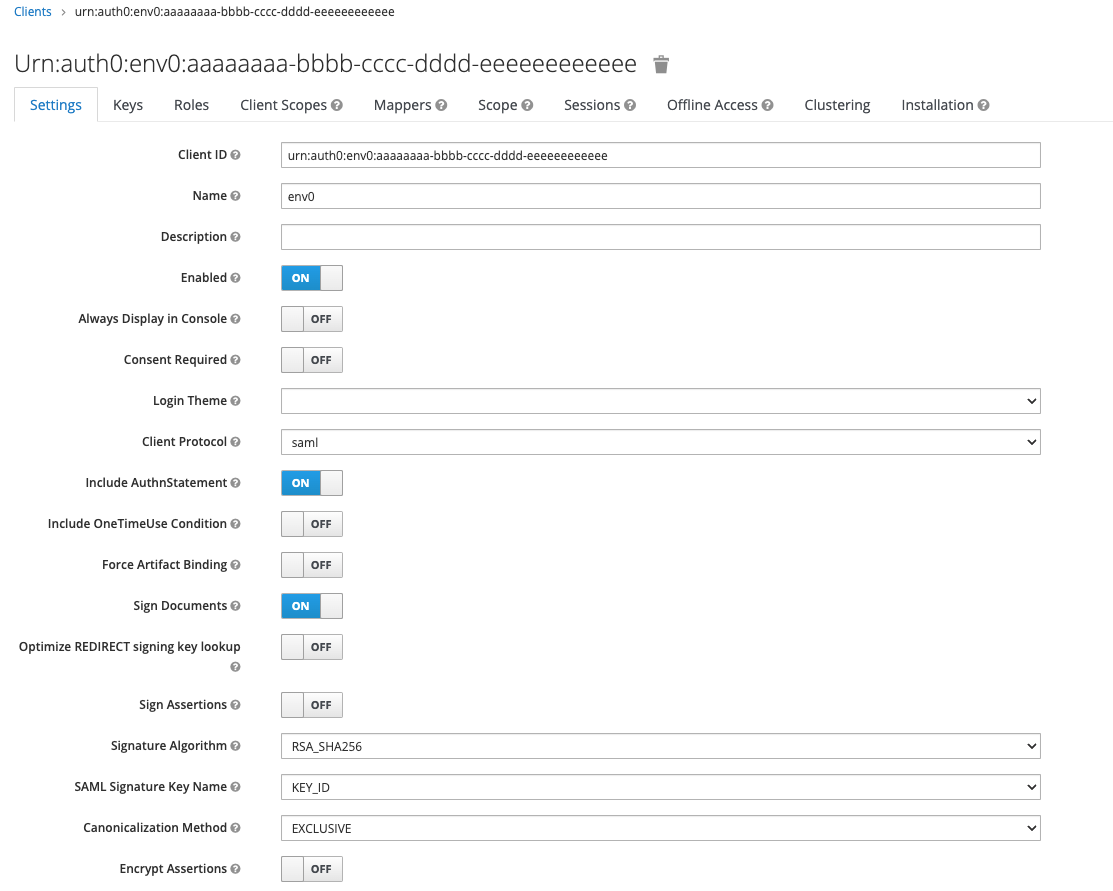
4. In the Client ID enter `urn:auth0:env0:YOUR_ENV0_ORG_ID`\
e.g., `urn:auth0:env0:aaaaaaaa-bbbb-cccc-dddd-eeeeeeeeeeee`
5. In the Client Protocol dropdown Select `saml`
6. Click on the `Save` button
7. Under the `Settings` tab, in the `Name` enter `env zero`
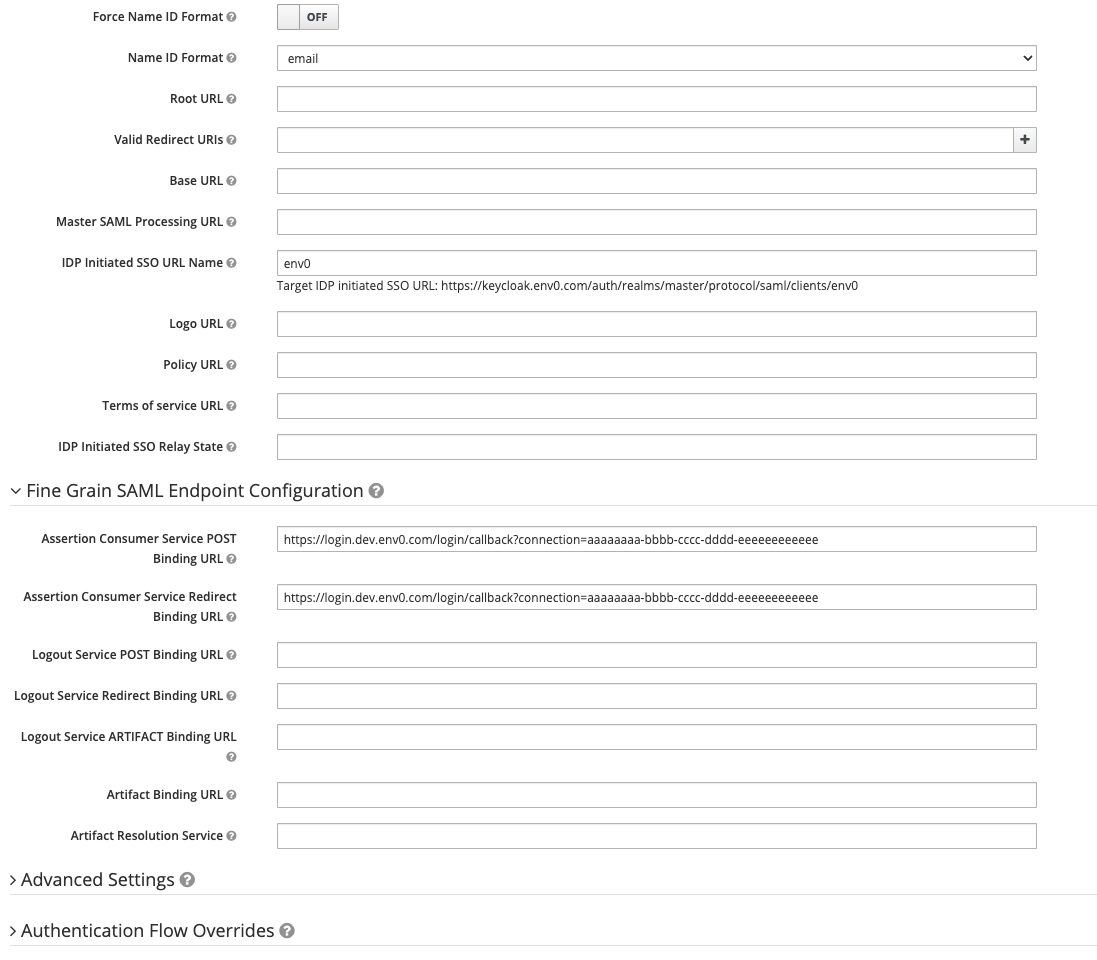
8. In the `Name ID Format` dropdown select `email`
9. in the `IDP Initiated SSO URL Name` enter `env zero`
10. Open the `Fine Grain SAML Endpoint Configuration` dropdown
11. In the `Assertion Consumer Service POST Binding URL` and in the `Assertion Consumer Service Redirect Binding URL` enter `https://login.app.env0.com/login/callback?connection=YOUR_ENV0_ORG_ID` - e.g., `https://login.app.env0.com/login/callback?connection=aaaaaaaa-bbbb-cccc-dddd-eeeeeeeeeeee`
12. Click on the `Save` button at the bottom
 ## Mappers
1. Click on the `Mappers` tab
2. Click on the `Add Builtin` button
3. Check the `X500 email`, `X500 givenName` and `X500 surname` and click on the `Add selected` button
4. Click on the `Edit` button in the `X500 givenName` and change the `SAML Attribute Name` to be `firstName` and click on the `Save` button
5. Click on the `Edit` button in the `X500 email` and change the `SAML Attribute Name` to be `email` and click on the `Save` button
6. Click on the `Edit` button in the `X500 surname` and change the `SAML Attribute Name` to be `lastName` and click on the `Save` button
7. If you like to also sync your Keycloak groups with env zero you need to click on the `Create` button in the `Mappers` tab
8. Under `Name` enter `groups`
9. In the `Mapper Type` dropdown select `Group list`
10. In the `Group attribute name` enter `groups`
11. In the `Friendly Name` enter `groups`
12. Leave the `SAML Attribute NameFormat` unselected and Make sure the `Single Group Attribute` is switched on
13. You can choose whether to send the full group path. If you like to get the full group path, switch it on, and the teams in env zero will include the full path of the group, e.g., if you have an `Front end` group inside a `RnD` group the name of the team in env zero will be `/Rnd/Front End`
14. Read more about [Teams syncing with env zero here](/guides/sso-integrations/importing-roles-or-groups-from-your-identity-provider)
15. Click on the `Save` button
## Mappers
1. Click on the `Mappers` tab
2. Click on the `Add Builtin` button
3. Check the `X500 email`, `X500 givenName` and `X500 surname` and click on the `Add selected` button
4. Click on the `Edit` button in the `X500 givenName` and change the `SAML Attribute Name` to be `firstName` and click on the `Save` button
5. Click on the `Edit` button in the `X500 email` and change the `SAML Attribute Name` to be `email` and click on the `Save` button
6. Click on the `Edit` button in the `X500 surname` and change the `SAML Attribute Name` to be `lastName` and click on the `Save` button
7. If you like to also sync your Keycloak groups with env zero you need to click on the `Create` button in the `Mappers` tab
8. Under `Name` enter `groups`
9. In the `Mapper Type` dropdown select `Group list`
10. In the `Group attribute name` enter `groups`
11. In the `Friendly Name` enter `groups`
12. Leave the `SAML Attribute NameFormat` unselected and Make sure the `Single Group Attribute` is switched on
13. You can choose whether to send the full group path. If you like to get the full group path, switch it on, and the teams in env zero will include the full path of the group, e.g., if you have an `Front end` group inside a `RnD` group the name of the team in env zero will be `/Rnd/Front End`
14. Read more about [Teams syncing with env zero here](/guides/sso-integrations/importing-roles-or-groups-from-your-identity-provider)
15. Click on the `Save` button
 ## Installation
1. To set your SAML inside env zero, navigate to your organization settings and go to the **SSO** tab
2. Click on **SAML** to configure your connection
3. In Keycloak, go to the `Installation` tab
4. In the `Format Option` dropdown select `Mod Auth Mellon Files` and click on the `Download` button
5. Extract the downloaded `keycloak-mod-auth-mellon-sp-config.zip` file
6. Complete the self-service form in env zero with the information from the `idp-metadata.xml` file from the extracted folder
## Installation
1. To set your SAML inside env zero, navigate to your organization settings and go to the **SSO** tab
2. Click on **SAML** to configure your connection
3. In Keycloak, go to the `Installation` tab
4. In the `Format Option` dropdown select `Mod Auth Mellon Files` and click on the `Download` button
5. Extract the downloaded `keycloak-mod-auth-mellon-sp-config.zip` file
6. Complete the self-service form in env zero with the information from the `idp-metadata.xml` file from the extracted folder
 ## Next steps
* [Self-Service SAML Setup](/guides/sso-integrations/self-service-saml) - Review the general SAML configuration process.
* [Sync Roles & Groups From Your IdP](/guides/sso-integrations/importing-roles-or-groups-from-your-identity-provider) - Import Keycloak groups into env zero.
* [Google Workspace Integration](/guides/sso-integrations/google-workspace) - Compare with another supported identity provider.
## Next steps
* [Self-Service SAML Setup](/guides/sso-integrations/self-service-saml) - Review the general SAML configuration process.
* [Sync Roles & Groups From Your IdP](/guides/sso-integrations/importing-roles-or-groups-from-your-identity-provider) - Import Keycloak groups into env zero.
* [Google Workspace Integration](/guides/sso-integrations/google-workspace) - Compare with another supported identity provider.