> ## Documentation Index
> Fetch the complete documentation index at: https://docs.envzero.com/llms.txt
> Use this file to discover all available pages before exploring further.
# SCIM Provisioning
> Sync users and groups from your identity provider to env zero with SCIM 2.0 for immediate deprovisioning and continuous provisioning without waiting for logins.
## Why SCIM
Without SCIM, env zero only syncs user access when someone logs in. That means if you offboard an employee in your IdP, they still have access to env zero until their next login attempt. SCIM fixes this by keeping your user directory in sync continuously - access is granted or revoked as soon as changes happen in your IdP.
### Key benefits
* **Immediate deprovisioning** - When you remove a user in your IdP, their env zero access is revoked right away, not at next login
* **No manual user management** - New team members get env zero access automatically when added to the right groups in your IdP
* **Single source of truth** - Your IdP stays the authoritative record for who has access to what
**Beta Feature** - SCIM Provisioning is currently in beta. We're actively improving the feature and welcome your feedback.
## Overview
SCIM (System for Cross-domain Identity Management) is a standard protocol that enables your identity provider to automatically provision and deprovision users in env zero.
## Prerequisites
* **SSO must be configured** - SCIM provisioning is only available after you set up an [SSO connection](/guides/sso-integrations/self-service-sso) using SAML or Microsoft Entra ID (Azure AD)
* **Edit Organization Settings** permission is required
## Setting Up SCIM
Go to **Organization Settings** > **SSO**. Below your SSO connection, you'll see the **SCIM Provisioning** section.
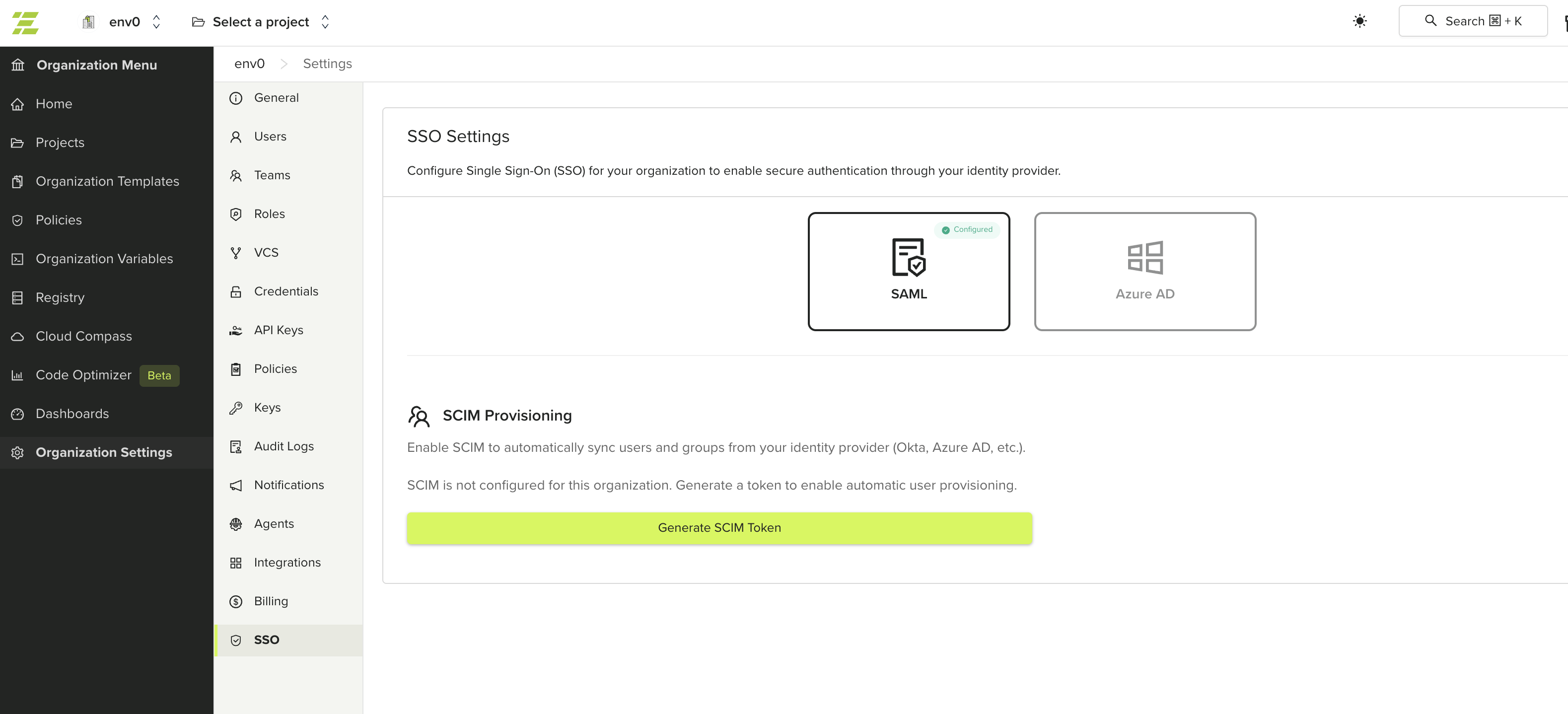 Click **Generate SCIM Token**. This creates a bearer token and SCIM endpoint URL for your organization.
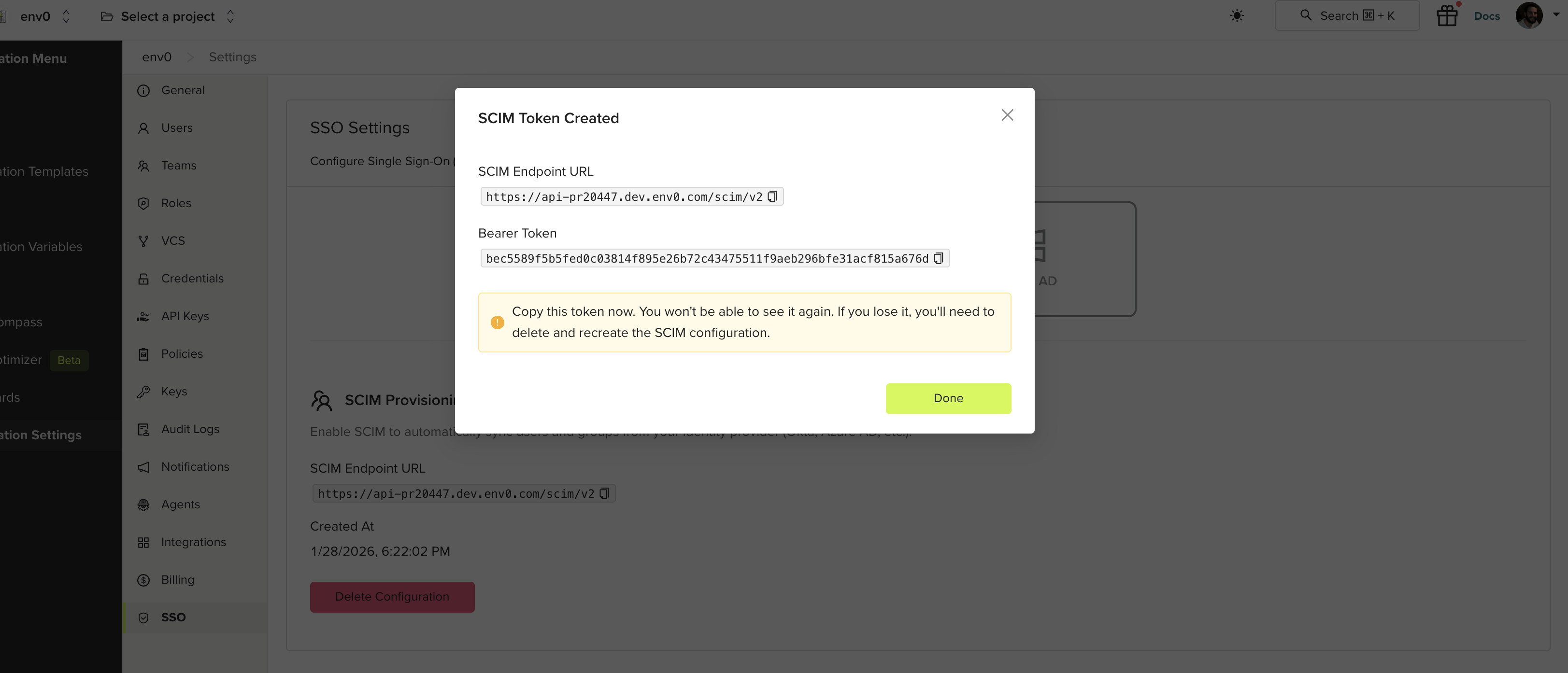
A dialog displays your **SCIM Endpoint URL** and **Bearer Token**. Copy both values immediately.
The bearer token is shown only once. If you lose it, you'll need to delete the SCIM configuration and generate a new one.
Click **Generate SCIM Token**. This creates a bearer token and SCIM endpoint URL for your organization.
A dialog displays your **SCIM Endpoint URL** and **Bearer Token**. Copy both values immediately.
The bearer token is shown only once. If you lose it, you'll need to delete the SCIM configuration and generate a new one.
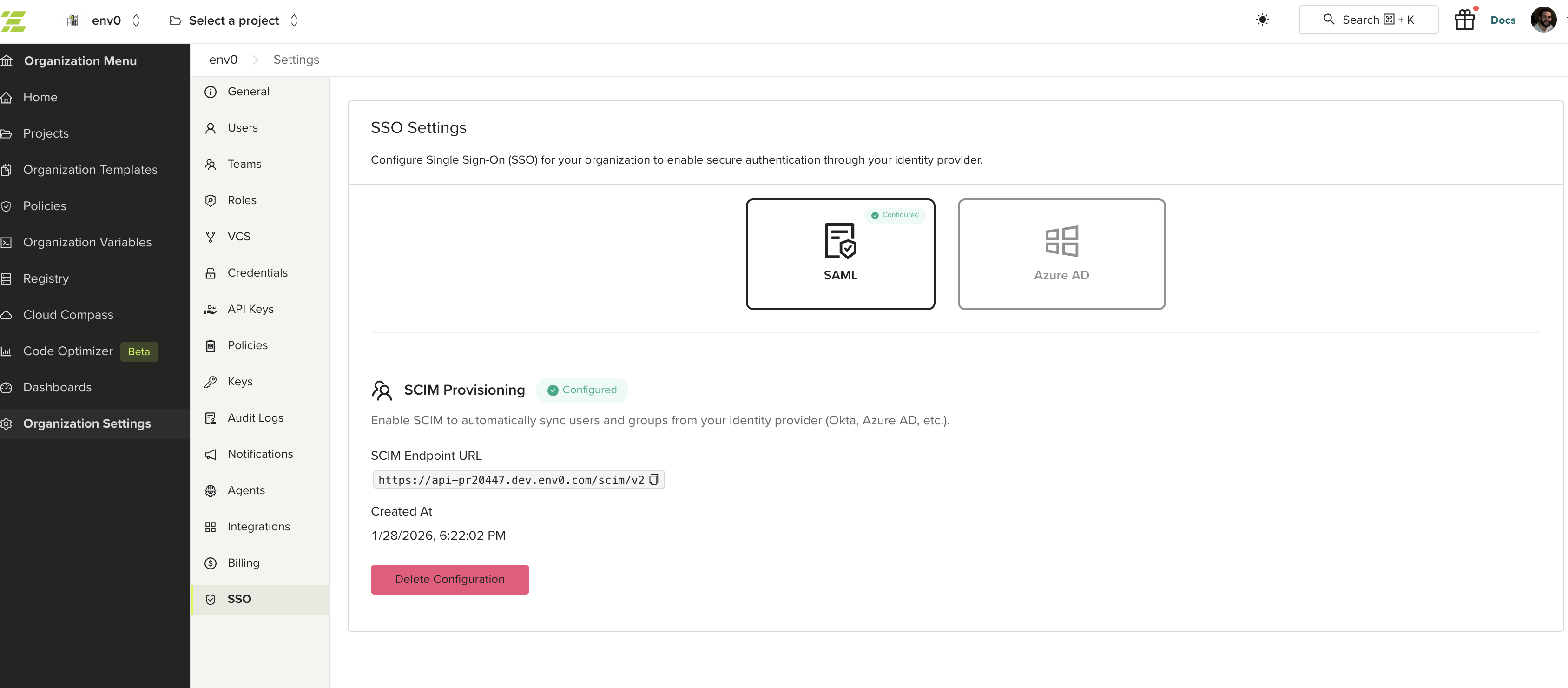
 Once configured, the SCIM Provisioning section displays your endpoint URL and the date the token was created.
 ## Configuring Your Identity Provider
Use the SCIM Endpoint URL and Bearer Token to configure provisioning in your identity provider.
Your IdP must map the user's **email address** to the SCIM `userName` attribute. env zero uses this field to match IdP users to organization members. Without a valid email mapping, provisioning will not work correctly.
See your IdP's documentation for SCIM setup instructions:
* **Okta** - [Configure SCIM provisioning in Okta](https://help.okta.com/en-us/content/topics/apps/apps_app_integration_wizard_scim.htm)
* **Microsoft Entra ID (Azure AD)** - [Configure SCIM provisioning in Entra ID](https://learn.microsoft.com/en-us/entra/identity/app-provisioning/use-scim-to-provision-users-and-groups)
For other identity providers, refer to their SCIM 2.0 integration documentation and use the endpoint URL and bearer token from the previous step.
## Revoking a SCIM Token
To revoke SCIM access, navigate to **Organization Settings** > **SSO** and click **Delete Configuration** in the SCIM Provisioning section. This immediately invalidates the token and stops all SCIM provisioning from your IdP.
## Related
* [Self-Service SSO Integration](/guides/sso-integrations/self-service-sso)
* [Sync Roles & Groups From Your IdP](/guides/sso-integrations/importing-roles-or-groups-from-your-identity-provider)
## Next steps
* [Self-Service SSO Integration](/guides/sso-integrations/self-service-sso) - Configure SSO before enabling SCIM.
* [Sync Roles & Groups From Your IdP](/guides/sso-integrations/importing-roles-or-groups-from-your-identity-provider) - Import roles and groups from your identity provider.
* [Manage Users](/guides/admin-guide/user-role-and-team-management/user-management) - Review and manage provisioned user accounts.
## Configuring Your Identity Provider
Use the SCIM Endpoint URL and Bearer Token to configure provisioning in your identity provider.
Your IdP must map the user's **email address** to the SCIM `userName` attribute. env zero uses this field to match IdP users to organization members. Without a valid email mapping, provisioning will not work correctly.
See your IdP's documentation for SCIM setup instructions:
* **Okta** - [Configure SCIM provisioning in Okta](https://help.okta.com/en-us/content/topics/apps/apps_app_integration_wizard_scim.htm)
* **Microsoft Entra ID (Azure AD)** - [Configure SCIM provisioning in Entra ID](https://learn.microsoft.com/en-us/entra/identity/app-provisioning/use-scim-to-provision-users-and-groups)
For other identity providers, refer to their SCIM 2.0 integration documentation and use the endpoint URL and bearer token from the previous step.
## Revoking a SCIM Token
To revoke SCIM access, navigate to **Organization Settings** > **SSO** and click **Delete Configuration** in the SCIM Provisioning section. This immediately invalidates the token and stops all SCIM provisioning from your IdP.
## Related
* [Self-Service SSO Integration](/guides/sso-integrations/self-service-sso)
* [Sync Roles & Groups From Your IdP](/guides/sso-integrations/importing-roles-or-groups-from-your-identity-provider)
## Next steps
* [Self-Service SSO Integration](/guides/sso-integrations/self-service-sso) - Configure SSO before enabling SCIM.
* [Sync Roles & Groups From Your IdP](/guides/sso-integrations/importing-roles-or-groups-from-your-identity-provider) - Import roles and groups from your identity provider.
* [Manage Users](/guides/admin-guide/user-role-and-team-management/user-management) - Review and manage provisioned user accounts.