

NoteTo integrate with GitHub, you need permission to install the GitHub App on your GitHub organization or repository. If you do not have these permissions, ask an admin or an authorized user to create the template.
New Template
To create your first GitHub Integrated Template, see Create your first template instead.- In the top right corner of the Templates screen, click ‘ADD A NEW TEMPLATE’
- Pick your template type, name it, and then click ‘NEXT’
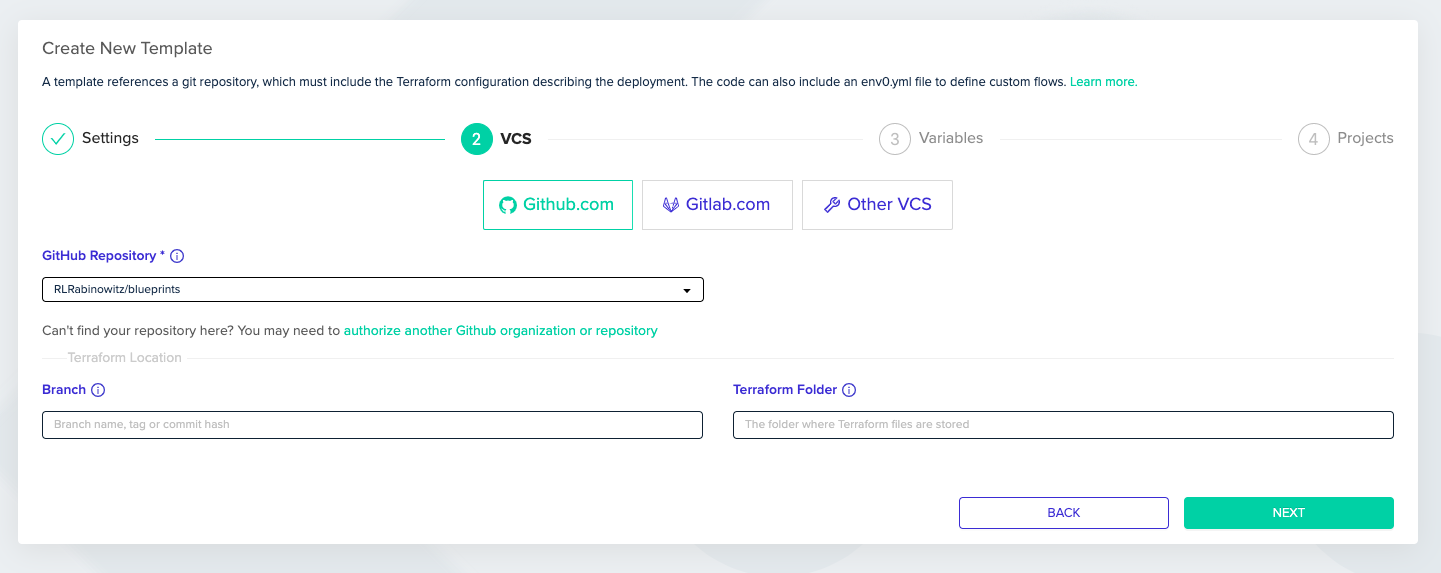
- Click on the GitHub.com button
- Pick the repository containing your IaC configuration
- If you would like to pull the code from a specific revision or branch, enter it in the Revision field. Leaving this field empty will use your default branch, which is usually master/main
- Under Terraform Folder, enter the folder your Terraform files are located in. If your Terraform files are in the repository’s root, leave this field empty
- Click on ‘NEXT’ to proceed to the Variables section
- Add the Environment and Terraform variables that you’d like to be used during deployment, then click ‘NEXT’ to go to the final Projects section
- Pick the projects that you’d like to have access to deploy this template, then click on ‘DONE’ to create the template
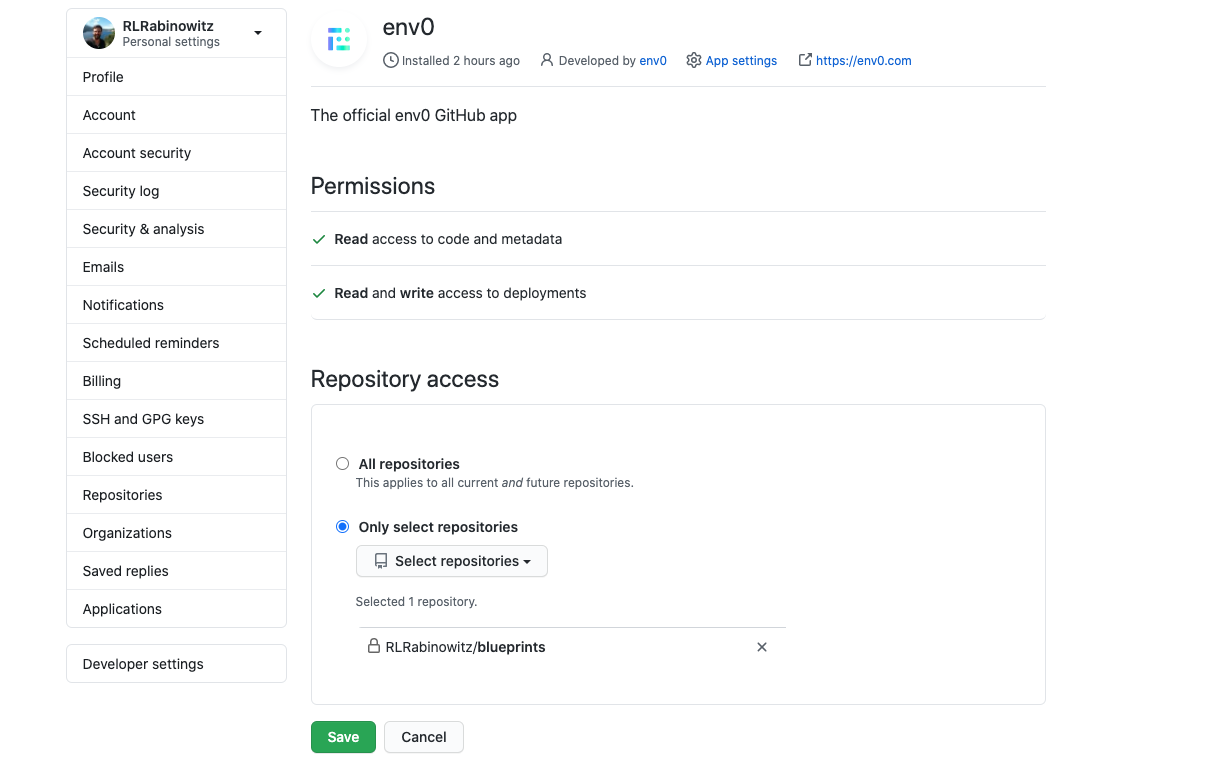
Edit GitHub App Settings
Existing Template
If you would like to integrate an existing template with GitHub via a GitHub App:- Go to the Templates screen, and click on ‘Settings’ for the template you would like to integrate with GitHub
- Click on ‘VCS’. From there you can click on the ‘GitHub.com’ button, and integrate with GitHub as you would for a new template
Multi-Org Configuration
- Click on ‘GitHub.com’ to create a new template
- You will get a GitHub popup. Login if you’re not already logged in
- In the popup, pick the organization you would like to authorize
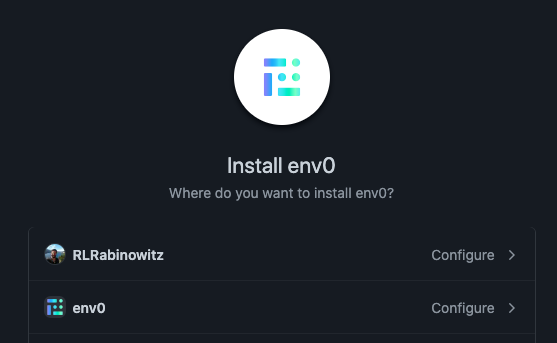
- After selecting the GitHub organization, you will be transferred to the GitHub App settings page for that organization
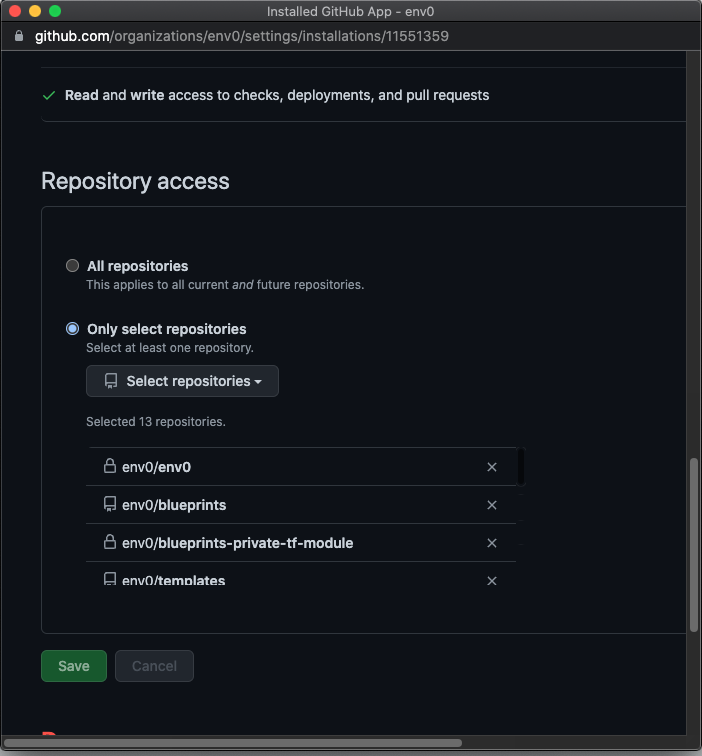
- Here, you need to change something so that the GitHub dialogue will let you save. If ‘Only select repositories’ is already enabled, click on ‘All repositories’ and then re-click on ‘Only select repositories.’ You will then be able to save without changing any GitHub App permissions
- Upon saving, env zero UI should be able to list the repositories. Once the template is saved, the env zero organization is integrated with GitHub
Next steps
- GitHub Enterprise integration - Connect a self-hosted GitHub Enterprise Server.
- Managing VCS - Manage all VCS provider connections in one place.
- Running plan on pull requests - Trigger plans automatically from pull requests.
- Template overview - Learn how templates are structured and configured.