Projects provide granular access control to environments in env zero. Every environment belongs to a project, and users are granted access on a per-project basis.
Projects are also useful for managing multiple cloud accounts within a single organization, and for separating environments (for example, dev, staging, production) with their own access rights and policies.
Projects are created within an Organization. Every new organization starts with a Default Organization Project. Additional projects can be added as needed.
Active projects
Users typically work in the context of an active project, but can also work at the Organization level. The current active project is shown in the upper left in the organization/project selector.
- Project context: Shows only templates and environments associated with the current project.
- Organization context: Shows all projects the user has access to via the Projects tab.
To switch context, use the organization/project selector in the upper left.
Create a project
To create a project, switch to the Organization context (no active project selected), select the Projects tab, and click Create New Project. Enter a name and description. The new project is set as the active project automatically.
Associate templates with a project
Only templates associated with the current project can be used to create environments. A newly created project has no templates associated.
To manage project templates:
- Select an active project.
- Open the Templates tab and click Manage Templates.
- Select templates from the organization list.
- Click Save.
Sub-projects
Sub-projects let you nest projects within other projects for more granular organization. Each sub-project can have its own environments, templates, variables, and user roles.
Create a sub-project
Hover over the parent project in the left navigation and click the + icon that appears.
Move a sub-project
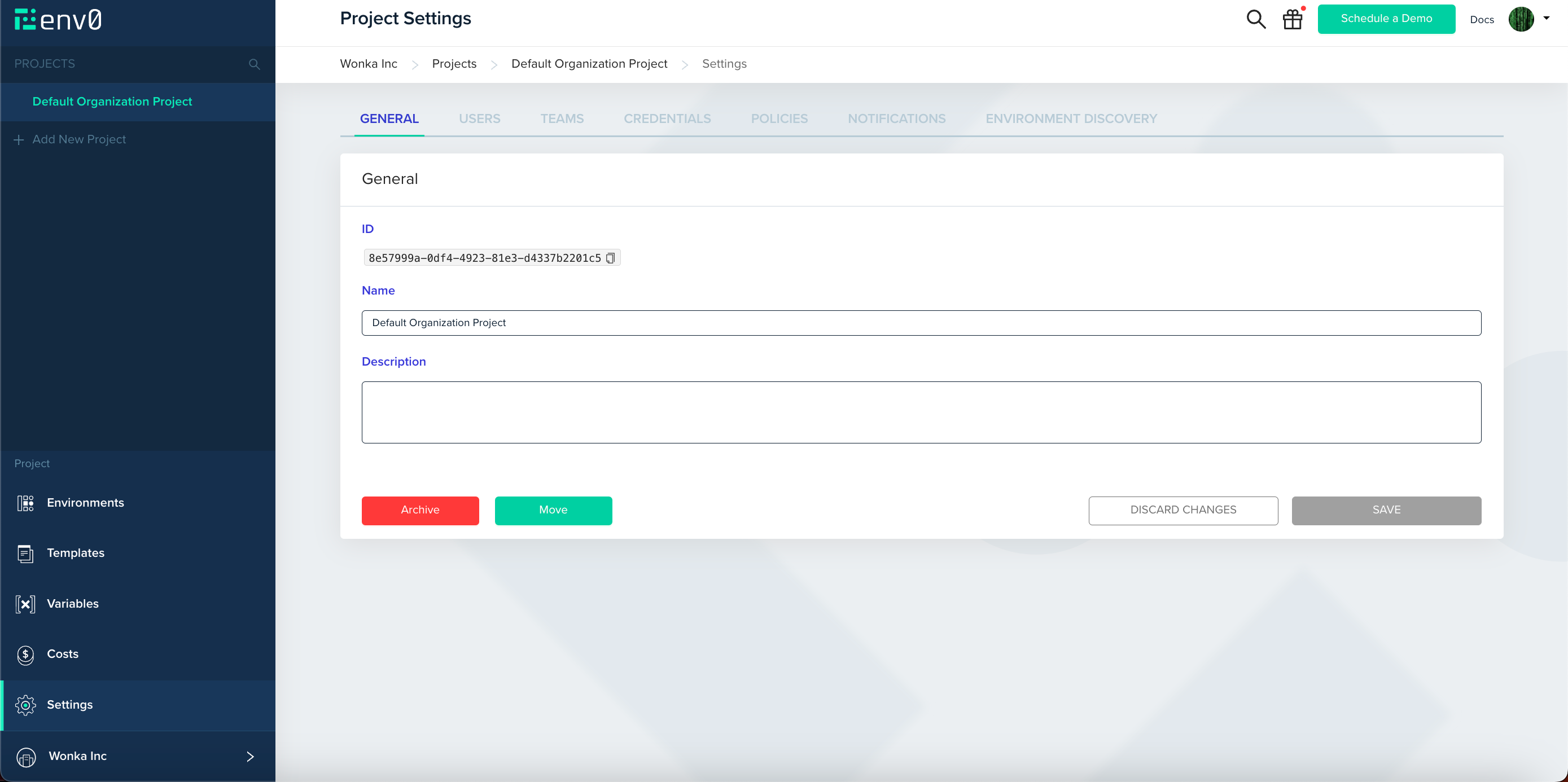
Use Move in Project Settings to relocate a sub-project. The sub-project and any of its own sub-projects move together.
Navigate the hierarchy
The Projects page shows parent projects. Click into a project to see its sub-projects or environments. The left navigation shows the hierarchy with arrows for projects that contain sub-projects.
Access control
Each sub-project inherits roles from its parent project up to the root. Users must have View Project permission to navigate to a project. Different roles can be assigned for different levels in the hierarchy.
For details, see Users & roles.
Variables inheritance
What inherits from parent projects to sub-projects:
- Variables: Inherited from parent to sub-project.
What is project-specific (does not propagate to sub-projects):
- Templates
- Policies
- Notifications
- Costs (each project tracks only its own environments)
Finding the project ID
You may need the project ID when using the Terraform provider or making API calls. Find it under the General tab in Project Settings.
Archive a project
Archiving a project makes it inactive without deleting its configuration or history. This is useful for projects that are no longer in active development.
Archiving a project cannot be undone. There is no way to unarchive or restore an archived project.
- Active environments within the project are not destroyed. They are marked as inactive and removed from deployment management, so their cloud resources keep running and keep costing money.
- Continuous and scheduled deployments stop running.
- The project is hidden from the main project list.
- Budget notifications stop, even if thresholds are exceeded.
Best practices
- Use projects to separate dev, staging, and production environments.
- Align project structure with team responsibilities.
- Use sub-projects for complex organizational structures.
- Plan the hierarchy for growth - moving sub-projects later is supported but requires care.
Next steps