

What Are Self-Hosted Agents
Self-hosted agents run env zero deployment workloads on your own infrastructure.- Execution is contained within your own servers and infrastructure.
- The agent requires an internet connection but no inbound network access.
- Secrets are stored on your own infrastructure.
Self-hosted agents are available to Enterprise customers only. See pricing for details.
- Kubernetes agent - Runs on your Kubernetes cluster using a Helm chart. See Kubernetes Agent Installation.
- Docker agent - Runs as a standalone Docker container. See Docker Agent Installation.
Agent Pools
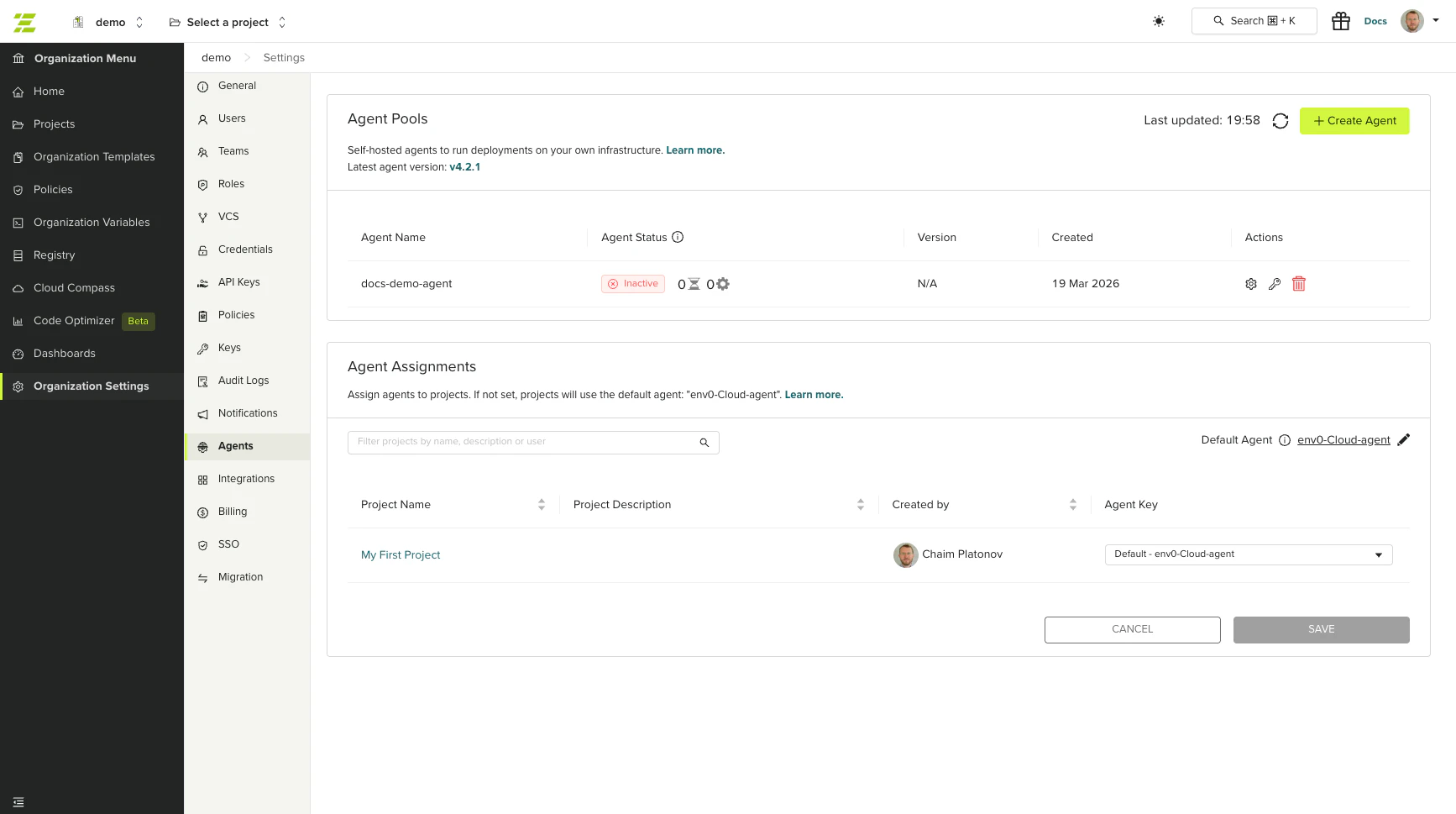
An agent pool is a logical grouping of one or more agent instances that share the same configuration and authentication. You can create and manage agent pools in the env zero UI. Each agent pool has:- A unique name within your organization
- Up to two authentication secrets
- Optional log hosting configuration
Permissions
Managing agent pools requires the Edit Organization Settings permission. This permission is required to:- Create, edit, and delete agent pools
- Create and revoke agent secrets
- Assign agents to projects
Creating an Agent Pool
1
Navigate to Agents
Go to Organization Settings > Agents.
2
Create the agent pool
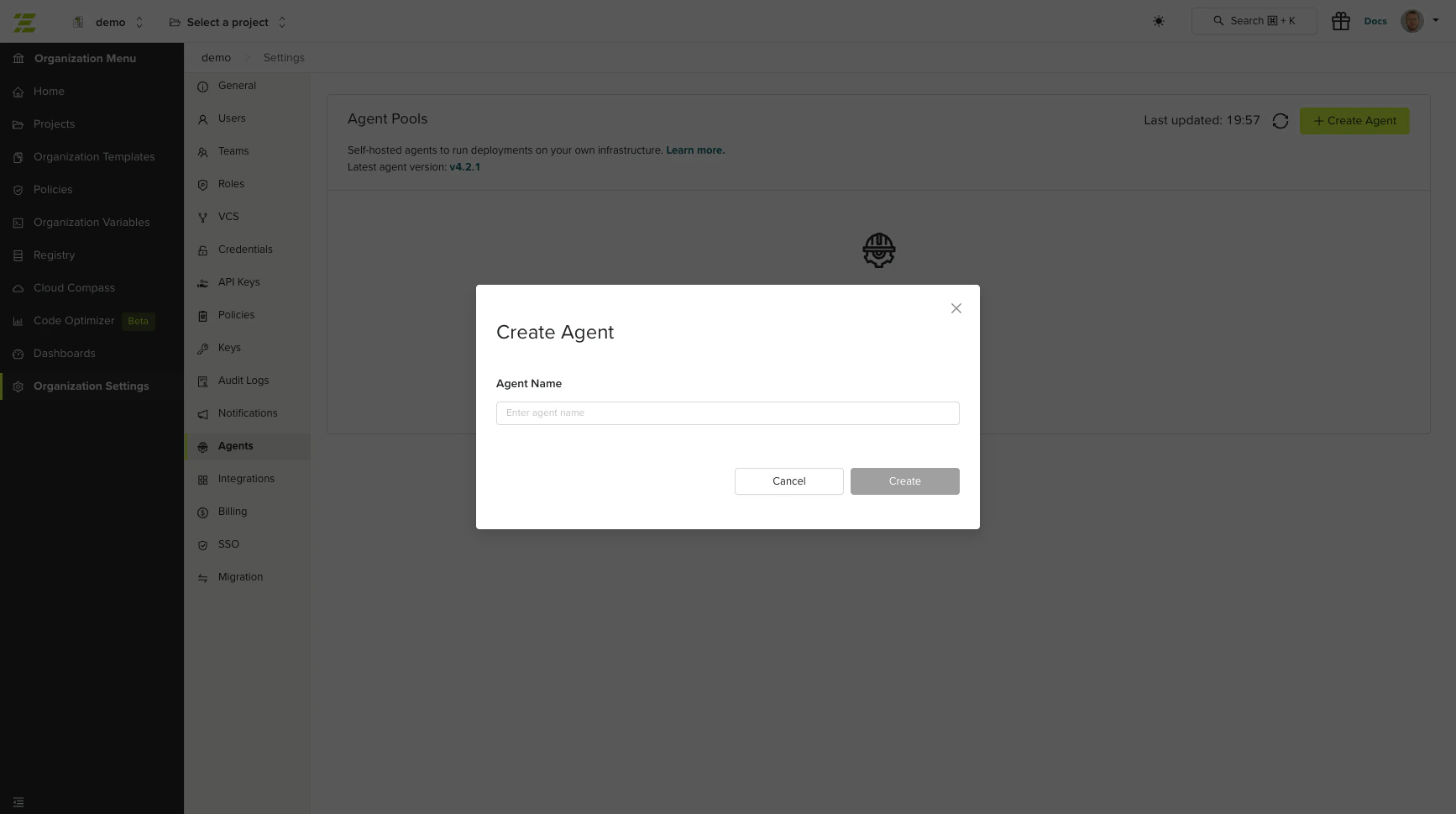
Click Create Agent. Enter a name for the agent pool (required, must be unique within your organization).
3
Create an authentication secret
After creating the agent pool, the secrets modal opens automatically. Click Create Secret to generate an authentication token. See Managing Agent Secrets for details.
Managing Agent Secrets
Agent secrets are authentication tokens used to connect agent instances to env zero. Each agent pool supports up to two secrets, allowing you to rotate credentials without downtime.Creating a Secret
1
Open the secrets modal
From the Agents list, click Manage Secrets on the agent pool.
2
Generate the secret
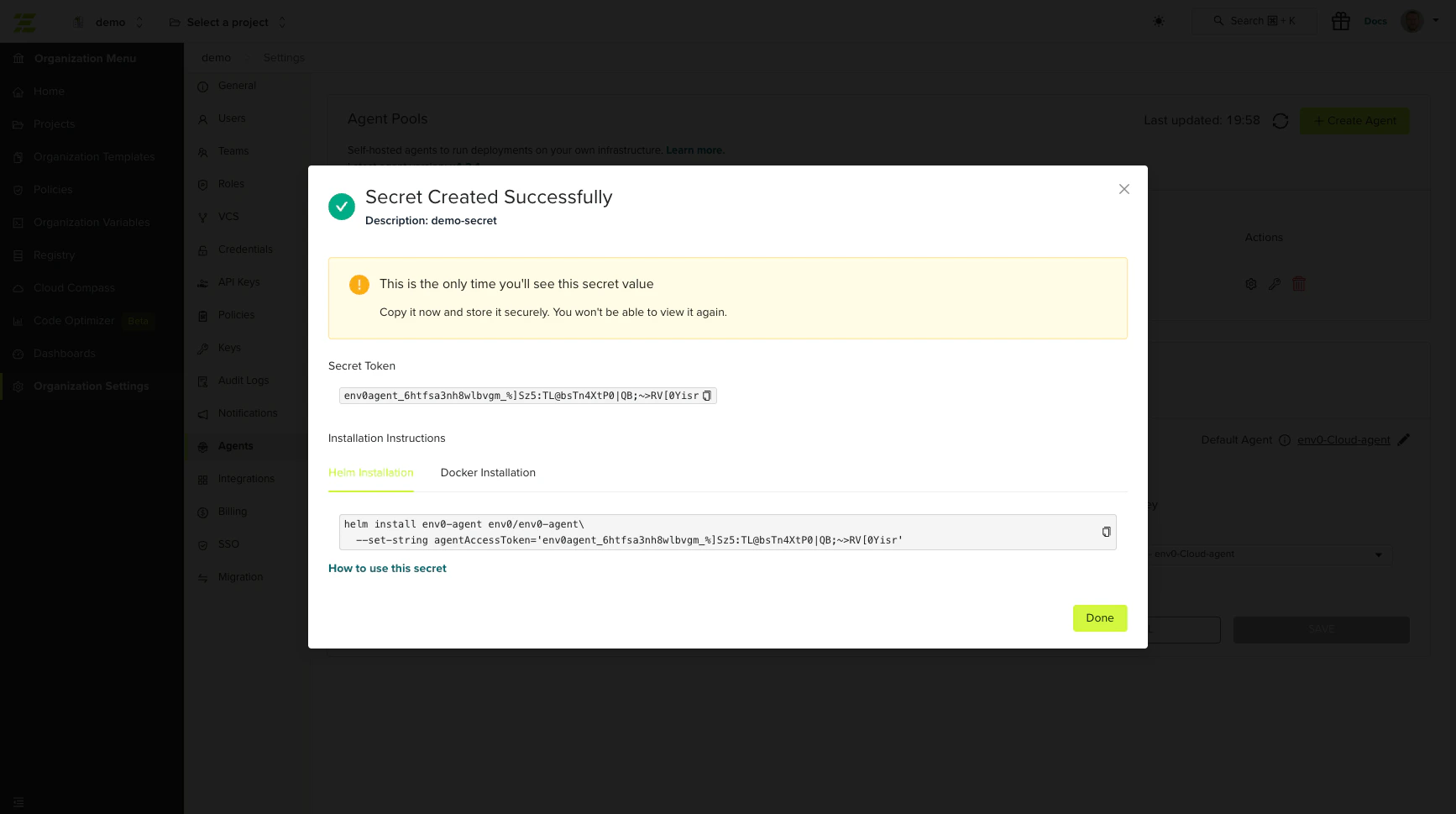
Click Create Secret and enter a name. The secret value is displayed once. Copy it immediately.
3
Use the secret to install your agent
The modal displays ready-to-use install commands:Helm (Kubernetes):Docker:
Revoking a Secret
To revoke a secret, open the secrets modal and click Revoke next to the secret. Revocation is immediate and irreversible.Editing an Agent Pool
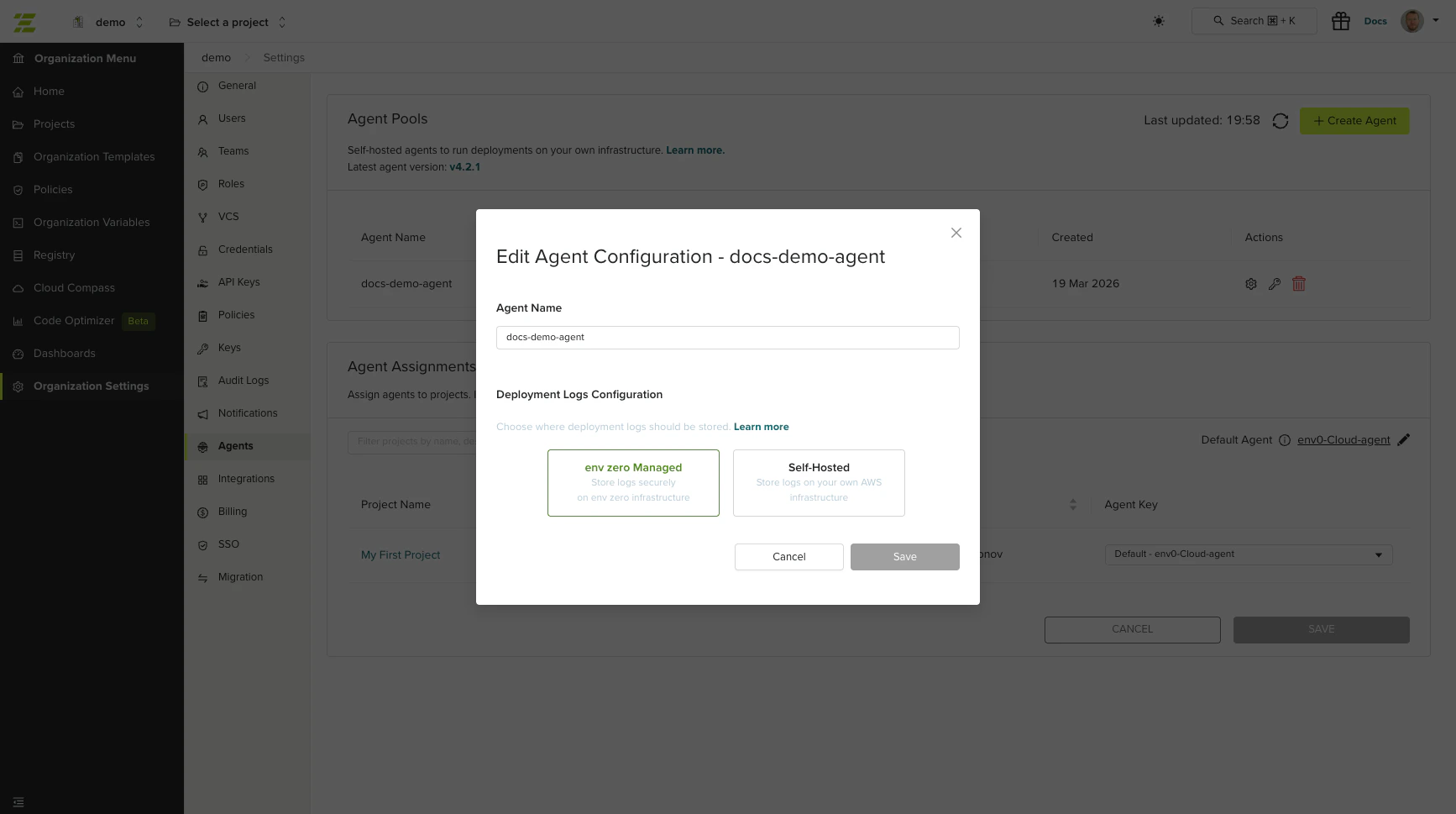
To edit an agent pool, click Edit on the agent row in the Agents list. You can modify:- Name - The display name of the agent pool.
- Log configuration - You can switch between env zero hosted and self-hosted deployment log storage. See Hosting deployment logs for details.
Deleting an Agent Pool
To delete an agent pool, click Delete on the agent row. You must type the agent name to confirm deletion.Assigning Agents to Projects
You can assign specific agent pools to individual projects. Projects not assigned to a specific agent use the organization’s default agent. To assign agents to projects, go to Organization Settings > Agents. The agent assignment table shows each project and its assigned agent. Select an agent pool from the dropdown to change the assignment.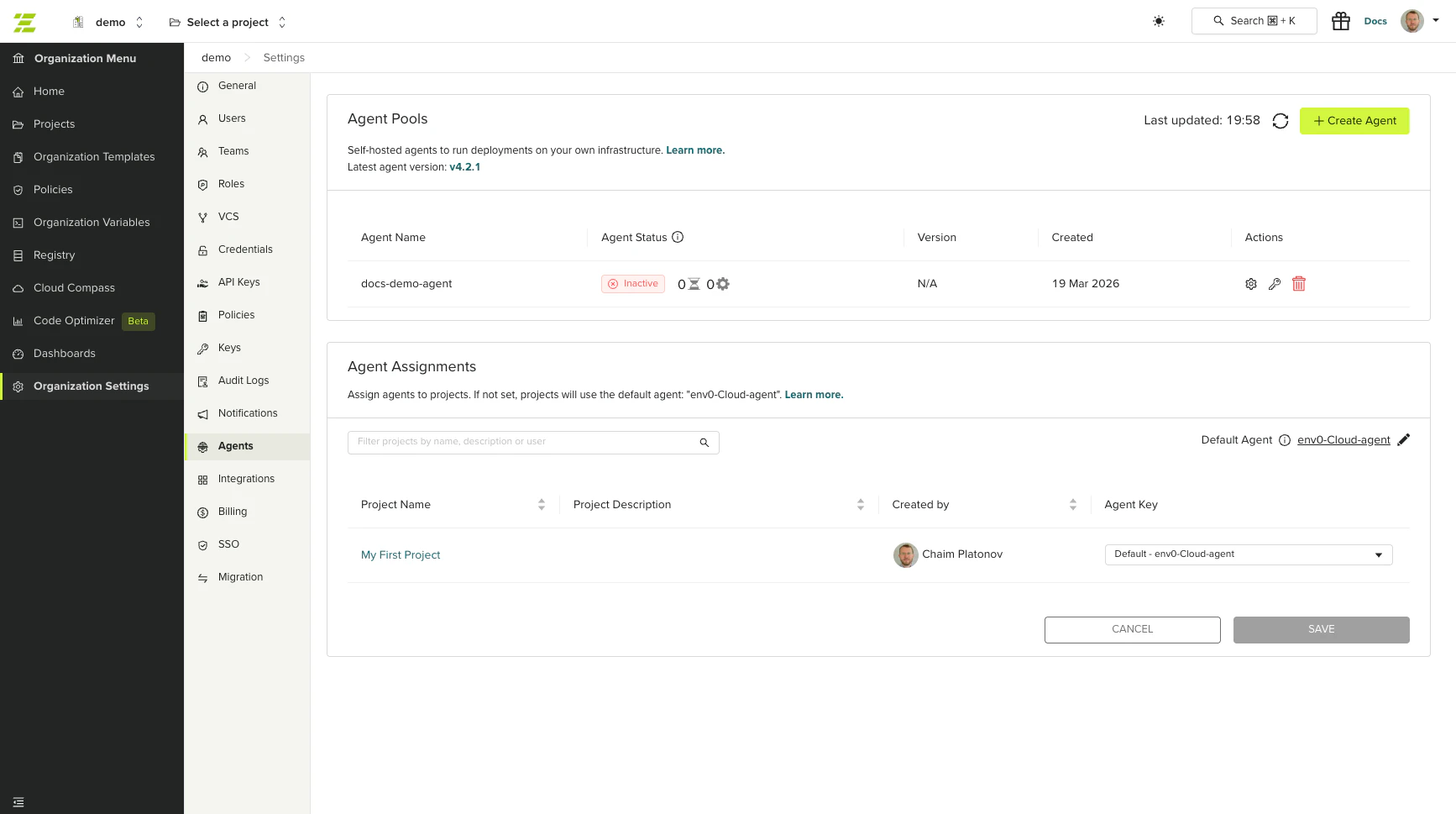
Next steps
- Install the Kubernetes Agent - Set up the agent on your Kubernetes cluster.
- Install the Docker Agent - Run the agent as a standalone Docker container.
- Custom/optional configuration - Configure advanced Helm chart values.
- Terraform templates - Configure Terraform version and settings for deployments running on this agent.
- Git and VCS integration - Connect your source repository to trigger deployments through this agent.