

Documentation Index
Fetch the complete documentation index at: https://docs.envzero.com/llms.txt
Use this file to discover all available pages before exploring further.
Configure a Cloud Account
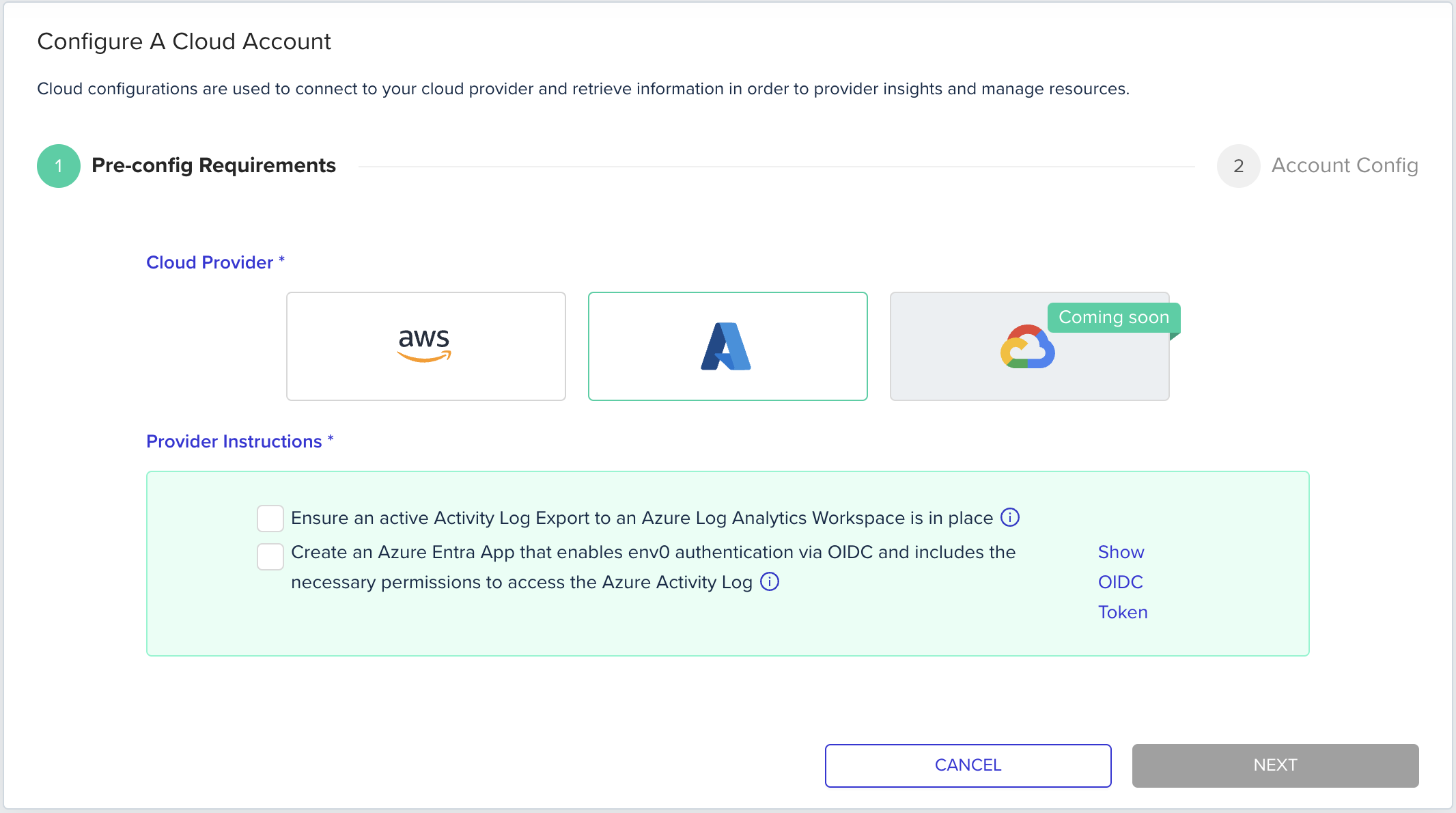
Requirements
Export Activity Logs to an Azure Log Activity Workspace
- Open the Azure Console and login to the relevant tenant
- Go to the Activity Log service
- Follow Azure official procedure to send the activity logs to a Log Analytics Workspace
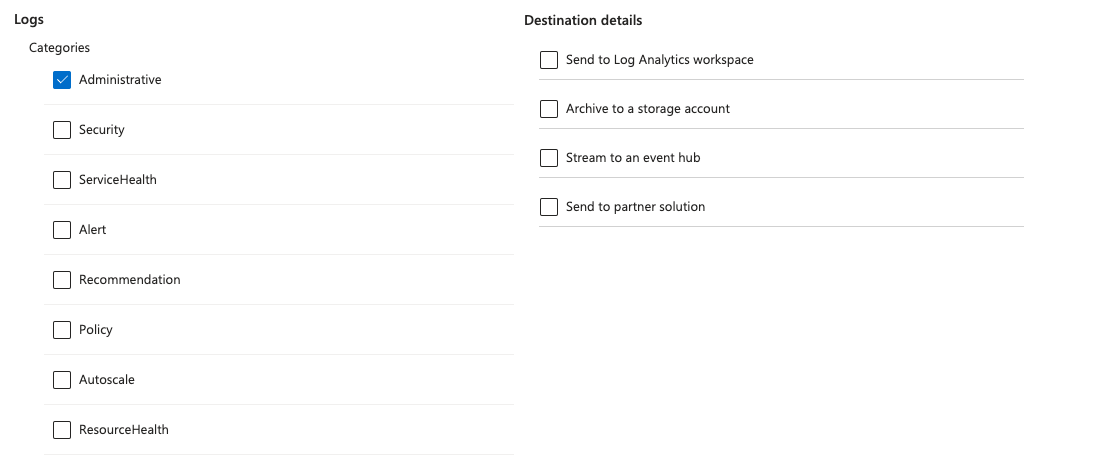
- env zero reads and uses the Administrative logs only:
Grant permissions to env zero via OIDC
- Open the Azure Console and login to the relevant tenant
- Go to the Microsoft Entra ID service
- Follow this procedure to configure a proper App registration
- After the App registration is created, Go to the Log Analytics Workspaces service
- Select the relevant Log Analytics Workspace, and select Access Control (IAM) from the left pane menu
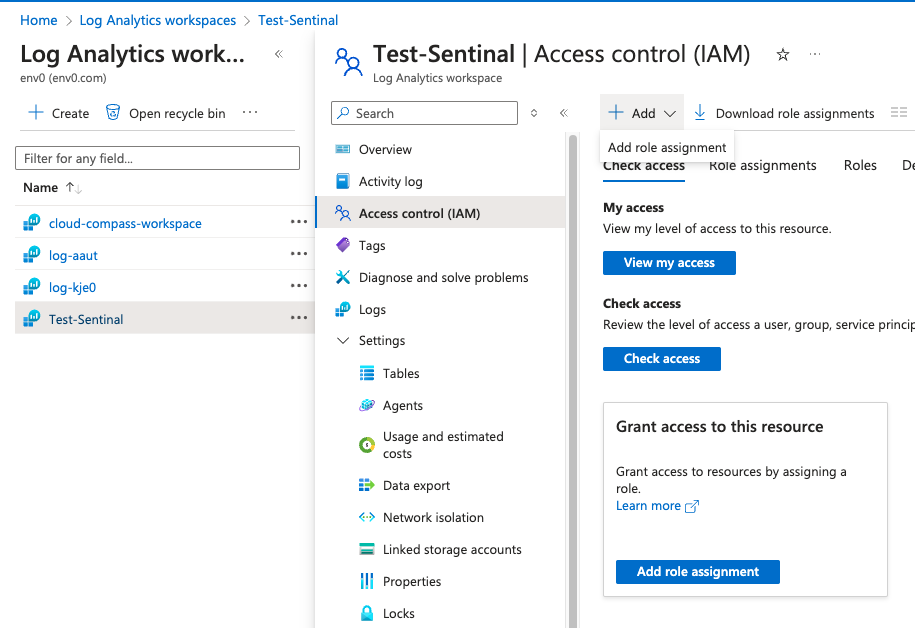
- Click + Add and select Add role assignment
- Add the Log Analytics Reader permission to the relevant App registration
Adding the Permission in Azure Portal
- Go to Azure Active Directory in the Azure portal.
- Select your app under App registrations.
- Navigate to API permissions, click Add a permission, select Microsoft Graph, choose Application permissions, and add Application.Read.All.
- Click Grant admin consent for <Tenant Name> under Configured permissions. You must have a role like Global Administrator to perform this action.
Adding the Permission with Azure CLI
You can also use the Azure CLI for this:- Add the permission:
- Grant admin consent:
Next steps
- Configure an AWS Cloud Account - Connect your AWS account to Cloud Compass.
- Configure a GCP Cloud Account - Connect a GCP project to Cloud Compass.
- Link Environments to Cloud Compass - Map environments to discovered cloud resources.