

You can define several Notification Targets, corresponding to different channels.
You can also associate these Notification Targets to different env zero projects, controlling which events go to which channel. To configure notifications, first set up the Slack or Email target below, or follow the Microsoft Teams or Webhooks guide, then follow the steps in Configure notifications.
Slack
env zero posts deployment notifications to Slack through the env zero Slack app. You install the app in your Slack workspace while adding a Slack Notification Target in env zero, and choose the channel it posts to.Prerequisites
- Permission to install apps in your Slack workspace. If your workspace requires app approval, a Workspace Owner or app manager must approve the env zero app.
- Pop-ups allowed for env zero in your browser. Slack authorization opens in a pop-up window.
Connect a Slack channel
1
Open notification settings
Go to Organization Settings and open the Notifications tab.
2
Add a Slack target
Click Add Notification Target and select Slack as the Type.
3
Install the env zero app
Click Add to Slack. In the Slack window, choose the channel env zero posts to and authorize the app.
Slack - <workspace> - <channel>. Next, configure your project to send notifications to this target.
Change the channel
Edit the Slack target, click Re-authenticate with Slack, and choose the new channel. env zero updates the existing target and renames it to match, so project notification settings stay in place.The Add to Slack flow is only available in the env zero UI. To create a Slack target with the API or the Terraform provider, pass a Slack incoming webhook URL as the target value.
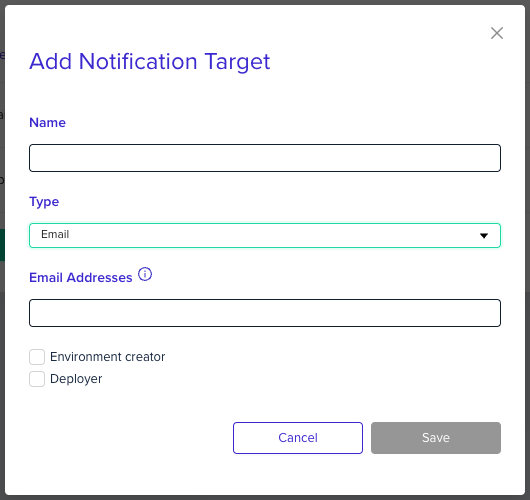
Environment creator checkbox to send the notifications to the user who created the environment, and the Deployer checkbox to send it to the user who started deployment.
Configure notifications
Add a Notification Target
- Go to Organization Settings and open the Notifications tab.
- Click Add Notification Target.
- Enter any name you’d like and choose the Microsoft Teams, Webhook or Email type, then enter the webhook URL you saved earlier or the email addresses. For Slack, follow Connect a Slack channel instead.
- Click Add Notification Target to save.
Configure your project to send notifications
- Go to Project Settings and open the Notifications tab.
- Find the Notification Target you’ve previously added and click on the edit icon next to it.
- Select the events you’d like to get notified of, from this project to this notification target.
- Click Save changes.
Next steps
- Microsoft Teams integration - Route deployment alerts to Teams.
- Webhooks Notifications - Post event payloads to a custom endpoint.