

Assigning Organization Roles
Organization roles can be assigned to both individual users and teams, and apply across the entire organization (including all projects and environments).Assigning Organization Roles to Users
1
Navigate to Organization Settings
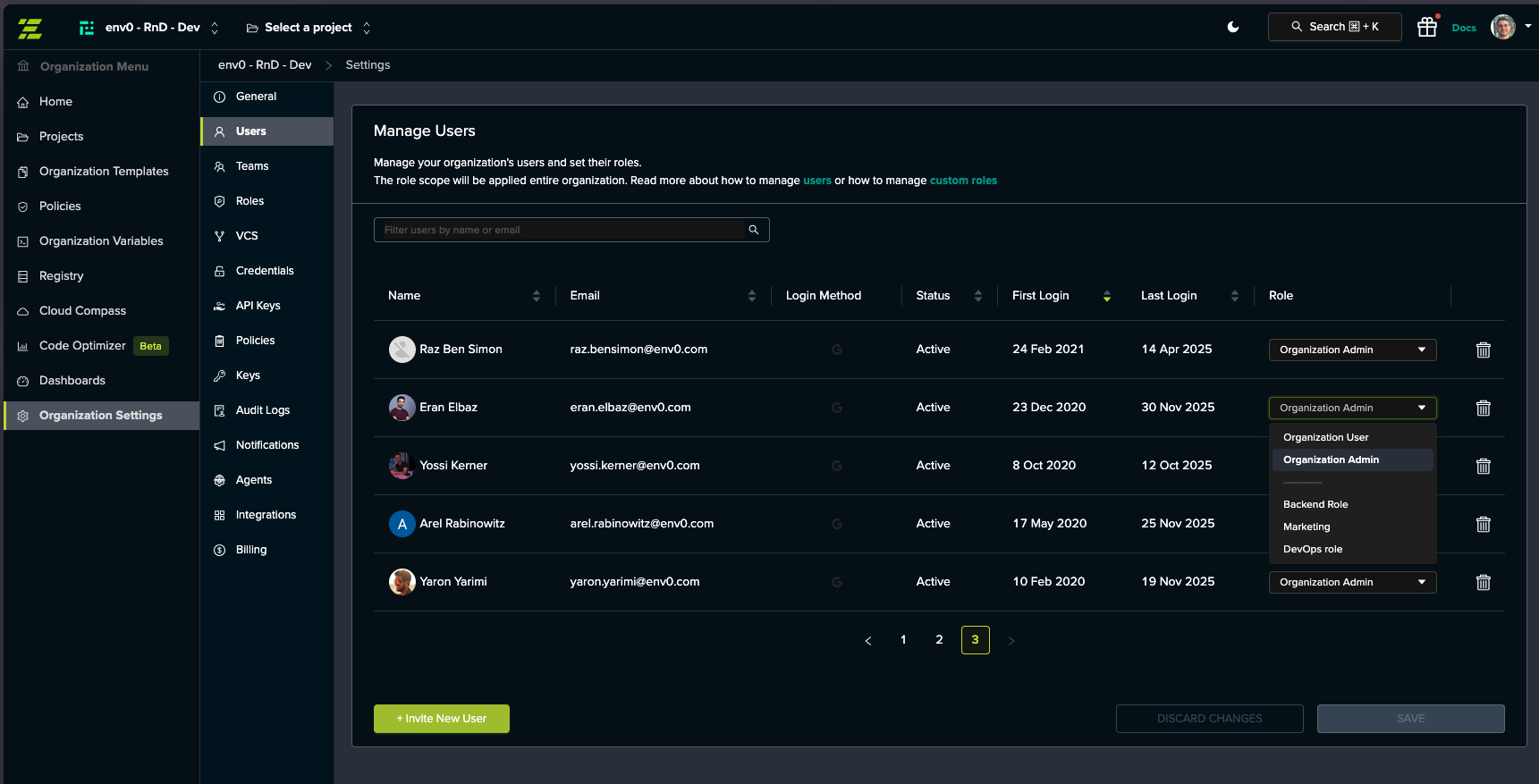
Go to Organization Settings > Users tab.
2
Select User Role
Locate the user in the table and click the Role dropdown for that user.
3
Choose Role
Select from the available roles in the dropdown:
- Default roles: Organization User, Organization Admin
- Custom roles: Any custom roles created for your organization
Role Dropdown Organization: Default roles are listed first, followed by a separator, then custom roles in alphabetical order.
4
Save Changes
Click SAVE to apply the changes.
Assigning Organization Roles to Teams
1
Navigate to Organization Settings
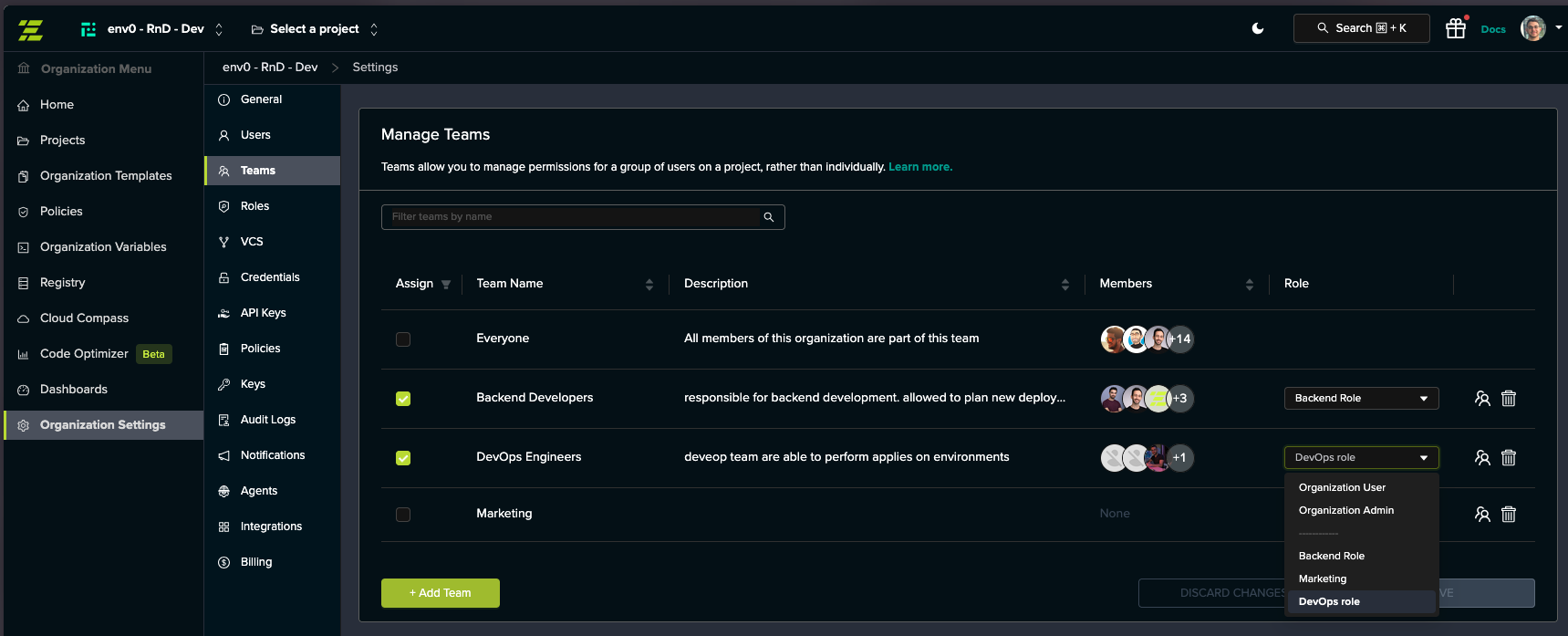
Go to Organization Settings > Teams tab.
2
Select Team Role
Locate the team in the table and click the Role dropdown for that team.
3
Choose Role
Select from the available roles:
- Default roles: Organization User, Organization Admin
- Custom roles: Any custom roles created for your organization
4
Save Changes
Click SAVE to apply the changes.
Assigning Project Roles
Project roles can be assigned to both users and teams and apply to a specific project, all its sub-projects, and all environments within them.Assigning Project Roles to Users
1
Navigate to Project Settings
Go to Project Settings > Users tab.
2
Select User
Locate the user in the table and check the checkbox in the Assign column.
3
Choose Role
Click the Role dropdown that appears and select from the available roles:
- Default roles: Project Viewer, Project Planner, Project Deployer, Project Admin
- Custom roles: Any custom roles created for your organization
4
Save Changes
Click SAVE to apply the changes.
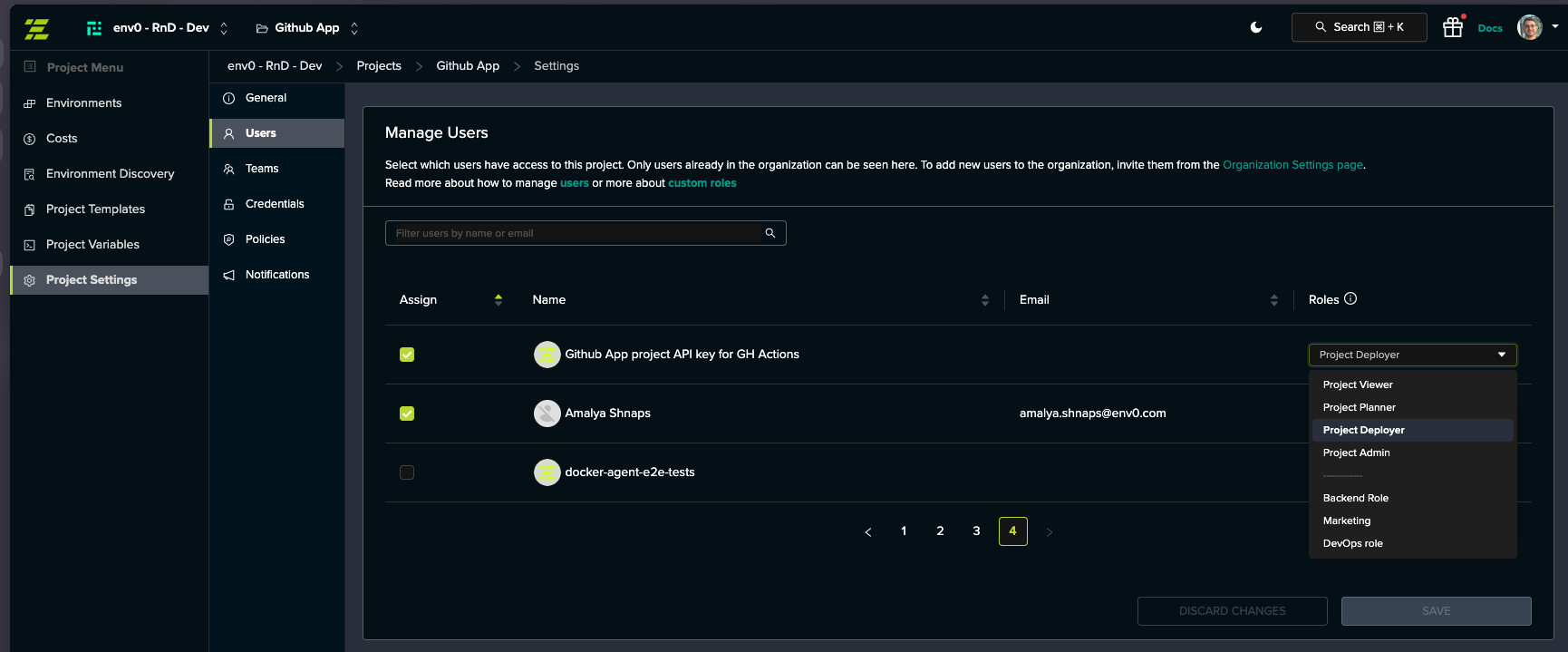
Important: You must first select the user using the checkbox in the Assign column before you can choose their role.
Assigning Project Roles to Teams
1
Navigate to Project Settings
Go to Project Settings > Teams tab.
2
Select Team
Locate the team in the table and check the checkbox in the Assign column.
3
Choose Role
Click the Role dropdown that appears and select from the available roles:
- Default roles: Project Viewer, Project Planner, Project Deployer, Project Admin
- Custom roles: Any custom roles created for your organization
4
Save Changes
Click SAVE to apply the changes.
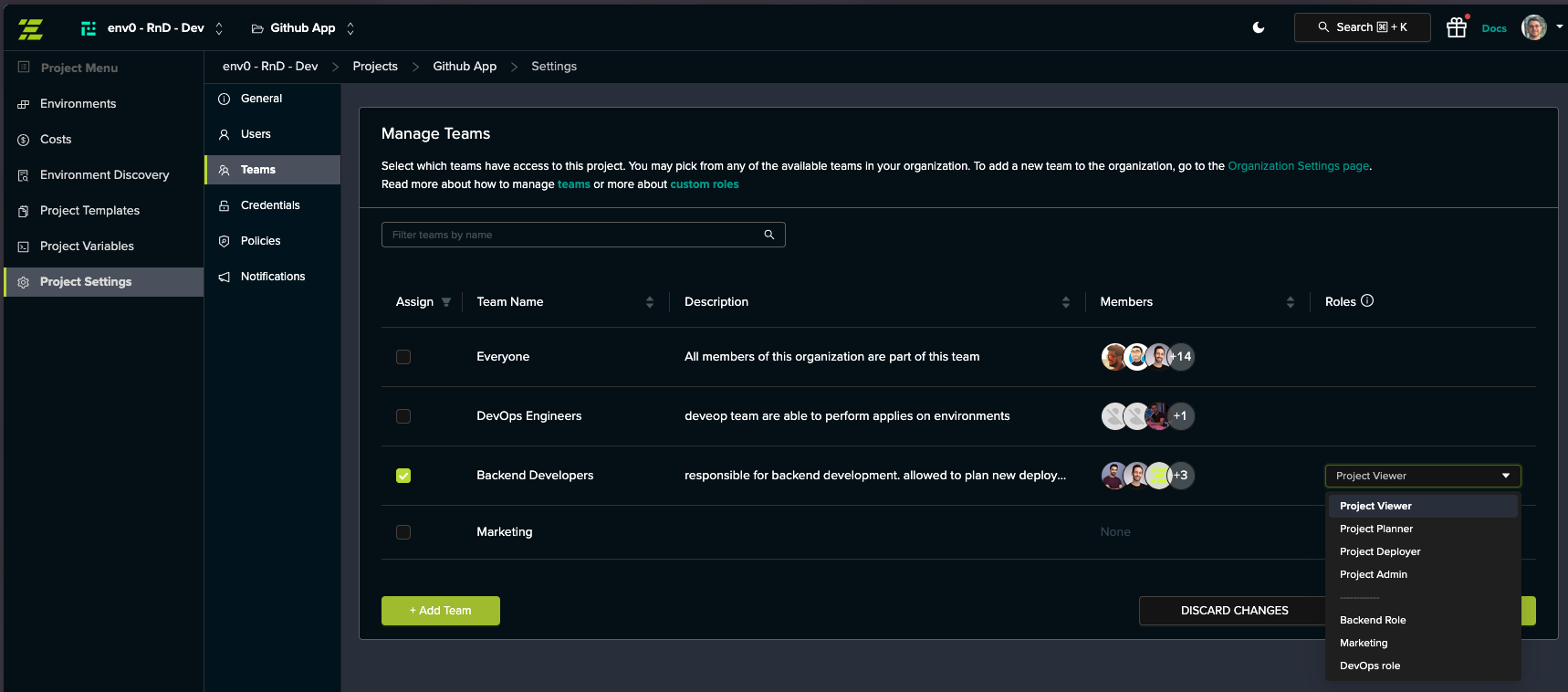
Important: You must first select the team using the checkbox in the Assign column before you can choose their role.
Assigning Environment Roles
Environment roles can be assigned to both users and teams and apply only to a specific environment.Team Role Assignment LimitationDefault roles cannot be assigned to teams at the environment level. Teams can only be assigned custom roles at the environment level.
Assigning Environment Roles to Users
1
Navigate to Environment
Go to the Environment page and click the ACCESS tab.
2
Select User
In the Manage Users card, locate the user in the table and check the checkbox in the Assign column.
3
Choose Role
Click the Role dropdown that appears and select from the available roles:
- Default roles: Environment Viewer, Environment Planner, Environment Deployer, Environment Admin
- Custom roles: Any custom roles created for your organization
4
Save Changes
Click SAVE to apply the changes.
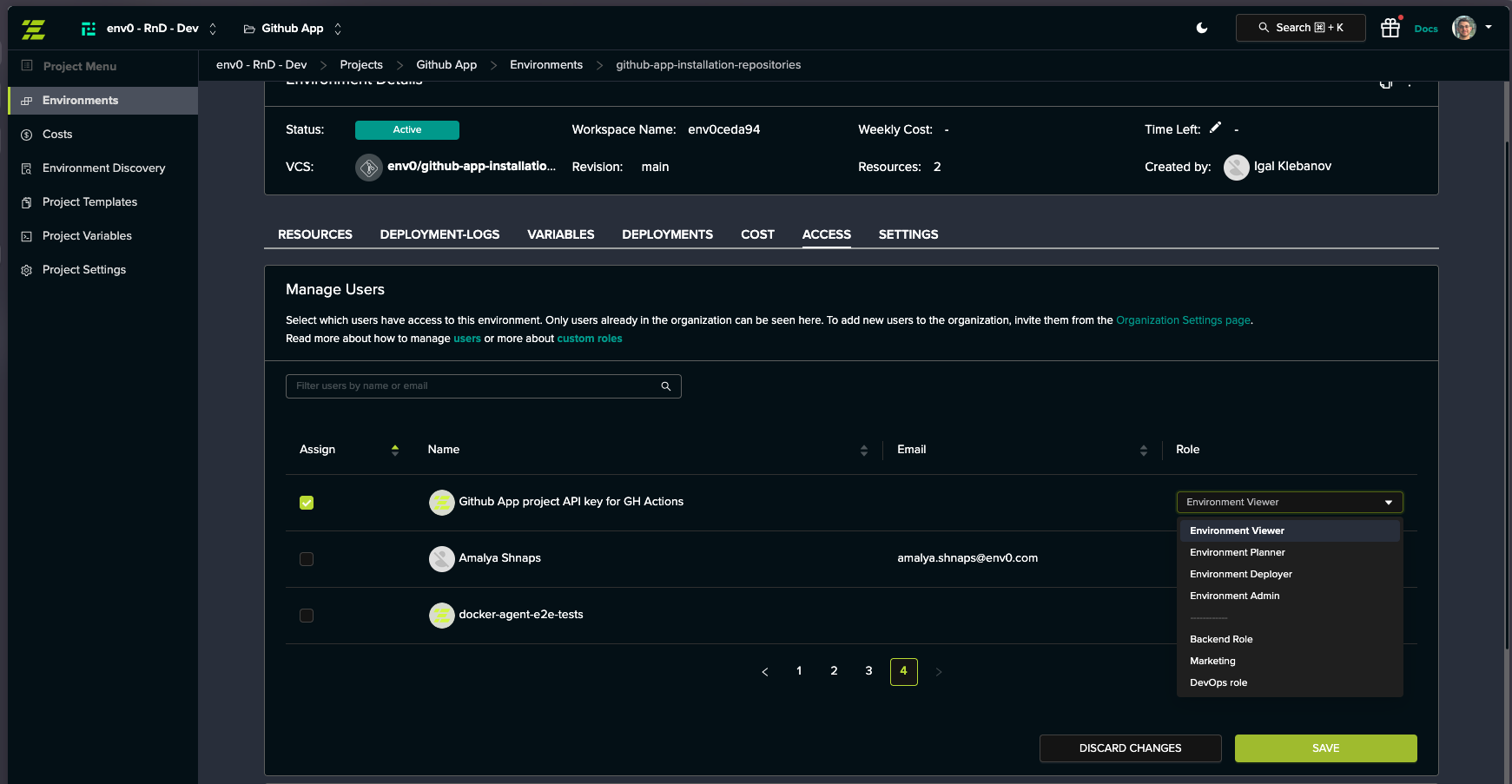
Important: You must first select the user using the checkbox in the Assign column before you can choose their role.
Assigning Environment Roles to Teams
1
Navigate to Environment
Go to the Environment page and click the ACCESS tab.
2
Select Team
In the Manage Teams card, locate the team in the table and check the checkbox in the Assign column.
3
Choose Role
Click the Role dropdown that appears and select a custom role.
4
Save Changes
Click SAVE to apply the changes.
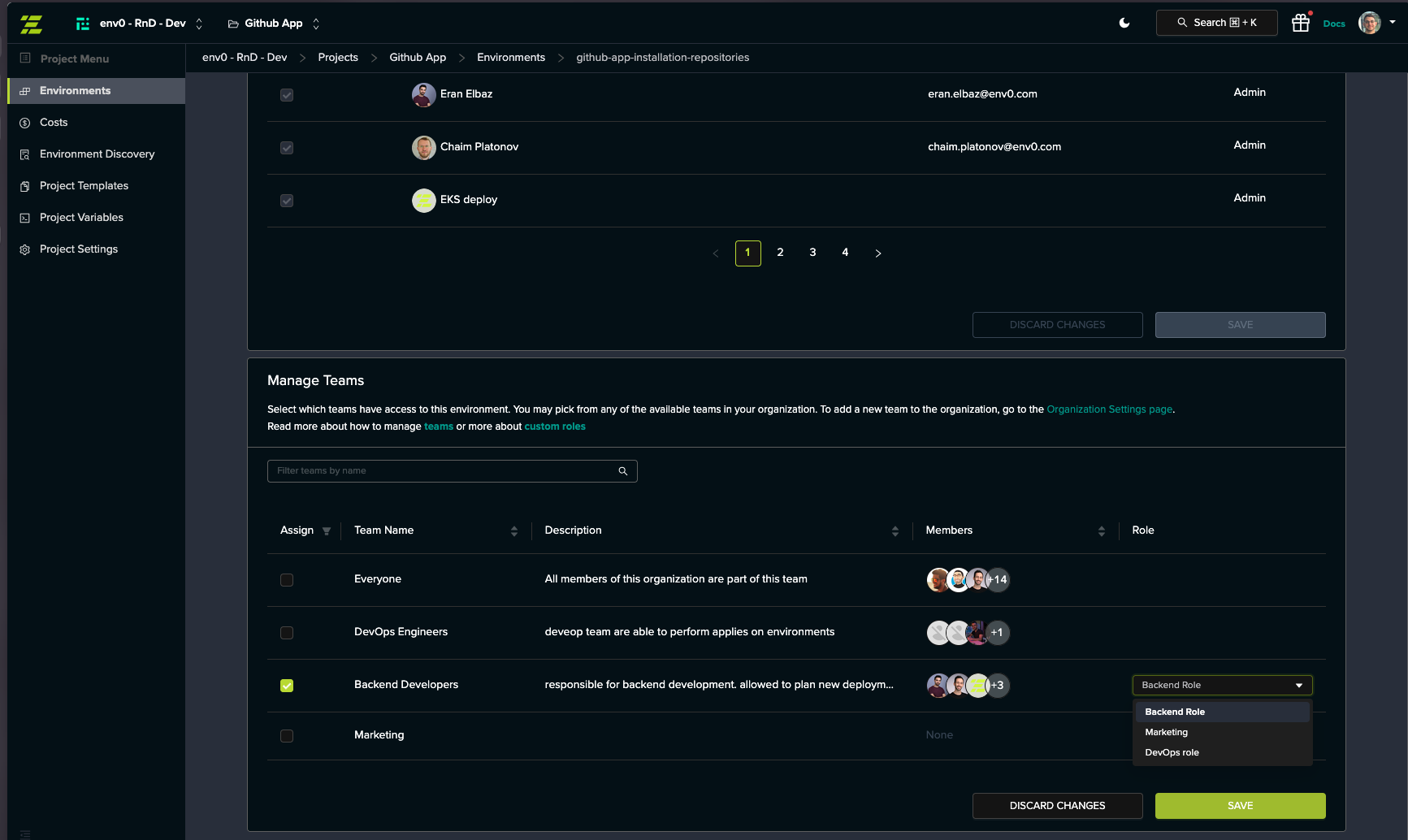
Default Role LimitationDefault roles (Environment Viewer, Environment Planner, Environment Deployer, Environment Admin) cannot be assigned to teams at the environment level. Only custom roles are available for team assignments.
Important: You must first select the team using the checkbox in the Assign column before you can choose their role.
Next steps
Manage Users
Learn how to invite and manage users in your organization
Manage Teams
Learn how to create and manage teams to simplify permission management
Default Roles
Review the built-in default roles and their permissions
Custom Roles
Create custom roles before assigning them