

Prerequisites
- An SSO connection using SAML or Microsoft Entra ID (Azure AD)
- An IdP that maps the user’s email address to the SCIM
userNameattribute and sendsexternalId. env zero rejects a user create that is missing either attribute.
Provisioning modes
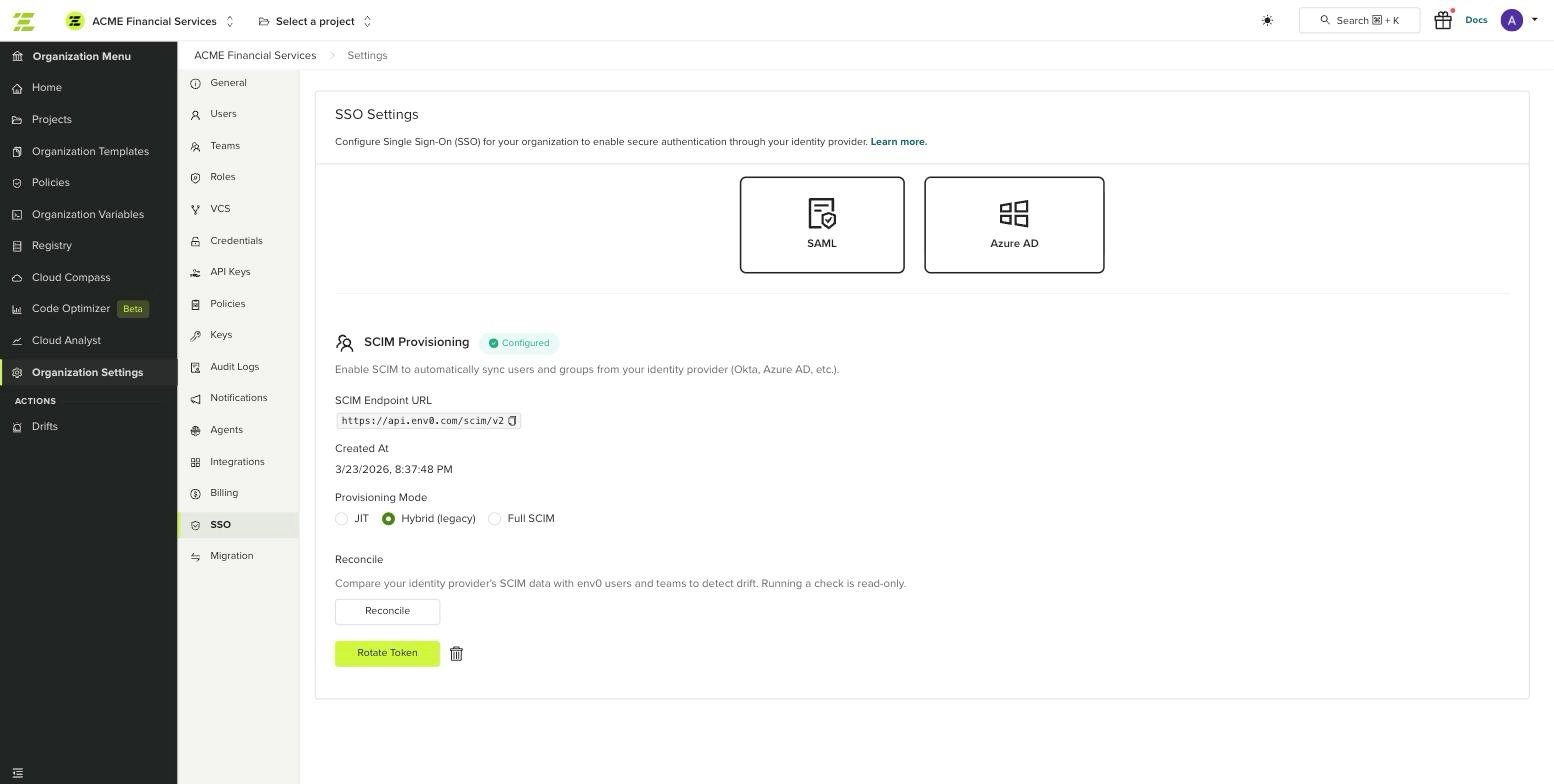
Each organization runs in one provisioning mode. The mode controls whether users are provisioned at login (JIT), whether env zero accepts SCIM writes, and whether users who are not organization members can log in at all.
Hybrid (legacy) covers organizations that used SCIM for deprovisioning before full SCIM shipped. The option appears in the mode selector only for those organizations; all others cannot select it. An organization that leaves Hybrid (legacy) can return to it, but deleting the SCIM configuration removes the option permanently.
Set up SCIM
1
Open SSO settings
Go to Organization Settings > SSO. Below your SSO connection is the SCIM Provisioning section.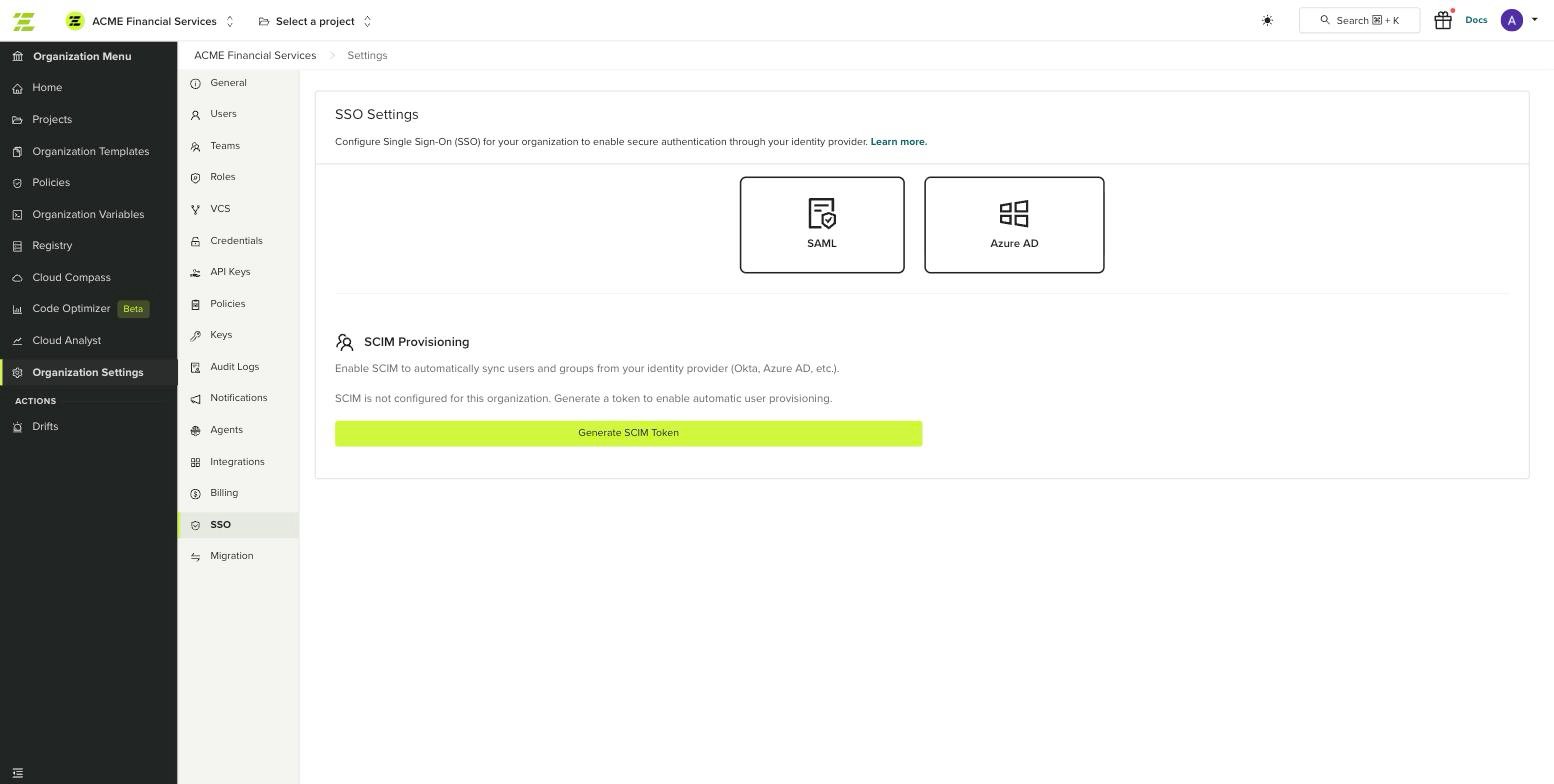
2
Generate a SCIM token
Click Generate SCIM Token. env zero creates a bearer token and a SCIM endpoint URL for the organization.
3
Copy the token and endpoint URL
The SCIM Token Created dialog shows the SCIM Endpoint URL and the Bearer Token. Copy both.
4
Set the provisioning mode
A new SCIM configuration starts in Full SCIM mode. Confirm the Provisioning Mode value in the SCIM Provisioning section before you point your IdP at env zero.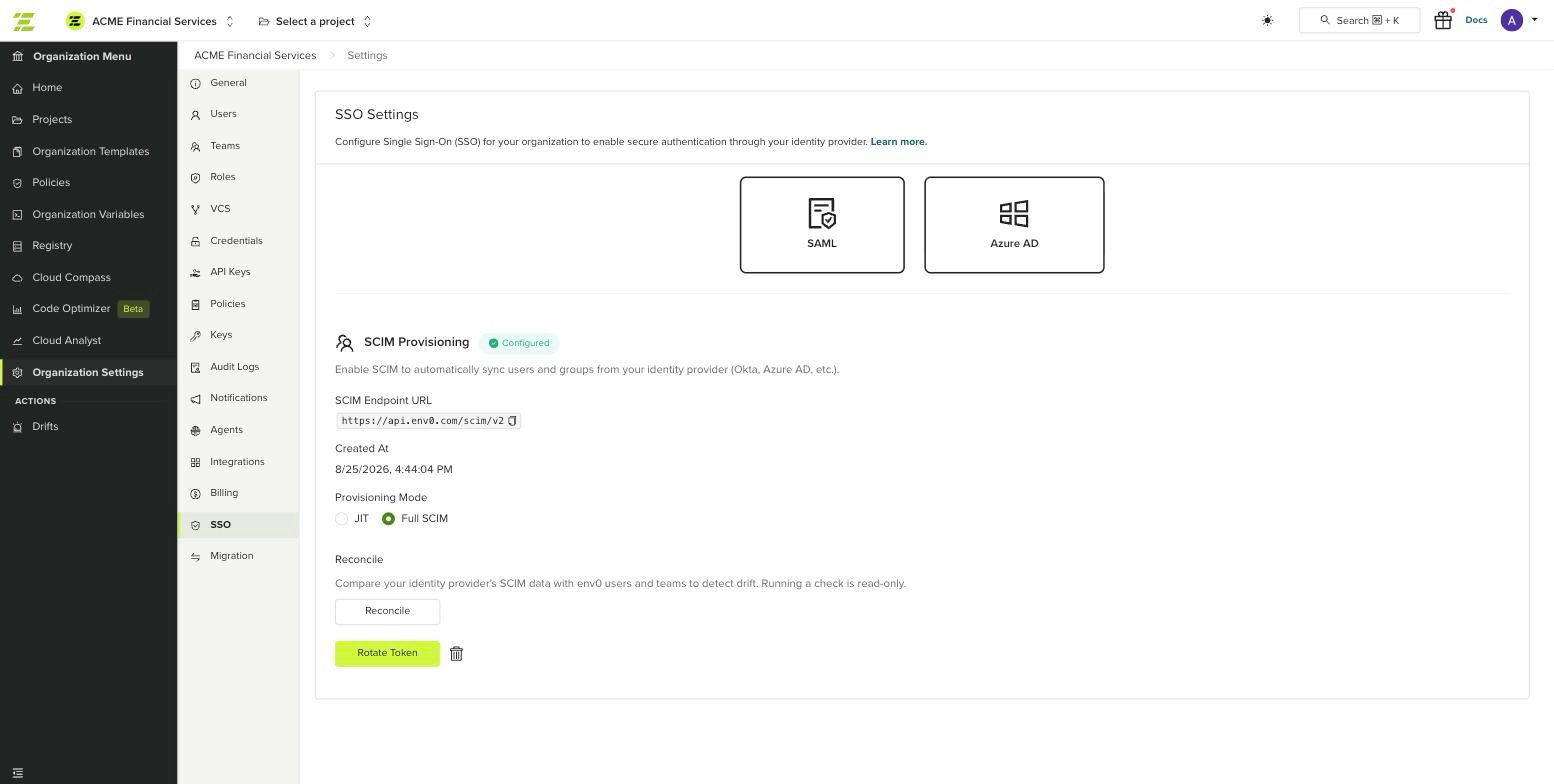
5
Configure your identity provider
Use the endpoint URL and bearer token in your IdP:For any other IdP that supports SCIM 2.0, point it at the same endpoint with the bearer token in the
Authorization header. env zero publishes /scim/v2/ServiceProviderConfig, /scim/v2/ResourceTypes, and /scim/v2/Schemas for discovery. Filtering is supported; sorting, bulk operations, and ETags are not.Changing the provisioning mode
Select a different Provisioning Mode in the SCIM Provisioning section and confirm the dialog. Switching to Full SCIM shows the login-time SAML configuration that stops being applied, so you can see which admin group and team filter you are turning off.User attributes
env zero stores a subset of the SCIM core user schema:
Attributes env zero has nowhere to store, such as
title, phoneNumbers, addresses, roles, and the Enterprise User extension, are accepted and ignored on both create and update. A stock IdP attribute mapping does not need to be trimmed.
A user created over SCIM is provisioned into the SCIM organization and every sub-organization mapped to it.
Deactivation
DELETE /scim/v2/Users/{id} and an update with active: false remove the user from the SCIM organization and its sub-organizations. The underlying login is blocked only when no organization memberships remain, so deprovisioning a user from one organization never locks them out of another.
Group to team mapping
Pushing a group to env zero creates an env zero team with the group’s display name and links the two. From then on, member changes in the IdP group are applied to the team.- Matching is by name. Pushing a group whose display name matches an existing team returns HTTP 409 with
A group named <name> already exists. Rename the group in your IdP or rename the env zero team, then push again. - Renaming a group renames the team. A rename to a name another team already uses returns the same 409.
- Members must exist in env zero first. Adding a member who is not provisioned into the organization or one of its sub-organizations returns HTTP 400. Assign the user to the application in your IdP so the user is provisioned before the group push carries them.
- Removing a member removes their team membership, and leaves the user account alone.
- Unlinking or deleting the group removes the mapping only. The env zero team and its members are preserved, and env zero does not recreate the mapping unless the IdP pushes the group again.
In Full SCIM mode the login-time team sync described in Sync roles & groups from your IdP no longer runs. Teams come from group pushes instead, so any group you relied on for team membership needs to be pushed over SCIM.
Rotate the SCIM token
Rotation issues a new bearer token while the current one keeps working for a 24 hour grace period, so you can update your IdP without a provisioning outage.1
Rotate
In the SCIM Provisioning section, click Rotate Token and confirm.
2
Copy the new token
The SCIM Token Rotated dialog shows the new bearer token and the expiry of the previous one. The new token is shown once.
3
Update your IdP
Replace the token in your IdP’s SCIM configuration and run its connection test. Until you do, provisioning continues on the old token.
Reconcile users and teams
Reconcile compares your identity provider’s SCIM data against env zero users and teams and reports drift. It is available in Full SCIM and Hybrid (legacy) modes. Click Reconcile in the SCIM Provisioning section. The check is read-only and reports:- Users missing SCIM ownership - organization members who signed in through SAML but are not marked as SCIM-owned, typically users who predate SCIM. Apply stamps SCIM ownership so later IdP updates and deactivations reach them.
- Stale group mappings - mappings whose env zero team no longer exists. Apply unlinks them.
- Teams without SCIM mapping - report only. Apply never creates, renames, or deletes teams.
Revoke SCIM access
Click Delete Configuration in the SCIM Provisioning section. This invalidates the token immediately and stops all SCIM provisioning from your IdP. Existing users, teams, and memberships are not deleted.Next steps
- SCIM provisioning with Okta - Configure the Okta SCIM connector and group push.
- SCIM provisioning with Microsoft Entra ID - Configure the Entra ID provisioning job.
- Manage teams - Assign roles to the teams SCIM creates.
- Manage users - Review provisioned user accounts.