

Overview
Single Sign-On (SSO) allows your organization to manage user authentication through your existing identity provider. This setup improves security posture by enforcing consistent login policies across tools, while also reducing the overhead of user provisioning and access changes. With SSO in place, teams can control access at scale, reduce operational overhead, and meet compliance standards required in enterprise environments. It’s also a key building block for Role-Based Access Control (RBAC) and auditability.Key Benefits
- Security and Compliance - Enforce your organization’s authentication policies, including multi-factor authentication and password requirements
- Centralized User Management - Manage user access through your identity provider instead of separate env zero accounts
- Automated Provisioning - Users are automatically provisioned with appropriate roles when they sign in through SSO
- Audit Trail - Authentication events are logged in your identity provider for compliance reporting
What’s New: Self-Service Configuration
You can now configure SSO directly from the env zero interface without contacting support. This means:- Immediate setup - Configure SSO during your initial onboarding without waiting for support tickets
- Full control - Update SSO settings, domain mappings, and role configurations on your own schedule
- No dependencies - Make changes without coordination or back-and-forth with support teams
Previously, SSO configuration required submitting a support request. With self-service SSO, you have complete control over your authentication setup directly in the UI.
Supported Authentication Methods
env zero supports two authentication methods:- Azure Active Directory (Microsoft Entra ID) - OAuth-based authentication for organizations using Microsoft identity services
- SAML 2.0 - Standard protocol compatible with any SAML identity provider (Okta, OneLogin, JumpCloud, and others)
Prerequisites
Edit Organization Settings permission is required to configure SSO for your organization.Accessing SSO Configuration
1
Navigate to Organization Settings
Go to your organization settings.
2
Open SSO Tab
Click on the SSO tab.
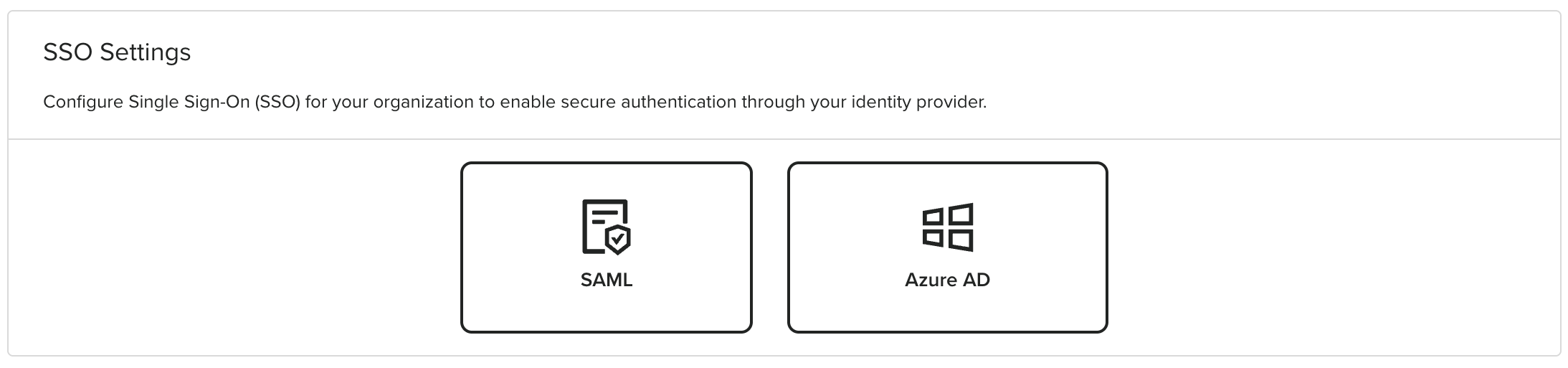
SSO Connection Types
Your organization can have one SSO connection configured at a time. You can choose between:- Azure Active Directory - OAuth-based authentication with Microsoft Entra ID
- SAML - SAML 2.0 authentication with any SAML-compatible identity provider
Configuring SSO
1
Select Connection Type
Click on Azure AD or SAML to create a new connection, or click on an existing connection to edit it.
2
Complete Configuration Form
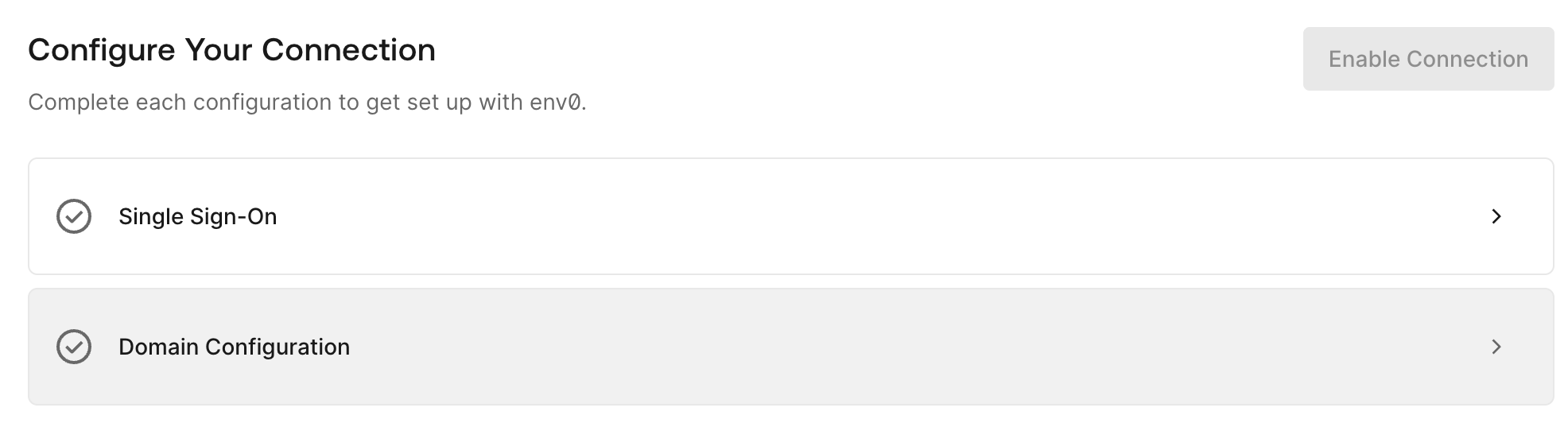
Fill out the self-service form with the required information. The form includes two steps:
- Single Sign-On - Configure the SSO application settings
- Domain Configuration - Set up domain and property mappings
3
Configure SSO Application
Set up the SSO application in your identity provider as expected and configure the necessary property mappings.
Setup Guides
Automated User Provisioning (SCIM)
Once SSO is configured, you can enable SCIM 2.0 provisioning to automatically sync users and groups from your identity provider. See SCIM provisioning for setup instructions.Advanced Configuration
Switching SSO TypesIf you’d like to switch between SAML and Azure AD (or vice versa), please contact us at support@env0.com.
Editing an Existing Connection
To edit an existing SSO connection, navigate to Organization Settings > SSO tab and click on the configured connection.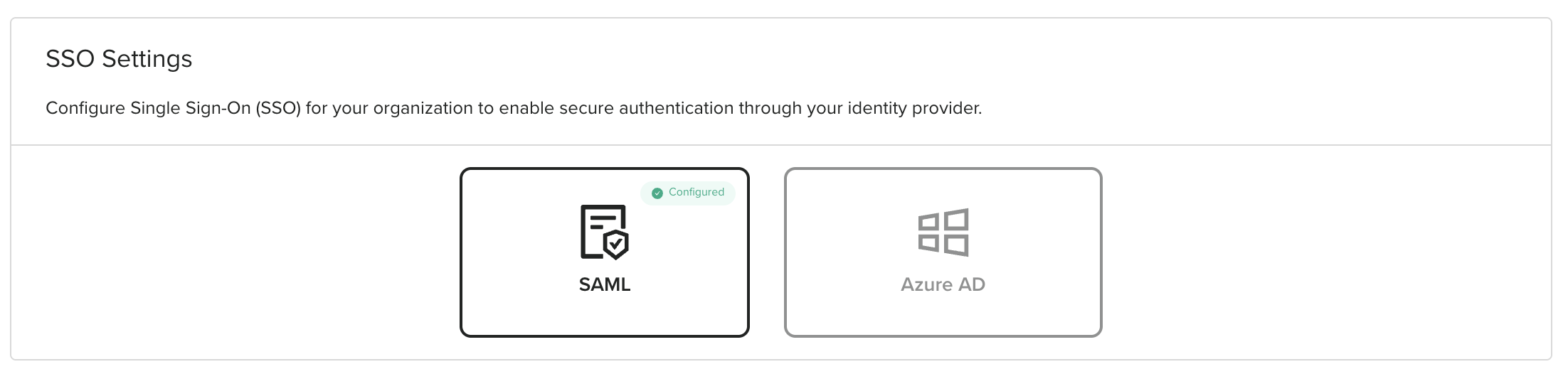
Next steps
- Self-service SAML setup - Configure SAML-based authentication.
- Sync roles & groups from your IdP - Import identity provider roles into env zero.
- SCIM provisioning - Automate user lifecycle management via SCIM.