

Configure a Cloud Account
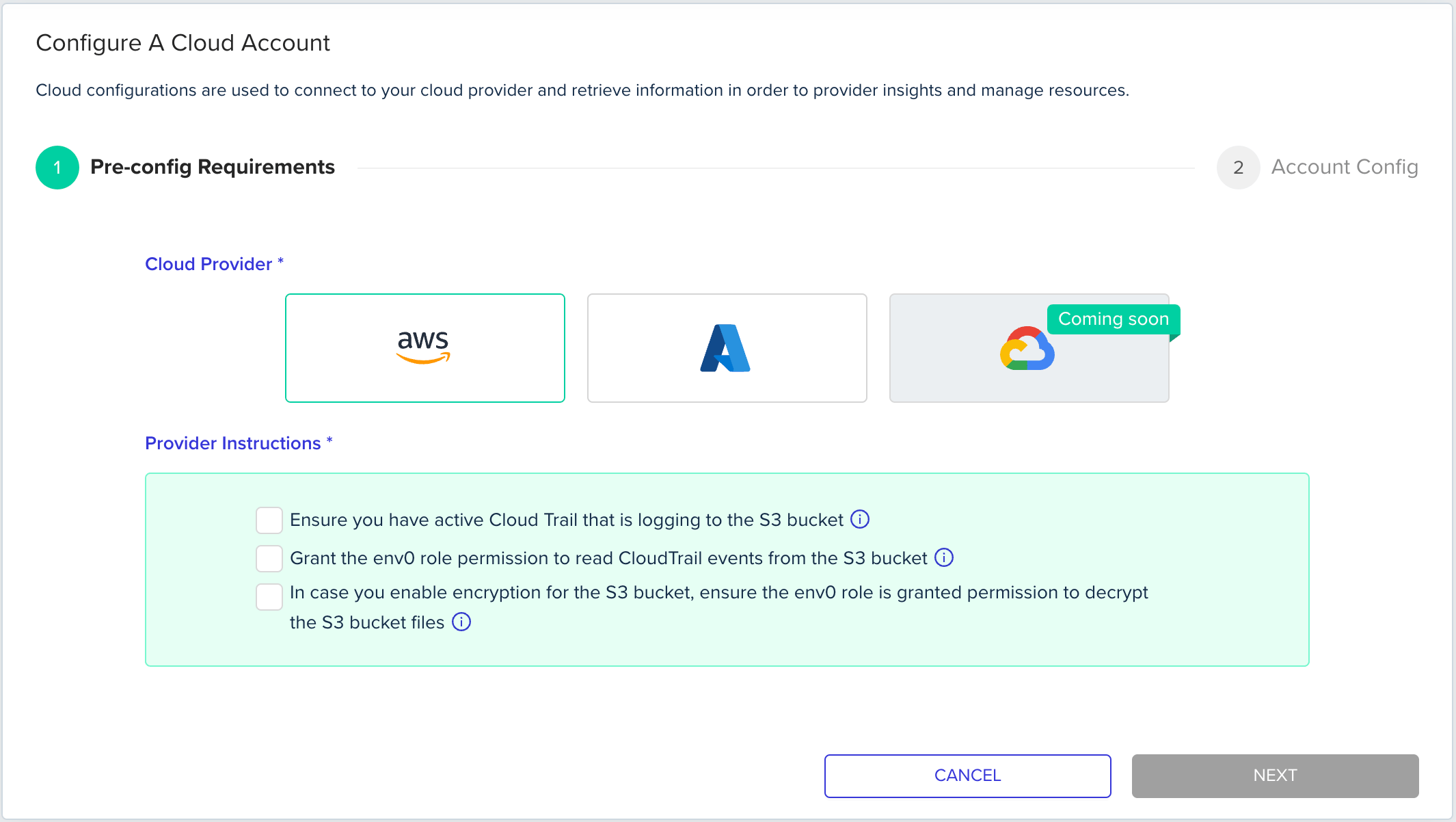
Requirements
Ensure Active Cloud Trail
- Open the AWS Console and login to the relevant account
-
Go to CloudTrail and in the left hand side menu select
Trails -
Make sure the trail is in a Logging status

Grant Bucket Permissions
- Go to S3 Console and choose the relevant bucket based on the name of the S3 bucket in the Trails. You can also click on the bucket name from the previous image.
-
Choose permission tab

-
Go To Bucket Policy and click
Edit -
 Policy
 -
Replace the placeholder
<replace-by-bucket-name>with the bucket name. -
Click on the
Save Changesbutton - Click on the edit button in the Object Ownership section

- Select the
ACLs disabled (recommended)option and click on theSave Changesbutton
Object Ownership ModeWe only able to read the cloud trails events when the Object Ownership in mode “ACLs disabled”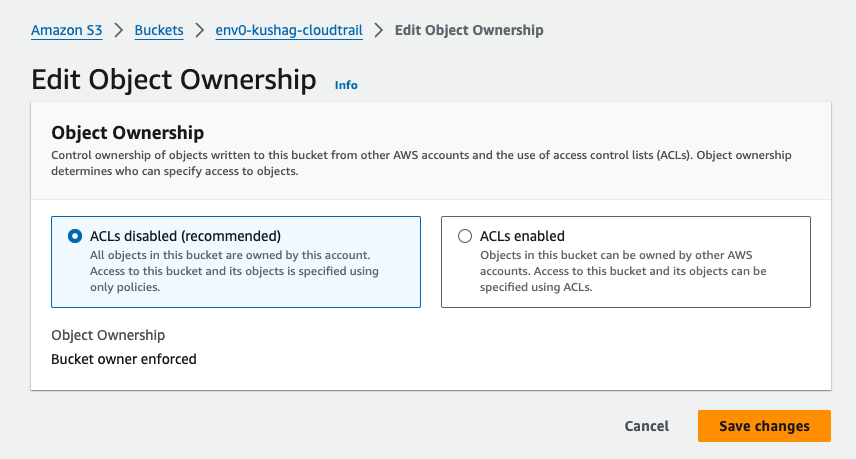
Grant Decrypt Permission
- This requirement is only necessary if encryption is enabled on the trail.
-
You can check if it is enabled by opening the trail and check if
Log file SSE-KMS encryptionis Enabled.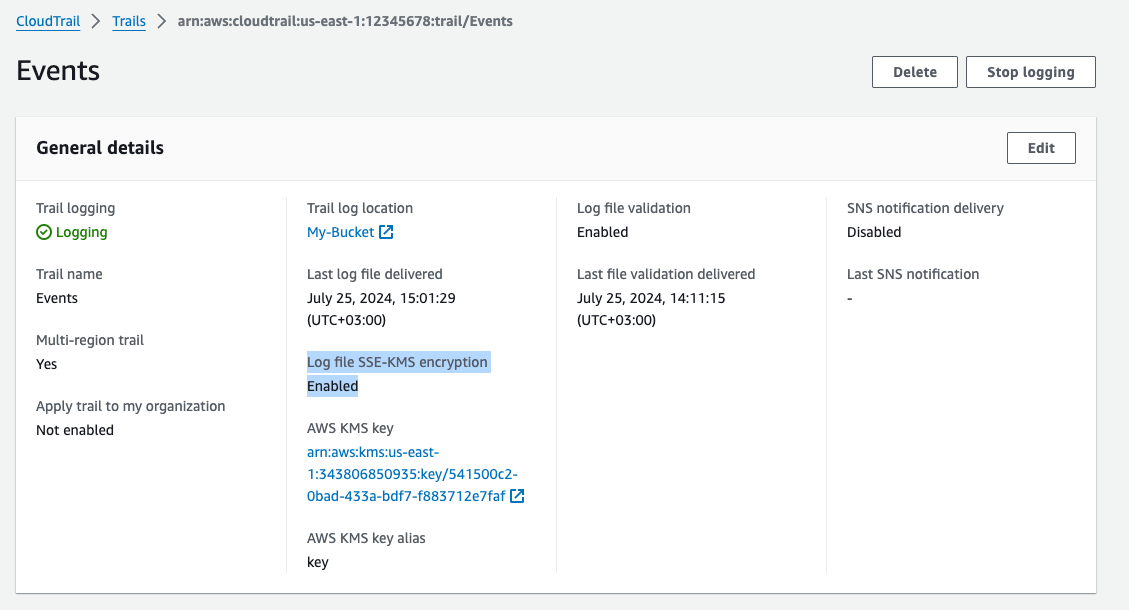
- If it is enabled, you should grant permission to the env zero role to decrypt the logs.
-
Open the “KMS Key Policy” - by clicking on the key URL from the previous image.

-
Click Edit, and add this policy to the list:
Policy
-
Click
Save Changes
Setting Up Bucket Configuration
Here you should specify account config including:- Account name (for identification only)
- Bucket Name [1]
- Account ID [1]
- Prefix [1]
(optional)- this should match the prefix (if specified) when configuring the s3 bucket. See AWS docs. - Regions
Scanned Bucket URL which will be used to fetch your cloud events.

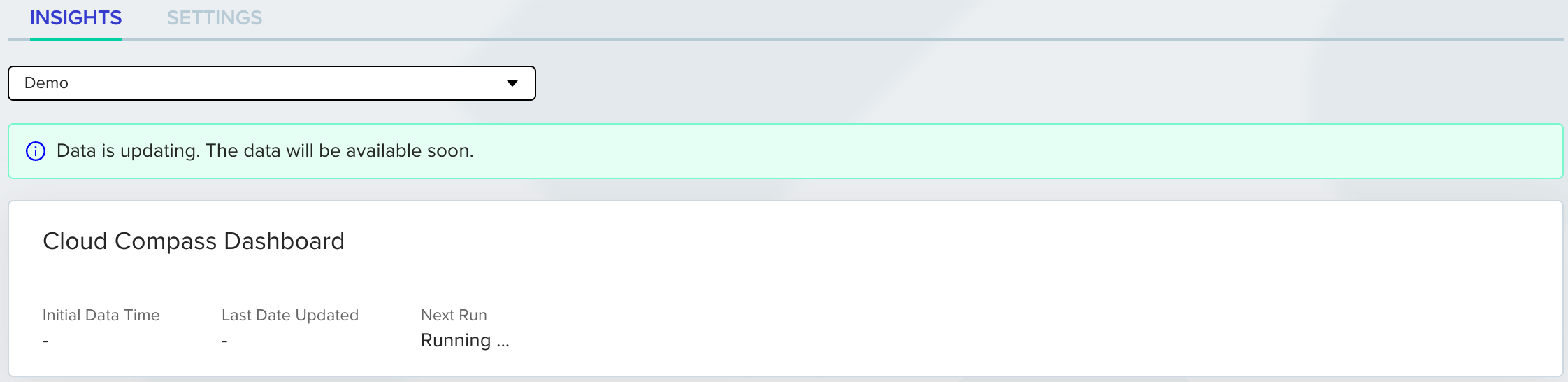
Next steps
- Configure an Azure cloud account - Connect an Azure subscription to Cloud Compass.
- Configure a GCP cloud account - Connect a GCP project to Cloud Compass.
- Link environments to Cloud Compass - Map environments to discovered cloud resources.