

This step assumes you have already connected your cloud account.
Create your template
- Open the Organization Templates page.
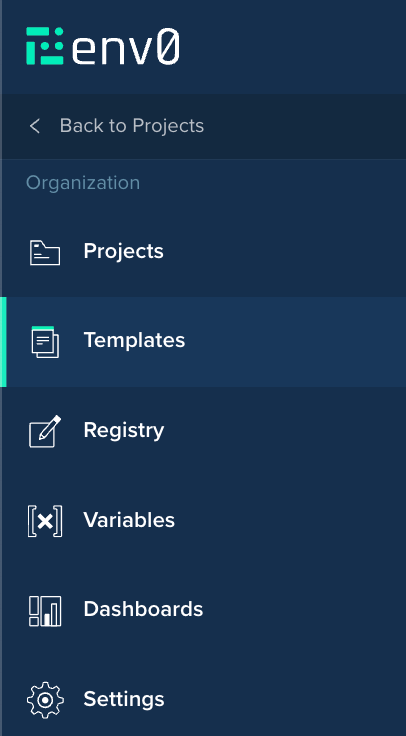
Link to Organization Templates
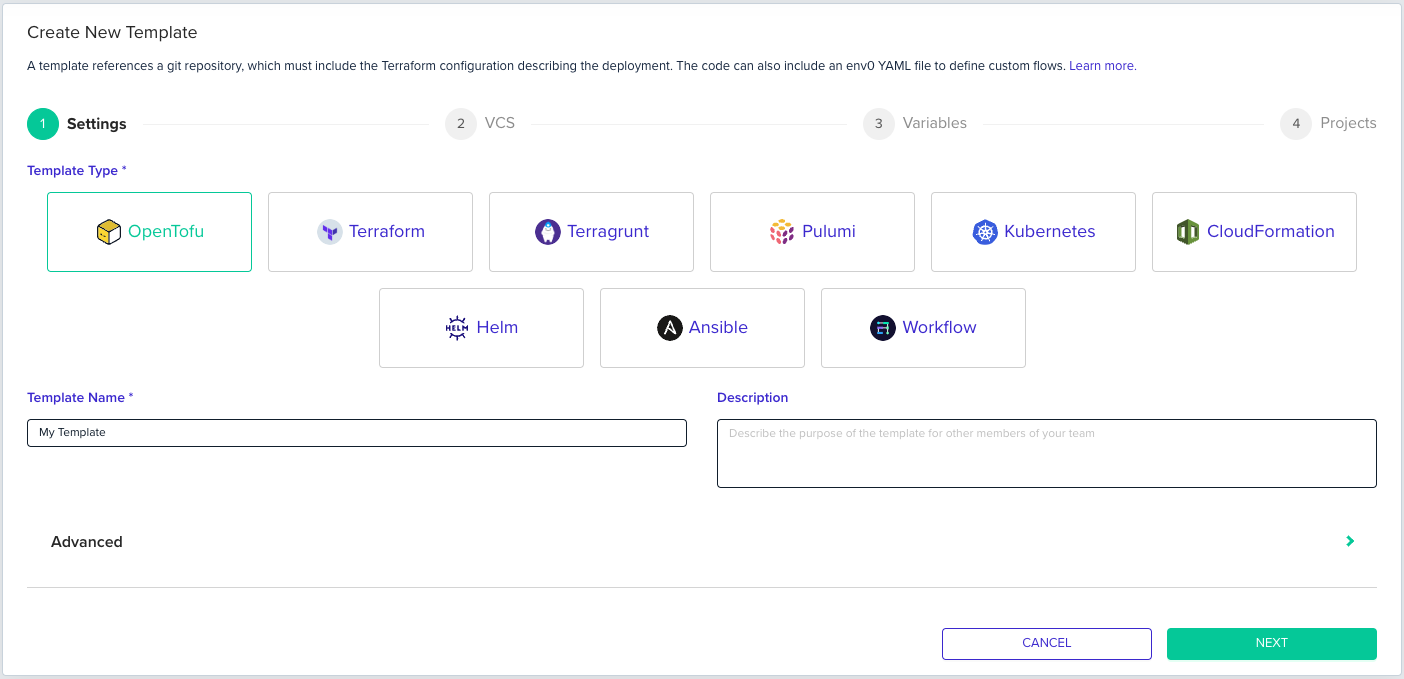
- Click Create New Template.

Create New Template
- Choose your desired template type. Select Terraform for Terraform code or OpenTofu for OpenTofu code. For other frameworks, select the matching tile.
- Enter a name for your template in
Template Name. If the form shows a version selector, choose the IaC version your code requires. If you’re unsure, select the latest stable version. Click Next.
- Select your VCS provider. Follow the section below for your provider.
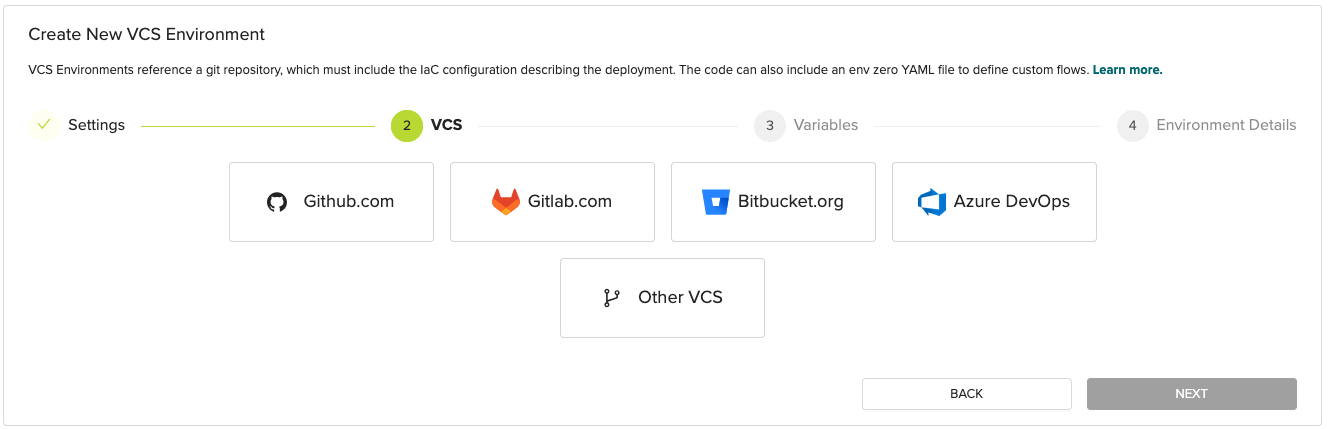
VCS provider selection
GitHub
- After clicking the GitHub.com button for the first time, a GitHub popup asks you to install the
env zeroGitHub App on a GitHub organization. Pick the GitHub organization containing your repository.
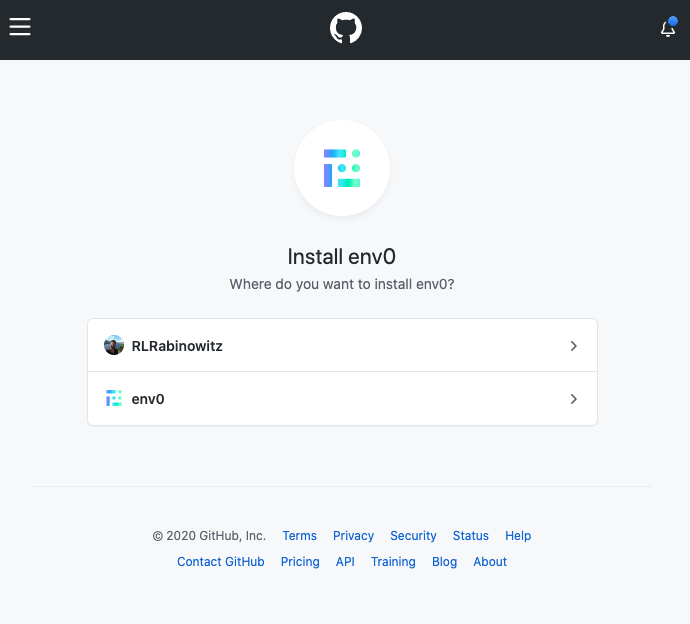
Pick GitHub Organization
- Pick the repositories you want env zero to have access to and install the GitHub App.
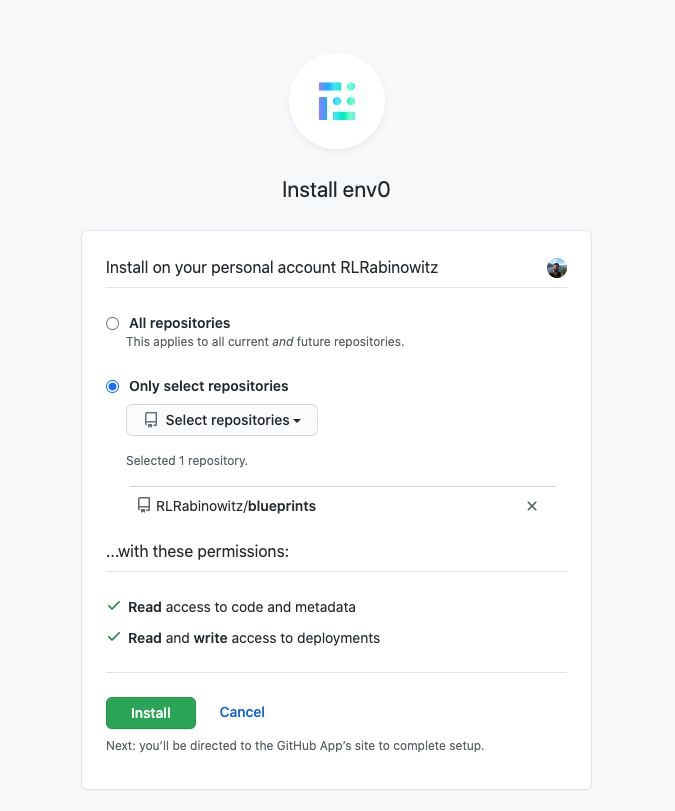
Pick GitHub Repositories
- The GitHub popup closes.
- Pick the GitHub repository that contains the code for this template.
- Enter a branch or tag in the
Branchfield. Leaving this empty uses your default branch (usuallymainormaster). - Enter the folder your IaC files are in. The field name varies by template type (
Terraform Folder,Pulumi Root, etc.) but works the same way. Leave empty if the files are at the repository root. - Click Next to continue to Variables.
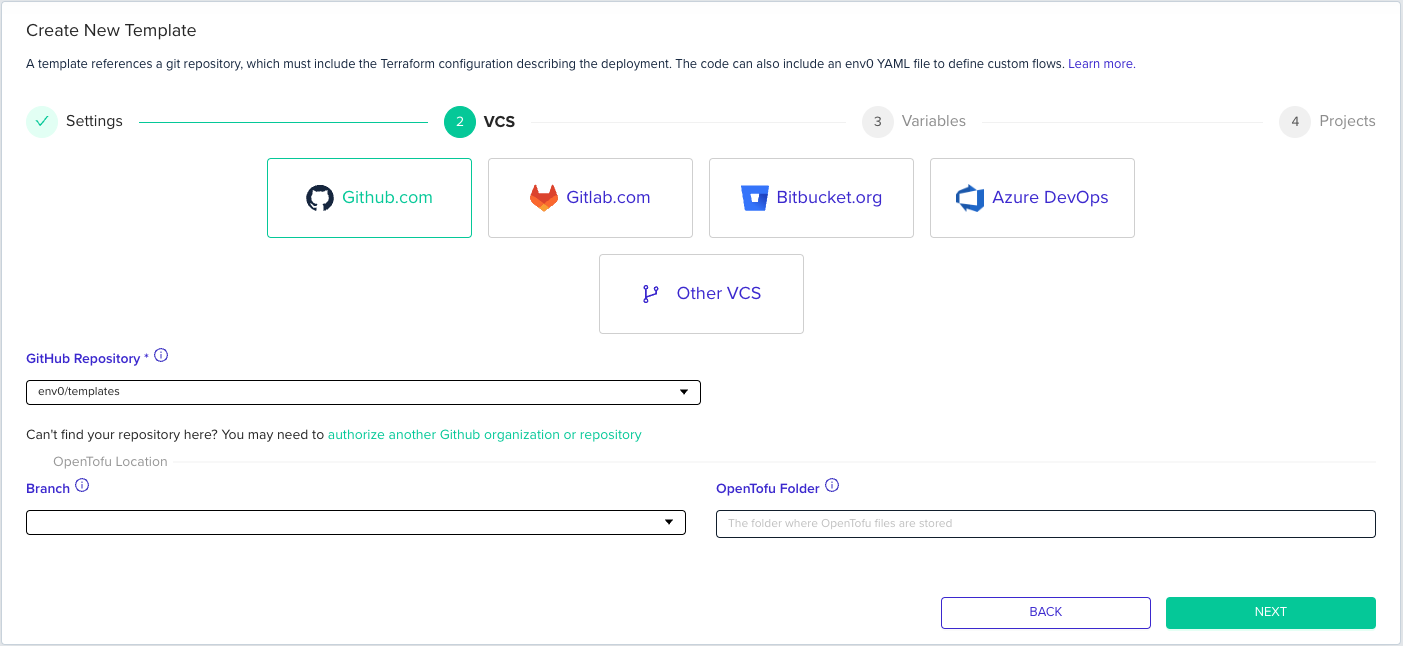
GitLab
OAuth
- After clicking the GitLab.com button for the first time, a GitLab popup asks you to authorize the
env zeroapplication to access your repositories.
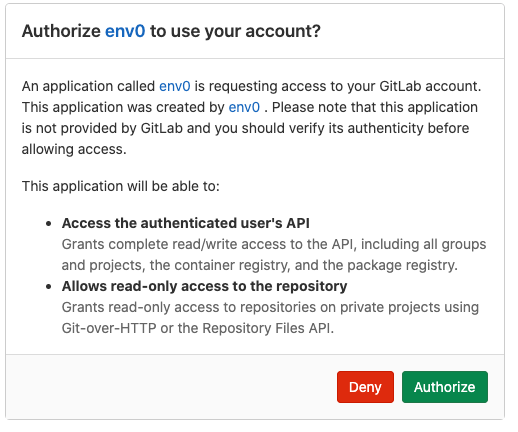
- The GitLab popup closes.
- Pick the GitLab repository that contains the code for this template.
- Enter a branch or tag in the
Branchfield. Leaving this empty uses your default branch (usuallymainormaster). - Enter the folder your IaC files are in. The field name varies by template type (
Terraform Folder,Pulumi Root, etc.) but works the same way. Leave empty if the files are at the repository root. - Click Next to continue to Variables.
GitLab Access Token
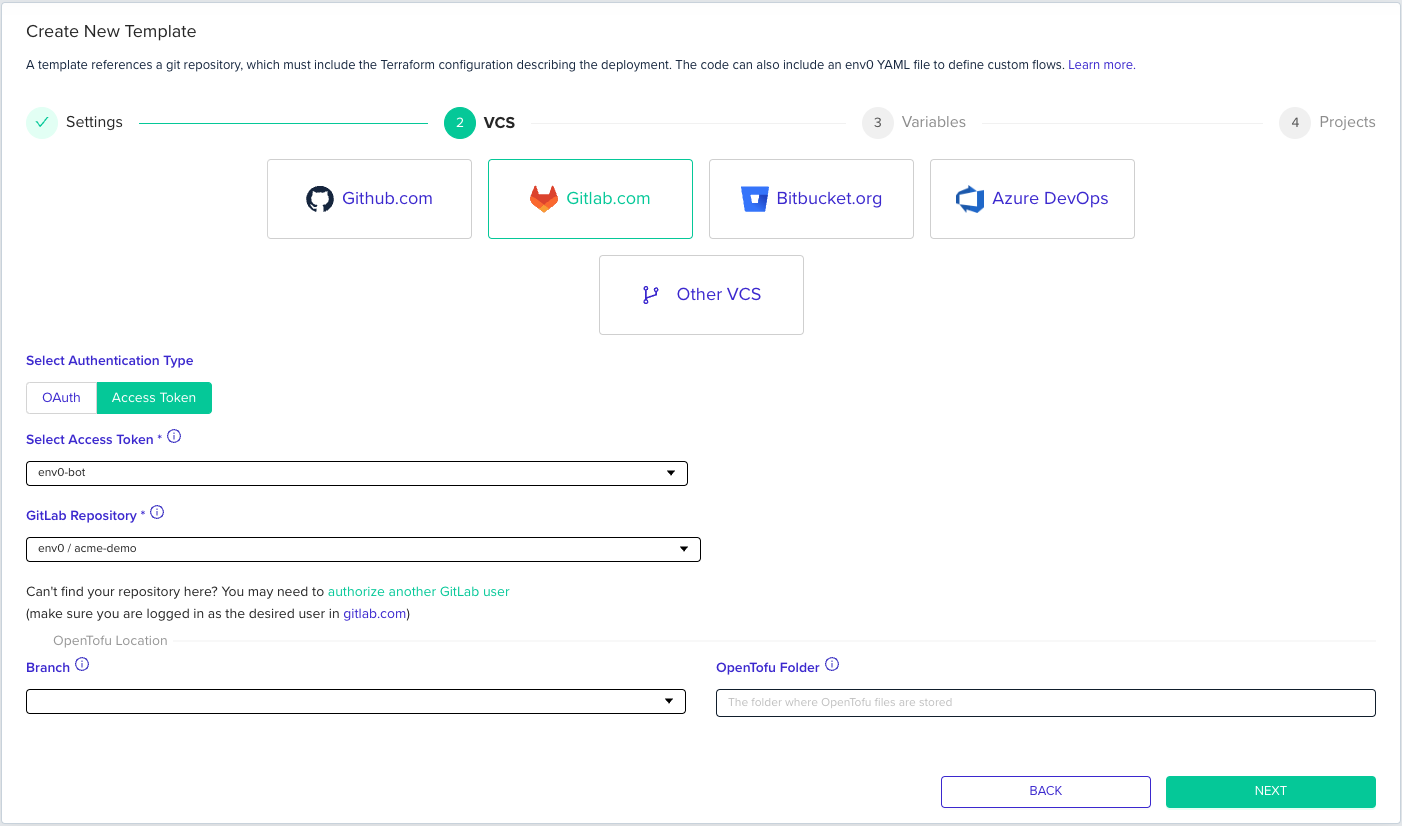
- After selecting GitLab.com, a radio button appears with two options.
- Click
Access Tokenand either select an existing token or create a new one.- Creating a token:
- The token can be either a Personal Access Token or a Group Access Token.
- The token must have access to each repository you want to use with env zero. Each project’s user must have at least Maintainer or Owner permissions.
- The token must have the
read_repositoryandapiscopes.
- Creating a token:
- Follow the same steps from step 3 in the OAuth section above.
Bitbucket
- After clicking the Bitbucket.org button for the first time, a Bitbucket popup asks you to authorize the
env zeroapplication to access your workspace.
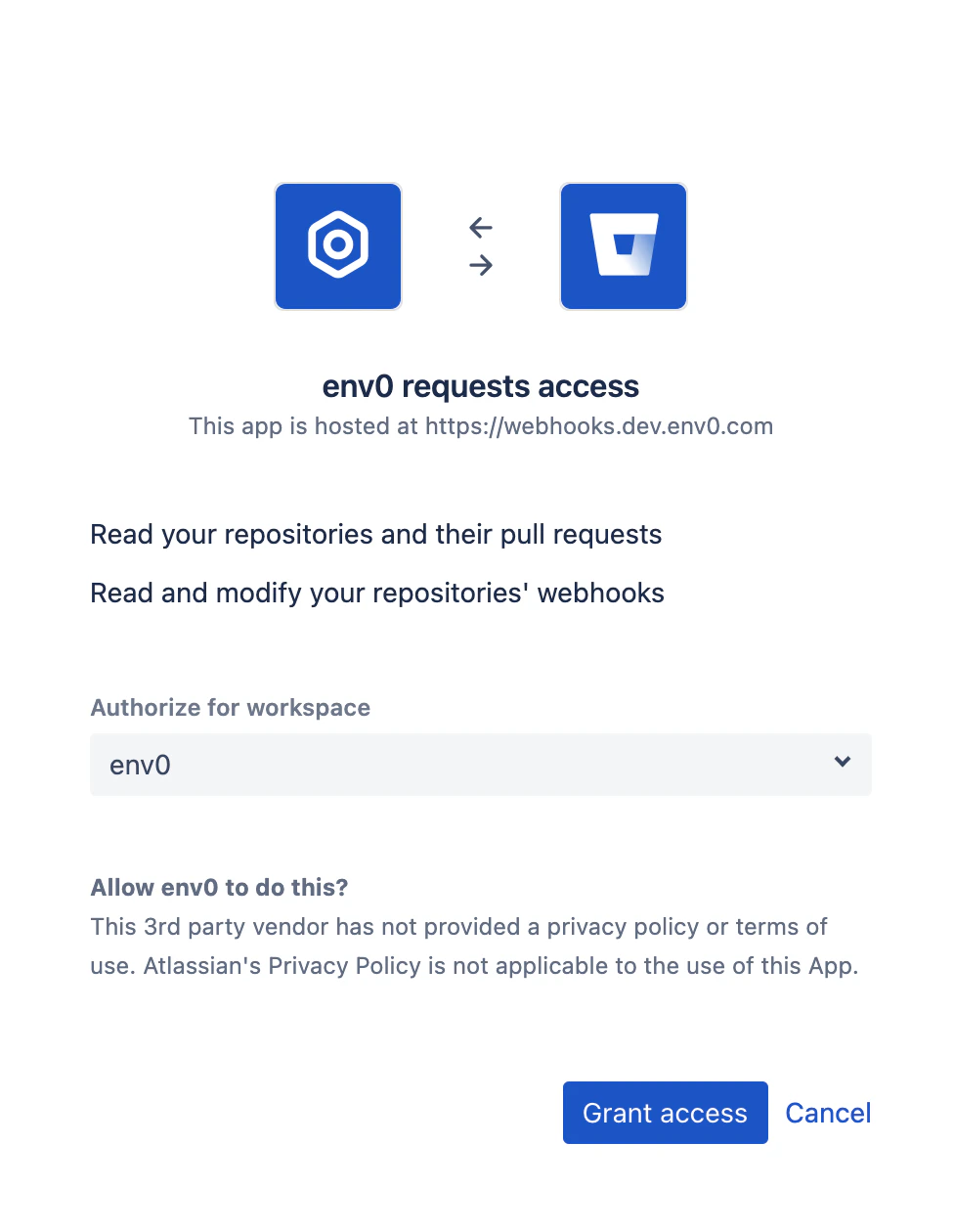
- The Bitbucket popup closes.
- Pick the Bitbucket repository that contains the code for this template.
- Enter a branch or tag in the
Branchfield. Leaving this empty uses your default branch (usuallymainormaster). - Enter the folder your IaC files are in. The field name varies by template type (
Terraform Folder,Pulumi Root, etc.) but works the same way. Leave empty if the files are at the repository root. - Click Next to continue to Variables.
Azure DevOps
- After clicking the Azure DevOps button for the first time, an Azure DevOps popup asks you to authorize the
env zeroapplication to access your repositories. Grant access for the app.
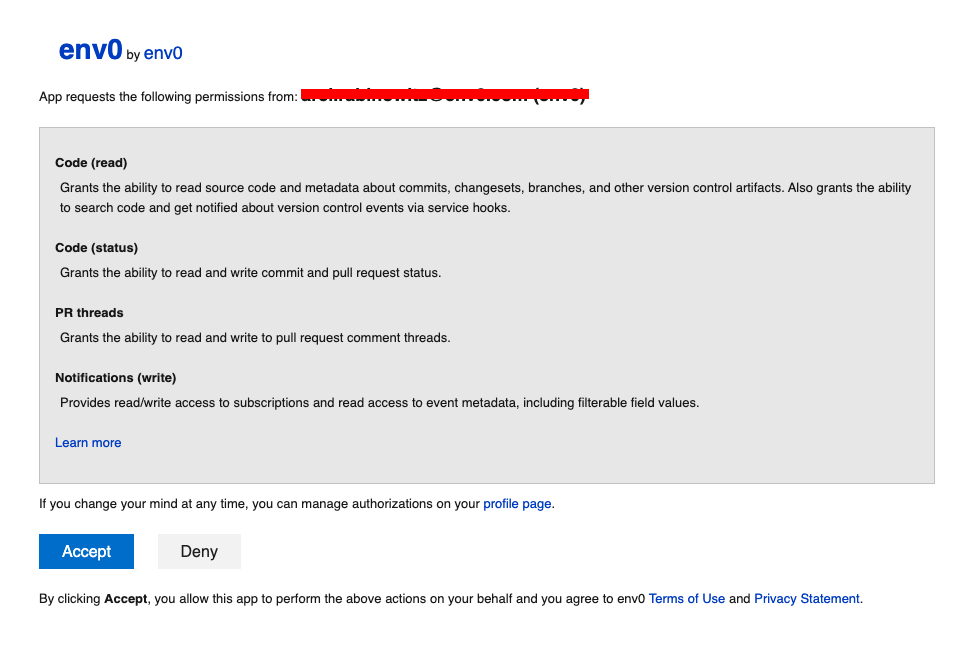
- The Azure DevOps popup closes.
- Pick the Azure DevOps repository that contains the code for this template.
- Enter a branch in the
Branchfield. Leaving this empty uses your default branch (usuallymainormaster). - Enter the folder your IaC files are in under
<IaC> Folder(where IaC is the template type you selected). Leave empty if the files are at the repository root. - Click Next to continue to Variables.
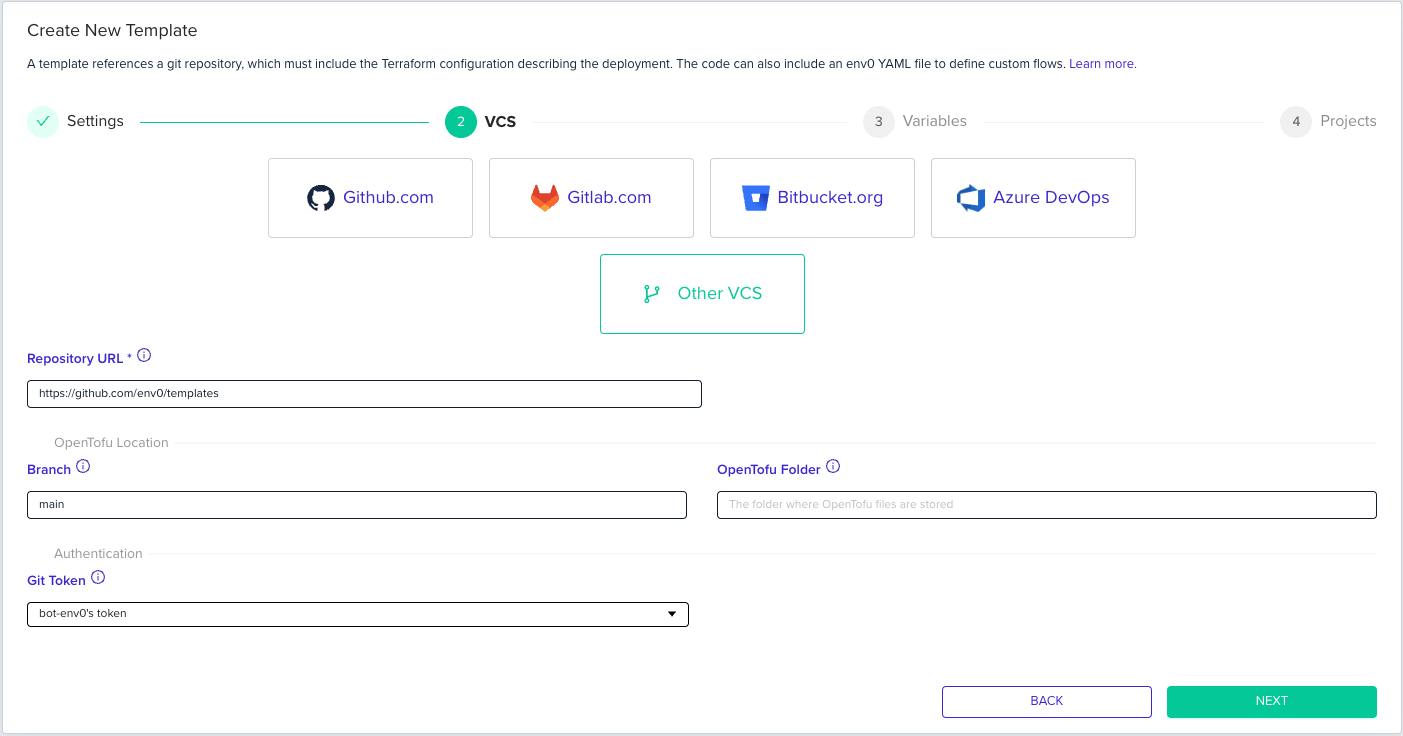
Other VCS
- Enter the URL to your IaC repository under Repository URL. The URL can be HTTP/S or SSH.
- Enter a branch or tag in the
Branchfield. Leaving this empty uses your default branch. - Enter the folder your IaC files are in under
Terraform Folder. Leave empty if the files are at the repository root. - If your repository is private, use the
SSH KeysorGit Tokendropdown to select the credentials you created in the Connect your Git repository step. - Click Next to continue to Variables.
Variables
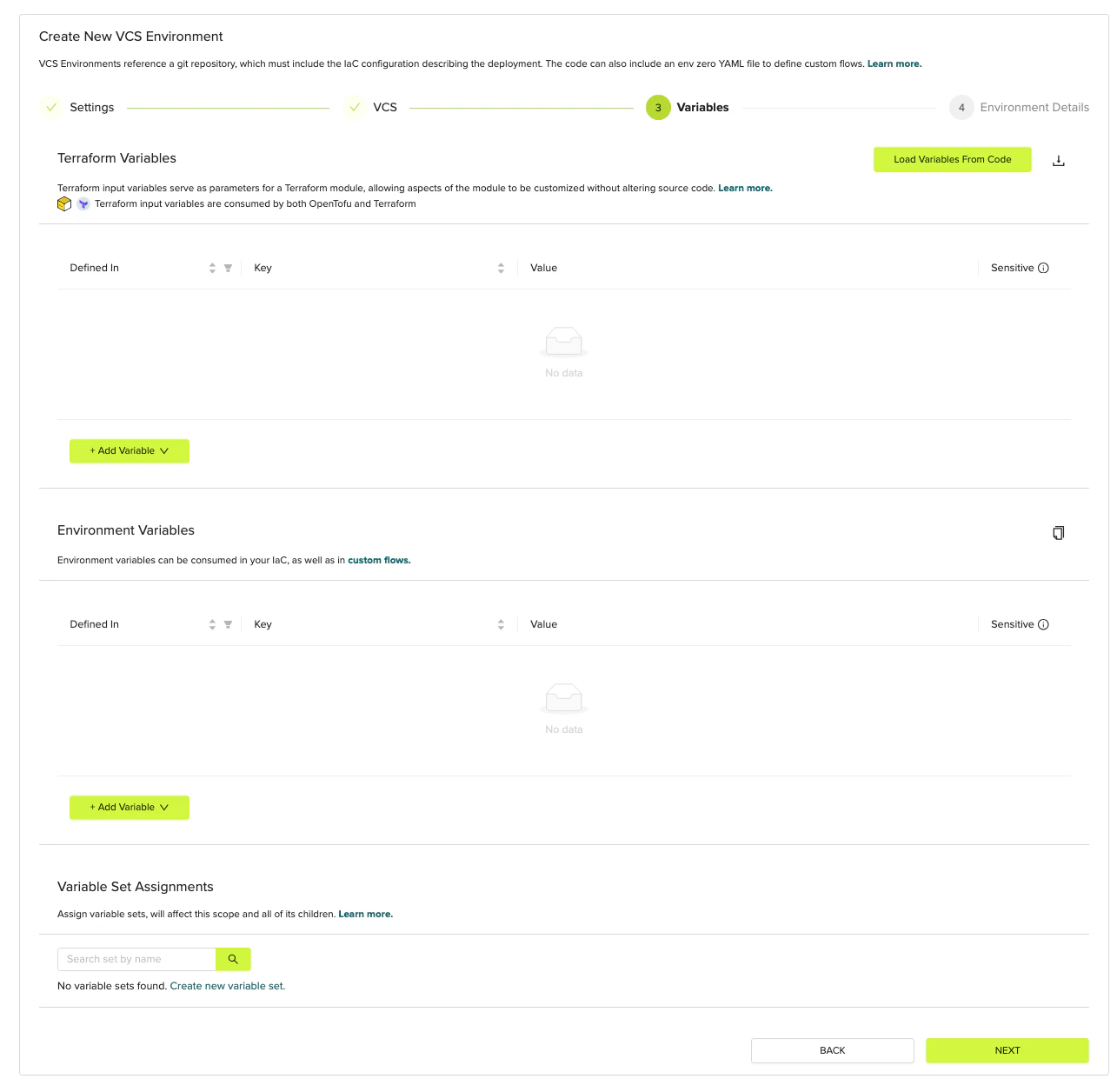
Variables step
-
Add the variables your template needs at deploy time.
- Terraform Variables are passed to the IaC tool as
-varflags. Use these for values your code declares asvariableblocks, such asregion,instance_type, orenvironment_name. - Environment Variables are set in the shell before the IaC tool runs. Use these for provider authentication, such as
AWS_ACCESS_KEY_ID,GOOGLE_CREDENTIALS, or tool configuration flags.
- Terraform Variables are passed to the IaC tool as
- Click Next to continue to Projects.
Projects
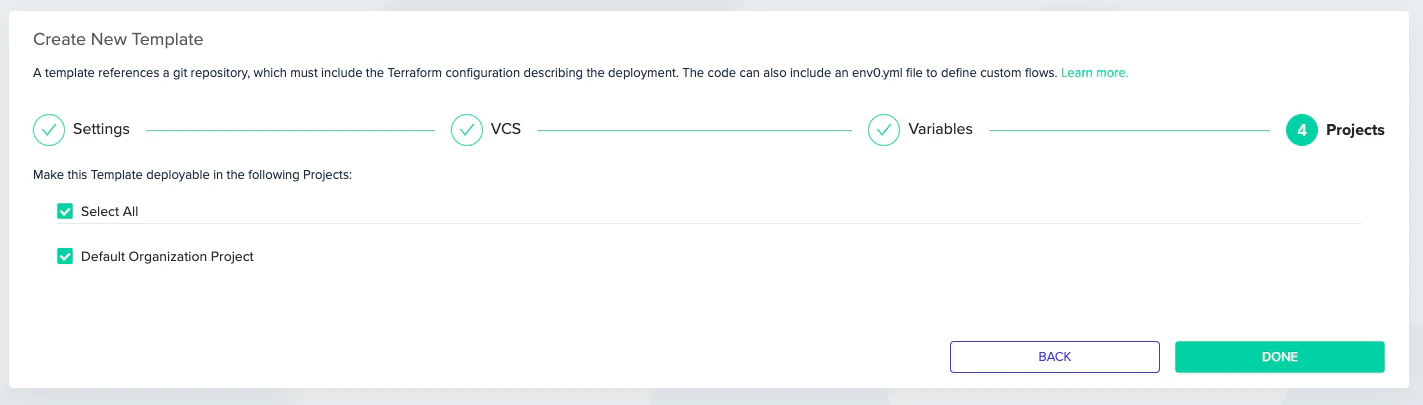
- Pick the projects that you’d like to allow to deploy this template.
- Click Done to create the template.
Add your template to a project
To run the template, add it to one of the organization’s projects. Your new organization already has a Default Project.- Go to the Default Organization Project.
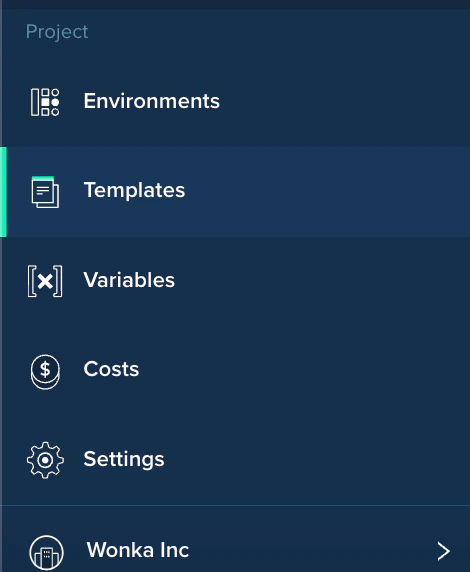
- Click Project Templates in the left menu.
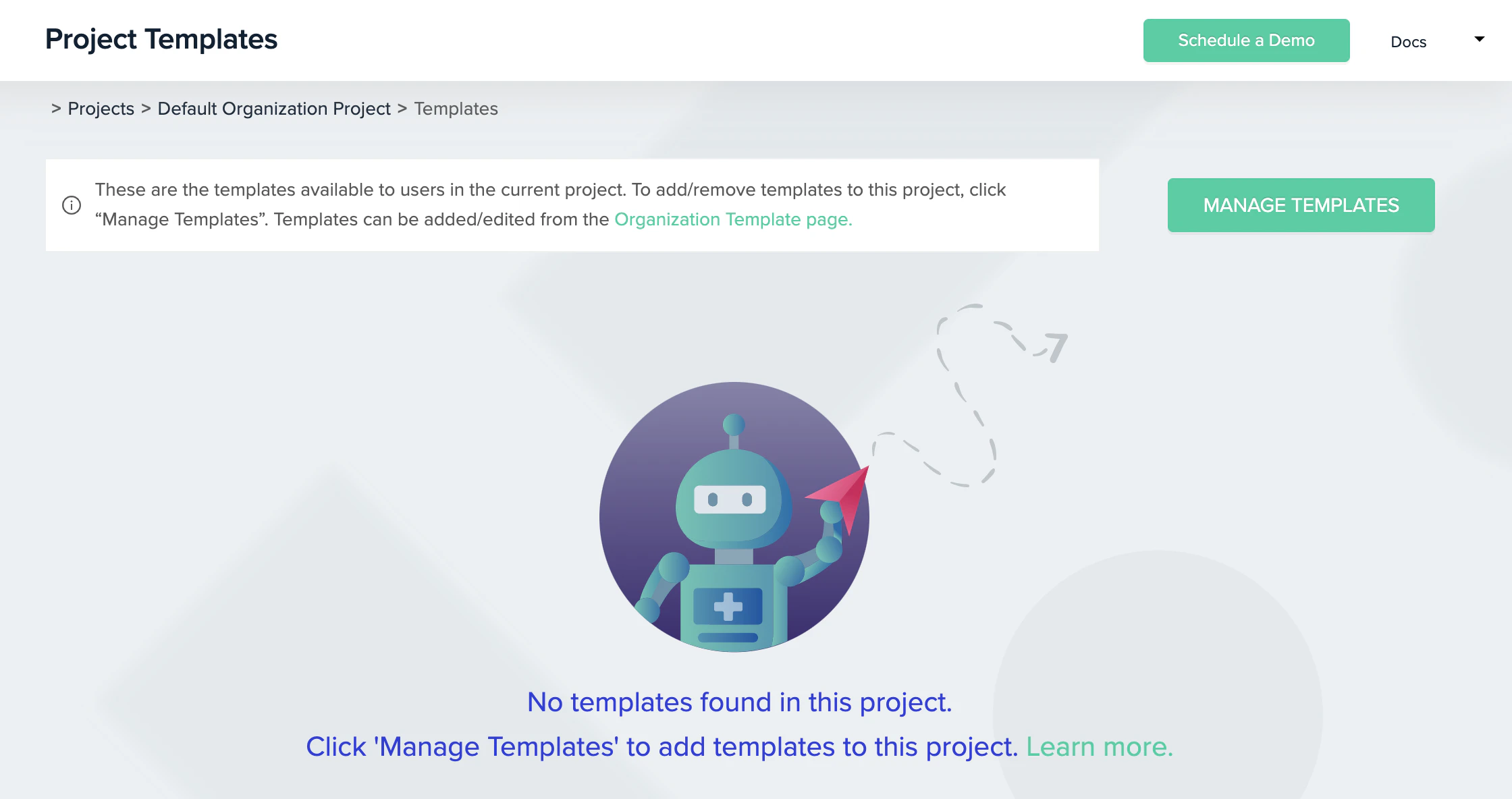
- Click Manage Templates and check the checkbox next to the template you created.
- Click Save.
Next steps
- Deploy your first environment - Deploy your first environment from the template you created.
- Using env zero Templates - Learn advanced template settings, versioning, and variable control.
- Approval Policies - Require a plan review before any apply runs on this template.
- Custom Flows - Add pre- and post-deploy scripts to your template.