

Documentation Index
Fetch the complete documentation index at: https://docs.envzero.com/llms.txt
Use this file to discover all available pages before exploring further.
This step assumes you have already connected your VCS.
Credentials Management
When creating a credential in env zero, it can be assigned to one of two scopes:Organization or Project.
- Organization Scope: When a credential is created via the organization credentials page (Organization Settings > Credentials), it is assigned to the
Organizationscope. This makes it available to all projects within the organization. - Project Scope: When a credential is created via the project credentials page (Project Settings > Credentials), it is assigned to the
Projectscope. This makes it available to that specific project and any of its sub-projects.
MANAGE_CREDENTIALS permission at that scope level (organization or project). By default, both Project Admin and Organization Admin roles include this permission.For example, to create or edit credentials in the project “My Project,” you need the
MANAGE_CREDENTIALS permission for that project.
Use case example
A common reason to scope credentials is to separate access between environments. For instance, if you have distinct development and production projects, you can ensure that users in the development project do not have access to production credentials.Amazon Web Services (AWS)
env zero offers three ways for you to connect to your AWS account:- Using AWS Assume Role
- Using IAM user credentials
- Using OIDC
Using AWS Assume Role
This role will be assumed by env zero during a deployment.It will require all permissions required including
GetAccessKeyInfo.
Create an AWS IAM Role
- Click on Roles, then click on Create Role
- Under type of trusted entity, select AWS Account
- Under An AWS account ID, select ‘An AWS account’ and enter
913128560467. This is env zero’s AWS Account ID. If you have a self-hosted agent, enter the AWS account ID where your agent is installed instead. - Select Require External ID
- Enter an External ID. The value must be equal to your Organization ID. Find it under Organization Settings
- Click Next:Permissions
- Select AdministratorAccess or whatever policies are required by your IaC
- Click Next:Review
- Enter a name for the role, and click Create Role
- Click on the role you created. Copy the
Role ARNfrom the role summary page. You will need it in the next step.
Assume Role DurationTo edit the duration of the Assume Role, go to the Created Role screen and locate Maximum Session Duration. Click Edit and select your relevant duration.
Add your Role ARN and External ID configuration to env zero (via CloudFormation)
You can use the following CloudFormation Template or Terraform HCL to create the AssumeRoleRoleArn will be available in the Outputs tab of your CloudFormation stack.
For security reasons, the ExternalID is resolved on the backend to be your organization ID.
Add your Role ARN configuration to env0 (via Manual Configuration)
- Go to the Settings page, and pick the Credentials tab
- Under Deployment Credentials section, click + Add Credential
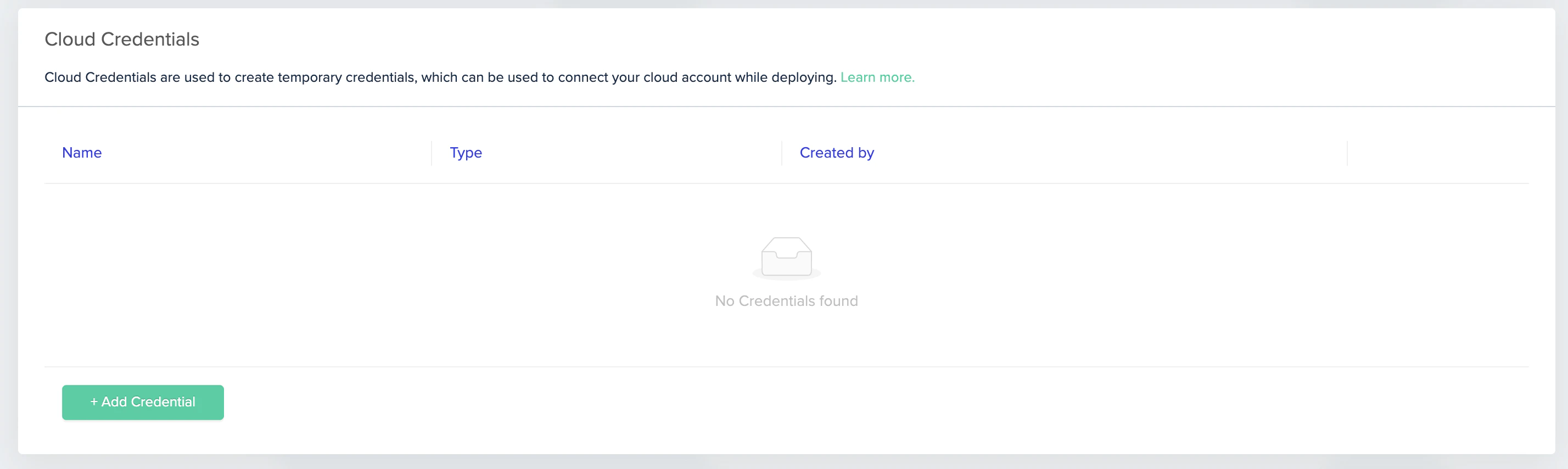
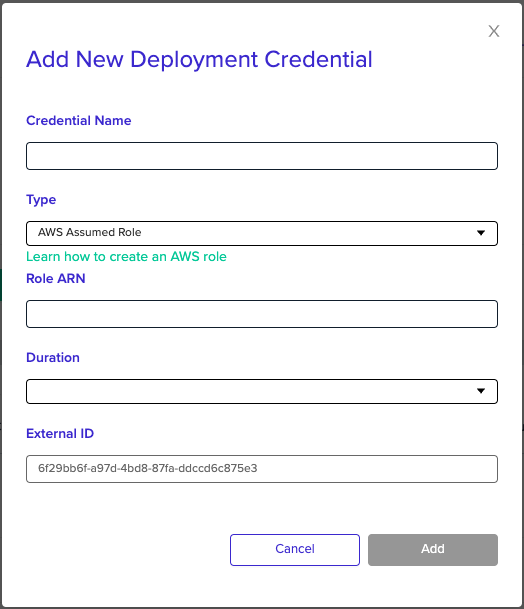
- Enter a name for the new credential
- Under Type, pick AWS Assumed Role
- Under Role ARN, enter your role ARN
- Your External ID is pre-filled with your env0 Organization ID
- Choose the duration for the deployment’s assumed role (make sure it is equal or less than the duration you set in AWS)
- Click Add
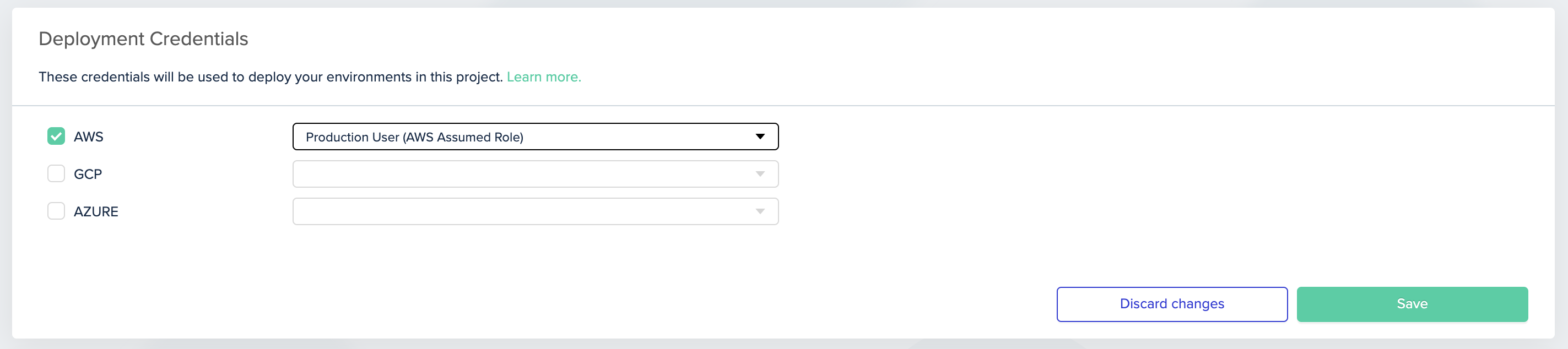
- Go to the project for which you’d like to use this role, then click Project Settings and click Credentials
- Pick the credential you would like to use in this project, this project, then click Add
Change Assumed Role per EnvironmentIf you’d like to override the project’s Assumed Role and use a different Assumed Role for a specific environment, set the following environment variables:
- A variable called
ENV0_AWS_ROLE_ARN- set its value to be the role ARN - A variable called
ENV0_AWS_ROLE_EXTERNAL_ID- its value to your Org ID
ENV0_AWS_ROLE_DURATION, and set its value to the desired duration in seconds. AWS uses a default value of 3600s (1 hour), while env zero uses a default value of 18000s (5 hours).Using AWS user credentials
Create IAM Role & Permissions
- To connect your AWS account, you will need to create an IAM user with programmatic access. See this guide on how to do that. Make sure you save your Access Key ID and Secret Access Key.
- You will need to grant this user the appropriate permissions to deploy the resources defined in your IaC code.
Add your credentials to env zero
- Go to Settings and click the Credentials tab
- Under Deployment Credentials, click + Add Credential
- Enter a name for the new credential
- Under Type, pick AWS Access Keys
- Under Access Key ID, enter your Access Key ID
- Under Secret Access Key, enter the value of your Secret Access Key
- Click Add
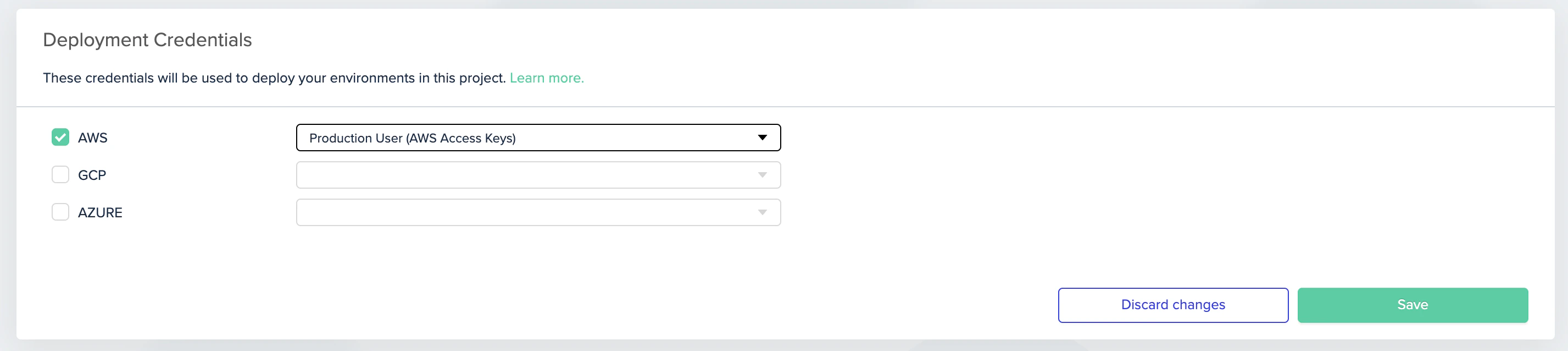
- Go to the project for which you’d like to use this role, then go to Project Settings and click Credentials
- Pick the credential you would like to use in this project, and then click on Save
Google Cloud (GCP)
Create a service account
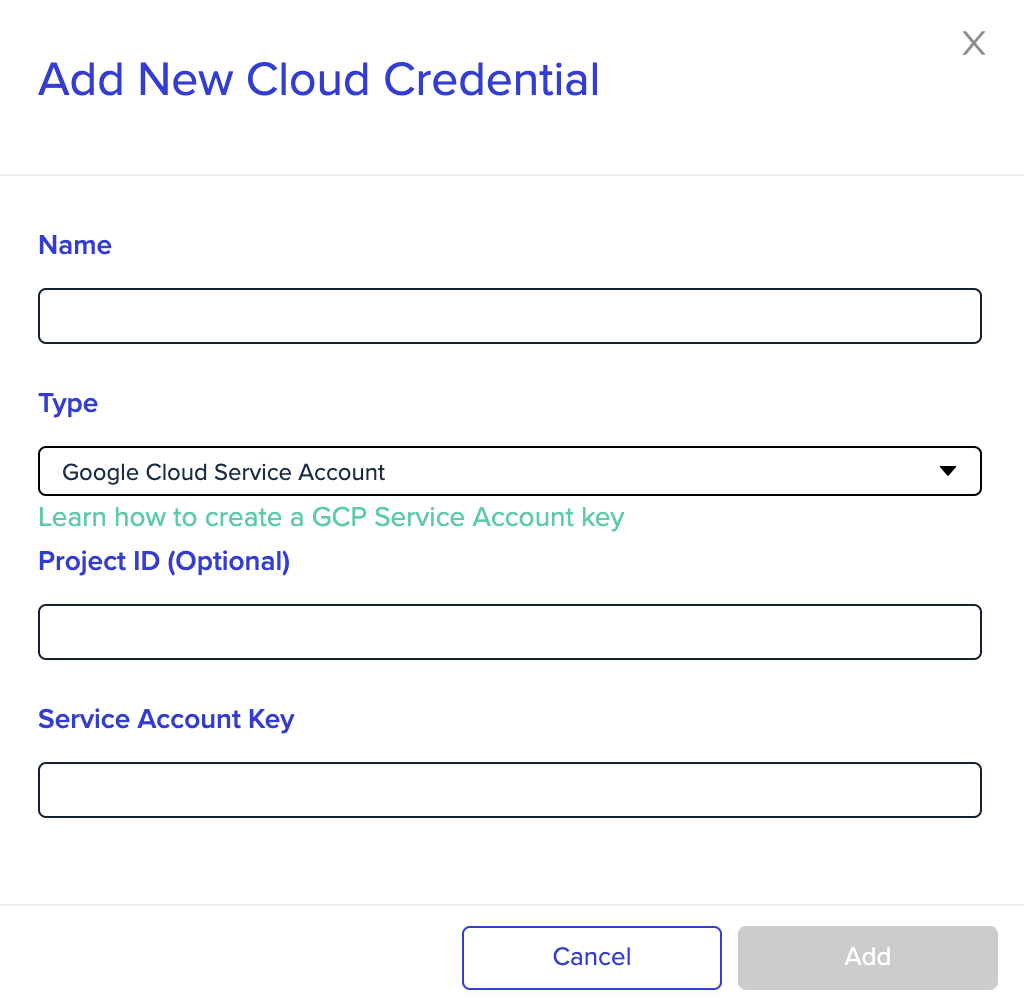
To connect your GCP account, create a service account key. See the Google Cloud documentation on how to create a service account. Make sure to save the JSON key contents.Add your credentials to env zero
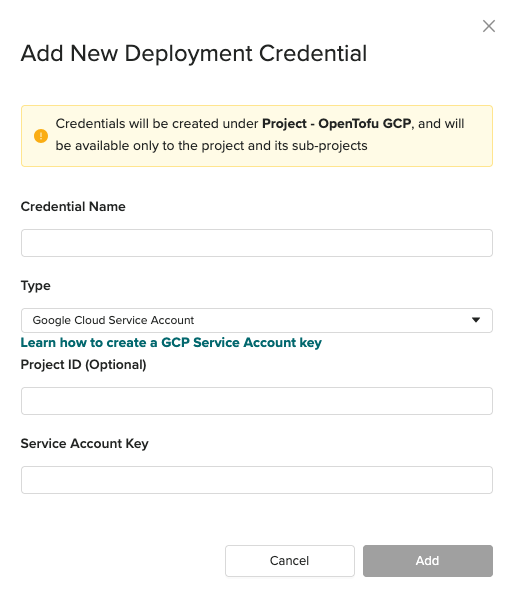
- Go to the Settings page and click the Credentials tab
- Under Deployment Credentials, click + Add Credential
- Enter a name for the new credential.
- Under Type, pick GCP Credentials
- Under Project ID, enter your GCP project ID (optional)
- Under Service Account Key, copy and paste the JSON key contents directly into the value of this variable
- Click Add
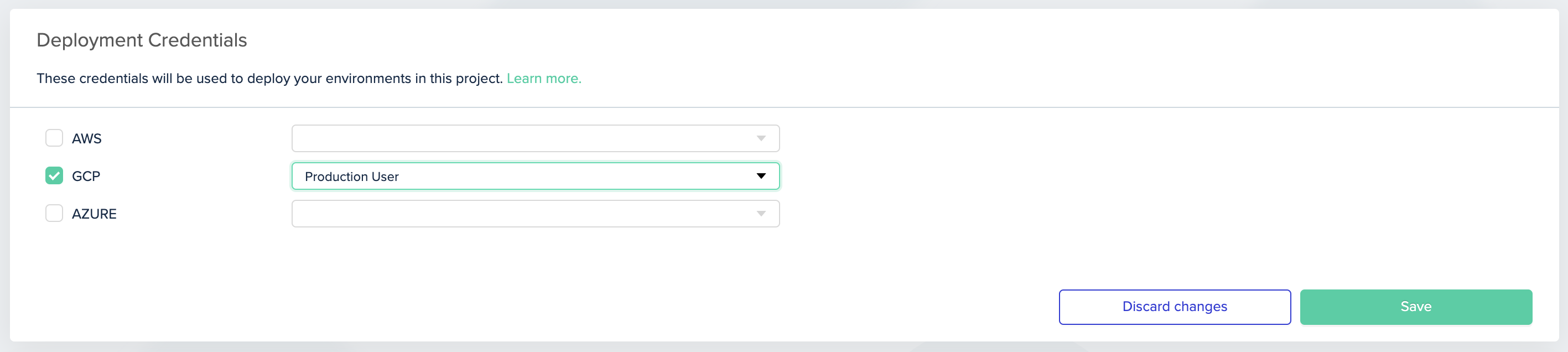
- Go to the project for which you’d like to use this role, and then go to Project Settings and click Credentials
- Pick the credential you would like to use in this project, then click Save
Using OIDC with GCP
See instructions here.Azure
Create a service principal
To access resources, a Service Principal needs to be created in your Tenant.This is easiest to do via the AZ CLI.
-
First, make sure you are logged in:
Follow the instructions to login
-
Once logged in, your subscriptions will be returned:
-
Next, set your active subscription:
-
Create a Service Principal for env zero to deploy your terraform stack:
This will return the metadata for your Service Principal:
Add your credentials to env zero
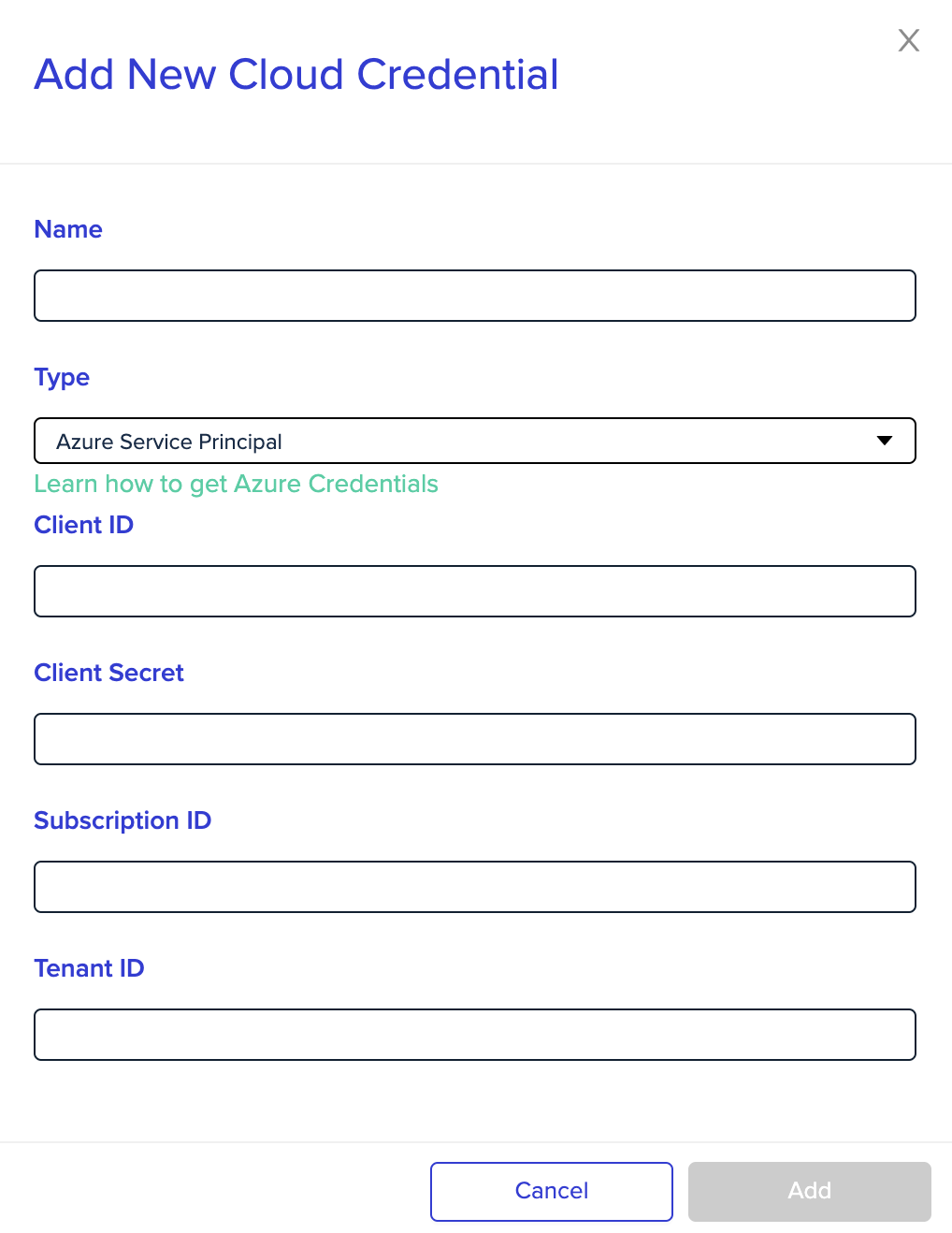
- Go to the Settings page, and click on the Credentials tab
- Under the Deployment Credentials section, click + Add Credential
- Enter a name for the new credential
- Under Type, pick Azure Credentials
- Under Client ID, enter your service principal app ID
- Under Client Secret, enter your service principal password
- Under Subscription ID, enter your subscription ID
- Under Tenant ID, enter your service principal tenant ID
- Click Add
- Select the project for which you’d like to use this role, then go to Project Settings and click Credentials
- Pick the credential you would like to use in this project, then click Save
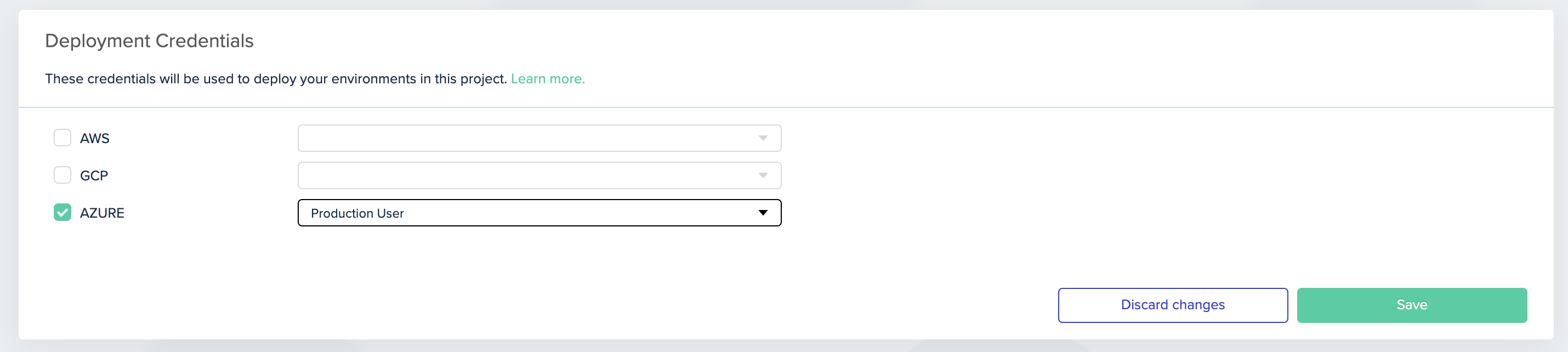
Change credentials per environmentTo override the project’s credentials for a specific environment, set these environment variables:
ARM_TENANT_ID- the service principal tenant IDARM_SUBSCRIPTION_ID- the subscription IDARM_CLIENT_SECRET- the service principal passwordARM_CLIENT_ID- the service principal app ID
Using OIDC with Azure
See instructions here.Oracle Cloud Infrastructure (OCI)
Create an OCI API Key
To create a personal API Key in OCI:- Login to OCI
- Click on your profile pic, and go to User Settings
- Under the Resources section, click on API Keys, and the Add API Key
- When you create an API Key, you will be prompted to download a Private RSA Key. Download and save it.
- Finally, click Save
- After you create the API key, you’ll be prompted with a Configuration file preview. Save it as well
Add your credentials to env zero
- Go to the Settings page and click the Credentials tab
- Under Deployment Credentials, click + Add Credential
- Enter a name for the new credential
- Under Type, pick OCI API Key
- Under Tenancy OCID, copy the tenancy from the configuration file preview
- Under User OCID, copy the user from the configuration file preview
- Under OCI Region, pick the region that matches the one in the configuration file preview
- Under API Key Fingerprint, copy the fingerprint from the configuration file preview
- Under API Key Private Key, copy the private RSA key you downloaded
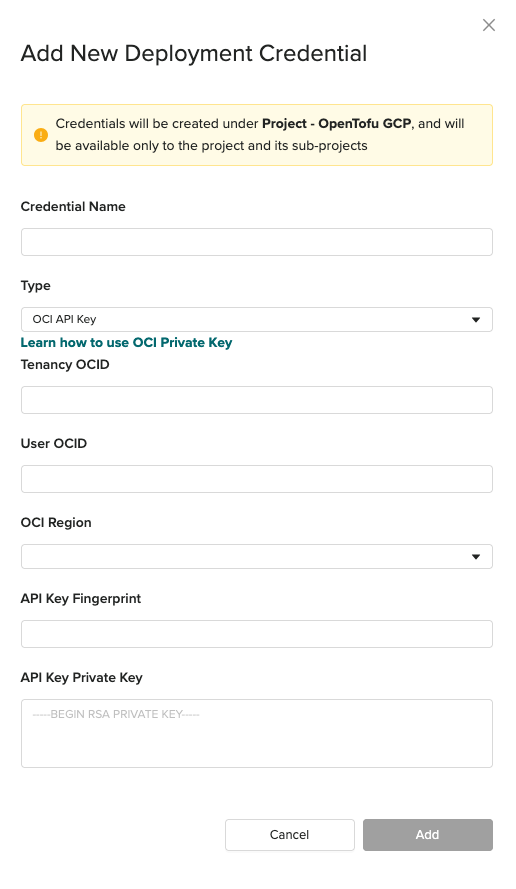
- Click Add
- Go to the project for which you’d like to use this credential, then go to Project Settings and click Credentials
- Pick the credential you would like to use in this project, then click Save
Other Cloud Providers
If you are using Terraform to manage infrastructure in a different provider than the ones mentioned above, check the provider’s documentation for supported authentication options. Most providers support authentication via environment variables (for example,CLOUDFLARE_API_TOKEN for Cloudflare or FASTLY_API_KEY for Fastly). You can set these as Environment Variables in env zero at the organization, project, or environment scope, and they will be injected at deployment time.
Customizing Cloud Authentication per Environment
Generally, Cloud Credentials are defined per env zero project. These are translated into environment variables at runtime (likeAWS_ACCESS_KEY_ID and AWS_SECRET_ACCESS_KEY for AWS). If you’d like to give different credentials to a specific environment, set the relevant environment variables at the environment scope. See Managing Variables for how to set variables per scope.
Kubernetes
env zero applies your IaC to create resources in your own Kubernetes cluster. This section covers how to give env zero the required permissions. env zero supports major cloud provider managed clusters, as well as a generalkubeconfig file.
Set up your Kubernetes credential
Navigate into Organization Settings and click CredentialsUnder Deployment Credentials, click + Add Credential
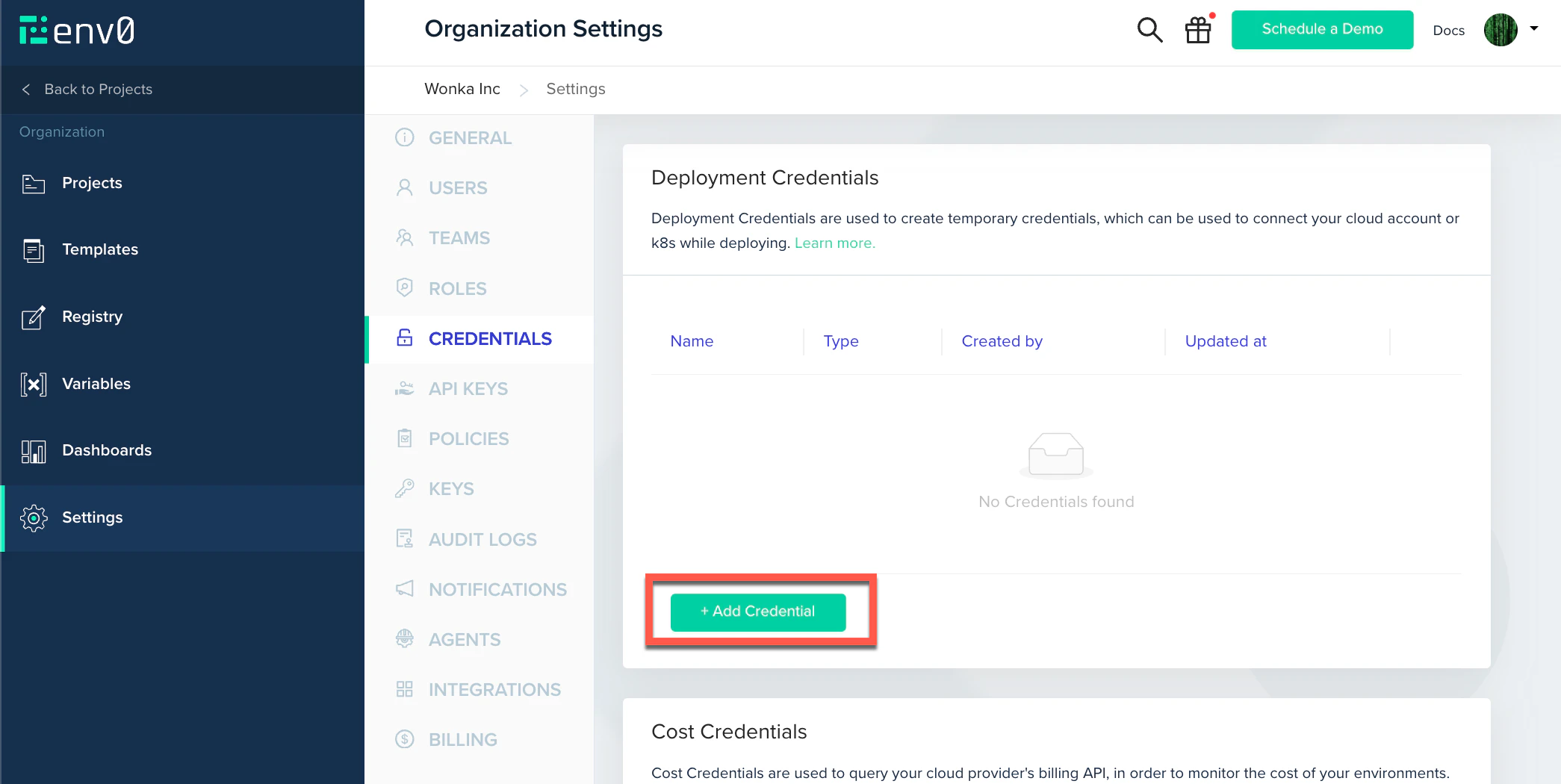
Kubeconfig
If you want to allow connection to your custom cluster, you can do so by setting up akubeconfig credential in env zero’s UI.
Select the Kubernetes - Kubeconfig File credential from the Type dropdown menu and paste your valid kubeconfig file.
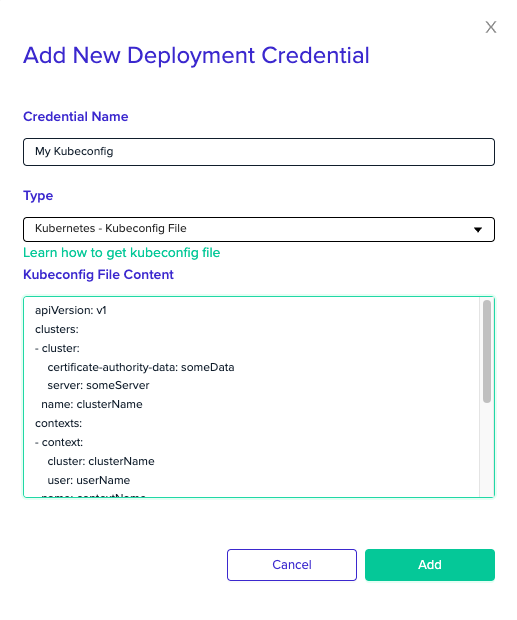
ConstraintsYour
kubeconfig should contain exactly one cluster, context and user. The current-context field must be provided, and match the given context.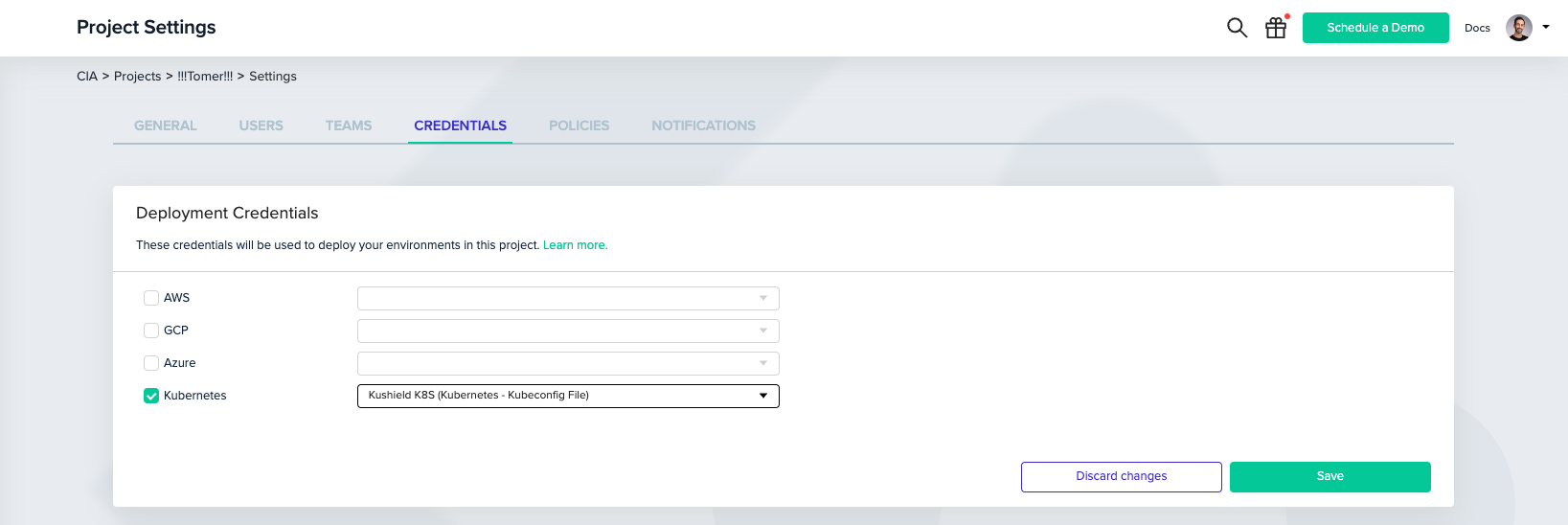
AWS EKS
Select the Kubernetes - AWS EKS Configuration credential from the Type dropdown menu, then enter your cluster name and region.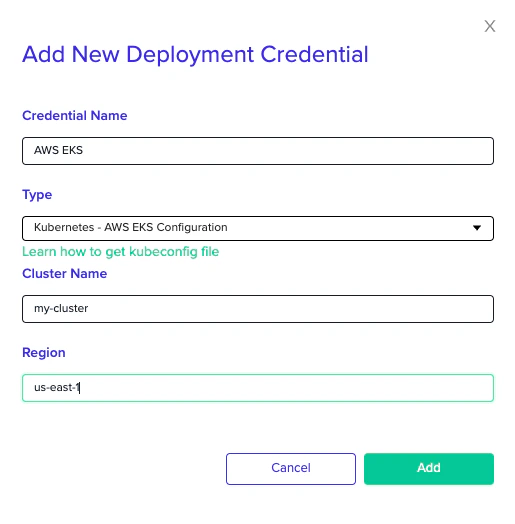
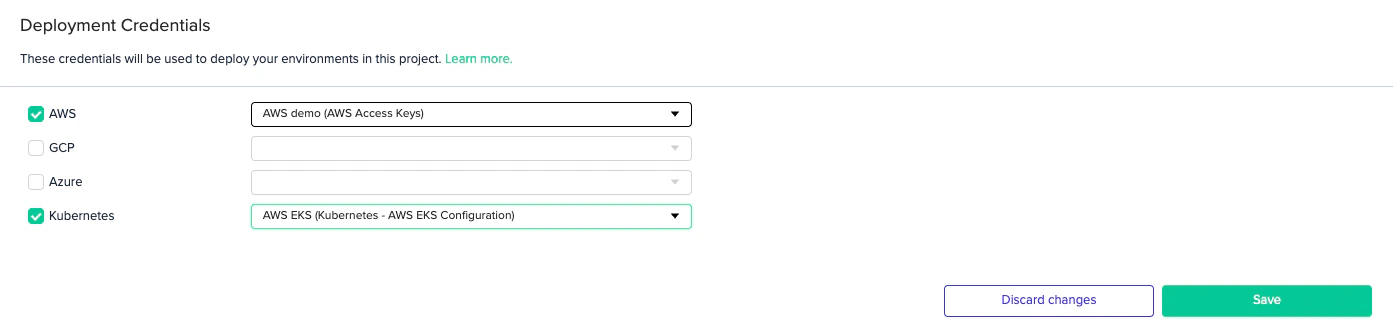
CredentialsTo access your cluster, you’ll also need to set valid AWS credentials.
GCP GKE
Select the Kubernetes - GCP GKE Configuration credential from the Type dropdown menu and enter your cluster name and region.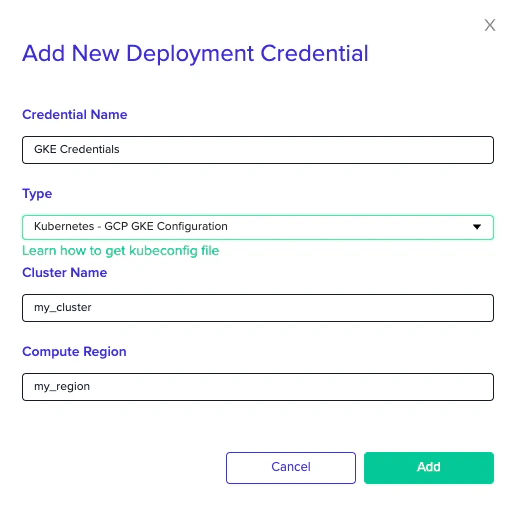
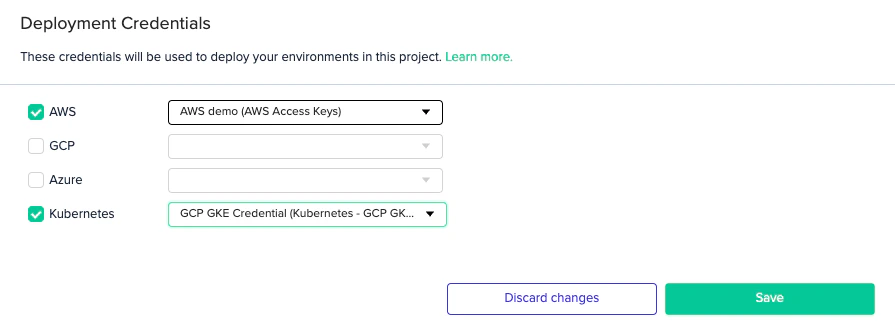
CredentialsTo access your cluster, you’ll also need to set valid GCP credentials.
Azure AKS
Select the Kubernetes - Azure AKS Configuration credential from the Type dropdown menu and enter your cluster name and resource group.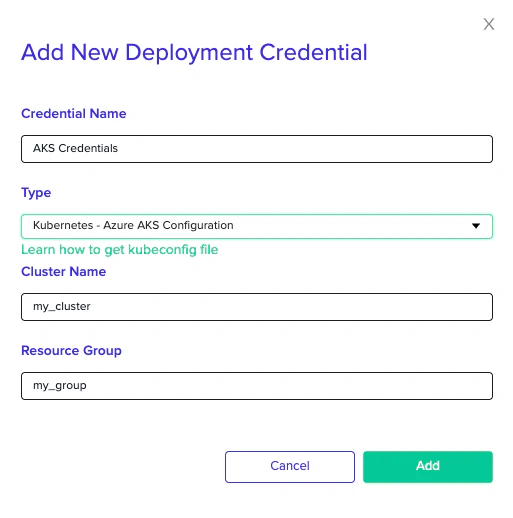
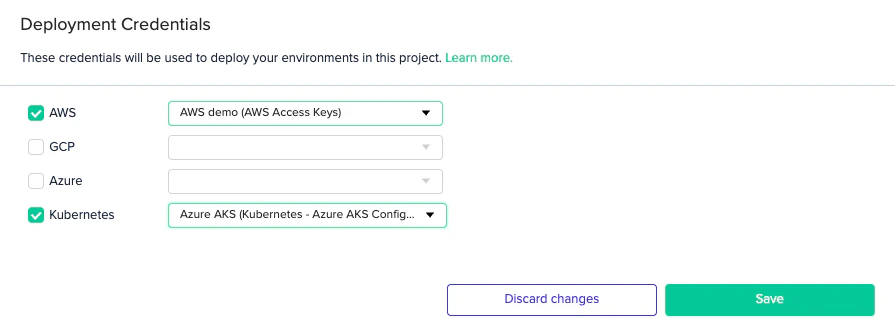
CredentialsTo access your cluster, you’ll also need to set valid Azure credentials.
Troubleshooting
AWS: Access Denied during deployment. The most common cause is an External ID mismatch. The value in your env zero credential must exactly match thests:ExternalId condition in your AWS trust policy. Find your Organization ID under Organization Settings.
AWS: Session duration error. The session duration set in env zero must be equal to or less than the Maximum Session Duration configured on the IAM role in AWS. Reduce the duration in your credential settings to match.
GCP: Invalid credentials. Re-download the JSON key from the GCP console and paste the complete file, including the opening { and closing }. A truncated key will fail without a clear error.
Azure: Authentication failed. All four values (Client ID, Client Secret, Subscription ID, Tenant ID) must come from the same service principal. Copy each value directly from the az ad sp create-for-rbac output to avoid mismatches.
Next steps
- Create Your First Template - Link your IaC code to env zero as a reusable template.
- Deploy Your First Environment - Deploy your first environment using your connected account.
- Supported Platforms - See all cloud providers and IaC frameworks env zero supports.