

What is an environment?
An environment represents a deployment managed by env zero. Your users manage environments in Projects. They can create, destroy, and redeploy environments. The user who creates an environment is the owner. Administrators manage access control and budgets with policies defined at the Project and Organization levels. Here’s how env zero environments map to terms from common IaC tools:- Terraform: equivalent to a Terraform workspace or module (e.g., a
production-vpcworkspace) - Terragrunt: matches a specific Terragrunt configuration directory managing Terraform modules
- CloudFormation: corresponds to a CloudFormation stack
- Pulumi: maps to a Pulumi stack
- Kubernetes: relates to a Kubernetes namespace or a set of YAML files
- Helm: aligns with a Helm release
View environment details
To view your environments, choose a Project and select the Environments tab. The list shows all environments in the project that you have permission to see. For each environment, you can see the template it came from, the revision (the Git branch with the IaC code), the owner, the status, the remaining time-to-live, and the number of cloud resources currently consumed. Click an environment to open its details page, where you can run operations such as Destroy or Redeploy, view deployment logs, Terraform outputs, variables, and the deployment history.Environment status
An environment can be in one of the following states:- Active - successfully deployed and running
- Inactive - either successfully destroyed, or marked as inactive, in which case its cloud resources keep running
- Deploy in progress - currently being deployed
- Undeploy in progress - currently being destroyed
- Failed - errors encountered during deployment or undeployment
- Waiting for approval - a Planner initiated a change; a Deployer must approve before it executes
Environment resources
When an environment is Active, you can view all resources it manages by clicking into the environment. Resources are grouped by provider and type, for example, all AWS S3 buckets appear together. Use the search box to filter.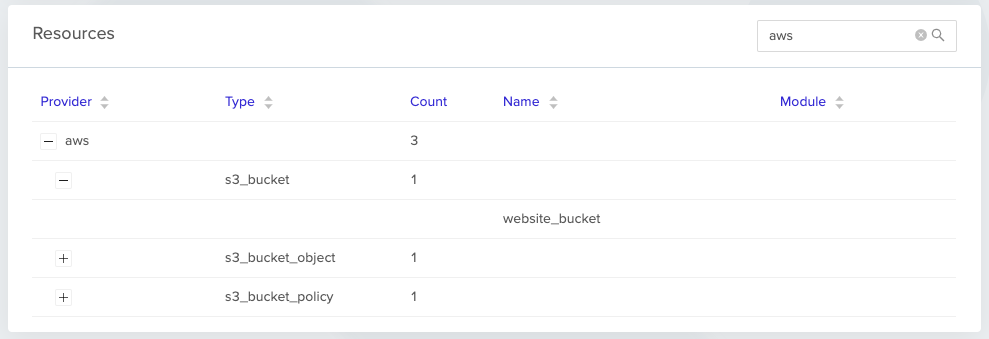
Example of the resources list
Time to live (TTL)
TTL is the amount of time before env zero automatically destroys the environment. You set TTL when you create or redeploy. Predefined values are: 12 hours, 1 day, 3 days, 1 week, 1 month, and infinite. You can also set a specific end-of-life date. Infinite TTL means the environment is never automatically destroyed. This is appropriate for stable environments like staging or production, but not recommended for development environments. Administrators can control default and maximum TTL values using TTL policies. Non-admin users are bound by the policy for the current project.Terragrunt working directory
The working directory of your Terragrunt deployment. This lets you define one template per repo or folder and create environments based on your Terragrunt folder structure.Create an environment
You can create environments two ways: Template-based: Use pre-configured templates for standardized, repeatable deployments with built-in RBAC and governance controls. Recommended for teams that need consistency. Direct VCS integration: Connect directly to your Git repository for quick deployments without template overhead. Useful for prototyping. Both approaches support all IaC frameworks: Terraform, OpenTofu, Pulumi, CloudFormation, Kubernetes, and Helm. For setup instructions, see Setting up a new environment. After the environment is created, the Environment Details page opens and deployment progress appears in the Deployment Logs section. env zero runsterraform plan and terraform apply and stores the outputs and state.
If the deployment is successful, the status is set to Active and the owner receives an email notification. If it fails, the status is set to Failed and the owner receives an email with details.
Destroy an environment
An environment with a TTL other than infinite is automatically destroyed when its time limit is reached. To manually destroy an environment, open the Environment Details page for an Active environment and click Destroy Environment in the top right. If a deploy or destroy is already in progress, your destroy request is queued and starts automatically when the current operation completes. You can cancel a queued destroy from the Deployments tab. When the undeploy completes successfully, the status is set to Inactive and the owner is notified by email. The environment also leaves the project’s active environment list and appears in the Destroyed tab. If the undeploy fails, the status is set to Failed and the environment stays in the active list. When destroying, the “Checkout updated code” option is enabled by default, meaning env zero uses the latest code from your repository. Disable it to use the code from the last deploy. Destroying deletes real infrastructure. If you only want env zero to stop tracking an environment and leave its resources alone, mark it as inactive instead. Destroy Environment is disabled for an environment that has never deployed, since there is nothing to undeploy. Mark it as inactive to clear it from the active list.Mark an environment as inactive
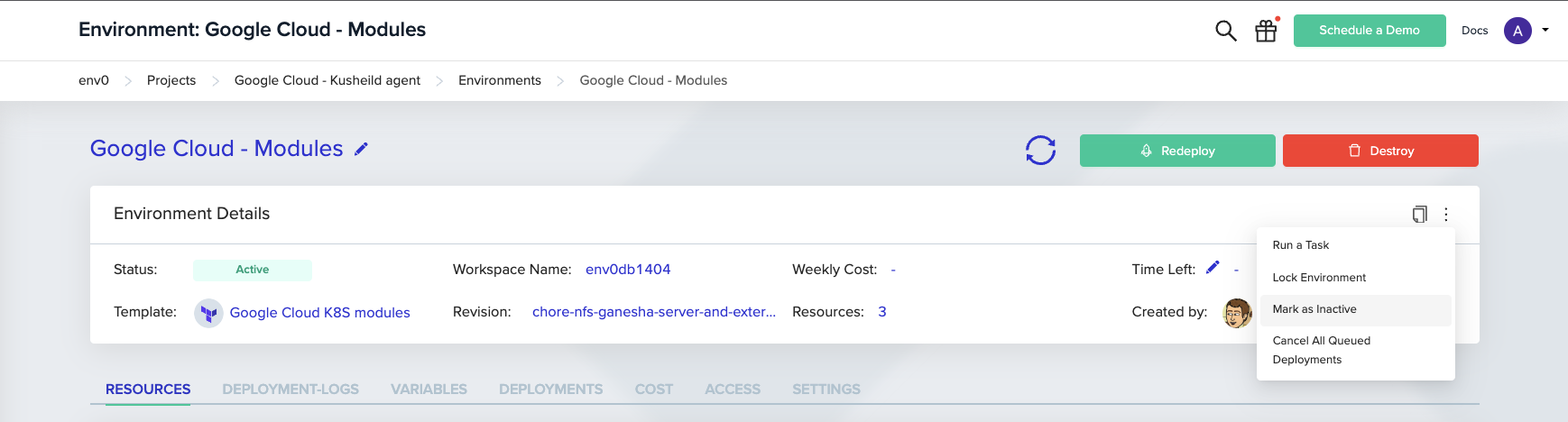
Marking an environment as inactive, also called archiving, tells env zero to stop tracking it. This is a metadata change only. No deployment runs, and none of the environment’s cloud resources are touched. Open the Environment page, click the three-dot icon, and select Mark as Inactive. To do it for several environments at once, use bulk operations. From the terminal, useenv0 environment archive.
- Its resources keep running in your cloud account and keep costing money. env zero no longer manages them or reports on them.
- Ongoing and scheduled deployments are removed.
- It leaves the project’s active environment list and appears in the Marked as Inactive tab.
Destroy compared with mark as inactive
Both actions end an environment’s active life, which is why they are easy to confuse. Only Destroy removes infrastructure. The project environments page keeps them apart: a destroyed environment appears under Destroyed, one you marked inactive under Marked as Inactive.Who can mark an environment as inactive
This action is controlled by the Archive Environment permission. It is part of the Project Admin and Environment Admin default roles, and it can be granted to a custom role.Redeploy an environment
To redeploy, navigate to the Environment Details page and click Redeploy in the top right. If a deploy or destroy is in progress, the new deployment is queued and starts after the current operation completes. You can view and cancel queued deployments from the Deployments tab.Redeploy an inactive environment
Redeploying an inactive environment runsterraform apply and brings the environment back to Active. If the original TTL date has already passed, set a new one before redeploying. You can also set new variable values.
If the environment was destroyed, the apply recreates its resources. If it was only marked as inactive, its resources were never removed, so the apply reconciles them against the current code and usually changes little or nothing.
Redeploy an active environment
Redeploying an active environment applies all code changes from the template. Setting a new TTL is optional. Variable values can also be updated.Abort a deployment
To stop an ongoing deploy or destroy, open the Environment Details page and click the red Abort button.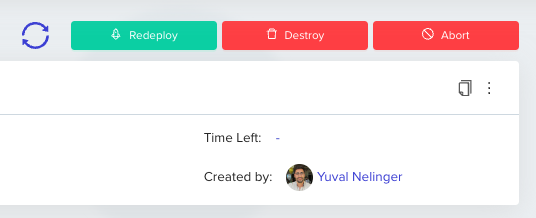
Cancel queued deployments
When a deploy or destroy is in progress, additional requests enter a Queued state. To cancel a queued action before it starts, click Cancel in the Deployments tab.

Import an existing environment
Prerequisites:- Connect your VCS and your cloud account
- Create a template pointing to your Terraform code
- Add variables matching the ones used in the original deployment
You can import environments that were deployed via Terraform and use a remote state backend.
- Go to your Default Organization Project and open the Project Templates page.
- Find the template you created and click Run Now.
- Under Workspace Name, enter the existing Terraform workspace name.
- Uncheck Approve plan automatically to prevent accidental changes.
- Click Run.
Approval flow
For every operation (create, destroy, or redeploy), env zero runs a Terraform plan first. Executing the plan requires approval from a user with Deployer privileges. Deployers and Admins can enable Approve plan automatically to skip the manual approval step. You can set this default in the environment’s Settings tab under General Settings: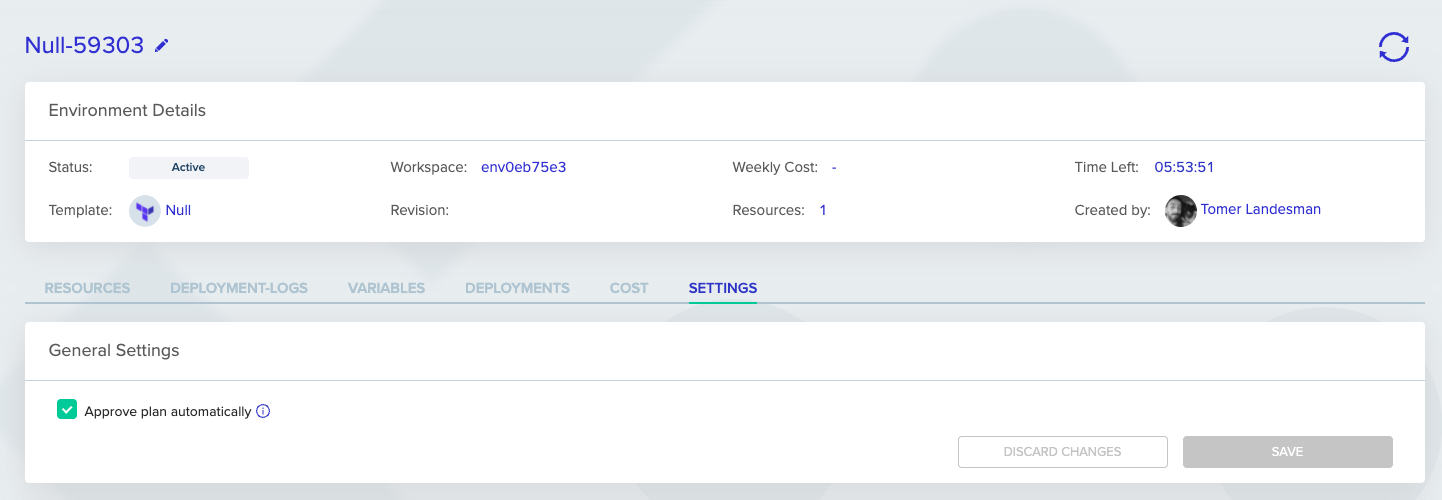
Deployment comments
You can add a comment when creating, redeploying, destroying, or running tasks on an environment. Comments provide context for why an action was taken and appear in the deployment history. To add a comment, write text in the Comment field: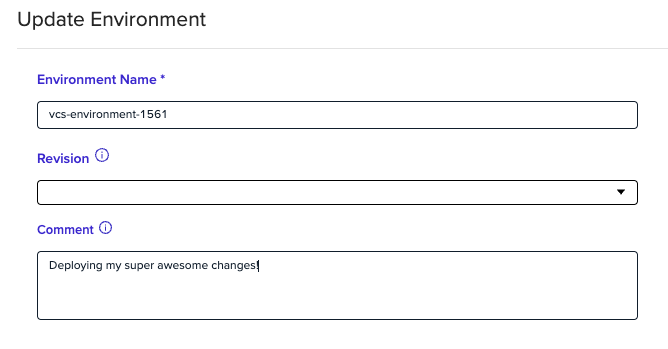
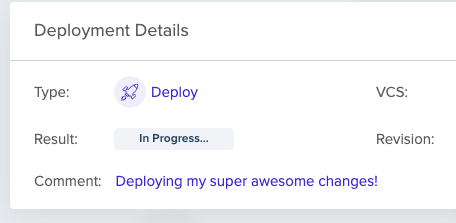
Comments support Markdown.
Finding the environment ID
You may need the environment ID when using the Terraform provider or making API calls. Find it in the details card at the top of the environment page.
Redeploy with a different template
To change the template for an environment, use Redeploy with Different Template from the environment’s context menu.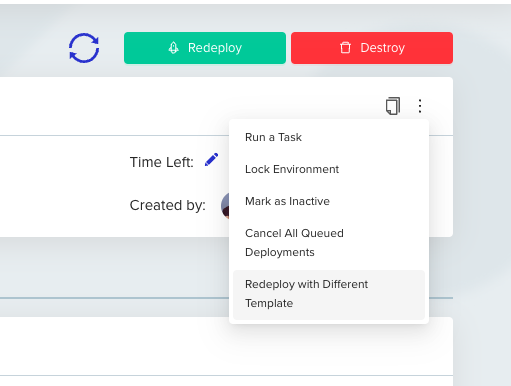
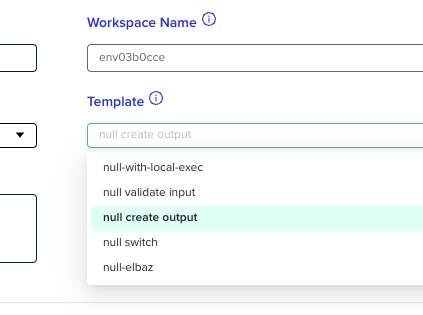
Best practices
Development environments: Use short TTLs. Enable continuous deployment for dev branches. Require manual approval only where necessary. Production environments: Use infinite TTL. Require manual approval for all changes. Use environment locking during maintenance windows.Next steps
- Setting up a new environment - Create your first environment from a template or VCS.
- Using continuous deployment - Automatically redeploy on every git push.
- Managing variables - Set variables and secrets for your environments.
- Template overview - Define reusable environment configurations.